Supplier links tell Plato how an item is purchased from a supplier. Use them when the supplier order unit is different from the storage unit, or when each supplier has its own item code and cost.
  1. Open Items.
  2. Open the item settings page.
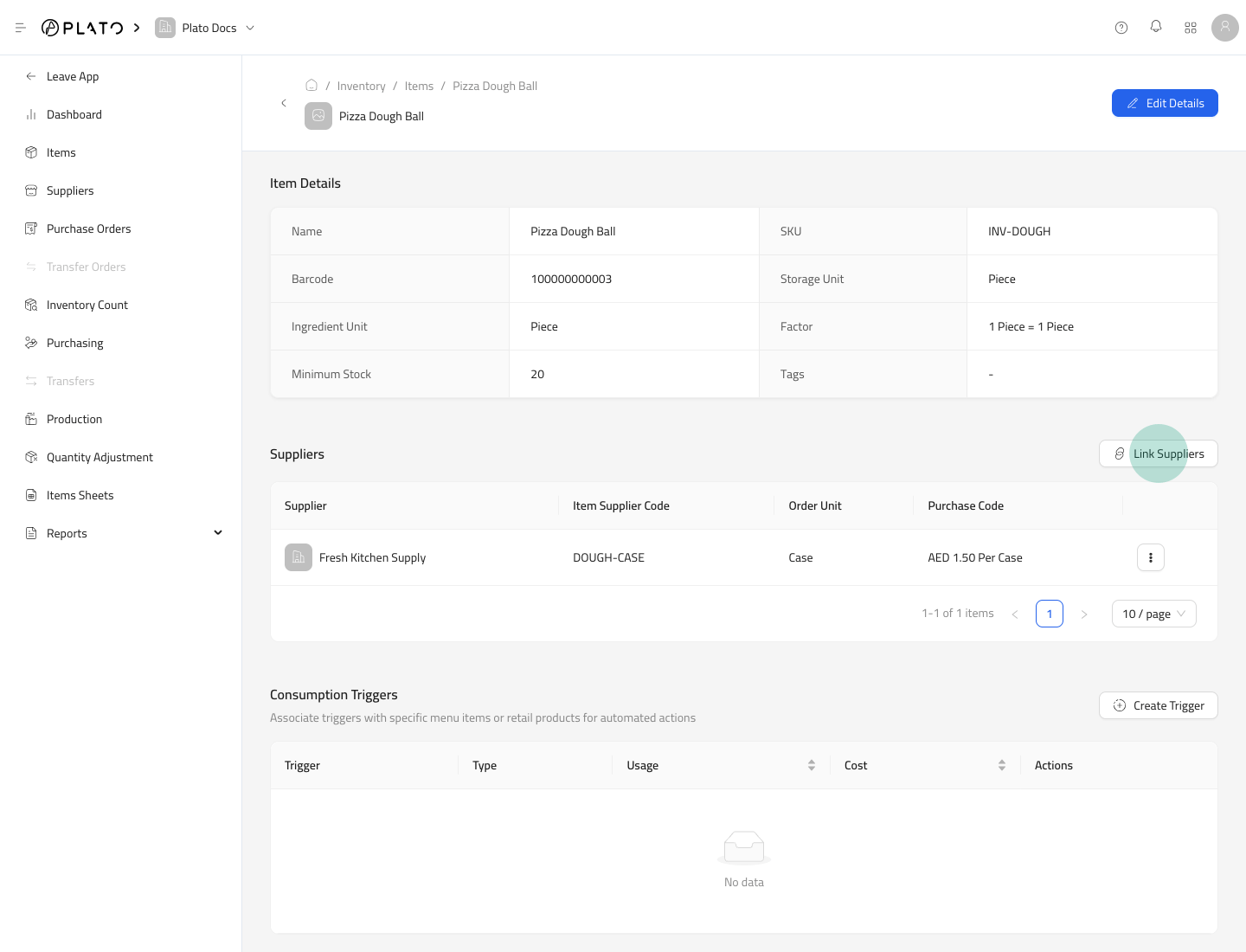
  3. Go to the Suppliers section.
  4. Click Link Suppliers.
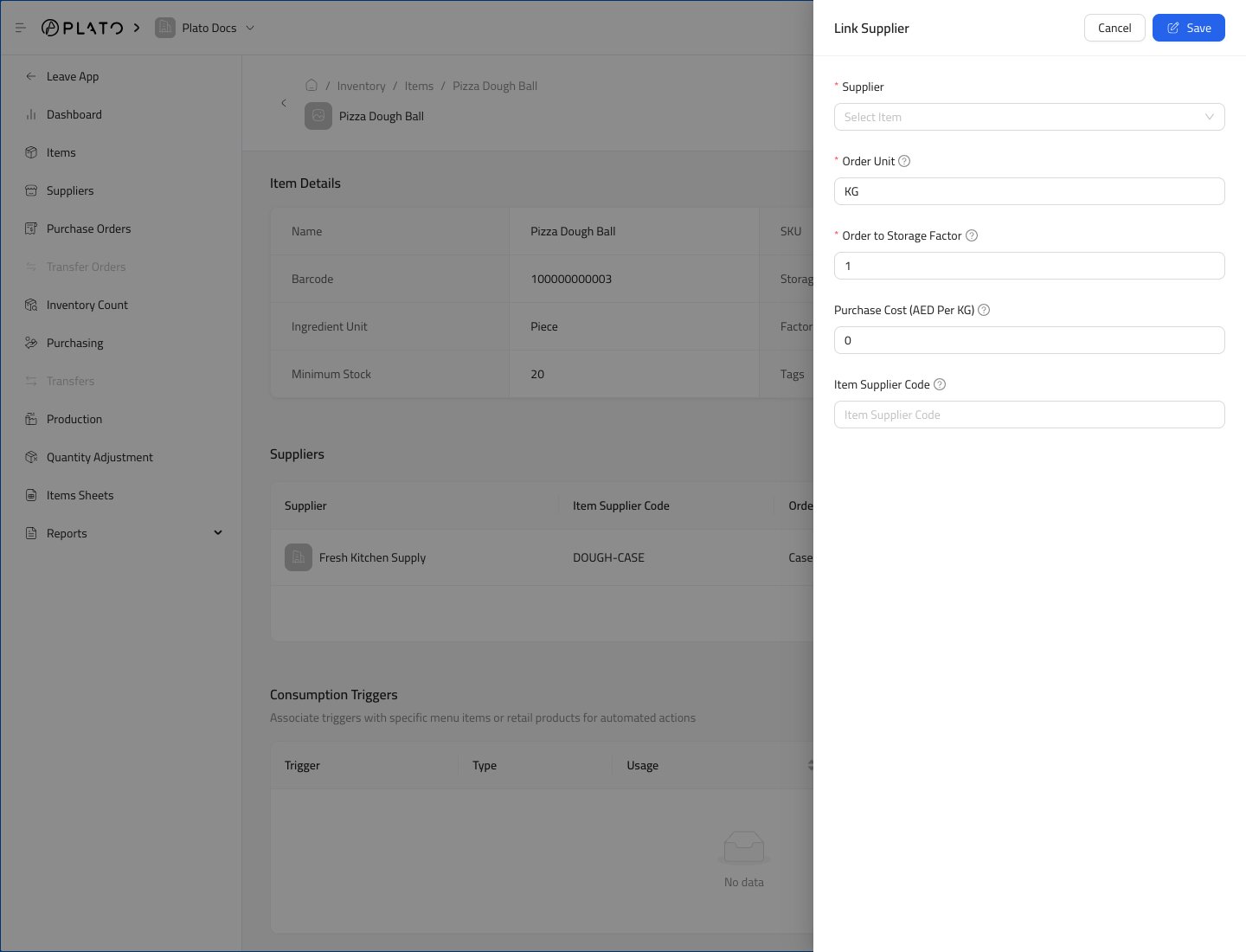
Link supplier action Fill the supplier link form. Link supplier form The link form includes:
  • Supplier
  • Order Unit
  • Order to Storage Factor
  • Purchase Cost
  • Item Supplier Code
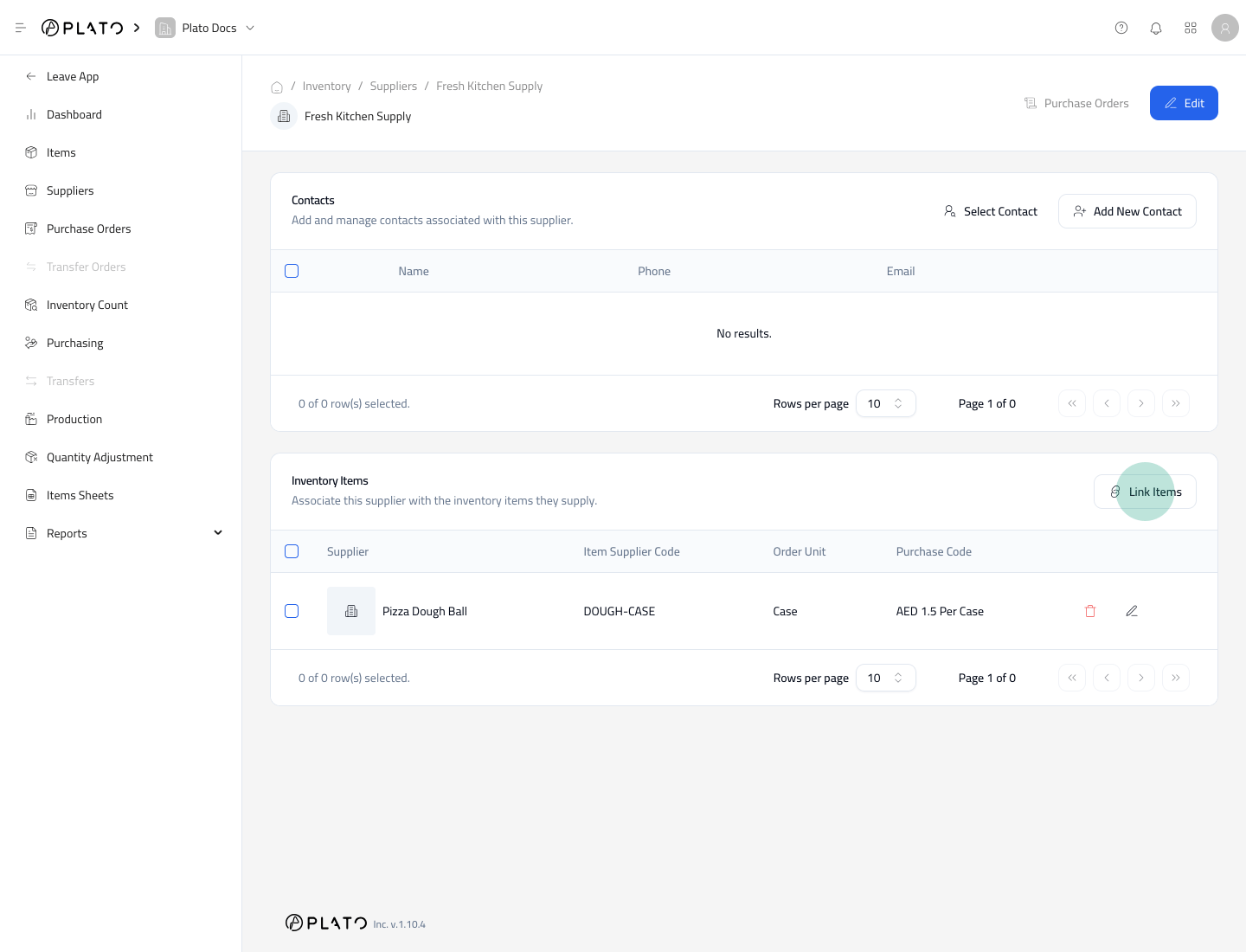
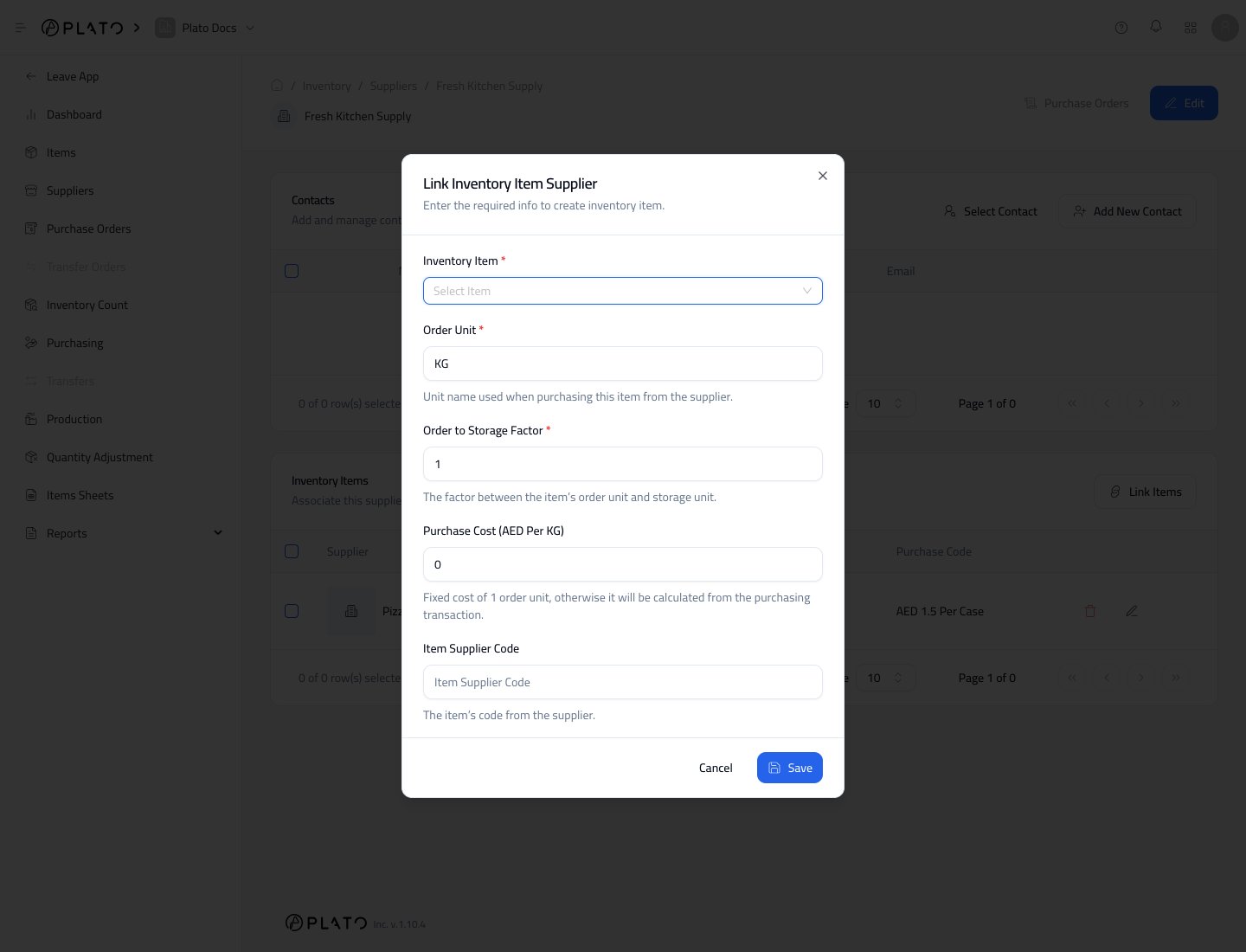
Example: if an item is stored as pieces but purchased as a case of 24, set the order unit to Case and the order-to-storage factor to 24. You can also open a supplier and link items from the supplier detail page. Supplier item link action The supplier-side form is useful when you are setting up many items for one supplier. Supplier item link form Once saved, the supplier appears on the item settings page and the item appears on the supplier details page. This link can help Purchasing calculate quantity and cost when stock is received.