

Update The Profile
The Profile section controls the top of the public Bio Link page.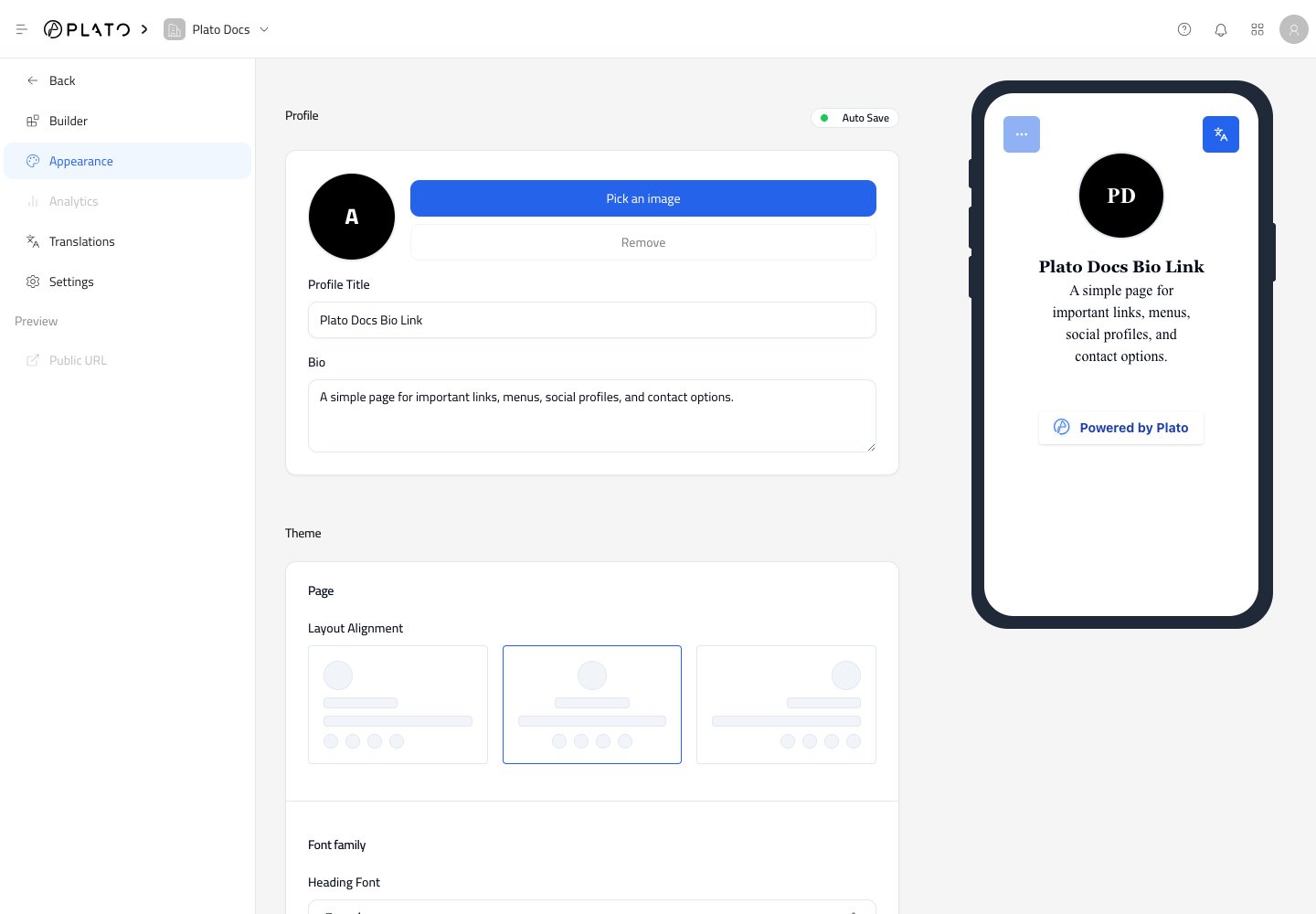
- Profile image.
- Profile title.
- Bio text.
Choose Page Style
The Theme section controls layout, fonts, and colors.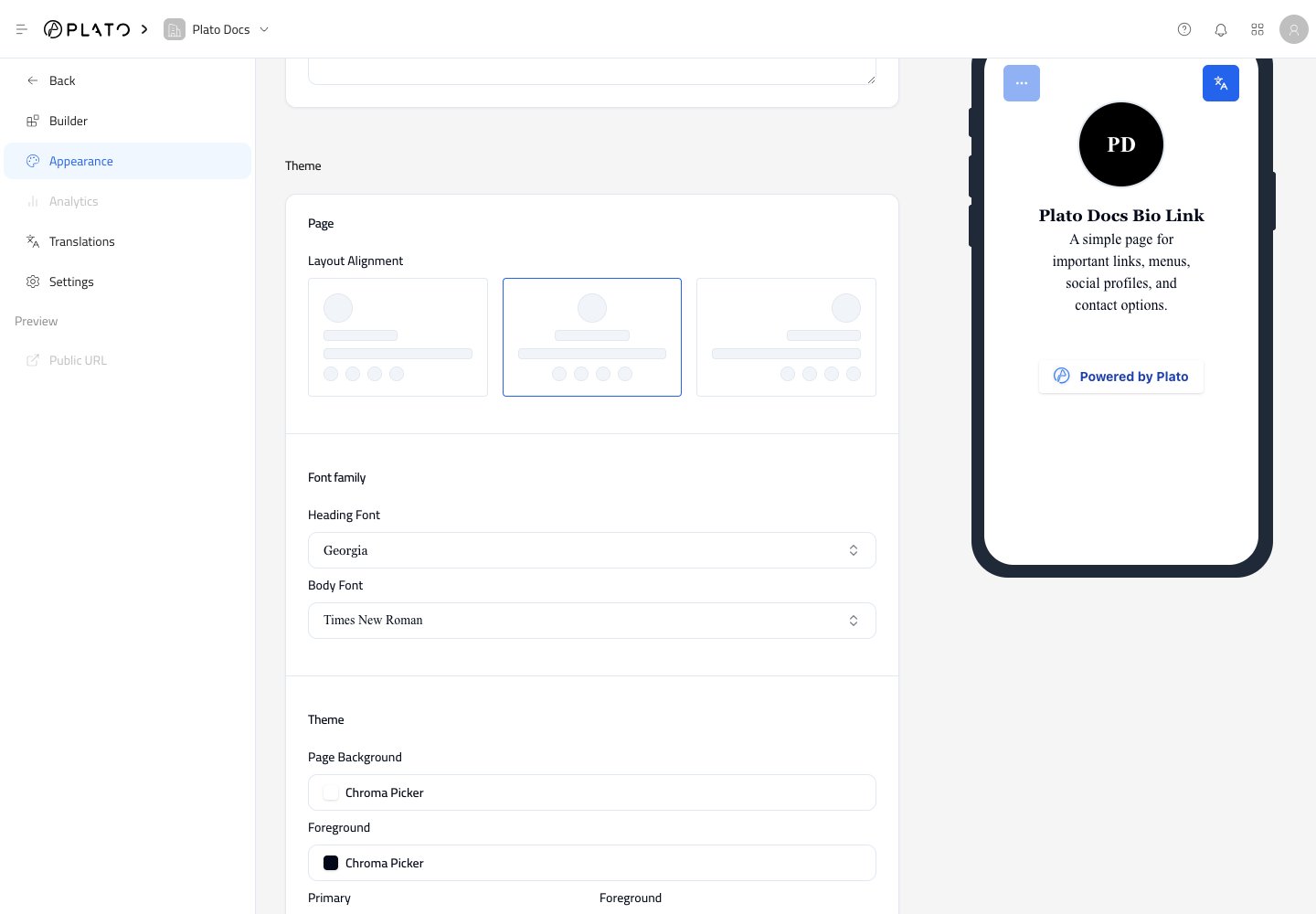
- Page alignment.
- Heading font.
- Body font.
- Page background.
- Text colors.
- Primary and secondary colors.
Save after changing theme settings.
Style Buttons And Blocks
The lower Appearance settings control how blocks look on the public page.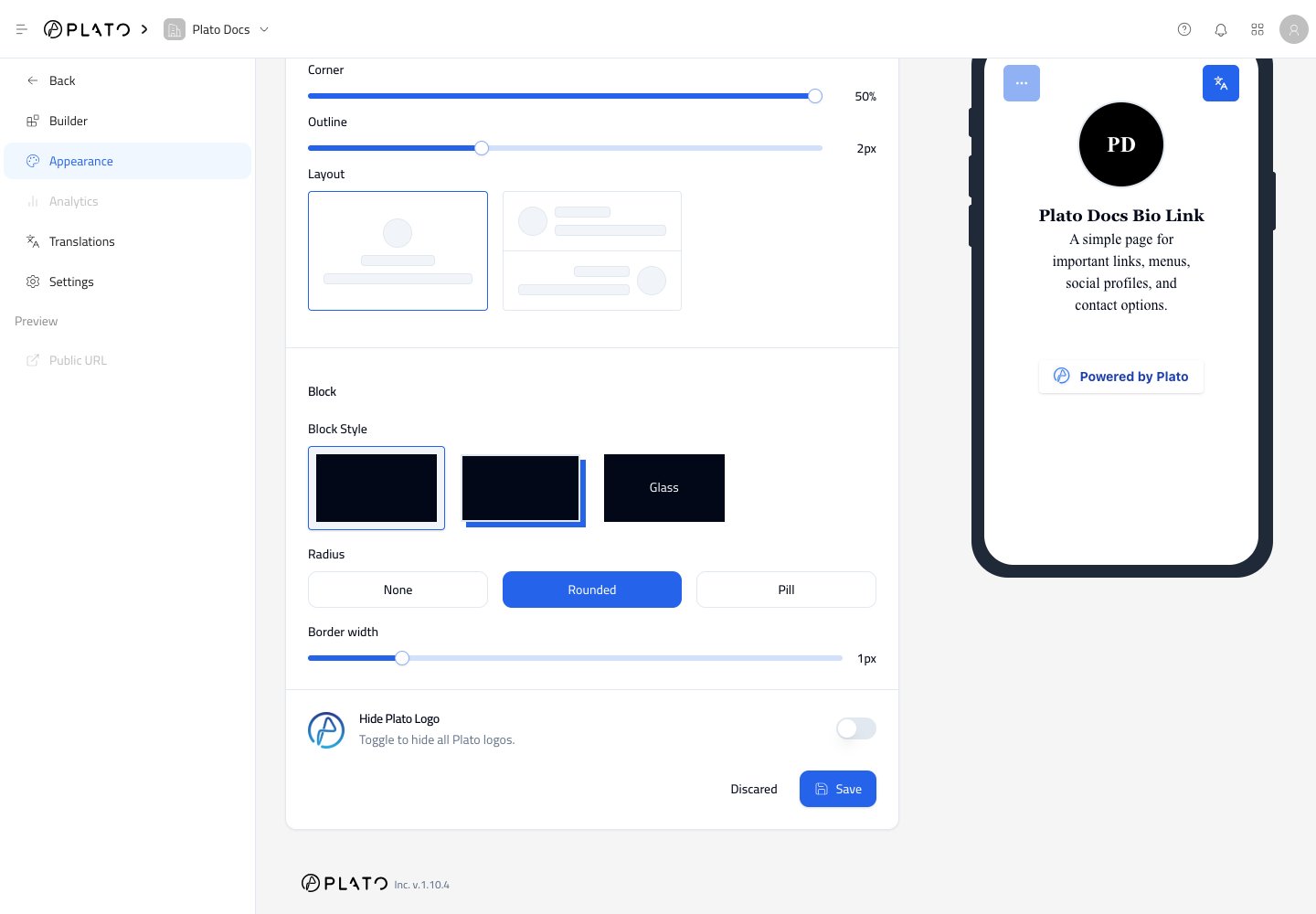
- Profile size, corner shape, outline, and layout.
- Button style.
- Button corner radius.
- Button border width.
- Whether the Plato logo appears on the public page, if your plan allows it.