

Fast Paths
Open A Plato App
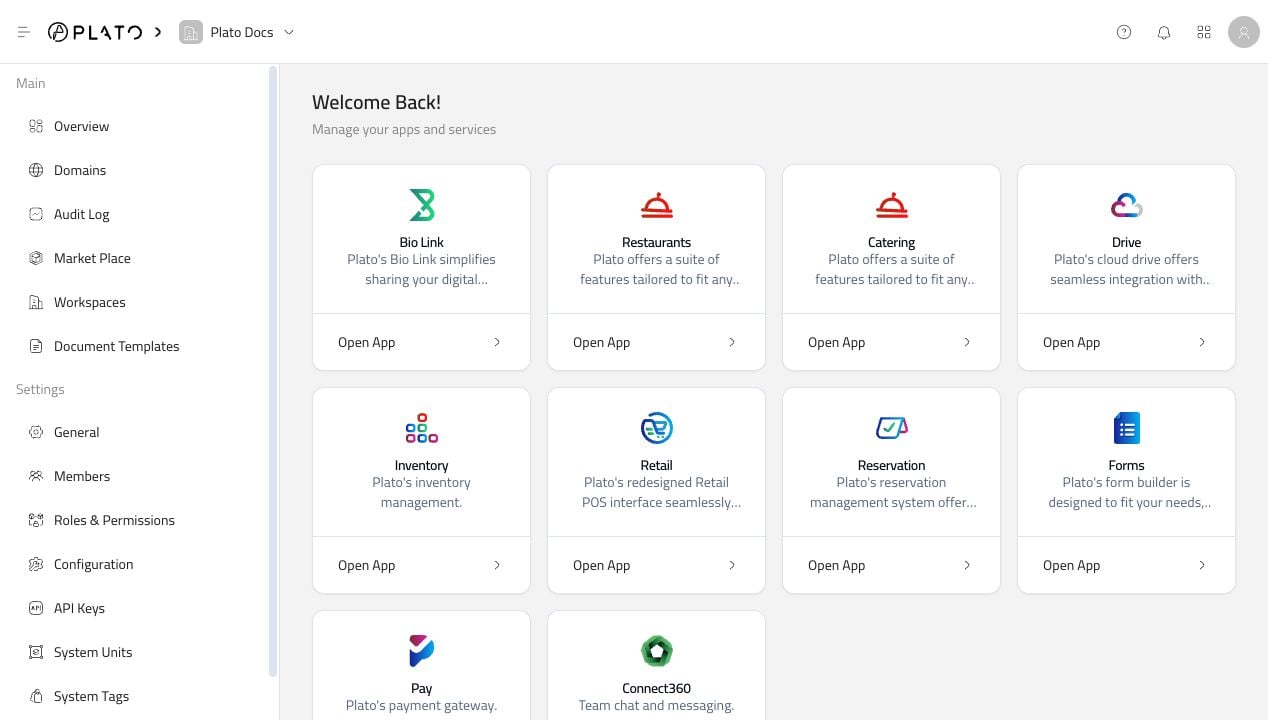
Use the app cards on the dashboard to enter the product your team is working in.
Members And PINs
Invite teammates, manage active members, and set staff PINs for shared devices.
Roles And Permissions
Control who can see workspace settings, apps, reports, and protected actions.
Workspace Configuration
Update location, language, currency, tax, and daily order behavior.
Domains
Connect branded domains for public Plato pages.
API Keys
Create secure access for trusted websites, automations, and reporting tools.
Confirm The Workspace First
Before inviting teammates, changing roles, connecting domains, or updating tax settings, check the workspace name near the top-left of the page. If you work with more than one branch or company, this step matters. Settings are saved to the workspace currently selected in the Console.Open An App From A Card
Each available app appears as a card on the dashboard. ClickOpen App on the card you want to use.
For example, open Bio Link when you want to manage profile links, or open Restaurants when you want to manage restaurant operations.
After you open an app, the sidebar changes to that app’s own pages. Use the app-specific docs for work inside that app, such as adding Bio Link buttons or managing Restaurant menus.
Use The Root Sidebar
The left sidebar is for workspace-level pages. Main pages help you move around the workspace:Overview, Domains, Audit Log, Market Place, and Workspaces.
Settings pages help you control the workspace: Members, Member PINs, Roles, Configuration, API Keys, Units, Tags, and Notifications.
When you enter an app, the sidebar changes. Use Leave App when you want to return to these root Console pages.
Find More Apps In Marketplace
The Market Place page helps you discover Plato apps that are not active in your workspace yet.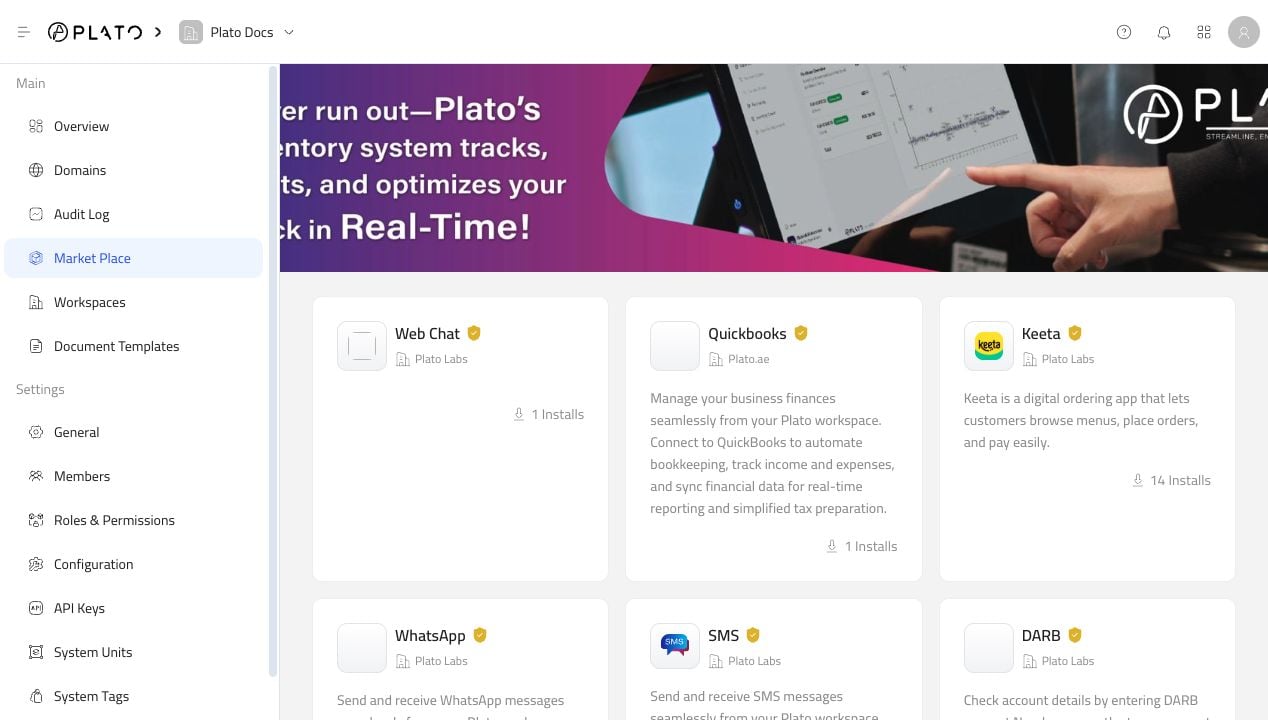
If Something Looks Missing
If you do not see an app card, page, or button, check these first:- Make sure you are in the correct workspace.
- Refresh the Console.
- Ask the workspace owner to confirm the app is active for the workspace.
- Ask the workspace owner to confirm your role includes that page or action.
Good First Tasks
If you are setting up a workspace for the first time, a good order is:- Open Configuration and confirm address, language, currency, and tax settings.
- Open Roles and create the roles your team needs.
- Open Members and invite teammates.
- Open Domains if a public app needs a custom domain.
- Open the app you want to manage and continue from that app’s guide.