

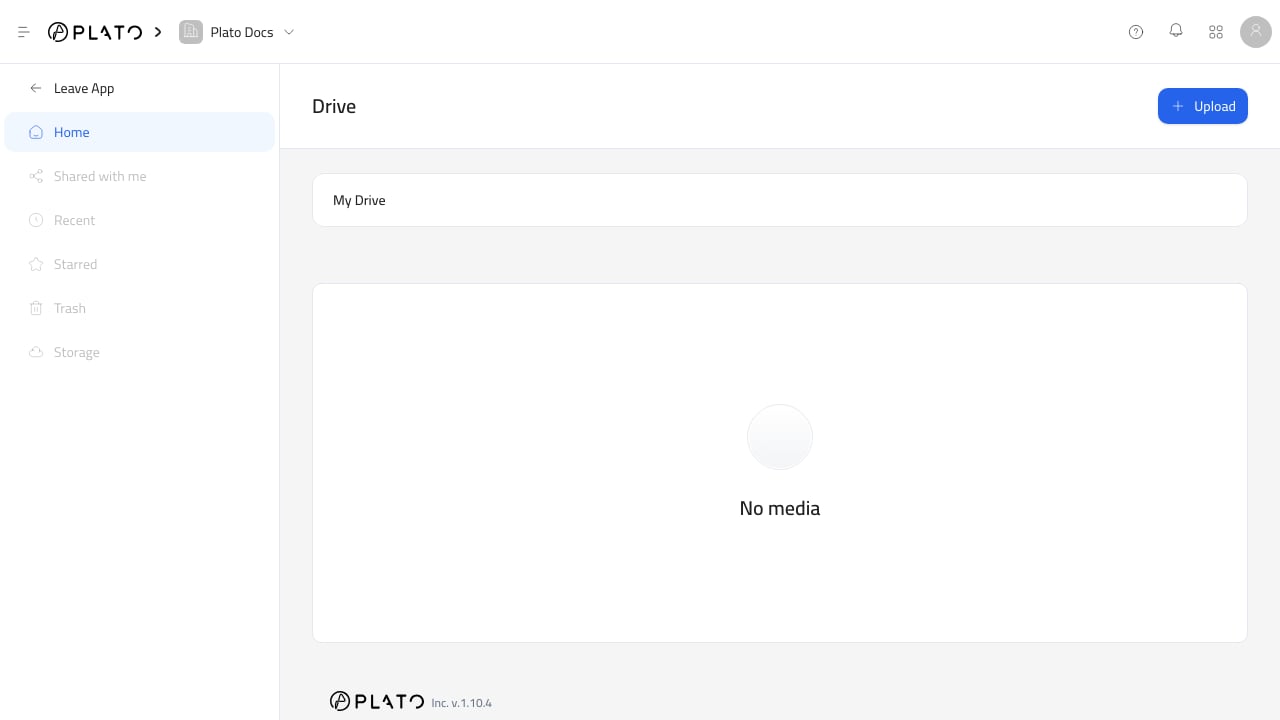
Open Drive
- Open the Console at
app.plato.ae. - Confirm the correct workspace in the top-left workspace selector.
- Go to
Overview. - Open
Drive.
Home is the active area for the current Drive experience.
Browse Folders
Use the folder navigation bar near the top of Drive to understand where you are. Click a folder card to open it. The folder list and file list update to show only the contents of that folder. Use the breadcrumb path to move back up to a parent folder or the Drive root.Create A Folder
- Click
Upload. - Choose
Create Folder. - Add a folder name.
- Add an optional description.
- Click
Create Folder.
Organize Files Clearly
Use folders when files belong to a real workflow or audience. Good examples:- Menu photos.
- Brand assets.
- Receipt logos.
- Social icons.
- Customer attachments.
- Documents for templates.
Empty Drive
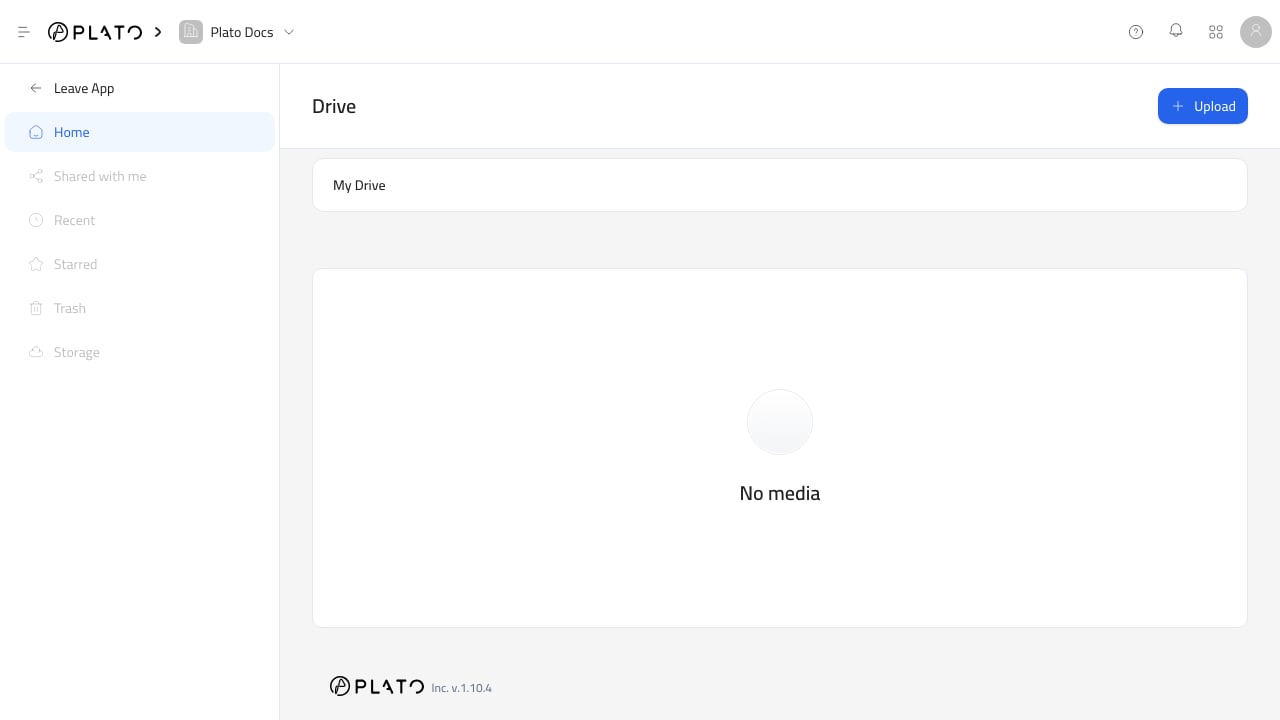
If Drive showsNo media, the current folder has no folders or files yet. Upload a file or create a folder to start organizing the library.