

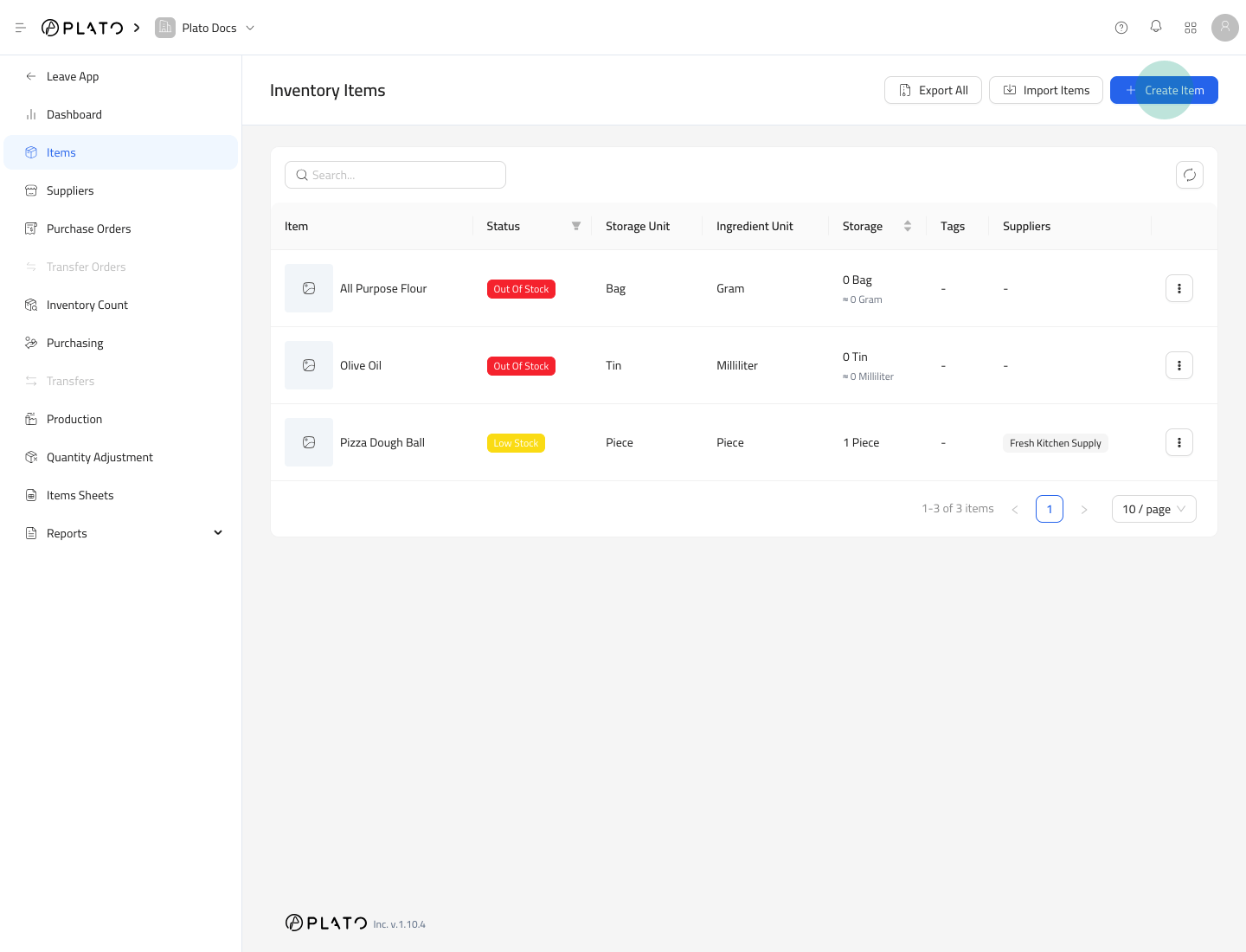
Create an Item
- Open
Inventory. - Go to
Items. - Click
Create Item. - Fill the item setup form.
- Click
Save.
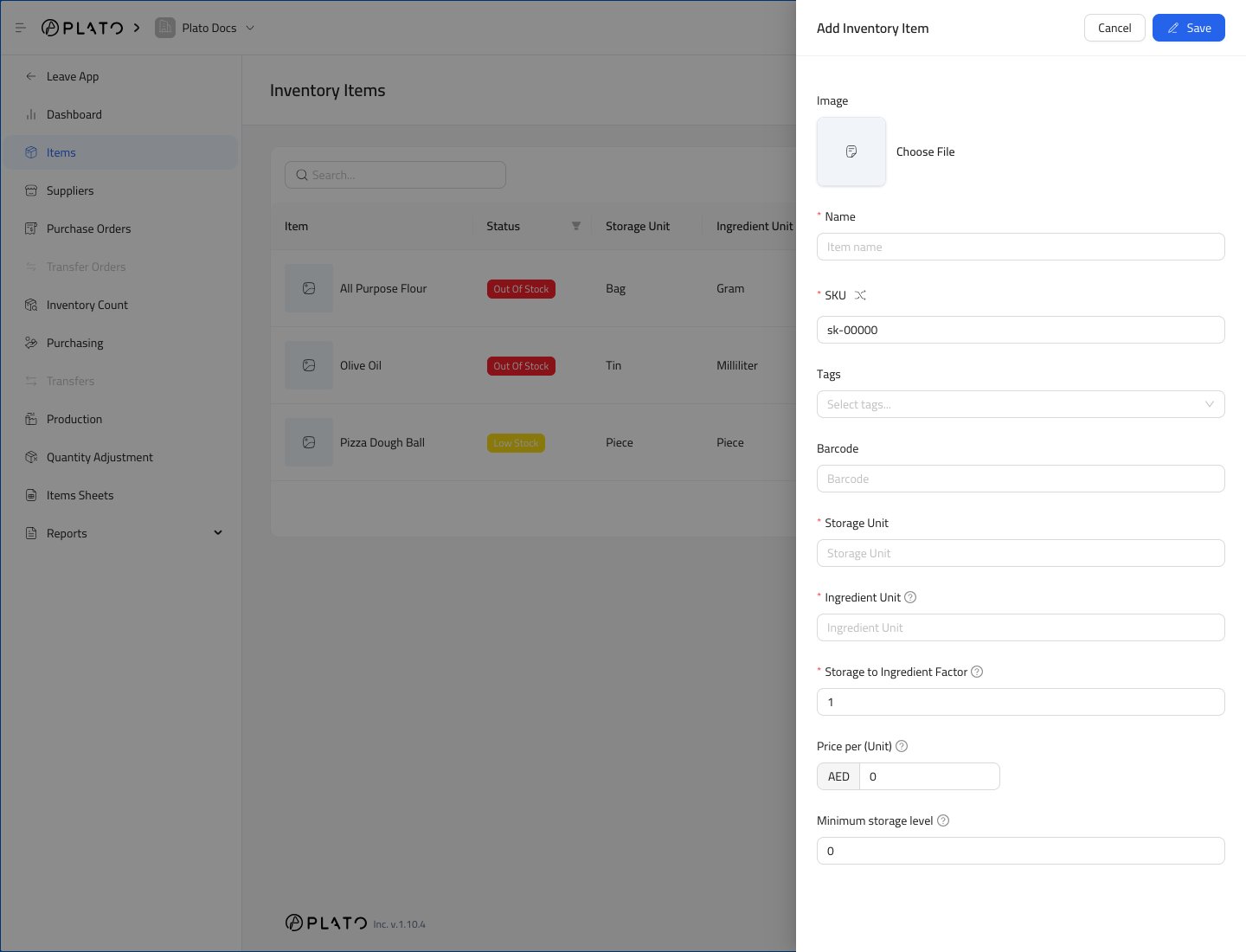
Item Fields
Use a clear item name that staff will recognize on counts, purchasing, and reports. The main fields are:Nameis the display name.SKUis the item code used in lists and reports.Barcodeis optional, but useful if your team scans items.Storage Unitis how the item is stored, such as bag, tin, bottle, case, or piece.Ingredient Unitis how the item is used in recipes or consumption, such as gram, milliliter, or piece.Storage to Ingredient Factortells Plato how many ingredient units are inside one storage unit.Pricestores the item cost.Minimum storage levelcontrols low-stock alerts.
Example Unit Setup
If flour is stored by bag but used by gram:- Set
Storage UnittoBag. - Set
Ingredient UnittoGram. - Set
Storage to Ingredient Factorto the number of grams in one bag.
Edit an Item
- Open
Items. - Open the row action menu for the item.
- Select
Edit Item. - Update the item details.
- Save the changes.