

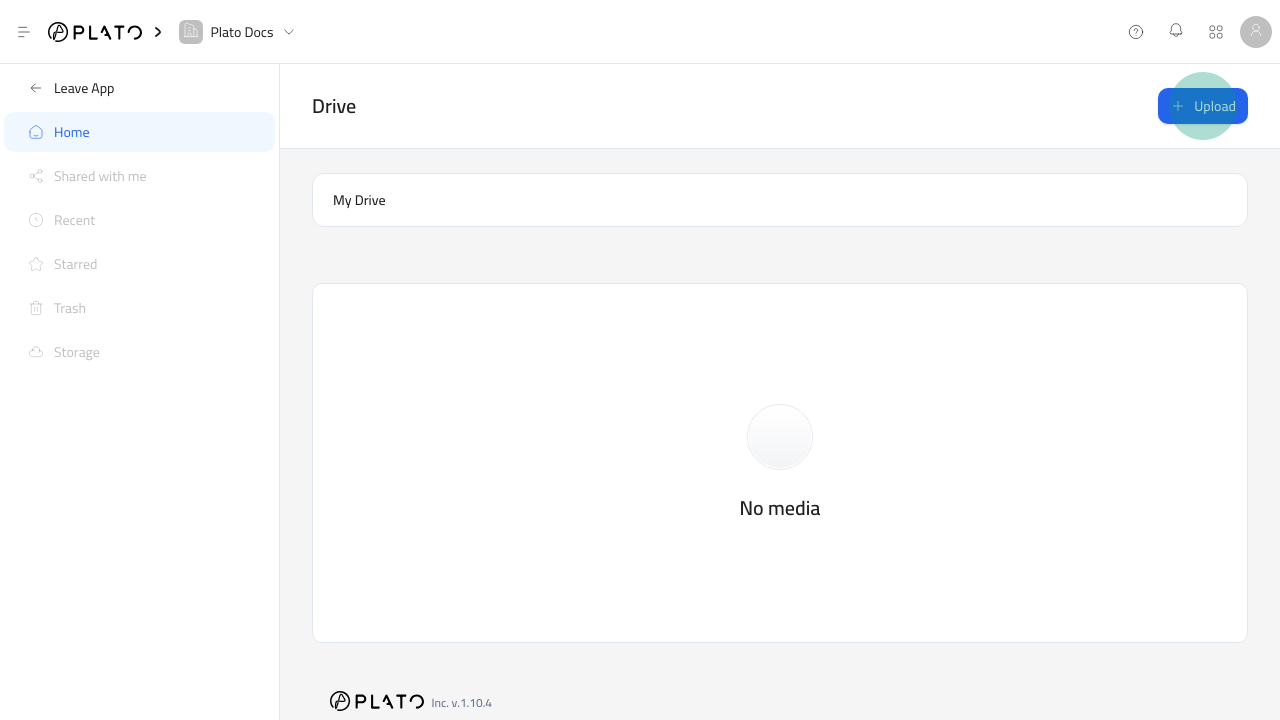
Upload From Drive
- Open
Drive. - Open the folder where the file should live.
- Click
Upload. - Choose
Upload File. - Select the file or files from your device.
- Wait for the upload to finish.
Upload From Another App
Many Plato fields use the Drive picker. When a field opensPlato Drive, you can either select an existing file or open the Upload tab to add a new one.
After uploading from the picker, Plato returns you to My Drive and selects the new file so you can insert it into the field.
Supported File Types
The Drive endpoint accepts common workspace files:- Images.
- PDFs.
- Videos.
- Spreadsheets.
- Presentations.
- Audio files.
- Documents.
- Text files.
- Zip files.
- Other files through the general file fallback.
Upload Limits
The current Drive upload configuration allows up to 5 files in one upload and supports files up to1GB.
Workspace storage and folder limits still depend on the workspace plan. See Storage And Limits.
Use Clear File Names
Use names your team will recognize later. For example,main-menu-burger-hero.jpg is easier to reuse than IMG_4821.jpg.
If a file will be used publicly, check it after upload before adding it to a menu, Bio Link, message, document, or website.