

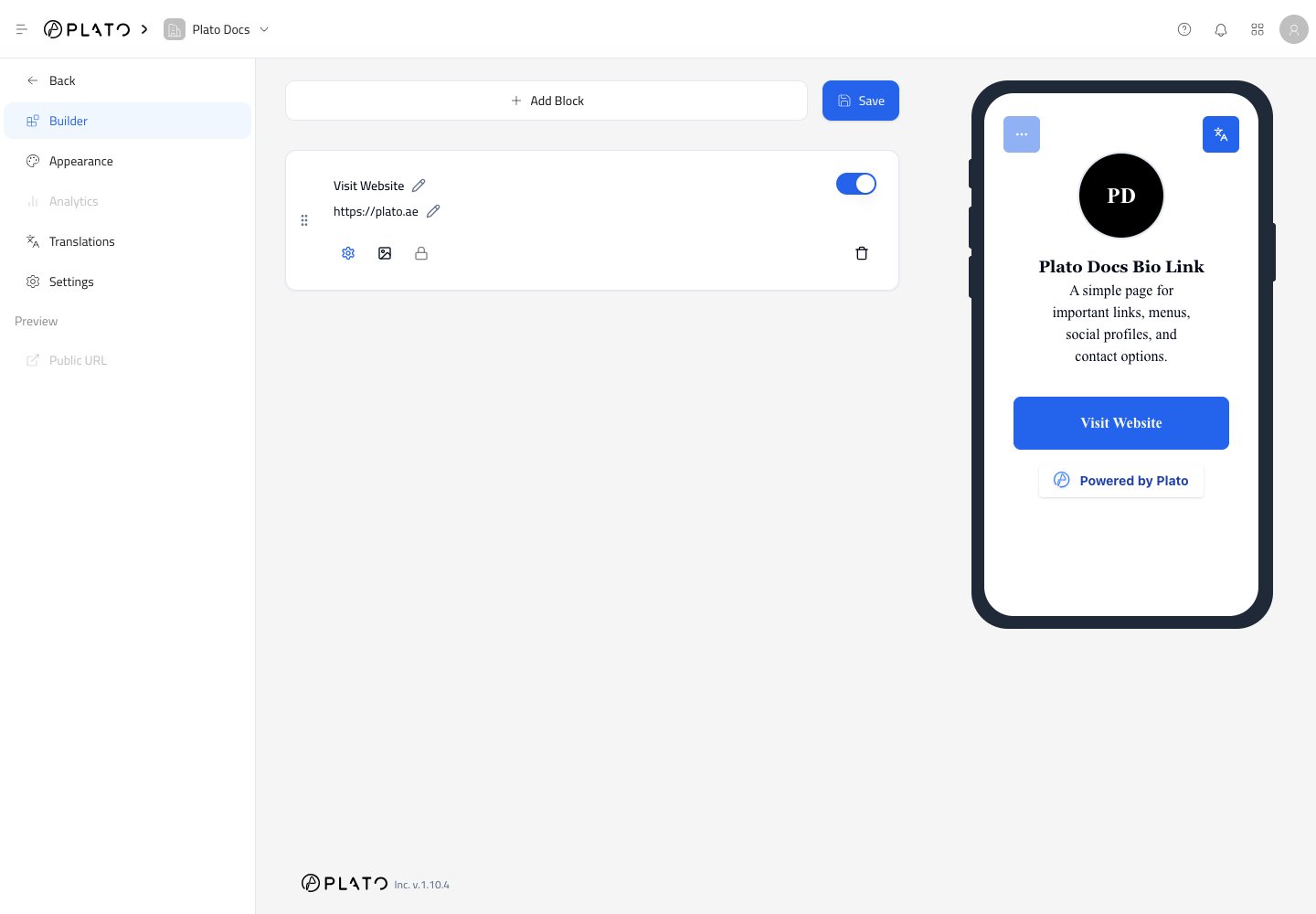
Add A Block
ClickAdd Block to choose what you want to add.
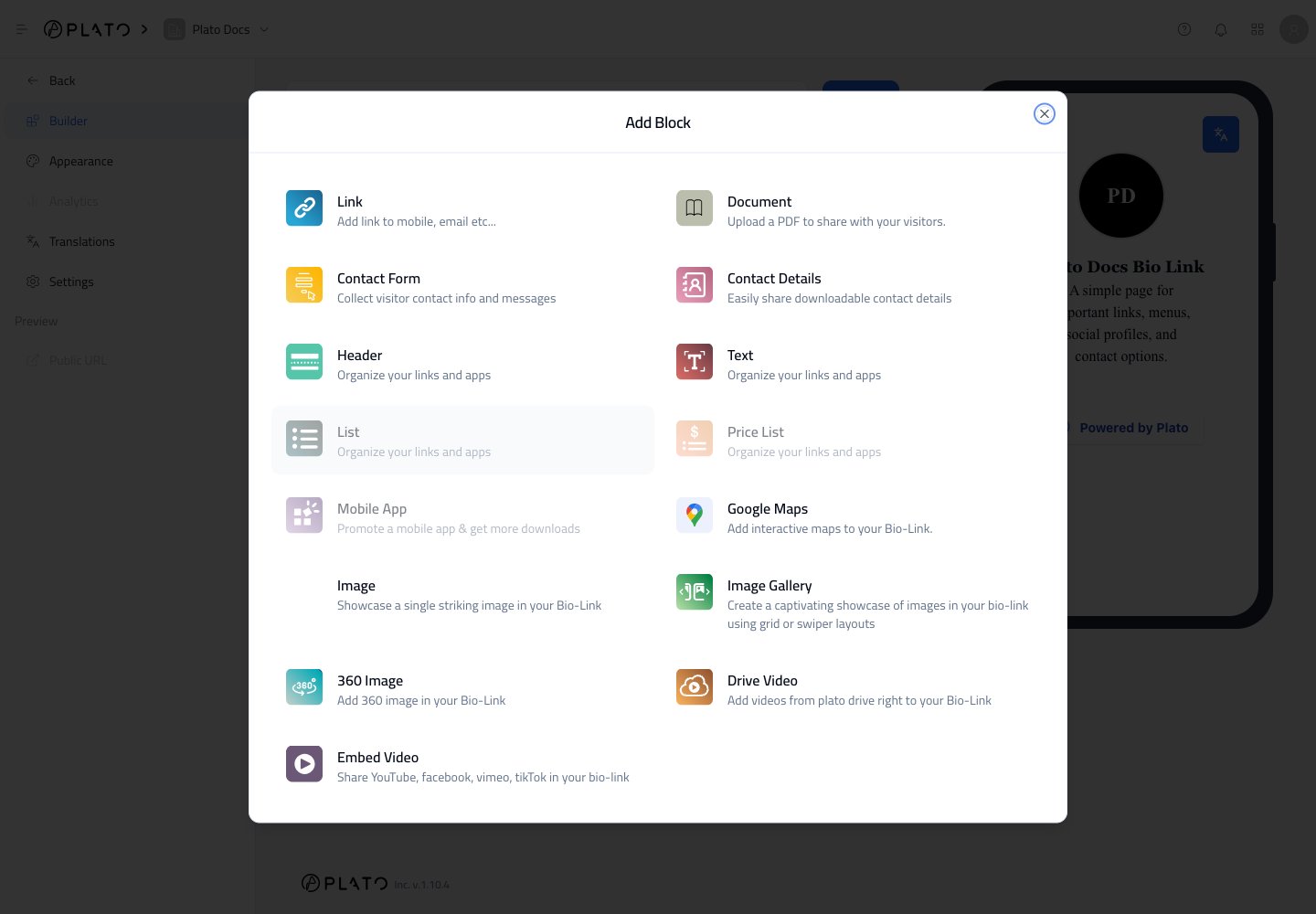
Linkfor buttons to websites, menus, booking pages, WhatsApp, email, or phone numbers.Contact Formfor collecting visitor messages.Contact Detailsfor sharing business contact information.HeaderandTextfor organizing sections.Google Mapsfor showing a location.Image,Image Gallery, and360 Imagefor visual content.Drive VideoorEmbed Videofor video content.Documentfor sharing a PDF.
Edit A Link Button
After adding aLink block, click the title or URL text to edit it.
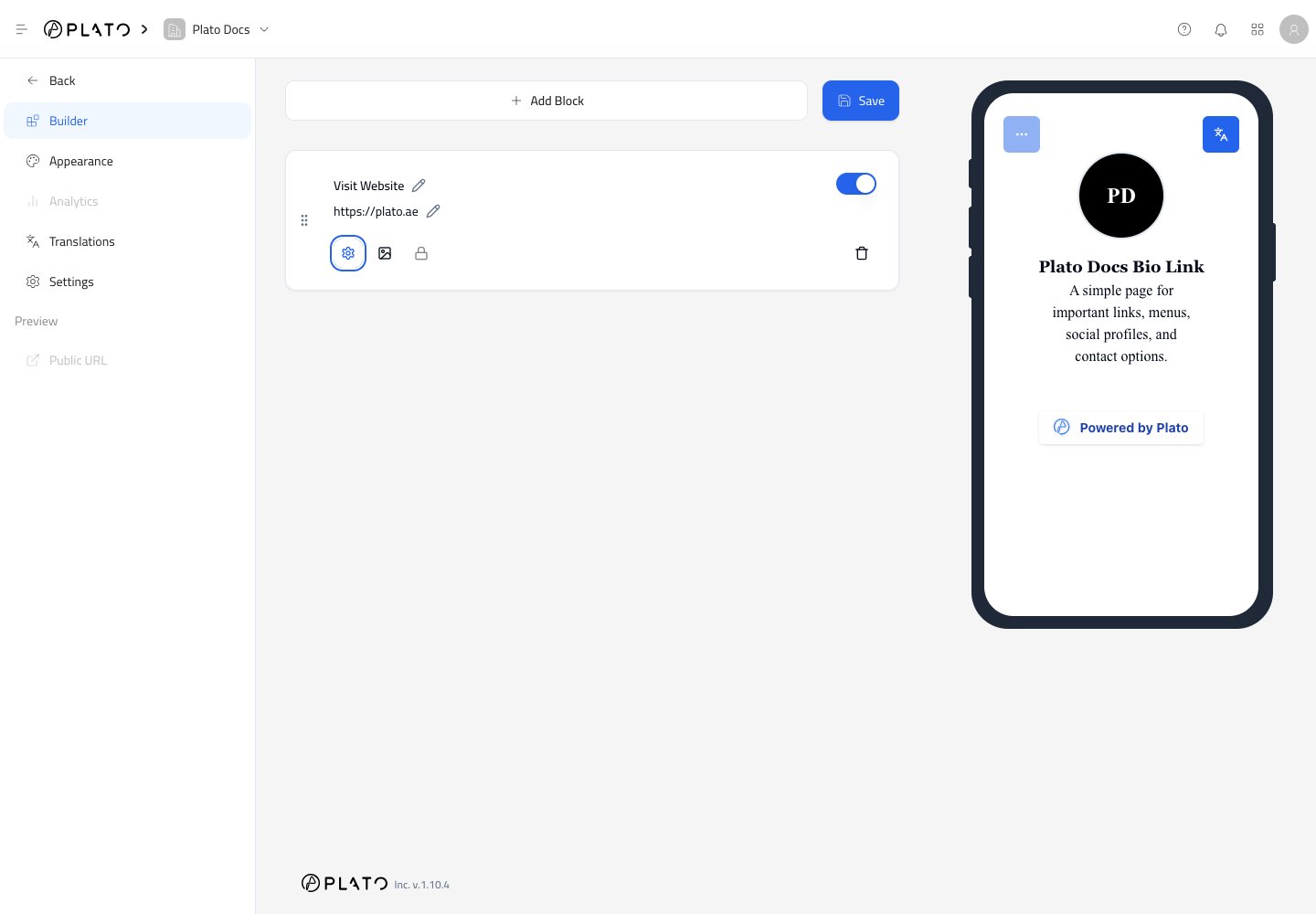
- Drag the block to a new position.
- Turn the block on or off.
- Edit title and URL.
- Open link options.
- Add a thumbnail image.
- Delete the block.
Save Changes
The Builder does not publish block changes until you clickSave.
After saving, check the phone preview and open the public page once to confirm the link works as expected.