

Upload Does Not Start
Check:- The file type is allowed by the current field.
- The file is under the supported upload size.
- The workspace has available storage.
- The browser tab is still online.
- You are signed in to the correct workspace.
File Does Not Appear After Upload
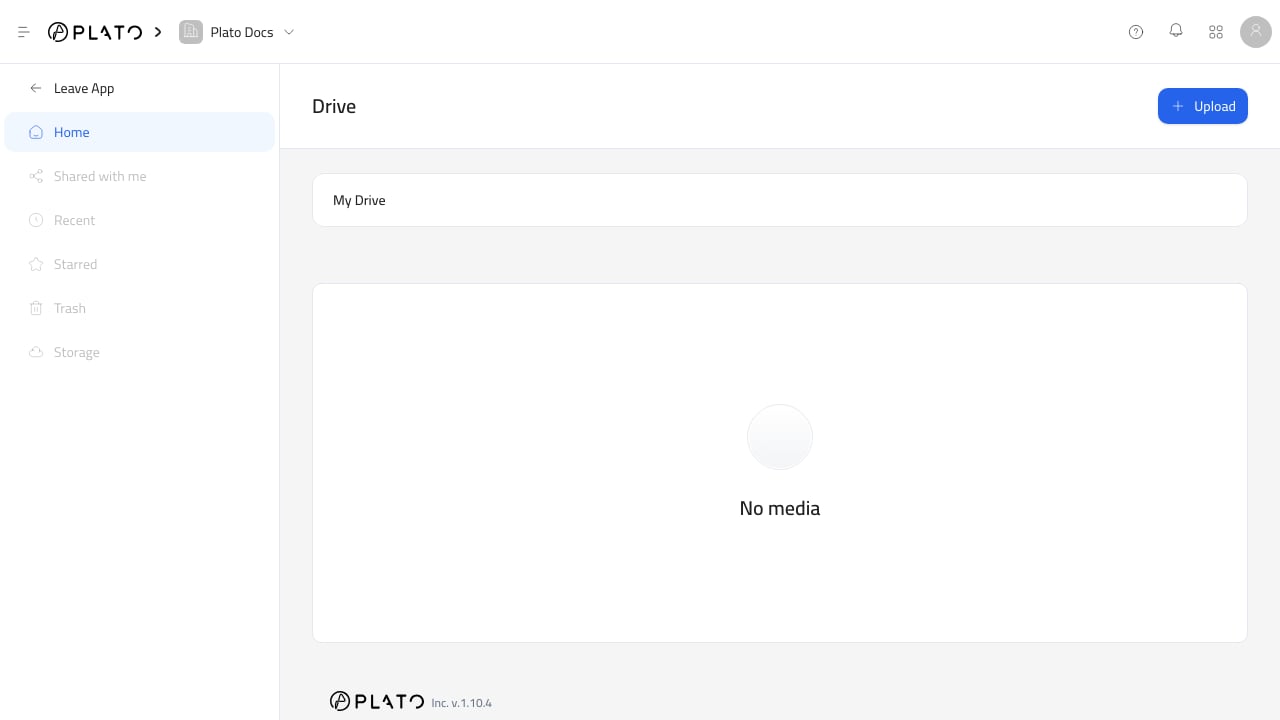
Check whether you uploaded into a folder. The file appears in the folder that was open during upload. If you uploaded from a Drive picker, return to theMy Drive tab and check the selected file or current folder.
File Is Missing From A Picker
Some pickers filter file types. For example, an image field may hide PDFs, videos, documents, and zip files. Open the main Drive app to confirm the file exists, then check whether the field supports that file type.Preview Is Not Available
Not every file type has an inline preview. If Drive showsNo Supported Preview, download the file and open it with the right app on your device.
Folder Cannot Be Deleted
A folder must be empty before it can be deleted. Open the folder and remove any files or subfolders first. Then return to the parent folder and delete it again.Deleted File Still Appears Somewhere
The app using the file may need a refresh. If the file was used in a public page, menu, document, or message, replace the missing asset with a new Drive file. Deleting from Drive does not automatically choose a replacement in every app that referenced the old file.Teammate Cannot Access Drive
Check:- The teammate is in the right workspace.
- The workspace plan includes Drive.
- Their role includes Drive access.
- They are opening the Console with the correct account.