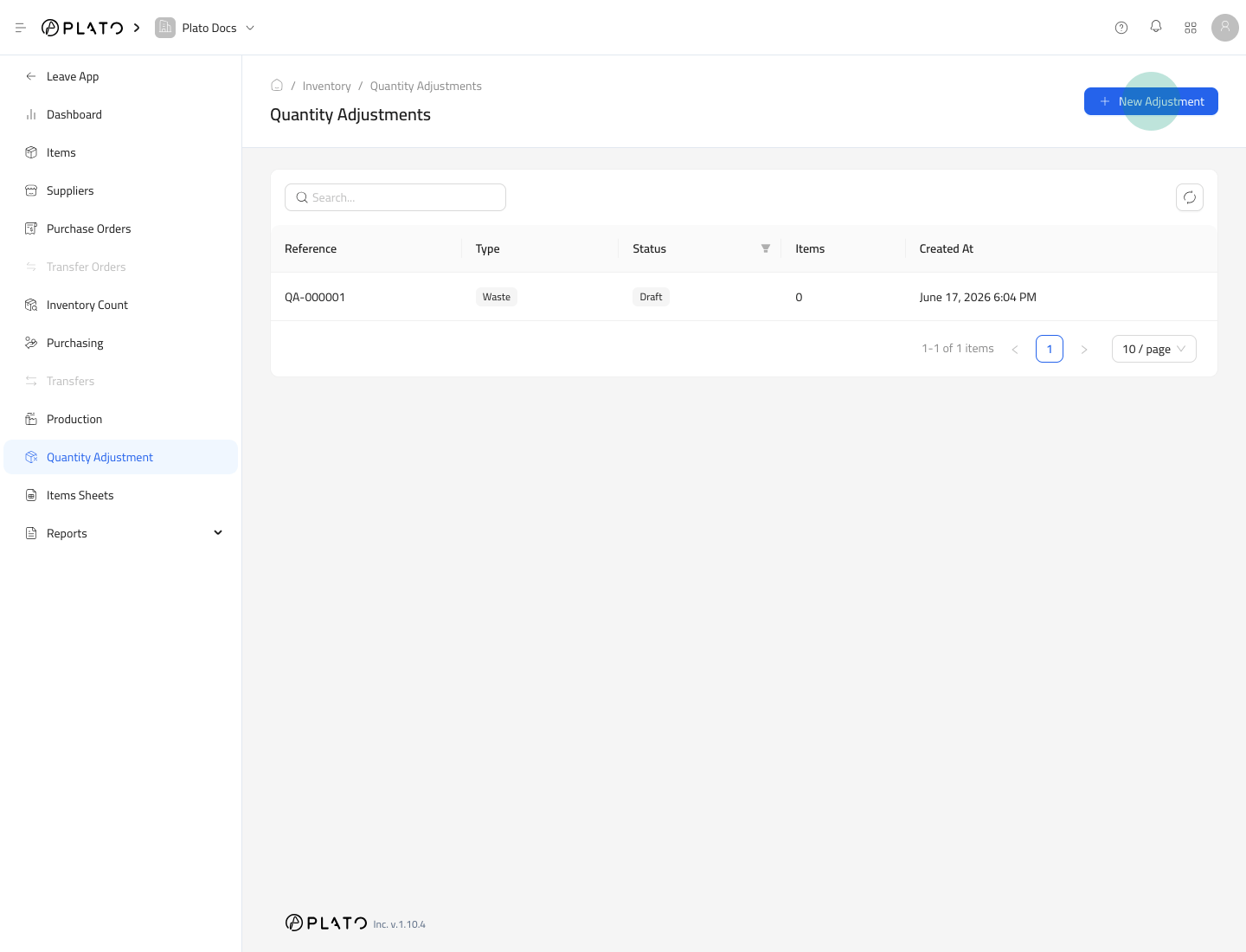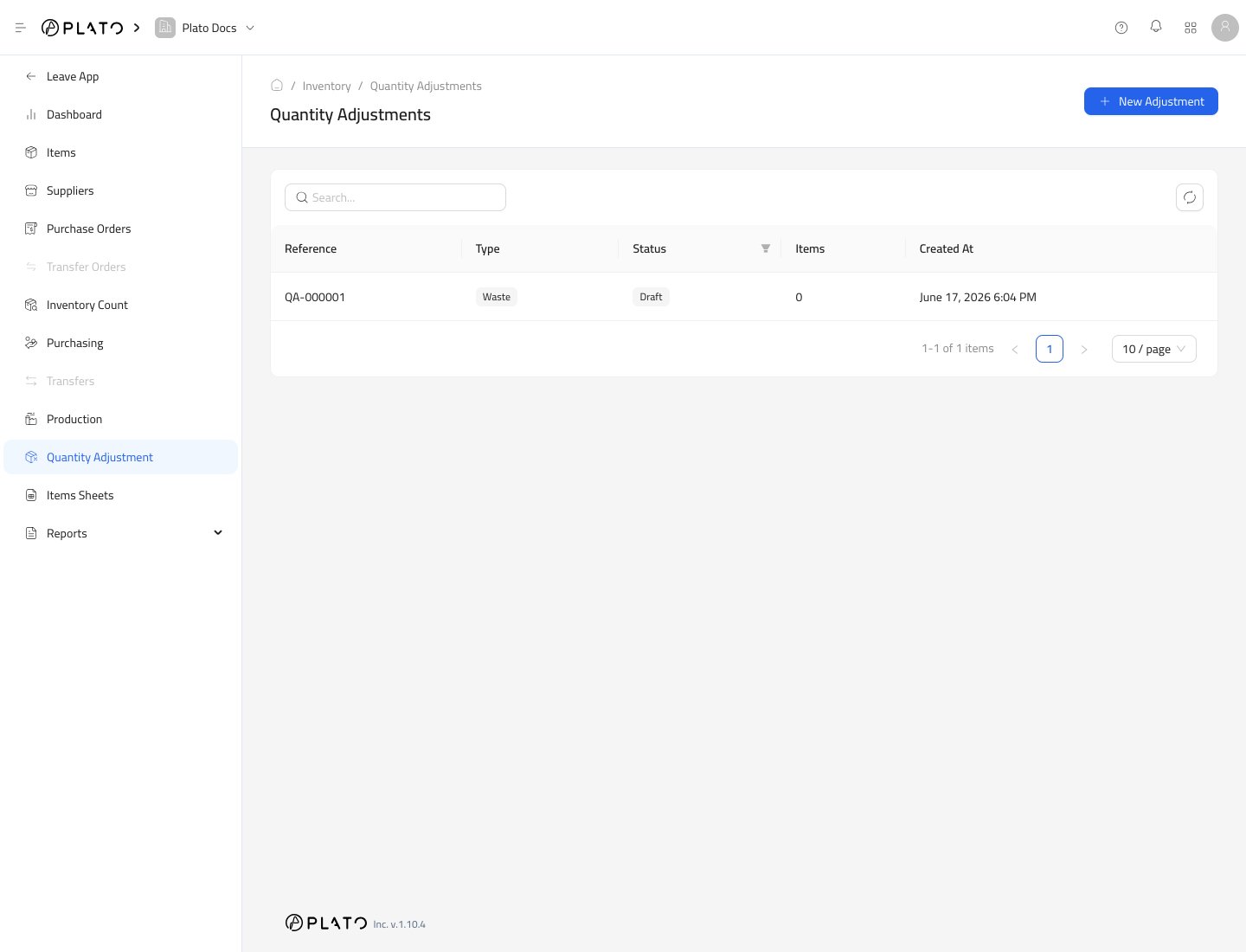
Quantity Adjustments reduce stock when items are no longer available for use or sale. Use this for waste, expired items, damaged stock, or theft. Quantity adjustments list

Start an Adjustment

  1. Open Inventory.
  2. Go to Quantity Adjustment.
  3. Click New Adjustment.
New adjustment action
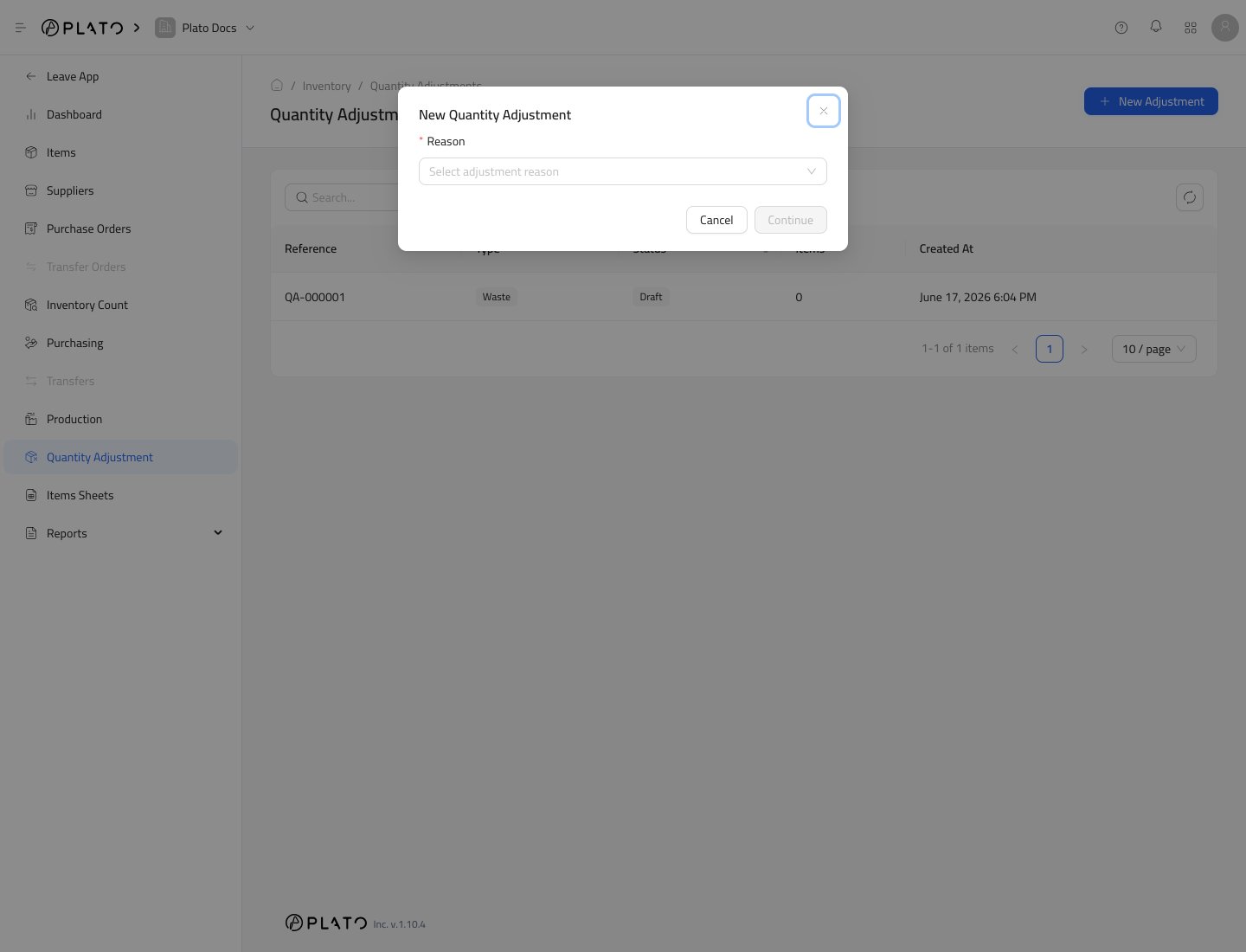
  1. Choose the reason.
  2. Click Continue.
Adjustment reason modal

Add Items

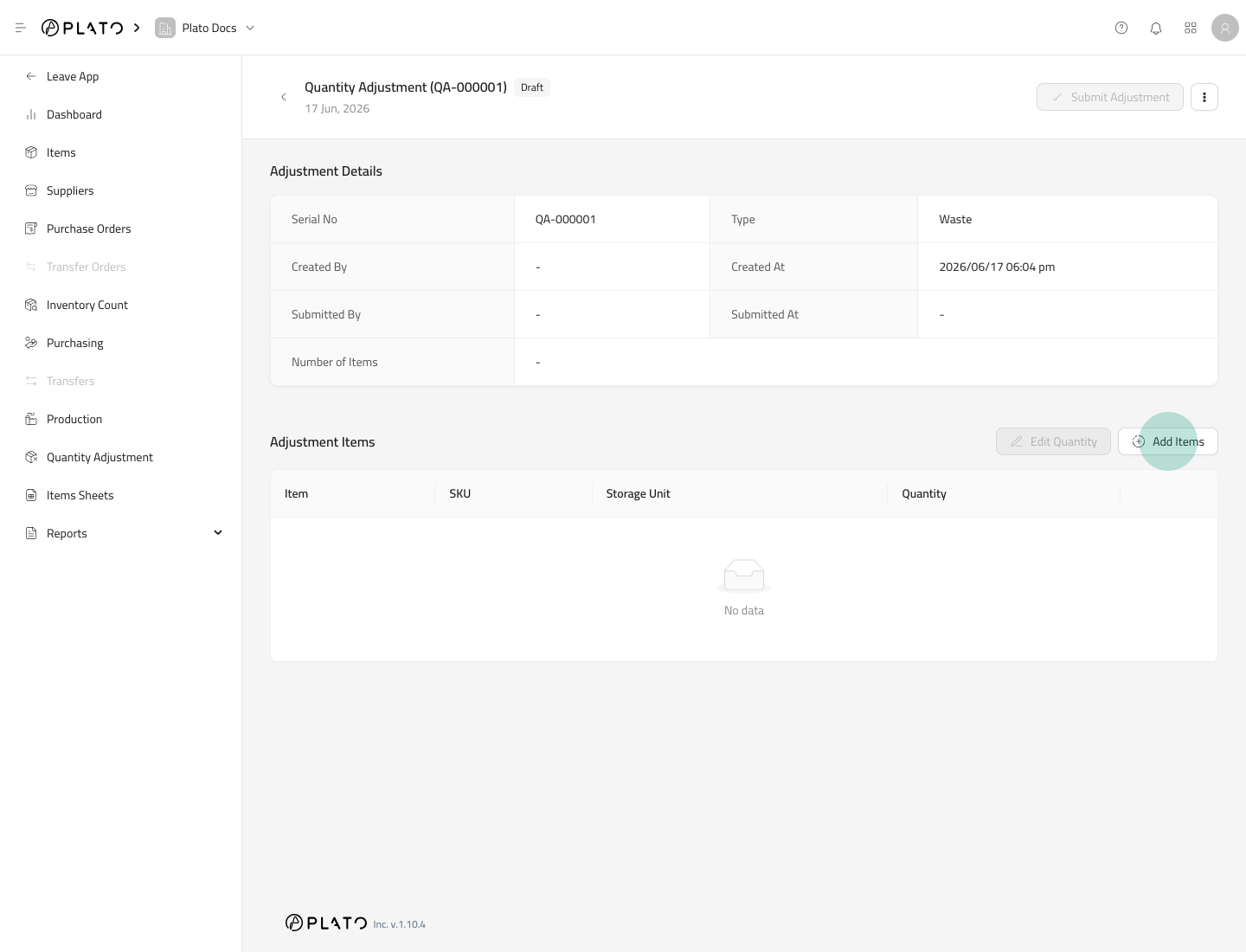
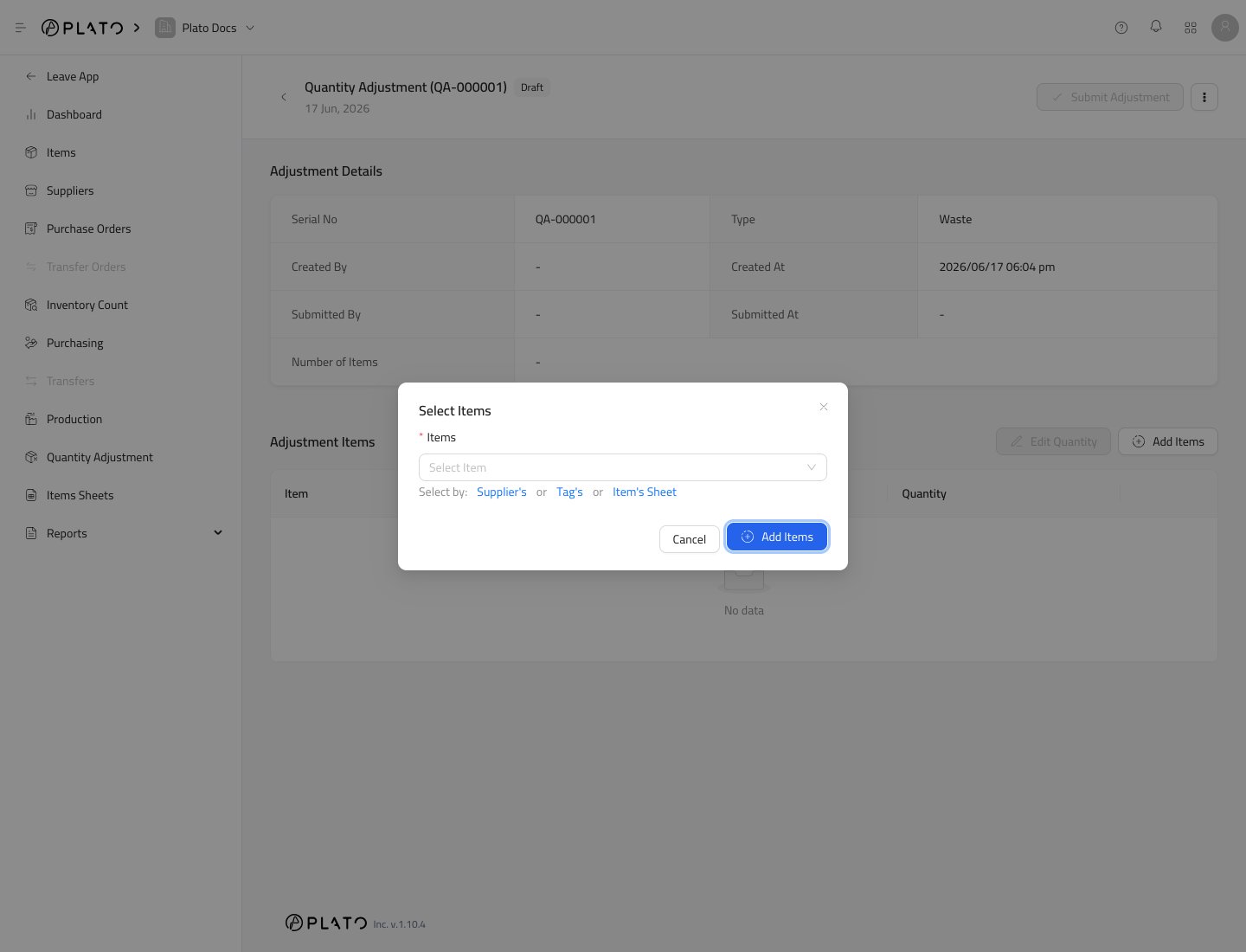
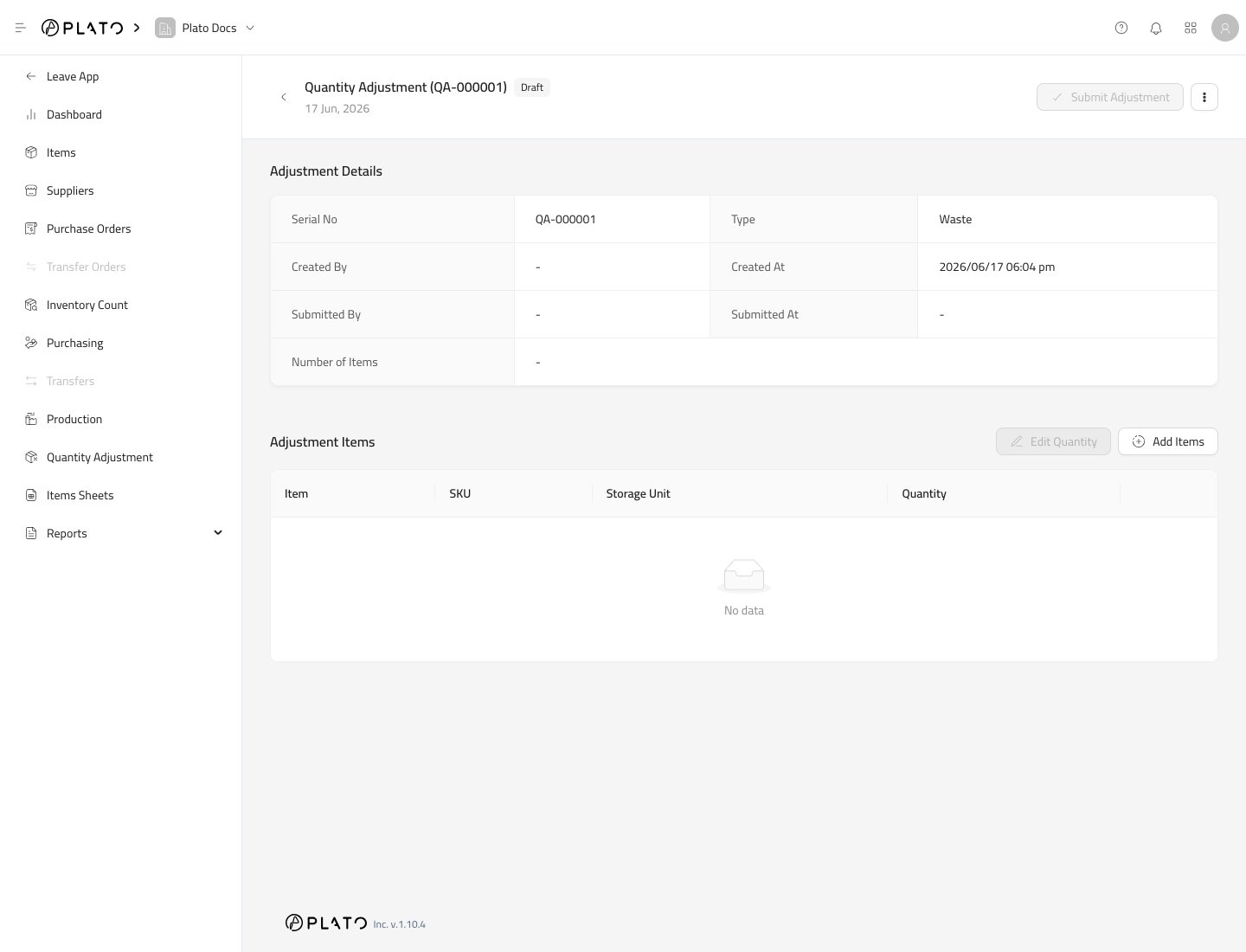
The adjustment opens as a draft. Quantity adjustment detail Click Add Items. Add adjustment items action Select the items that need to be reduced. Adjustment item selector
Enter Quantities

Use Edit Quantity after items are added. Enter the quantity to reduce for each item.

Submit the Adjustment

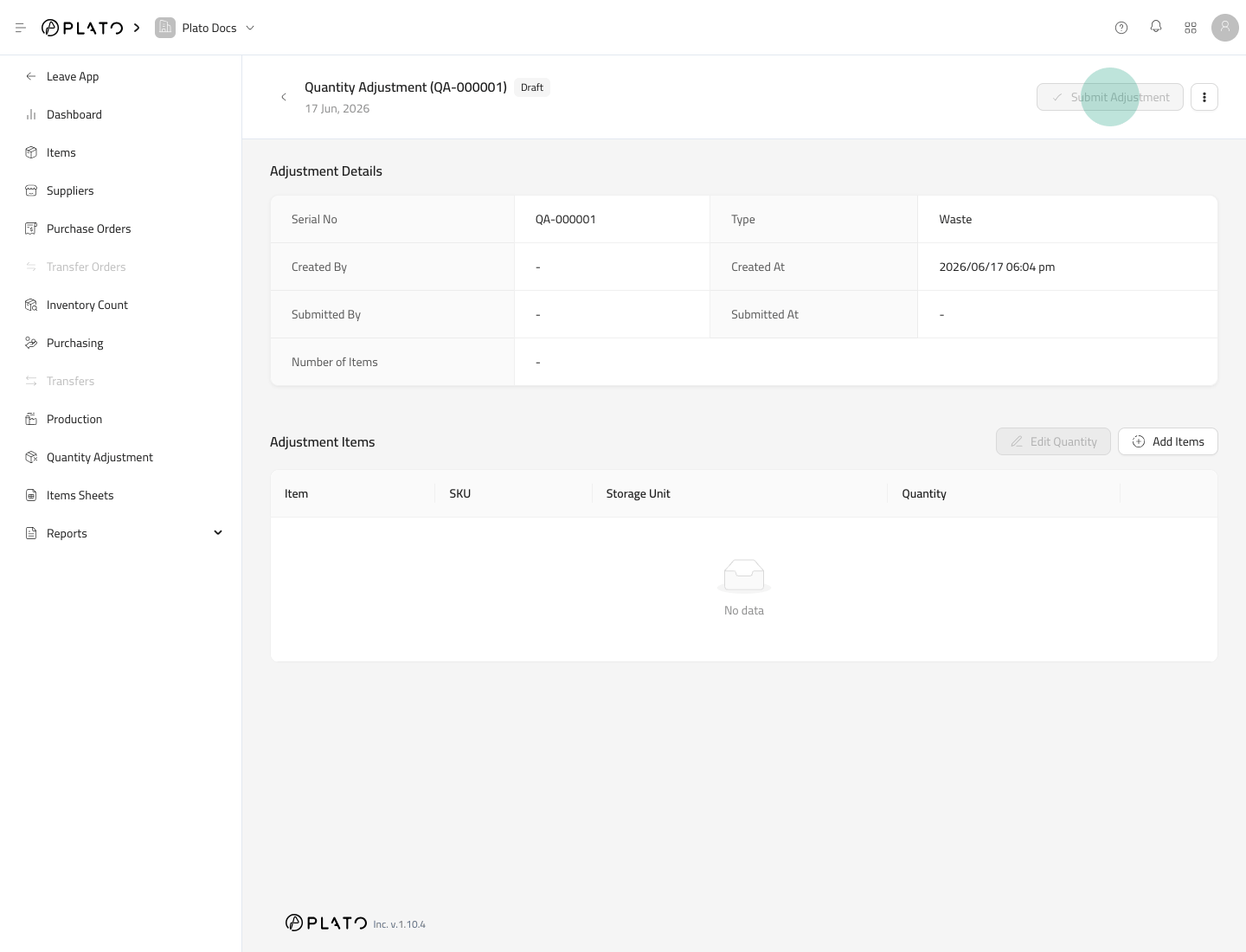
Click Submit Adjustment when the reason and quantities are correct. Submit adjustment action Submitting an adjustment reduces inventory and records the transaction in Inventory History.
Choose the Right Reason

Reason labels help reports stay clear. Use the reason that matches what happened to the stock.