

Add Your Business Location
Start with the address and location section. Add the business address, choose the country, state, and city, then confirm the time zone. If your workspace uses location-aware features, place the marker on the map so the location is accurate.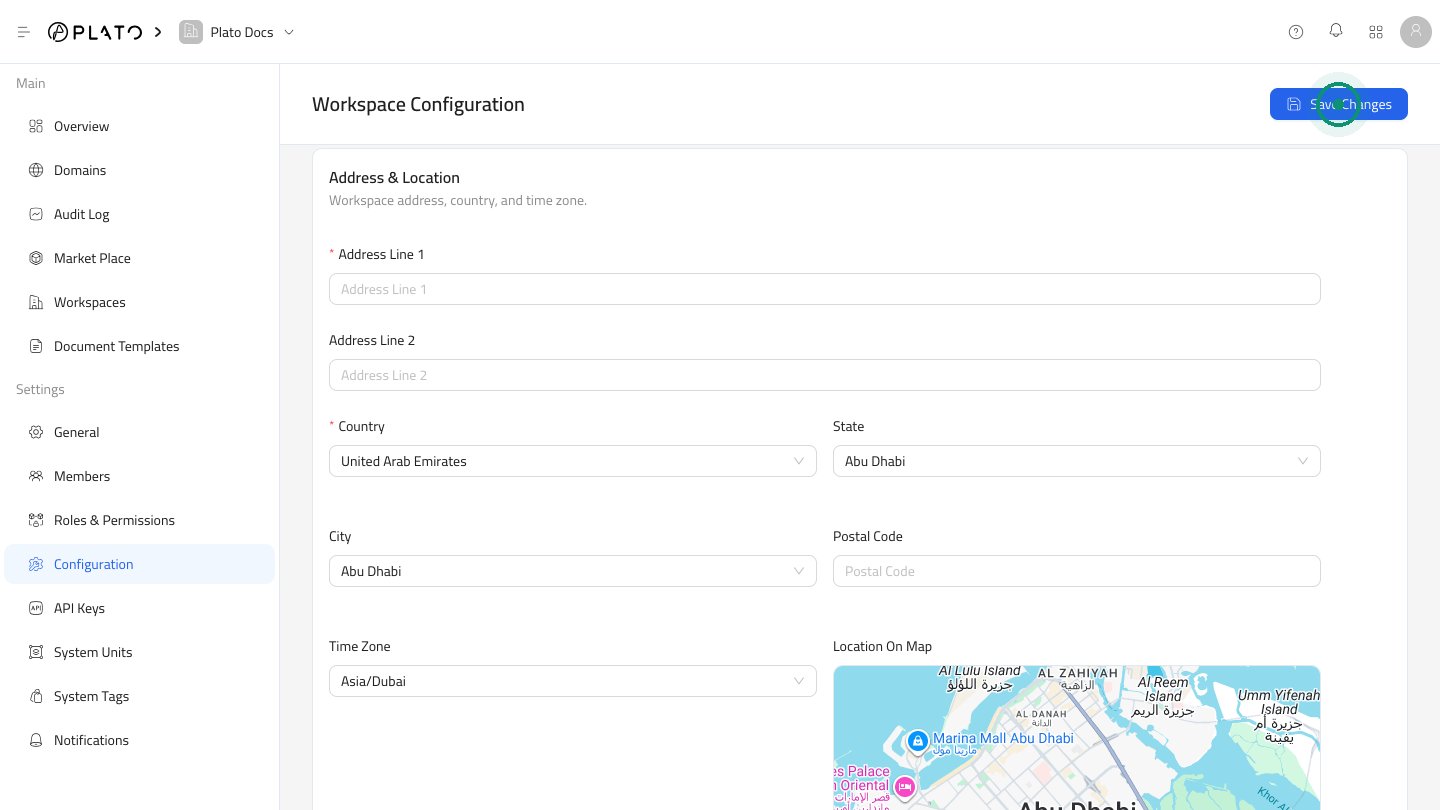
Choose Languages
Set the default language for the workspace, then add any other languages your team or customers need. For example, a workspace in the UAE may use English as the default language and Arabic as an additional language.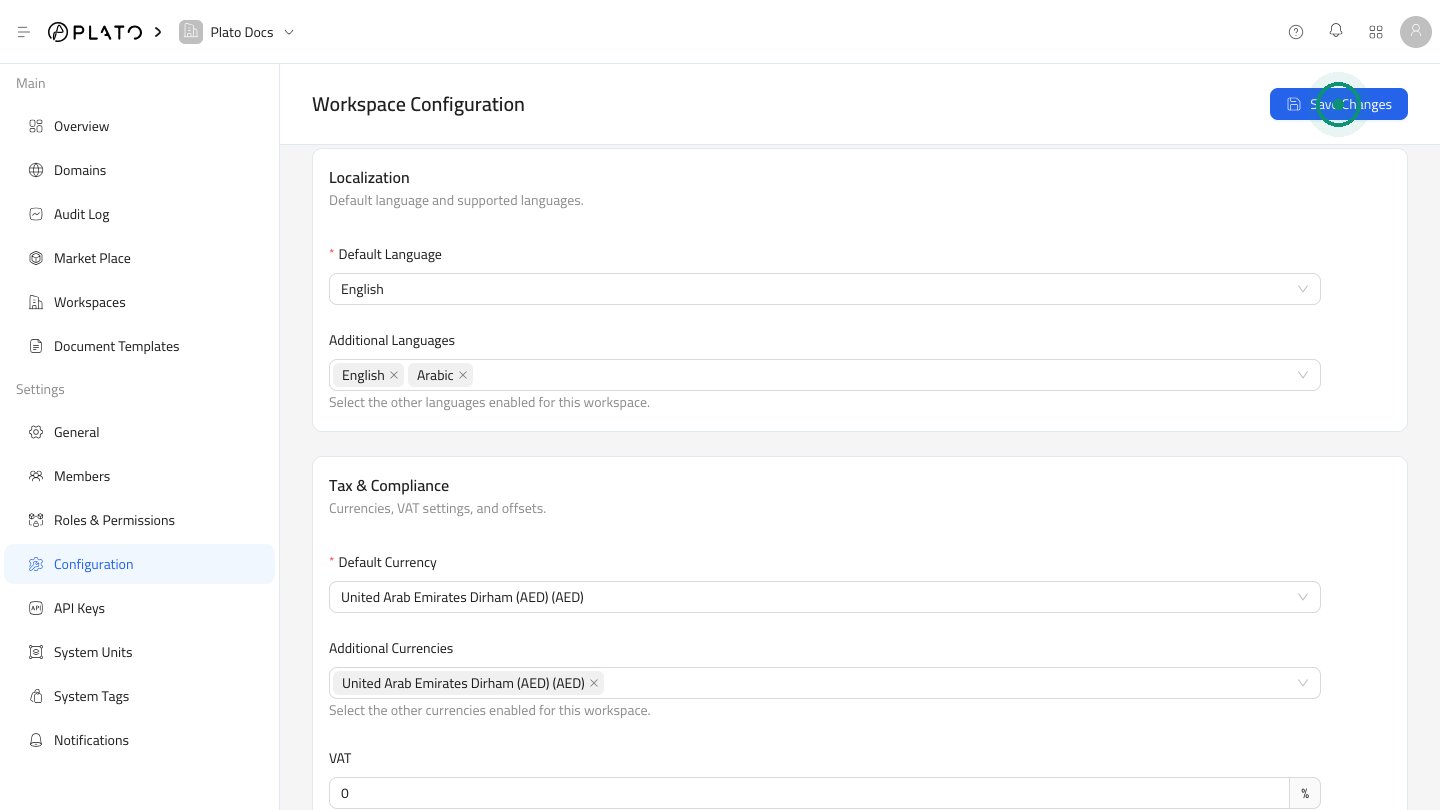
Set Currency And Tax
Choose the default currency, add any additional currencies, and enter VAT details if they apply to your business. Use the TRN field for your Tax Registration Number. Choose whether prices include VAT based on how your business shows prices to customers.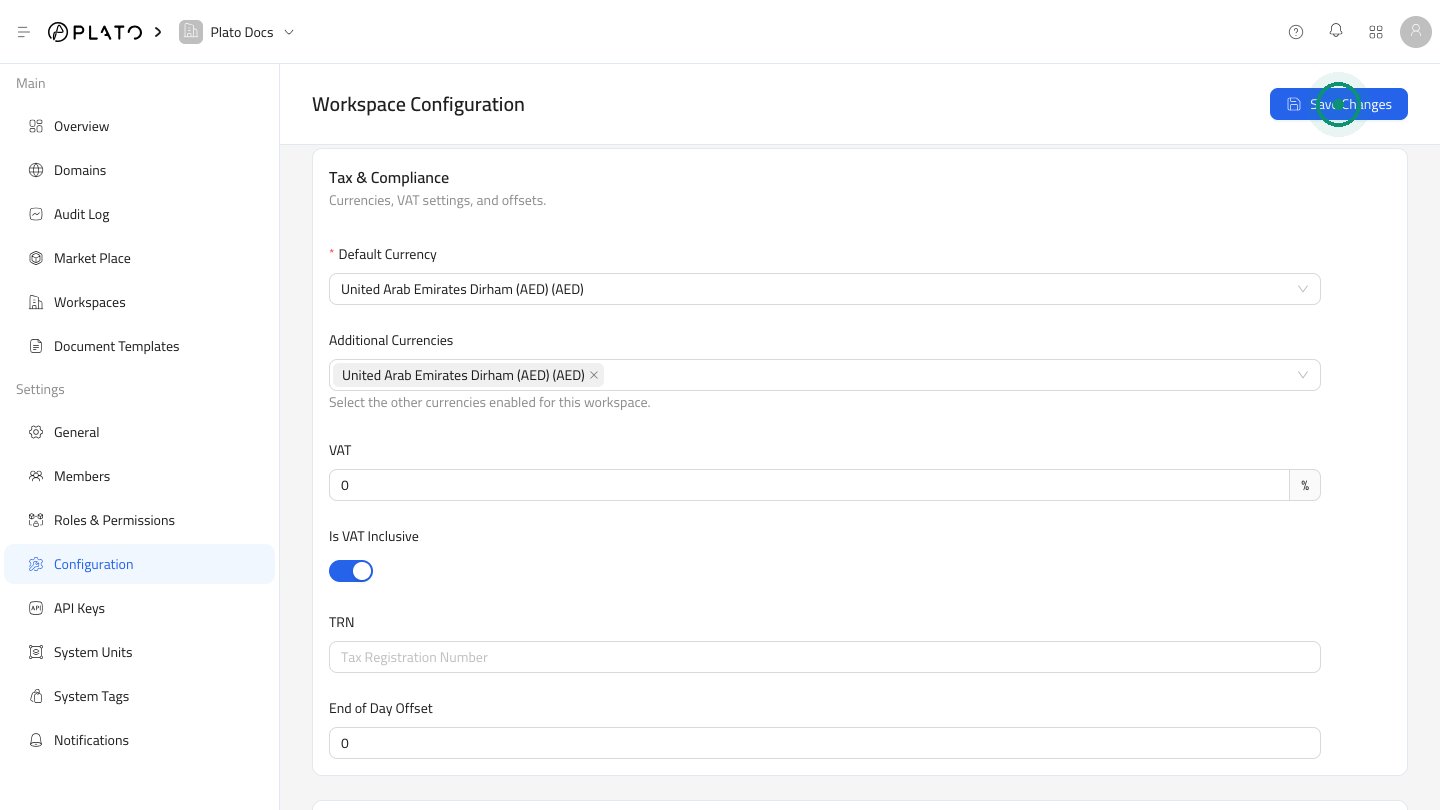
Set Order Defaults
Use the Orders section to choose teammates who should be assigned automatically to new LitePOS orders. You can also choose how order totals should be rounded.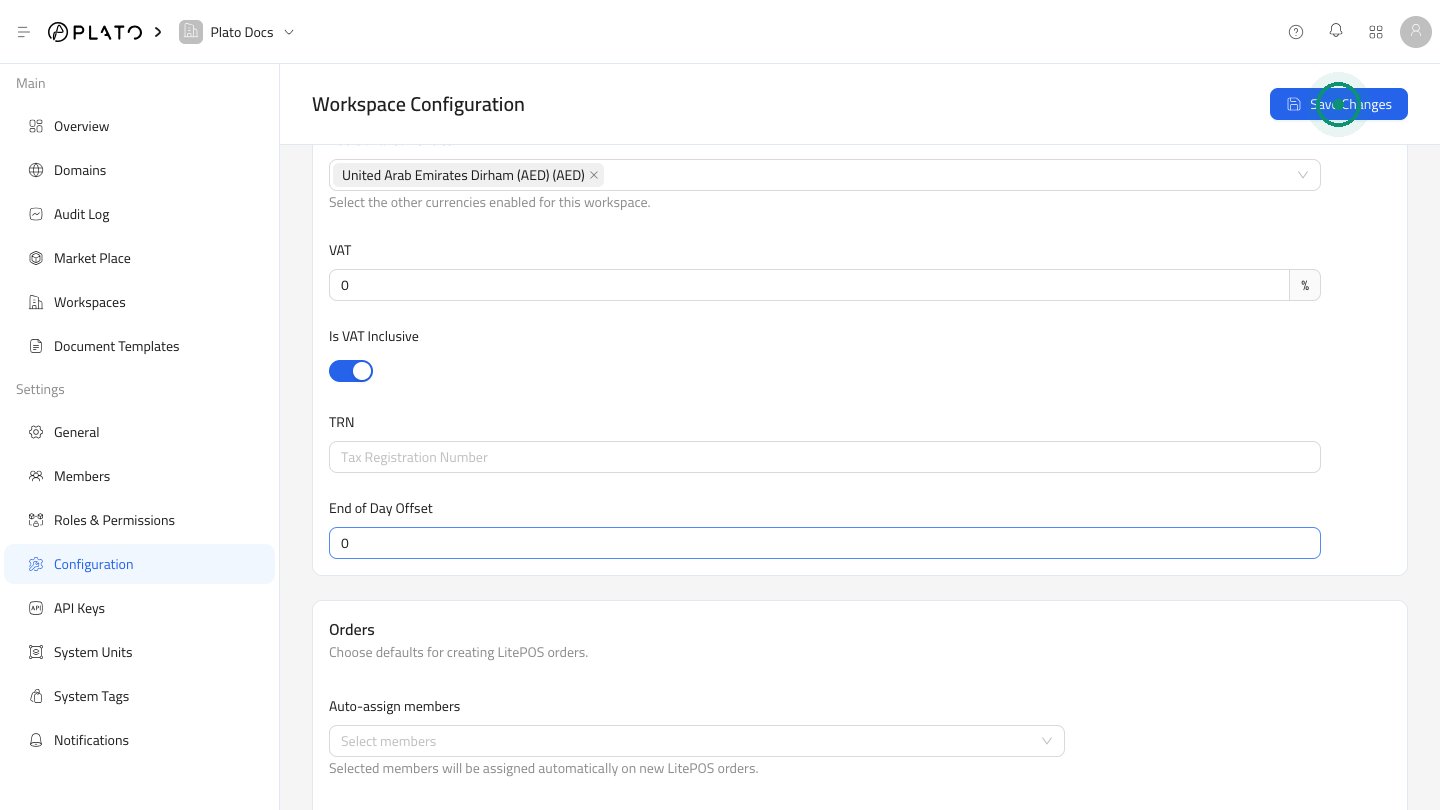
Saving Safely
- Update one section at a time when possible.
- Check address, time zone, currency, and VAT before saving.
- Click
Save Changes. - Refresh dependent app pages if the new defaults are not visible immediately.