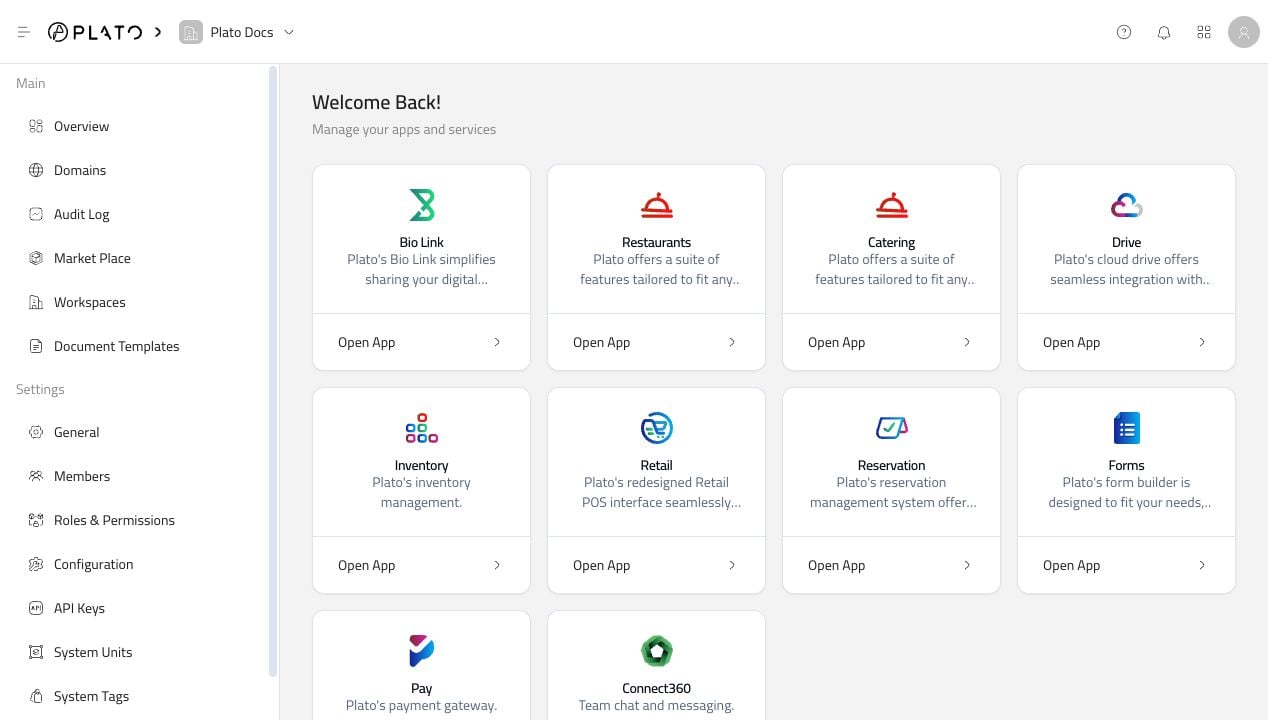
The Console has two navigation modes: root workspace navigation and app navigation. Root workspace navigation is for setup and administration. App navigation is for day-to-day work inside a Plato product. Console root layout

Root Workspace Navigation

Use the root Console when the action affects the whole workspace. This is where you open apps, invite teammates, manage roles, update workspace settings, connect domains, and review workspace activity. These pages appear in the left sidebar before you open an app.

App Navigation

After you click Open App, the sidebar changes to that app’s own pages. Bio Link, for example, shows pages for Bio Links, Followers, Messages, Analytics, and Settings. Restaurant shows restaurant operations pages instead. Use Leave App when you want to return to the root Console.

Workspace Selector

The workspace selector near the top-left tells you which workspace you are editing. Check it before changing anything important, especially members, roles, domains, configuration, API keys, or app settings.

Why Pages Can Look Different

The Console only shows pages and buttons your role can use. If you cannot see a page, button, or app card, ask the workspace owner to check your role and confirm the app is active for the workspace. This is expected behavior. It keeps sensitive workspace settings available only to the right people.

When To Use App Docs

Use this Console section for workspace setup and access. Use the app sections for product work. For example, Bio Link buttons and themes are in the Bio Link guide, while inviting the person who manages Bio Link is in this Console guide.