

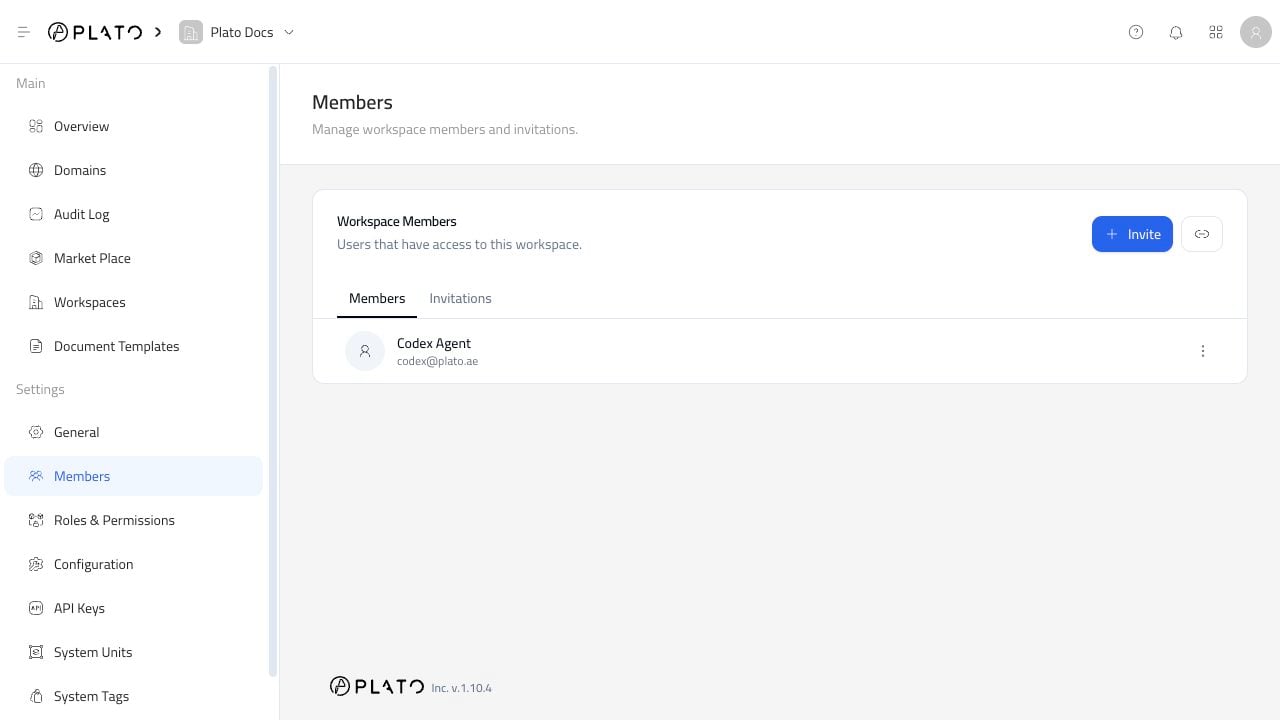
Before You Change Access
Make sure the correct workspace is selected before changing members. If your business has multiple branches or workspaces, each one can have its own member list and access rules. Only give full access to people who truly need to manage the workspace. Most teammates should have a role that matches their job.Review Current Members
OpenMembers to see everyone who currently has workspace access. Each person has an actions menu on the right side of their row.
Use that menu when you want to update roles, set a PIN, or remove access.
Invite A Teammate
Inviting new teammates has its own guide because it includes choosing the right role and managing pending invites. Go to Invitations when someone new needs access.Change What Someone Can Access
If a teammate needs more or less access, update their roles from the actions menu beside their name.- Open
Members. - Find the teammate.
- Open the three-dot menu.
- Click
Manage Roles. - Select the roles they should have.
- Click
Save.
Set A Member PIN
PINs have their own guide because they are used for identity checks and should be handled carefully. Go to Member PINs when you need to create or update a teammate’s PIN.Remove A Teammate
Remove someone when they no longer need workspace access. Before removing a person, check whether they are responsible for active orders, integrations, API keys, domains, or workspace setup. Move that responsibility to another teammate first when needed. Then:- Open
Members. - Find the teammate.
- Open the three-dot menu.
- Click
Remove Teammate. - Confirm the removal.