

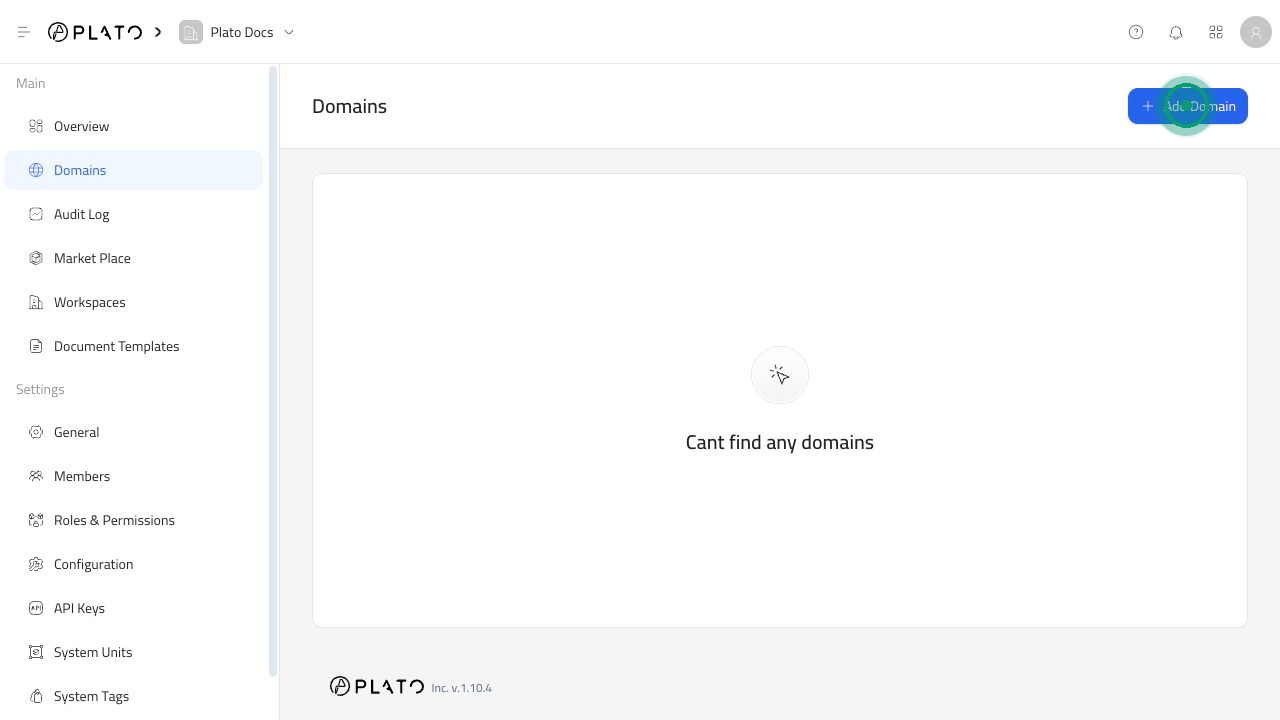
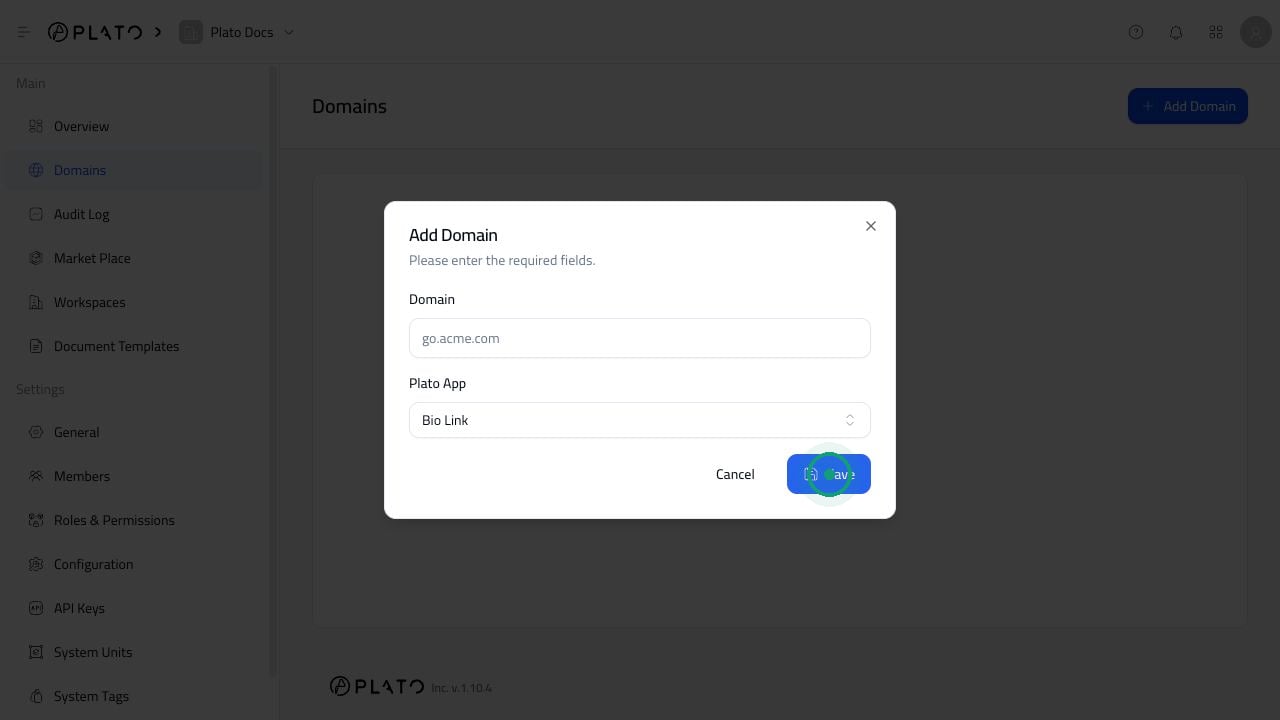
Add A Domain
- Open
Domains. - Click
Add Domain. - Enter the domain or subdomain, such as
go.acme.com. - Select the Plato app the domain should open.
- Click
Save.
Complete DNS Setup
After adding a domain, open its details and follow the DNS instructions shown in the Console. You may need to add a record at your DNS provider. The Console will show the exact record type, name, and value to copy. Common examples include:- A verification record to prove you own the domain.
- A record for a root domain such as
example.com. - A record for a subdomain such as
go.example.com.
Wait For The Domain To Become Active
DNS changes can take time. If everything looks correct but the domain is still pending, wait and refresh verification later. It can take up to 12 hours for changes to update everywhere. If the Console says there are conflicting DNS records, remove the conflicting records from your DNS provider, then refresh verification.Delete A Domain
- Open
Domains. - Open the three-dot menu beside the domain.
- Click
Delete. - Confirm the deletion.