

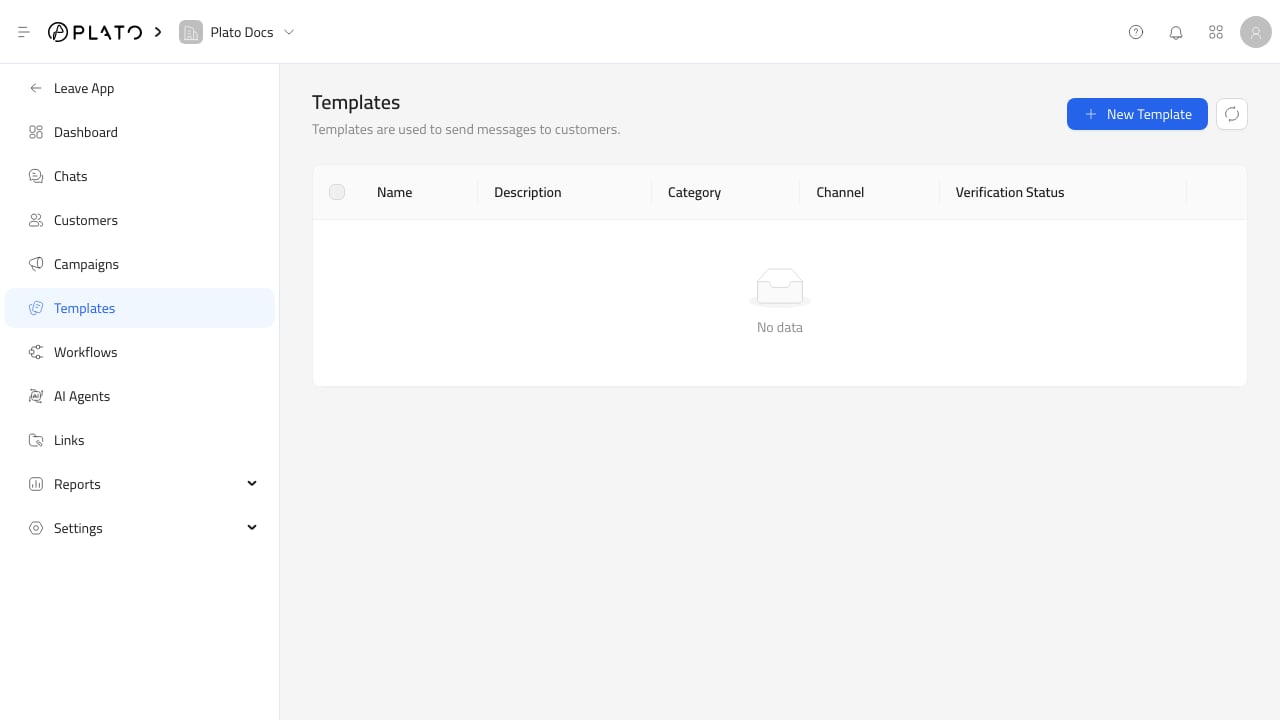
Create A Template
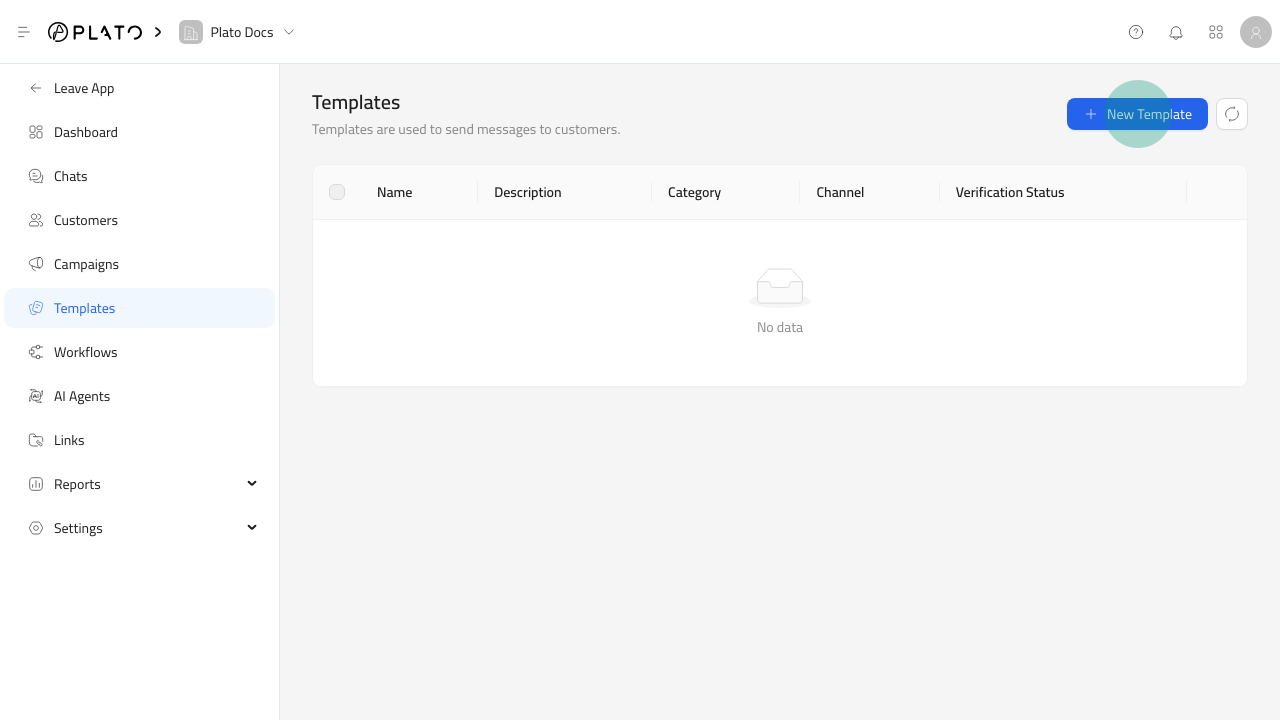
New Template.
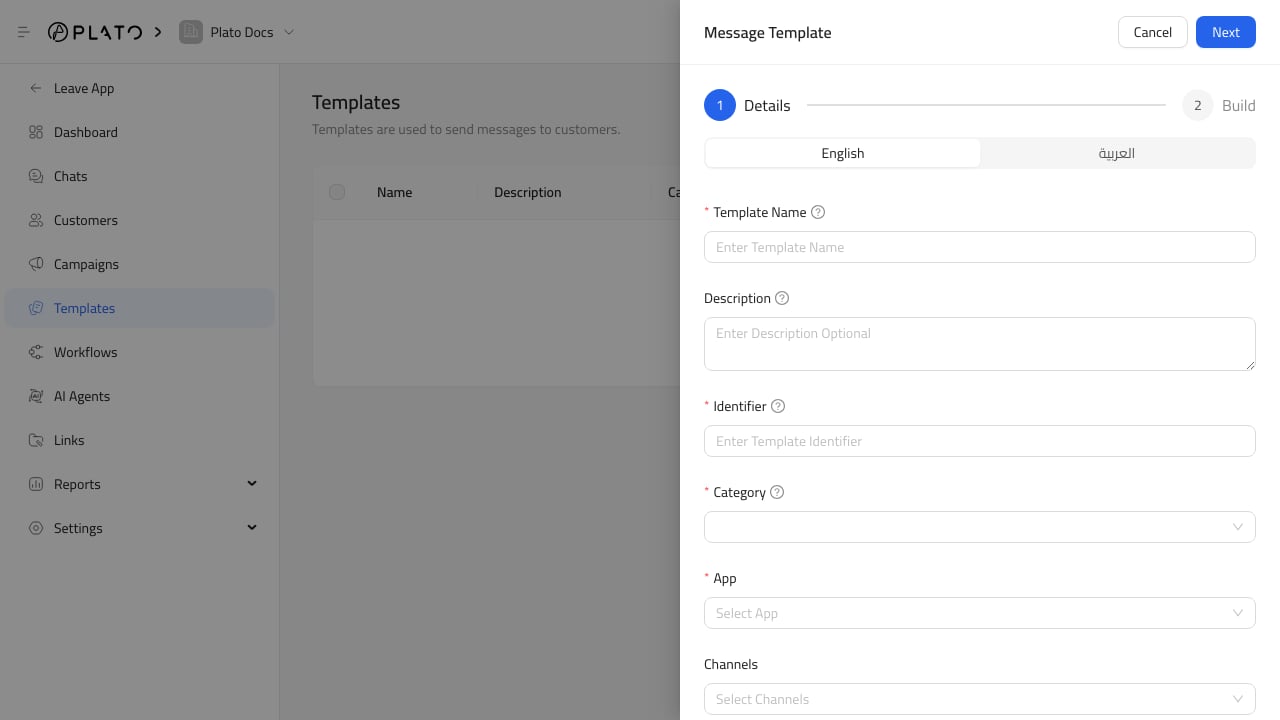
The form has two steps:
Detailsfor name, description, identifier, category, app, channels, and tags.Buildfor the message content and optional channel-specific components.
welcome_message, order_ready, or delivery_follow_up.
Choose App And Channels
Choose the messaging app first. Connect360 then filters the available channels for that app type. For WhatsApp templates, select WhatsApp channels. For SMS templates, select SMS channels. Tags help staff find and group templates later.Build The Content
Write the message body for each supported language. For the message builder, see Build Template Content. Variables use double braces, such as{{name}}. When a template is used in chat, Connect360 can ask staff to fill values for products, orders, Drive files, and other variables.
WhatsApp Components
WhatsApp templates can include:- Header.
- Footer.
- Buttons.
Preview And Example Values
Use the preview while building to check how the message will read. UseUpdate Example Values when a provider needs sample values for variables.
Use Sync With Meta for WhatsApp templates when you need to sync with Meta through the connected channel.
For variables and preview checks, see Variables And Preview.