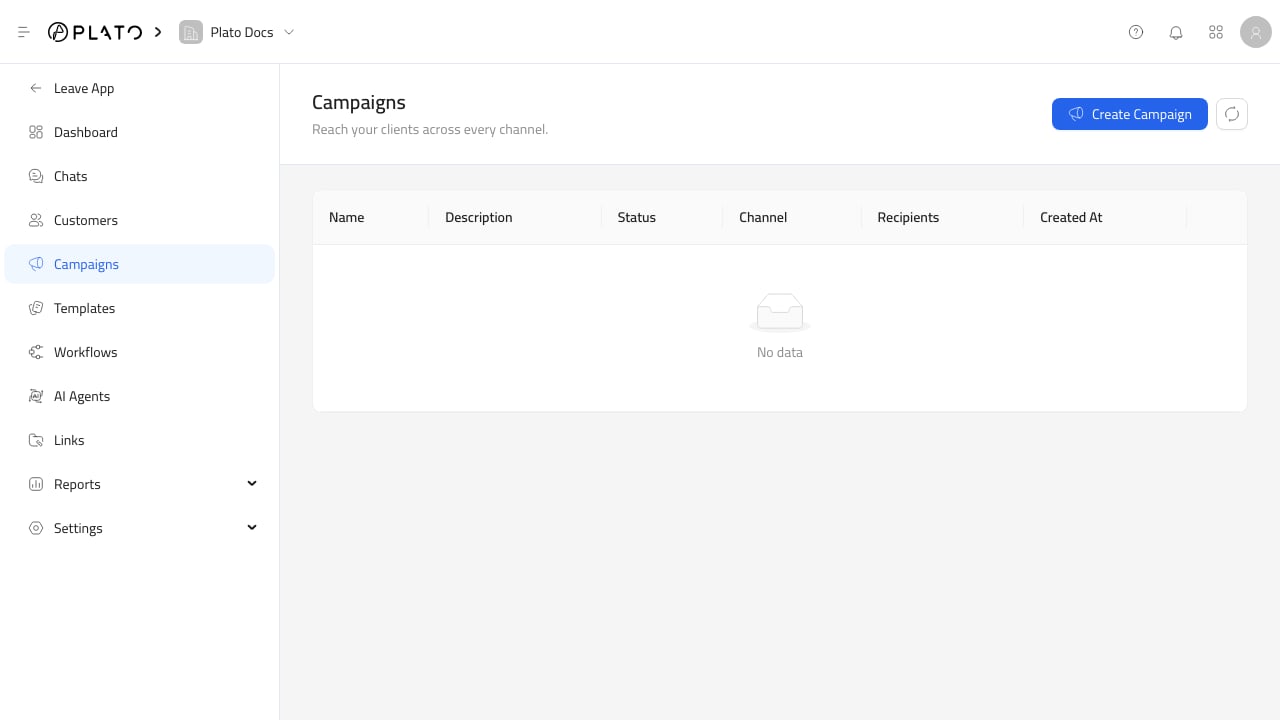
Campaigns send a template, start a workflow, or do both for a selected group of customers. Use campaigns for announcements, offers, re-engagement, service updates, and follow-up flows. Connect360 campaigns

Create A Campaign

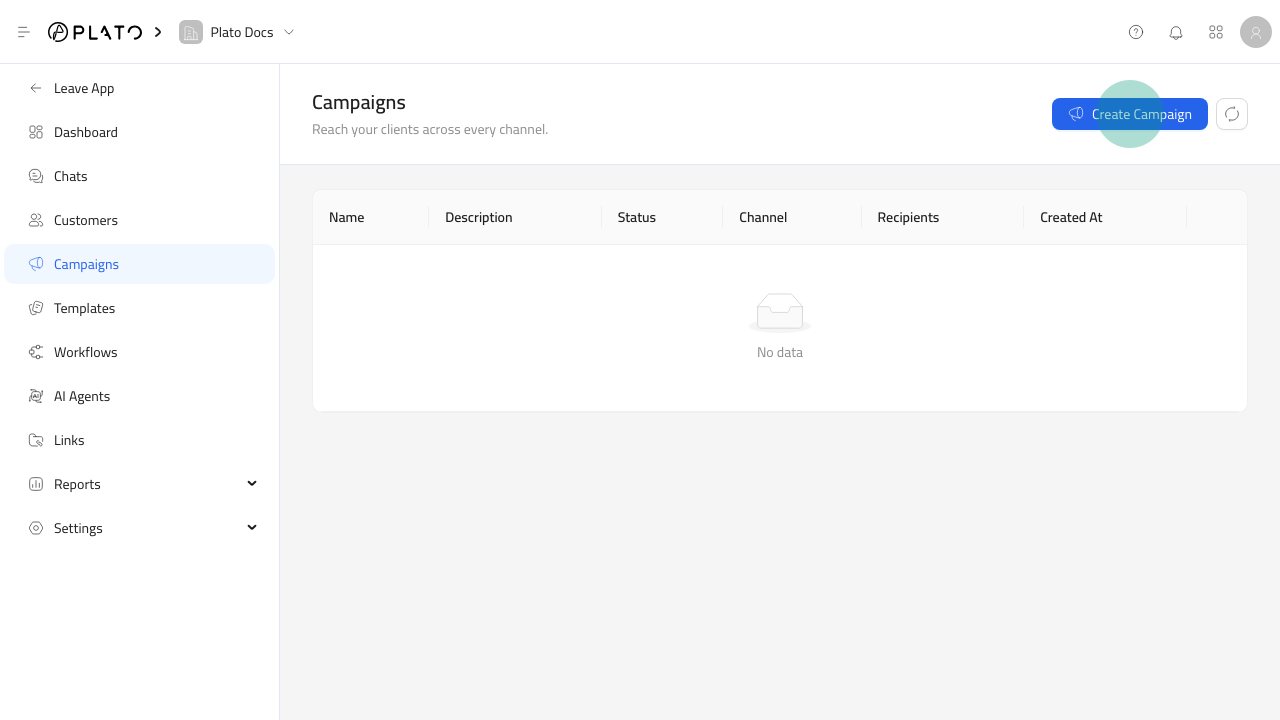
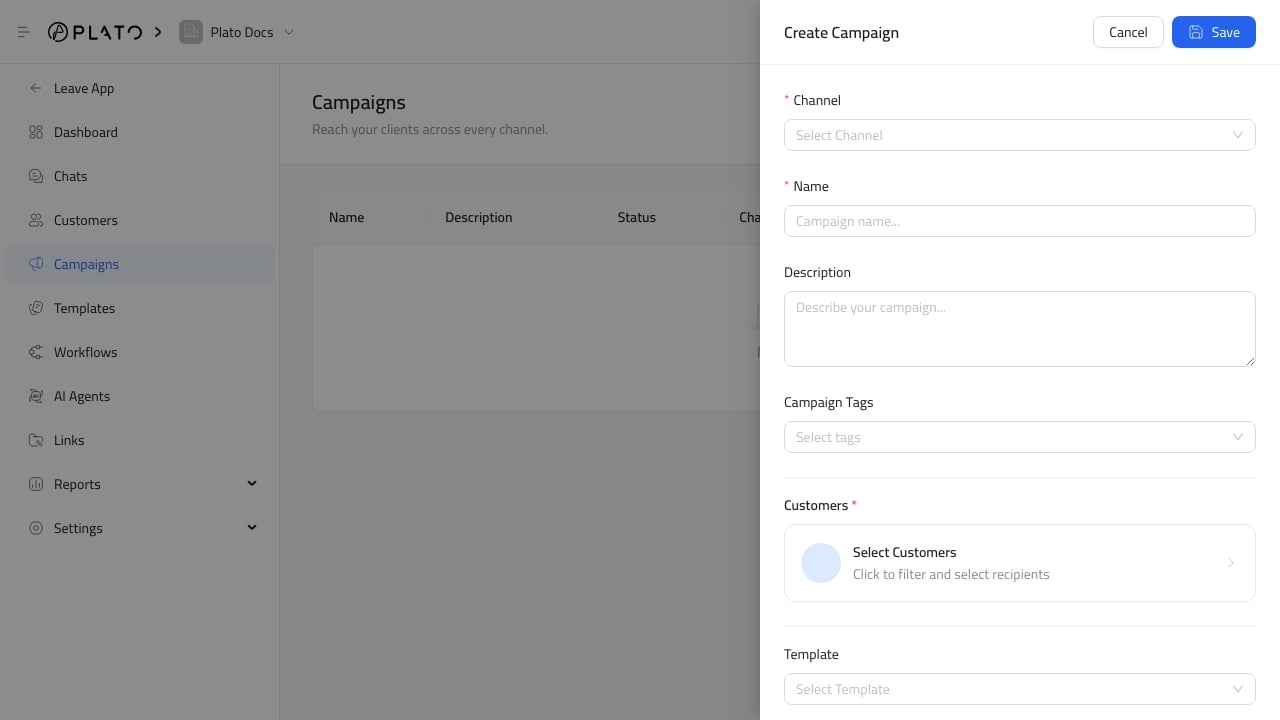
Create Campaign button Connect360 campaign form For the full creation flow, see Create A Campaign. Click Create Campaign, then fill in:
  1. Channel for the messaging route.
  2. Name for the campaign.
  3. Description, when the purpose needs extra context.
  4. Campaign Tags, when you want to group campaign records.
  5. Customers, using the customer filter modal.
  6. Template, when the campaign should send a saved message.
  7. Workflow, when the campaign should start automation for each recipient.
After saving, Connect360 creates the campaign, prepares the recipients, and starts the send or workflow queue.

Select Customers

Use customer filters to build the recipient list. For the recipient workflow, see Select Campaign Customers. Filters can include customer tags, location, order behavior, completed orders, order date ranges, customer-created date ranges, products, order types, and minimum order counts. Always check the selected customer count before saving.

Templates And Workflows

Use a template when every recipient should receive a specific message. Use a workflow when each recipient should enter a multi-step path, such as send a message, wait, branch on an event, or notify team members. You can select both when the campaign should send an initial template and then continue automation.

Review Campaign Results

The campaign list shows status, channel, recipient count, and creation date. After sending, use Review Campaign Results and Campaign And Template Insights to review campaign cost, sent messages, pending messages, failed messages, success rate, and last activity.