Workspaces by choosing View Details.
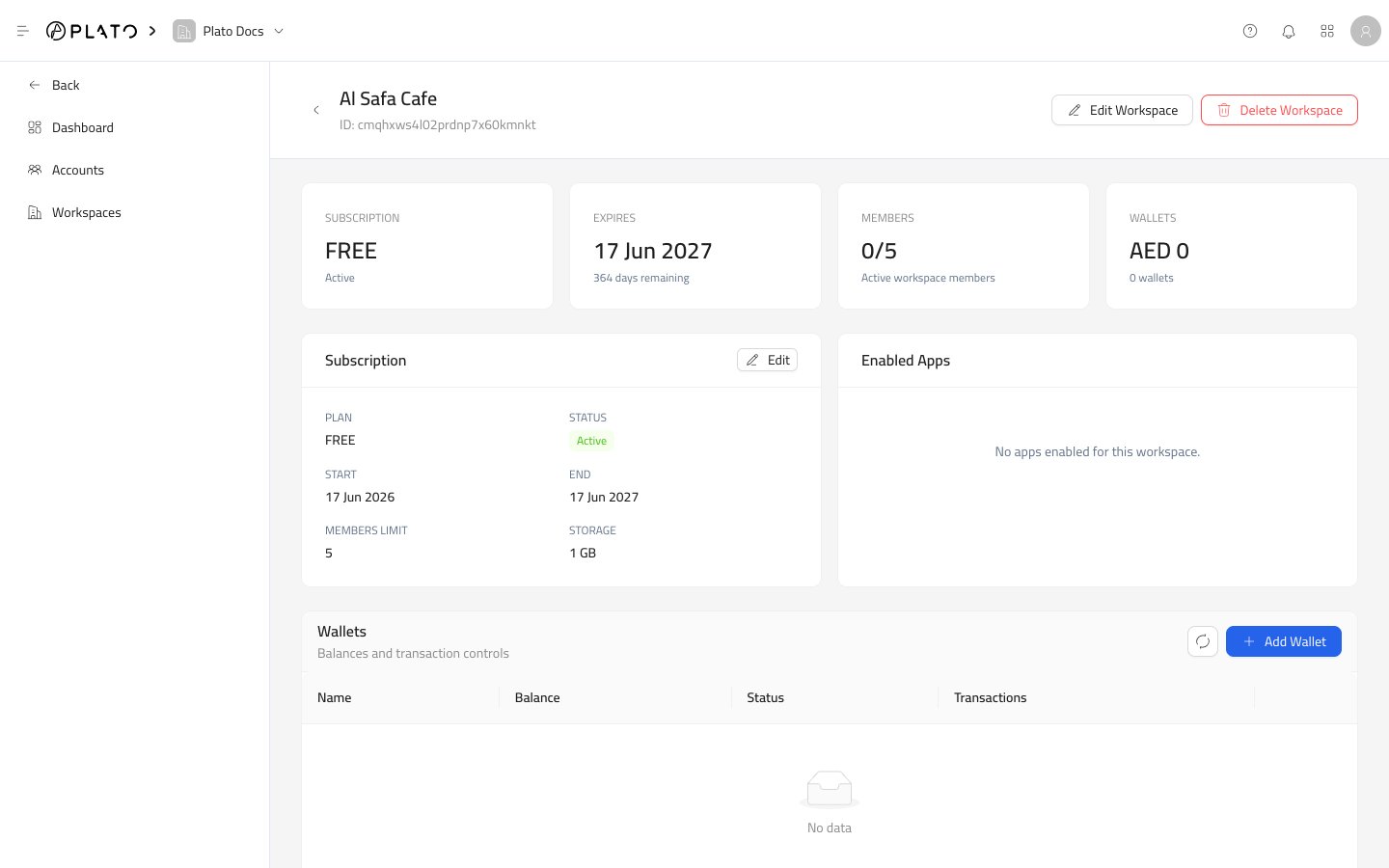
Header Actions
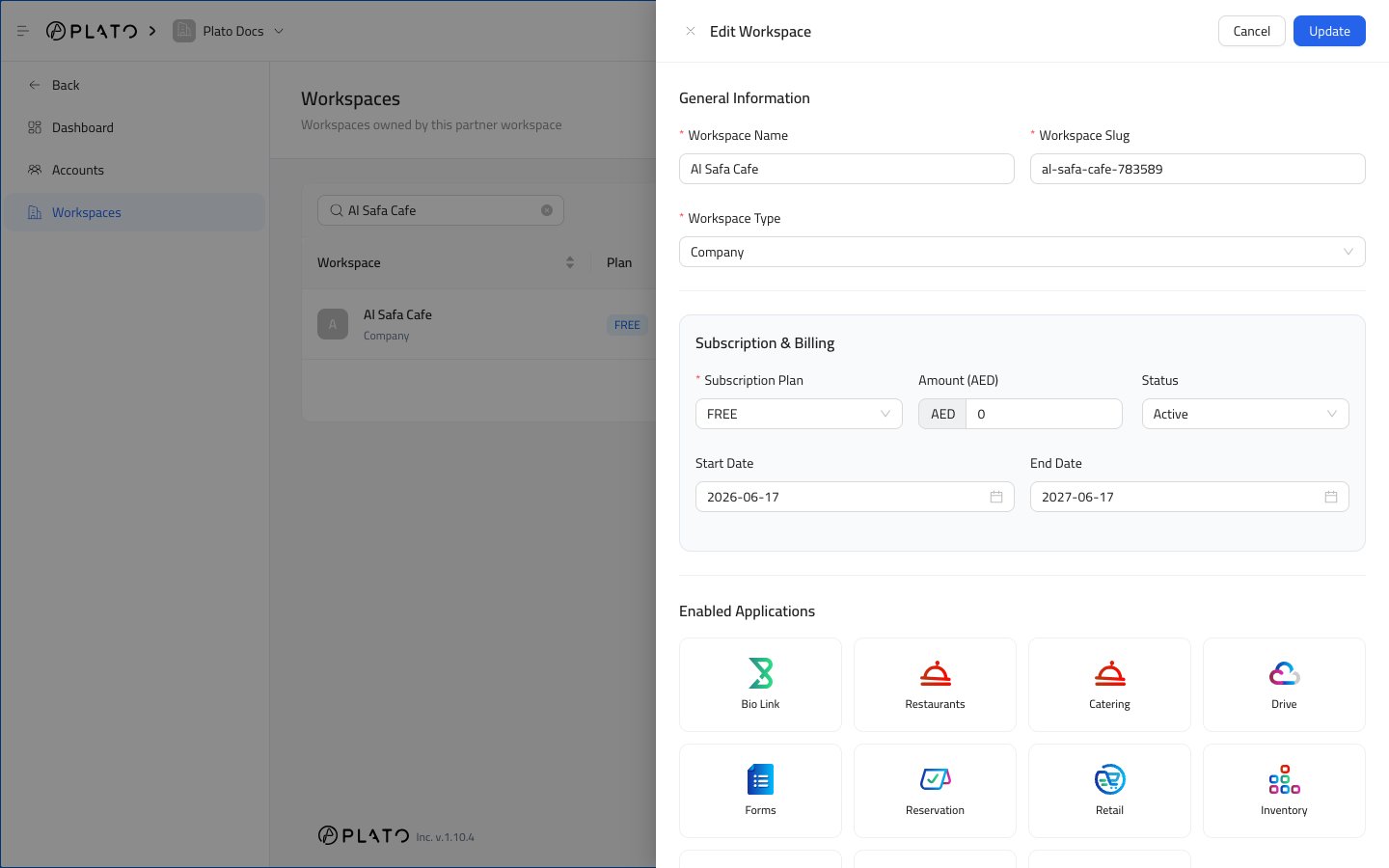
Edit Workspace opens the workspace setup drawer with the current values.
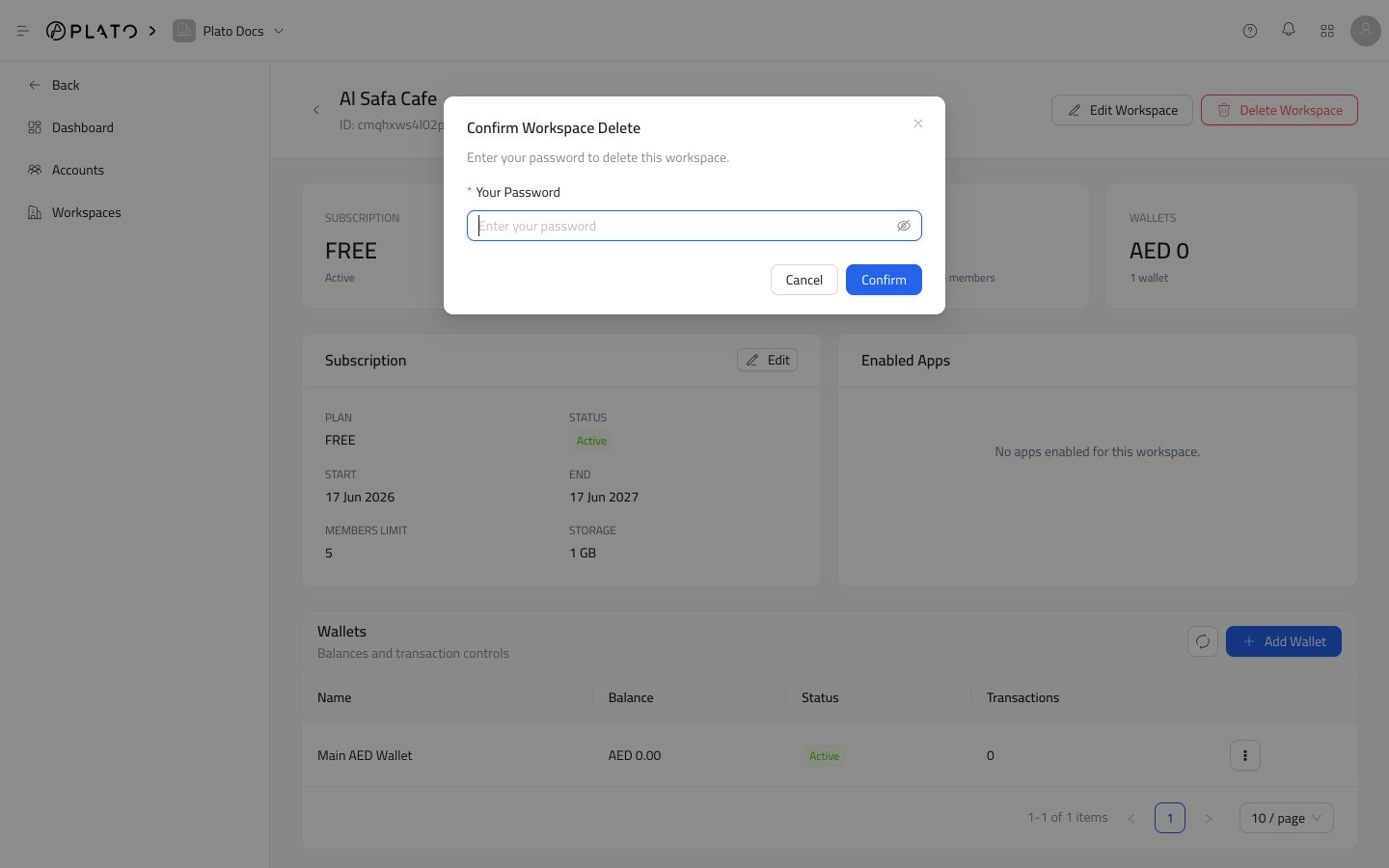
Delete Workspace removes the workspace after password confirmation. Use it only when the workspace should no longer exist.
Summary Cards
The cards at the top show:- Subscription plan and status.
- Expiry or renewal date.
- Active members against the member limit.
- Wallet balance and wallet count.
Subscription Card
The subscription card shows the plan, status, start date, end date, member limit, and storage limit. UseEdit when you need to update subscription details, renewal dates, enabled apps, or limits.
Enabled Apps
Enabled Apps shows the apps available to the workspace. If the area is empty, the workspace does not have customer apps enabled yet. OpenEdit Workspace and choose the app cards the customer should use.
Wallets
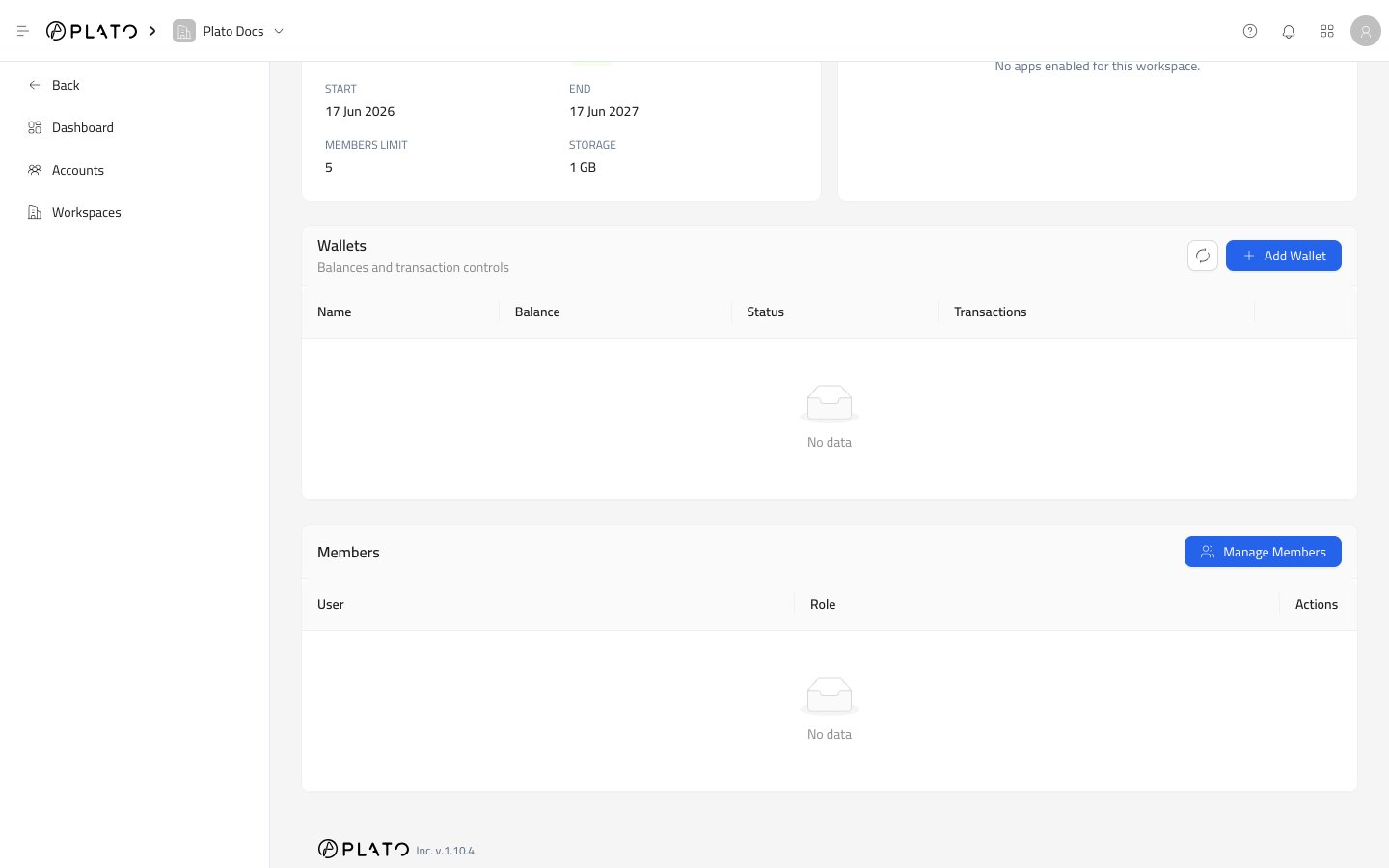
Wallets show balances and transaction controls for the workspace. Use this area when a partner-managed balance needs to be reviewed or adjusted. See Wallets for the full wallet flow.Members
Members show accounts that currently have access to the workspace. UseManage Members when you need to add an existing partner account or remove one from this workspace. See Workspace Members for the full member flow.
Delete Workspace
UseDelete Workspace only when the customer workspace should be removed.
Plato asks for your password before deleting the workspace.