

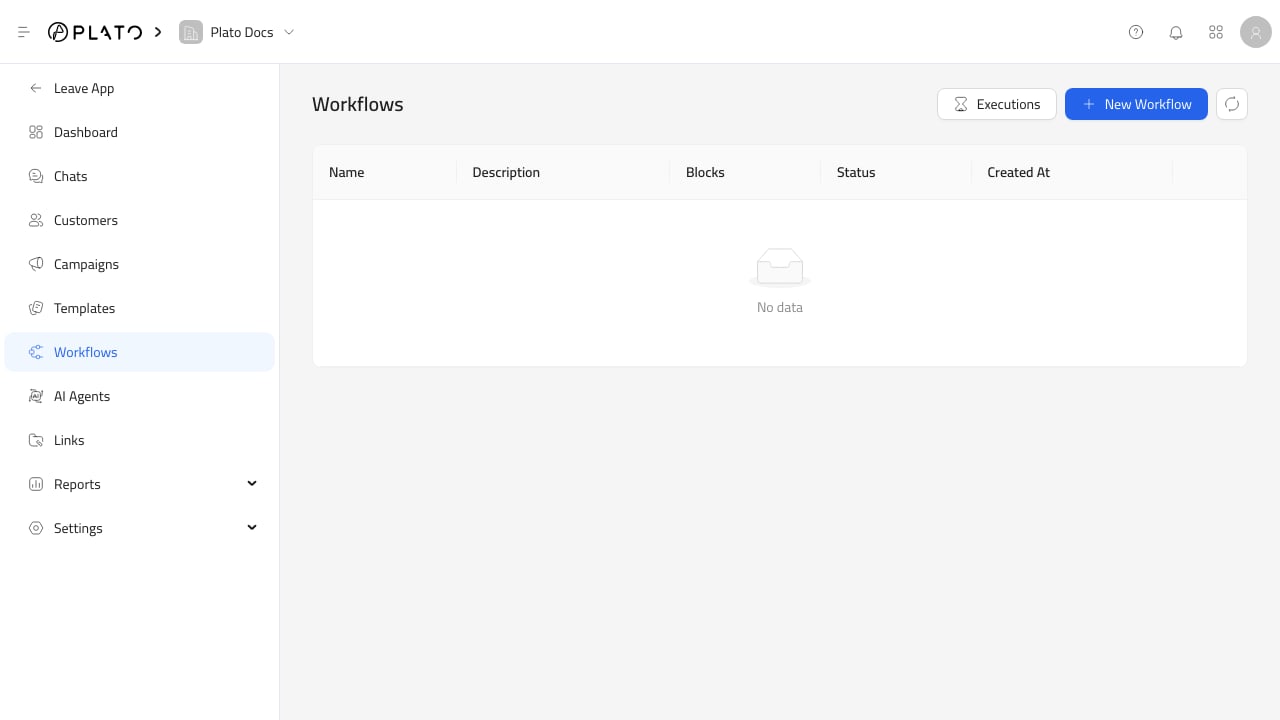
Create A Workflow
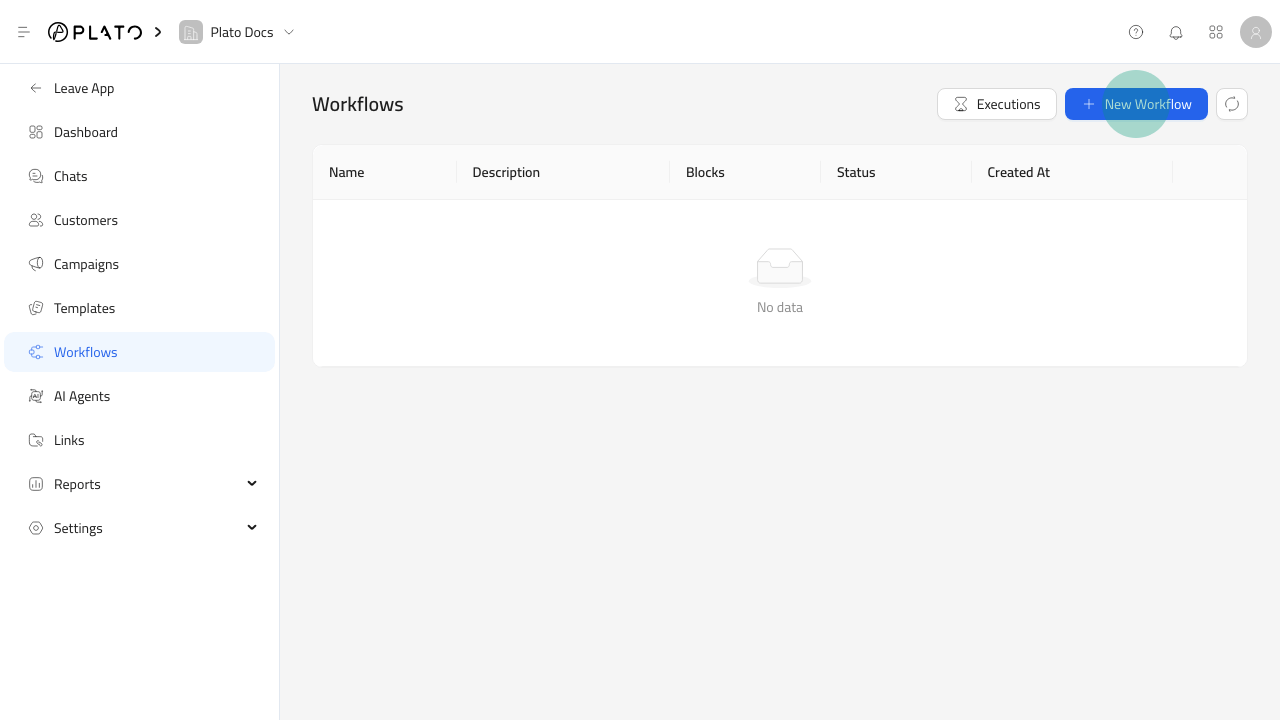
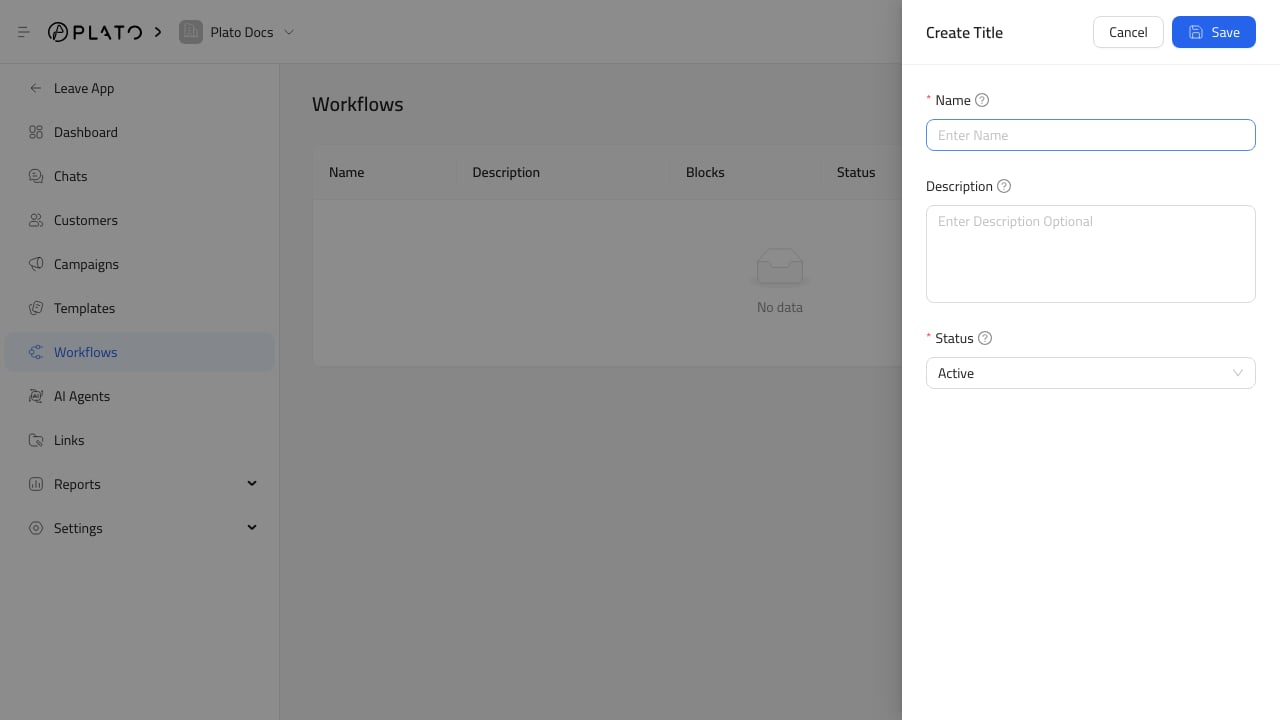
New Workflow, then add:
- Name.
- Optional description.
- Status: active or inactive.
Use The Builder
The workflow builder uses blocks connected on a canvas. For builder habits and block types, see Use The Workflow Builder. Available block groups include:Triggerblocks, such as manual run and app event.Logicblocks, such as if, switch, and wait.Actionblocks, such as send message, notify workspace members, and stop.Visualblocks, such as note.
Common Triggers
Connect360 workflows can start manually or from app events. Current app event options include:- New order created.
- Order updated.
- New WhatsApp message.
Message And Notification Actions
UseSend Message when the workflow should send WhatsApp, SMS, or web message content.
Use Notify Workspace Members when the workflow should alert assigned members, unassigned members, or all members.
Use Wait, If, and Switch to control timing and routing.
Review Executions
ClickExecutions from the Workflows page to review workflow runs.
The execution list shows the workflow, trigger, status, start time, and run time. Use it when a campaign or automation did not behave as expected.
For troubleshooting runs, see Review Workflow Executions.