

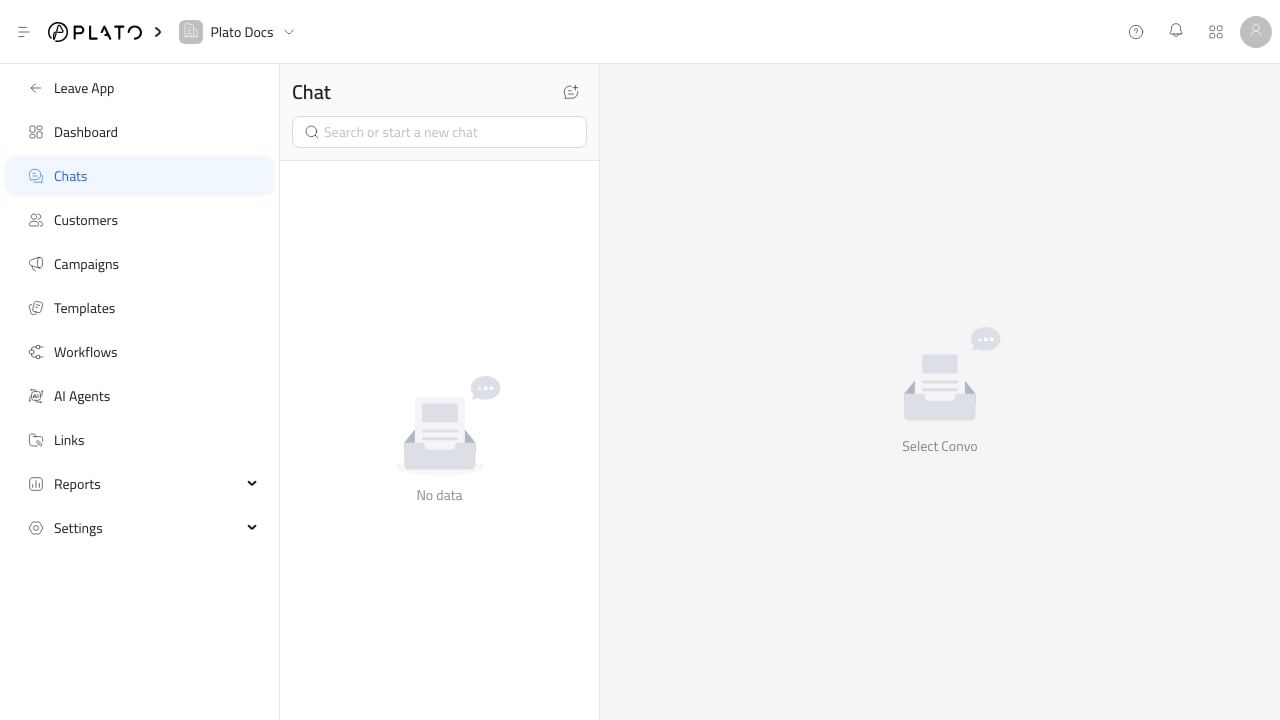
Find Or Start A Chat
Use the search field to find an existing conversation by customer or conversation name. For the full creation flow, see Start A Conversation. ClickNew Conversation when you need to start a chat manually. Add:
- A conversation name.
- A customer, when the chat should be tied to a customer profile.
- Team members, when other workspace users should participate.
- Channels, when the conversation needs a specific messaging route.
Join And Reply
Open a conversation from the list. If you are not already a participant, join the chat before replying. For the composer workflow, see Reply And Compose Messages. From the message box, you can:- Type a normal reply.
- Press
Enterto send, orShift + Enterfor a new line. - Attach files from Drive.
- Paste media directly into the message box.
- Record and attach a voice message.
- Reply to an existing message.
- Send an internal note that stays inside the team workflow.
- Use AI tools to continue writing, shorten, lengthen, simplify, or change the tone of a draft.
Use Templates
UseSelect Template when the message should use a saved template.
For template and AI use inside chat, see Use Templates And AI In Chat.
Templates are especially important for WhatsApp because customer service windows can expire. If the app shows that the 24-hour free reply window has expired, send an approved template to re-engage the customer.
Some templates ask for values before sending, such as a product, order, Drive file, or custom field. Fill the required values, then send from the chat.
Use The Help Sidebar
Click the chat header to open conversation actions. From the sidebar, staff can:- Open related orders.
- Browse products.
- Select templates.
- Edit the customer profile.
- Add or remove team members.
- Toggle workflows for this conversation.
- Toggle AI auto-reply for this conversation.
- Toggle AI auto-translate for this conversation.
- Clear chat history.
- Leave the chat.
- Delete the chat, when permitted.
Keep Chats Clean
Good inbox hygiene makes automation and reporting easier:- Keep customer names and phone numbers accurate.
- Add the right team members instead of sharing screenshots outside the app.
- Use templates for repeated messages.
- Use internal notes for manager handoff.
- Avoid deleting chats unless the conversation should no longer exist.