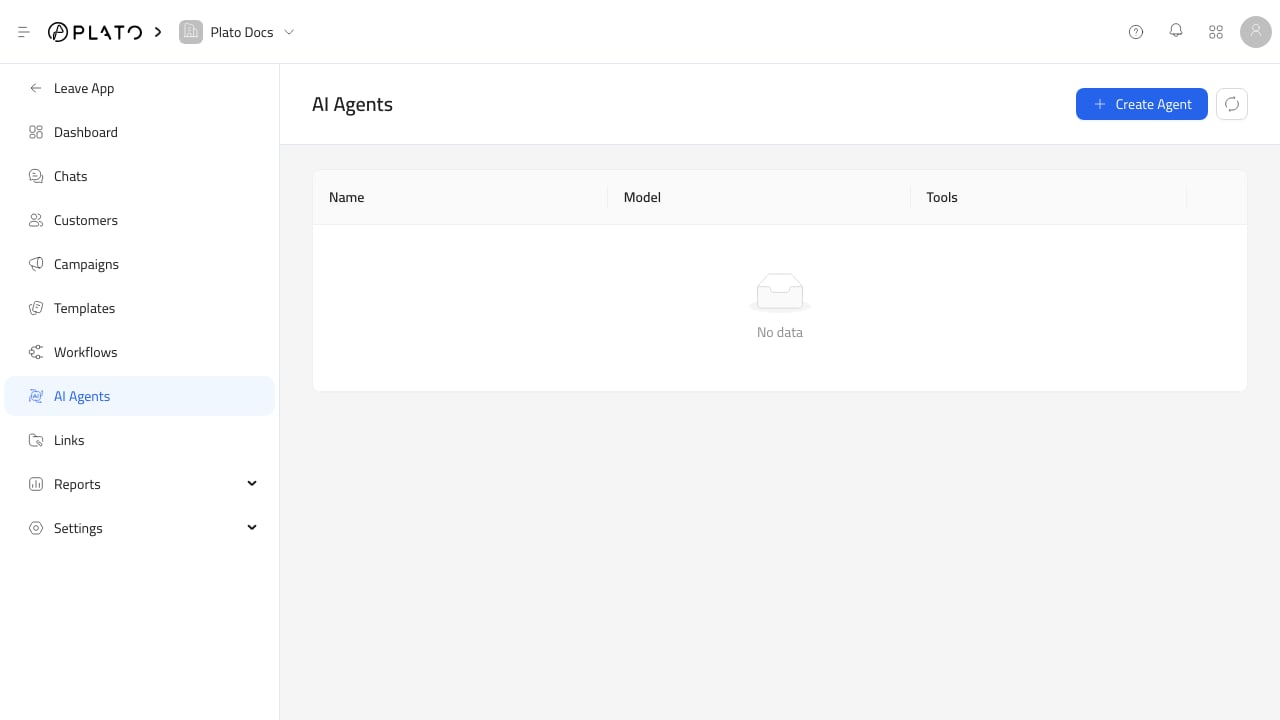
AI Agents define how Connect360 should respond when AI auto-reply is enabled. Use agents for customer support, product questions, order follow-up, internal summaries, or specialized workflows. Connect360 AI agents

Create An Agent

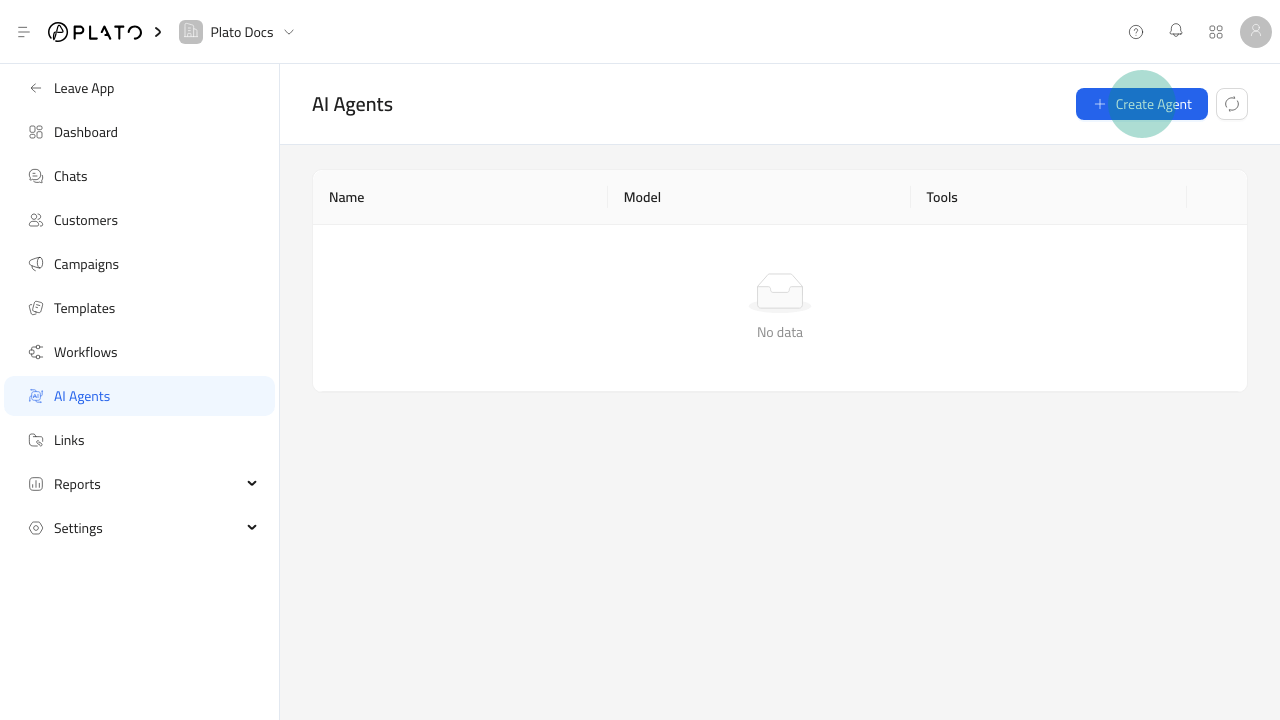
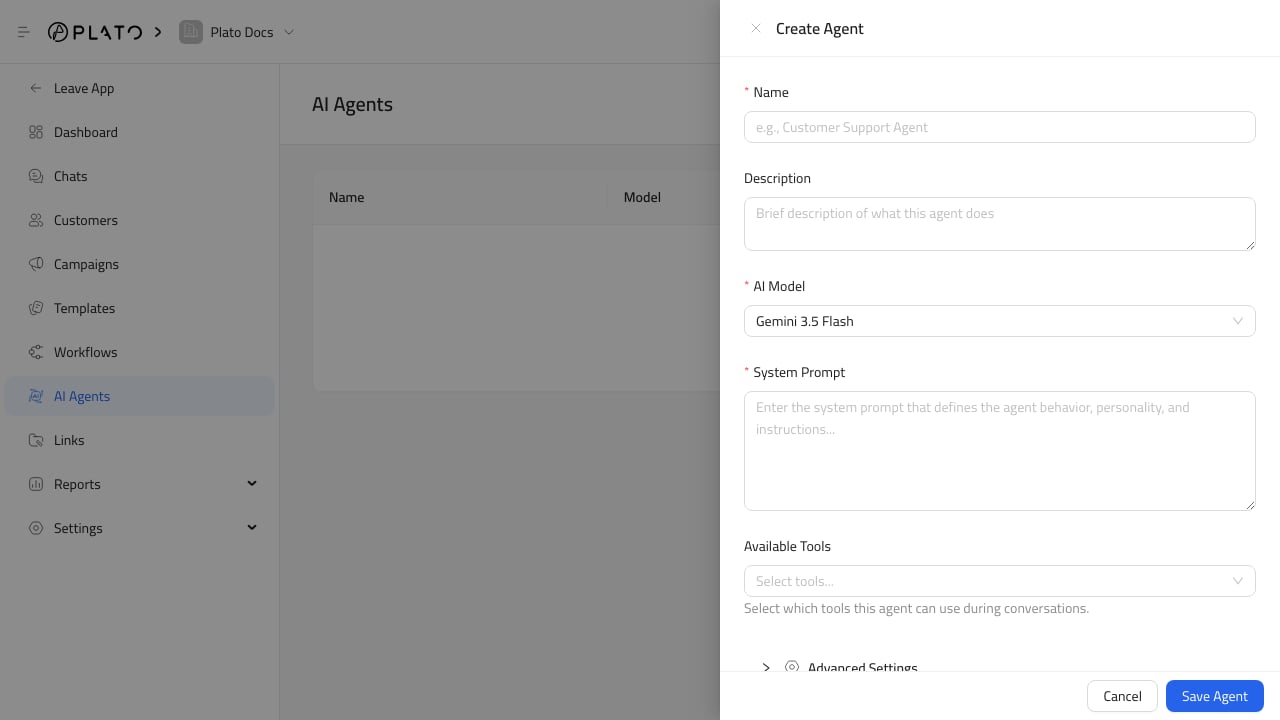
Create Agent button Connect360 agent form For the full setup flow, see Create An AI Agent. Click Create Agent, then fill in:
  1. Name.
  2. Optional description.
  3. AI model.
  4. System prompt.
  5. Available tools.
The system prompt should explain the agent’s role, tone, boundaries, and when to ask a human for help.

Available Tools

Tools allow an agent to use Plato context. Options include workspace info, conversation history, products, CMS records, categories, orders, payment links, addresses, internal notes, product documents, and calculators when enabled. Only enable tools the agent actually needs.

Advanced Settings

Advanced settings include:
  • Temperature.
  • Max output tokens.
  • Google service tier.
  • Google thinking level.
Lower temperature is more focused. Higher temperature is more varied.

Use Agents In Auto Reply

Create agents first, then assign them from Chat Settings. Chat Settings lets you choose a default agent and add routing rules for phone number, channel, or tag conditions. For routing setup, see Auto Reply Routing. You can also toggle AI auto-reply on or off for a single conversation from the chat help sidebar.