

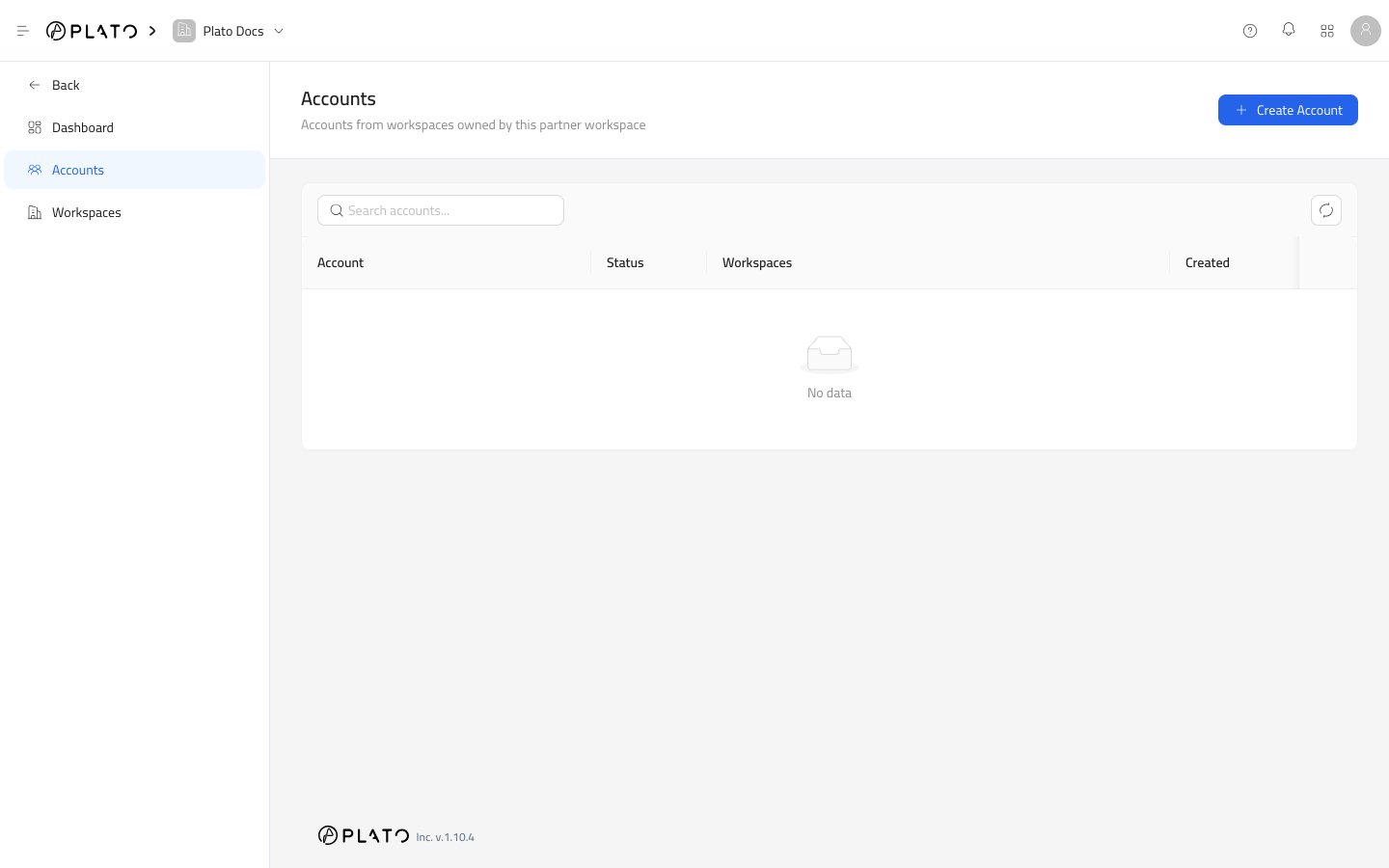
Open The Drawer
- Open
Partners. - Go to
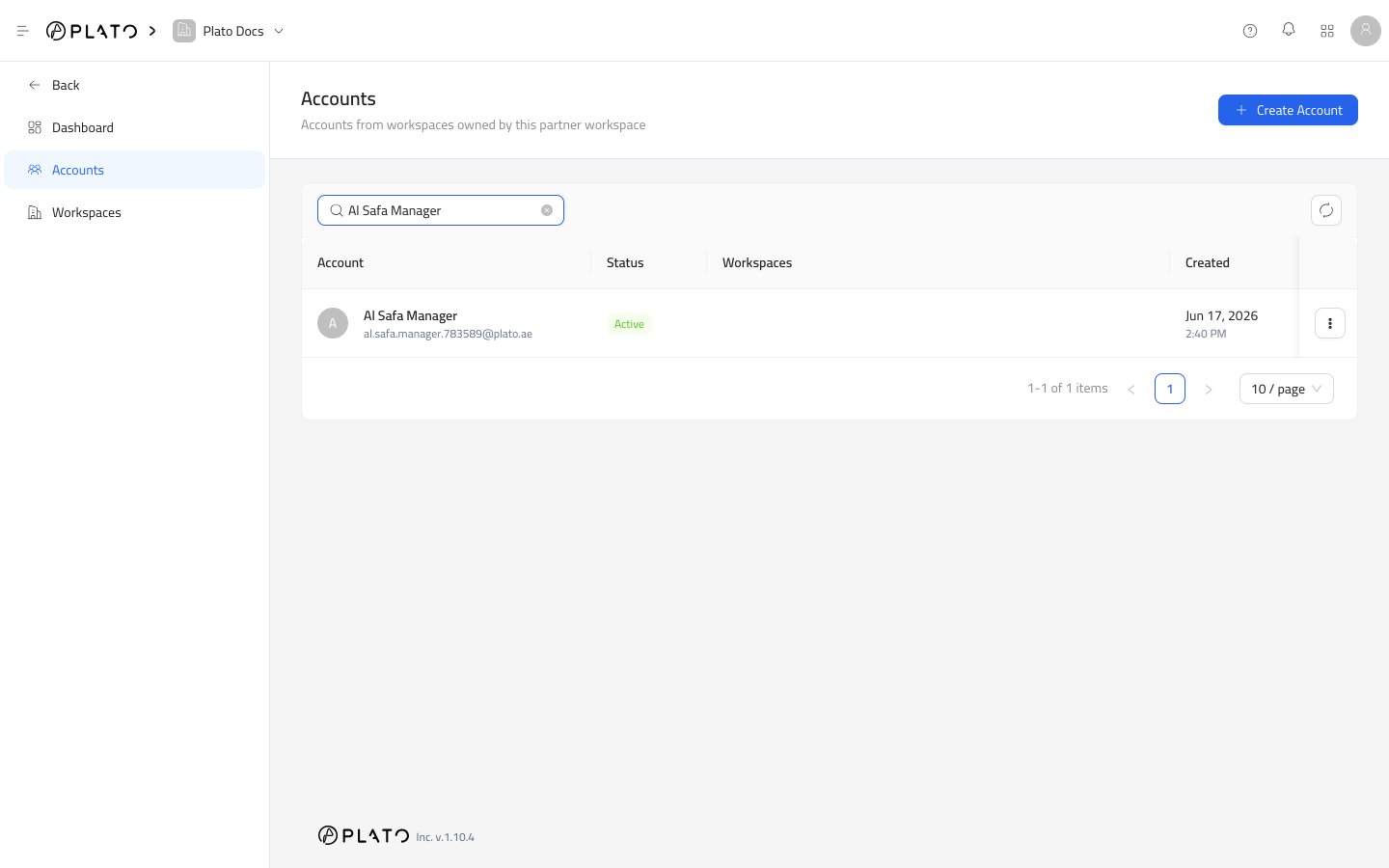
Accounts. - Click
Create Account.
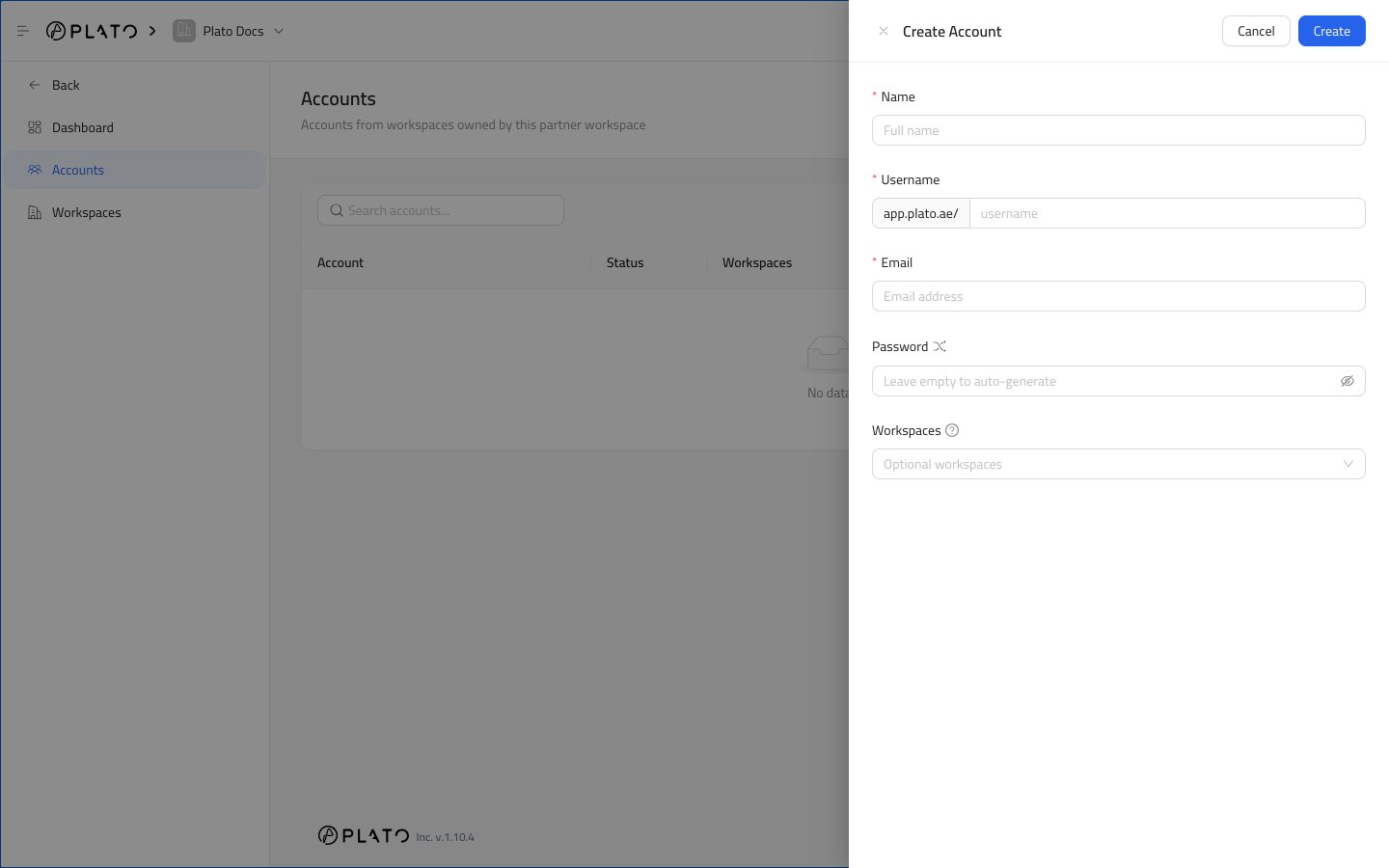
Account Fields
Name is the customer’s display name.
Username creates the account username. Plato keeps the workspace URL prefix visible while you type.
Email is the sign-in and notification email for the account.
Password can be typed manually or left empty when you want Plato to generate one. Use the shuffle button when you want a new generated password.
Workspaces lets you connect the account to one or more partner-owned workspaces right away. You can also leave it empty and add the account later from a workspace.
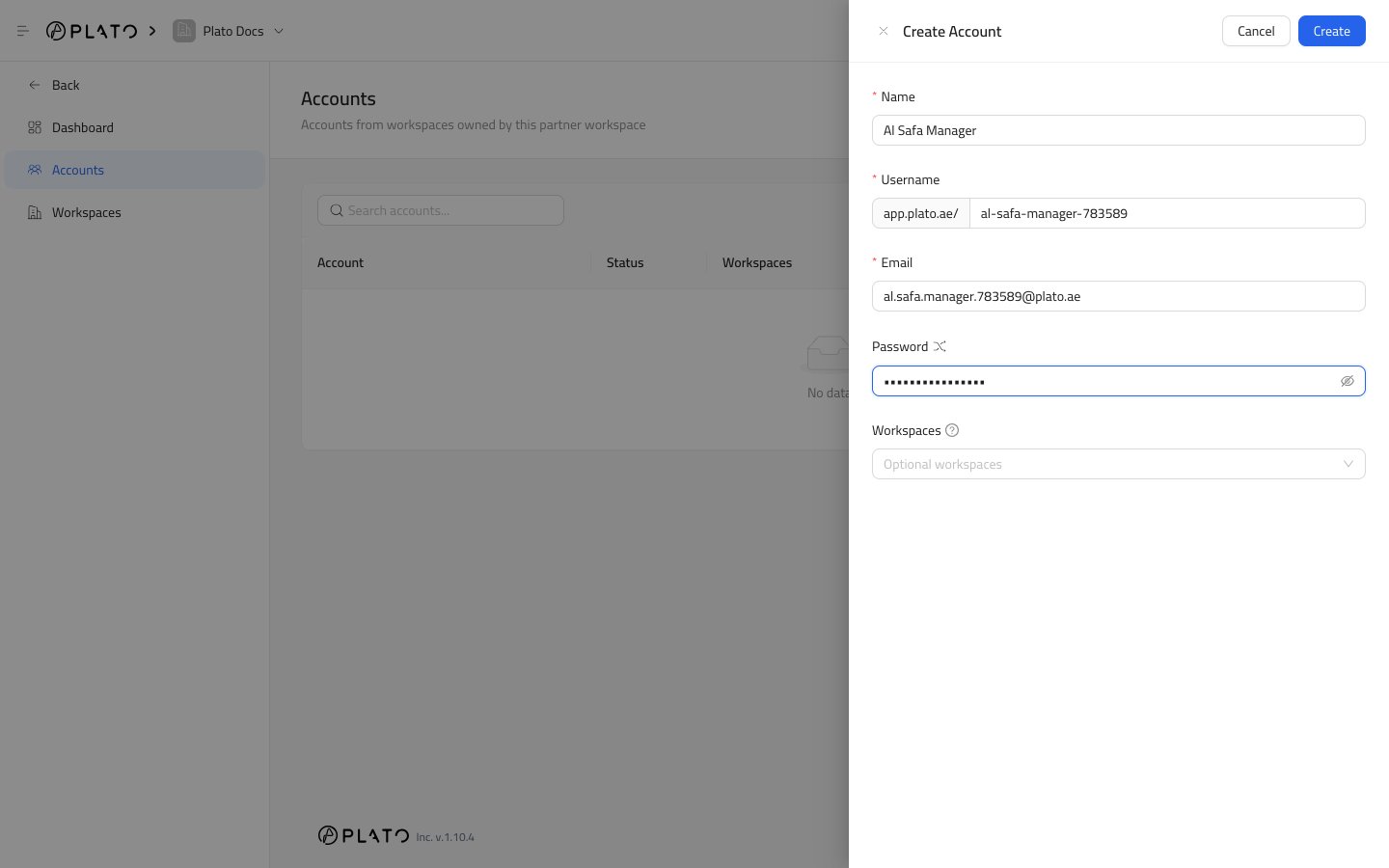
Create The Account
After the required fields are ready, clickCreate.
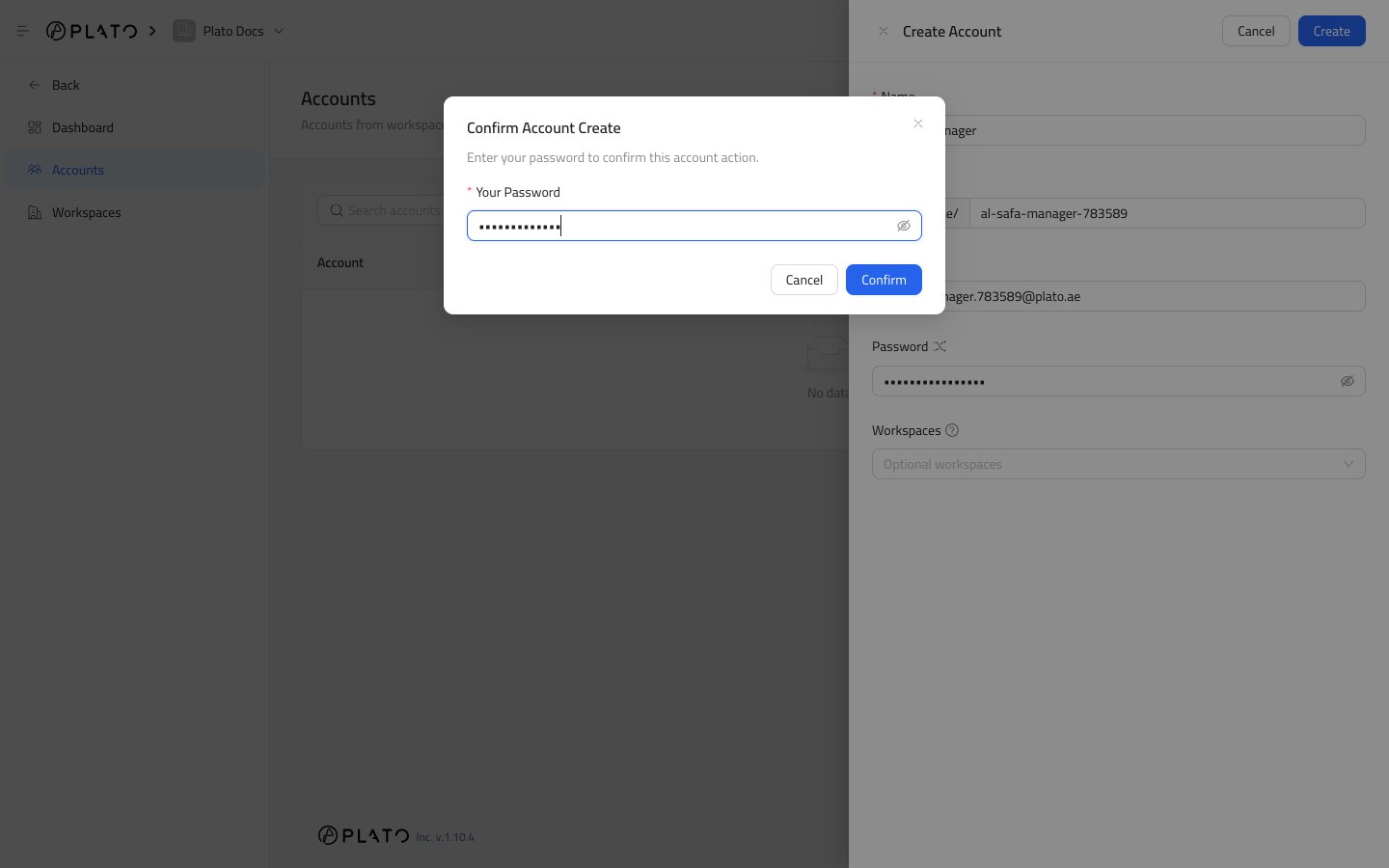
Plato may ask you to confirm your own password before the account is created. This confirmation protects customer access changes.
When To Assign Workspaces Now
Assign a workspace during account creation when you already know where the customer belongs. Leave workspaces empty when the account needs to exist first, or when another teammate will decide access later.Editing Later
After creation, useEdit Account from the account row actions menu to update the same profile fields and workspace access.