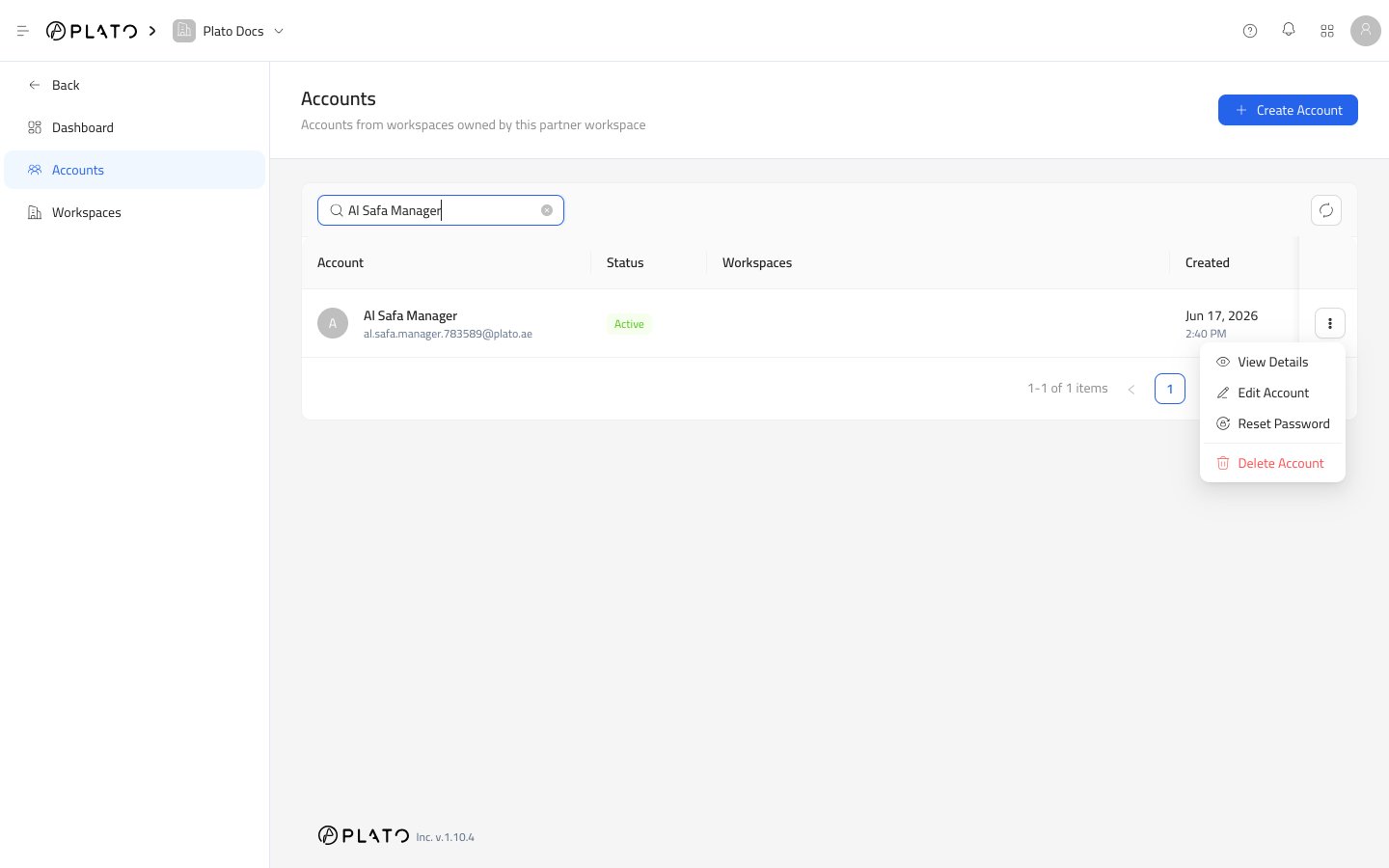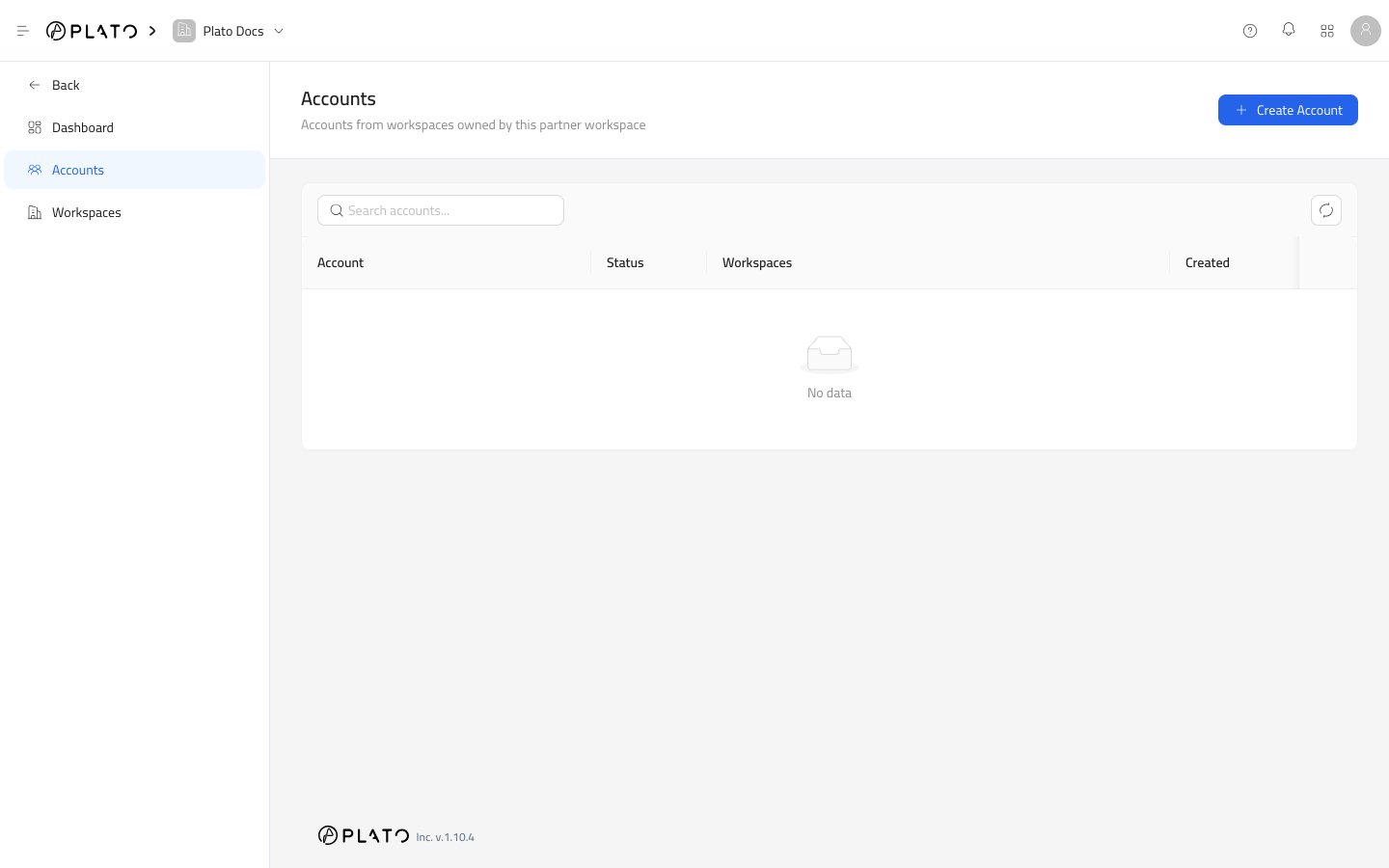
Search Accounts
Use the search field when the partner has many accounts. You can search by account name, username, or email. The list updates to show matching accounts.Refresh
Use the refresh button when another teammate just created, edited, or deleted an account and you need the newest list.Create Account
UseCreate Account when the customer needs a new login.
Go to Create An Account for the full flow.
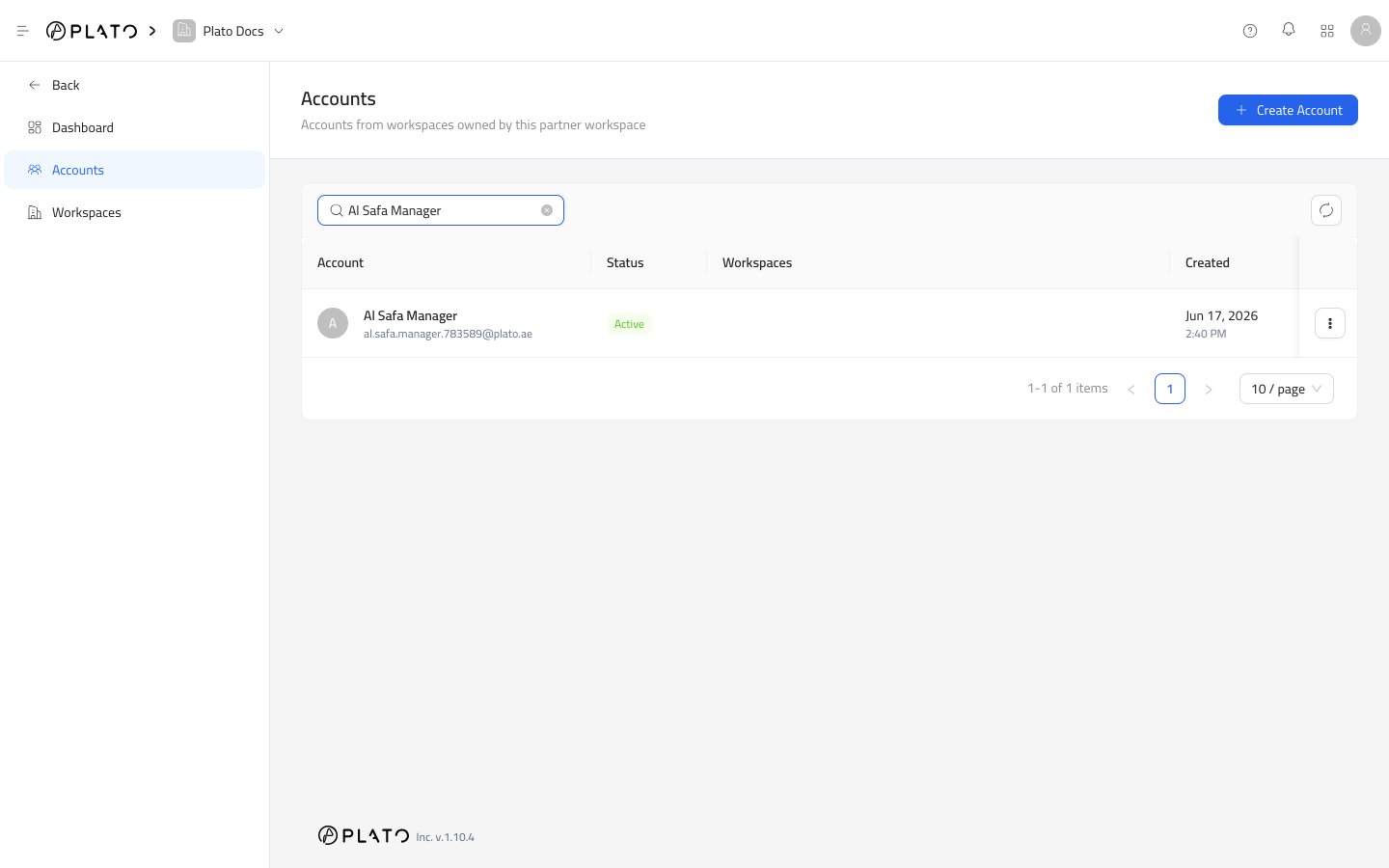
Open Account Details
Click an account row, or chooseView Details from the row actions menu.
The details drawer shows the account name, email, verification state, current status, and connected workspaces.
Row Actions
Every account row can expose these actions when your role allows them:View Detailsopens the account profile drawer.Edit Accountlets you update the name, email, username, and workspace access.Reset Passwordlets you set or generate a new password.Delete Accountremoves the account after password confirmation.