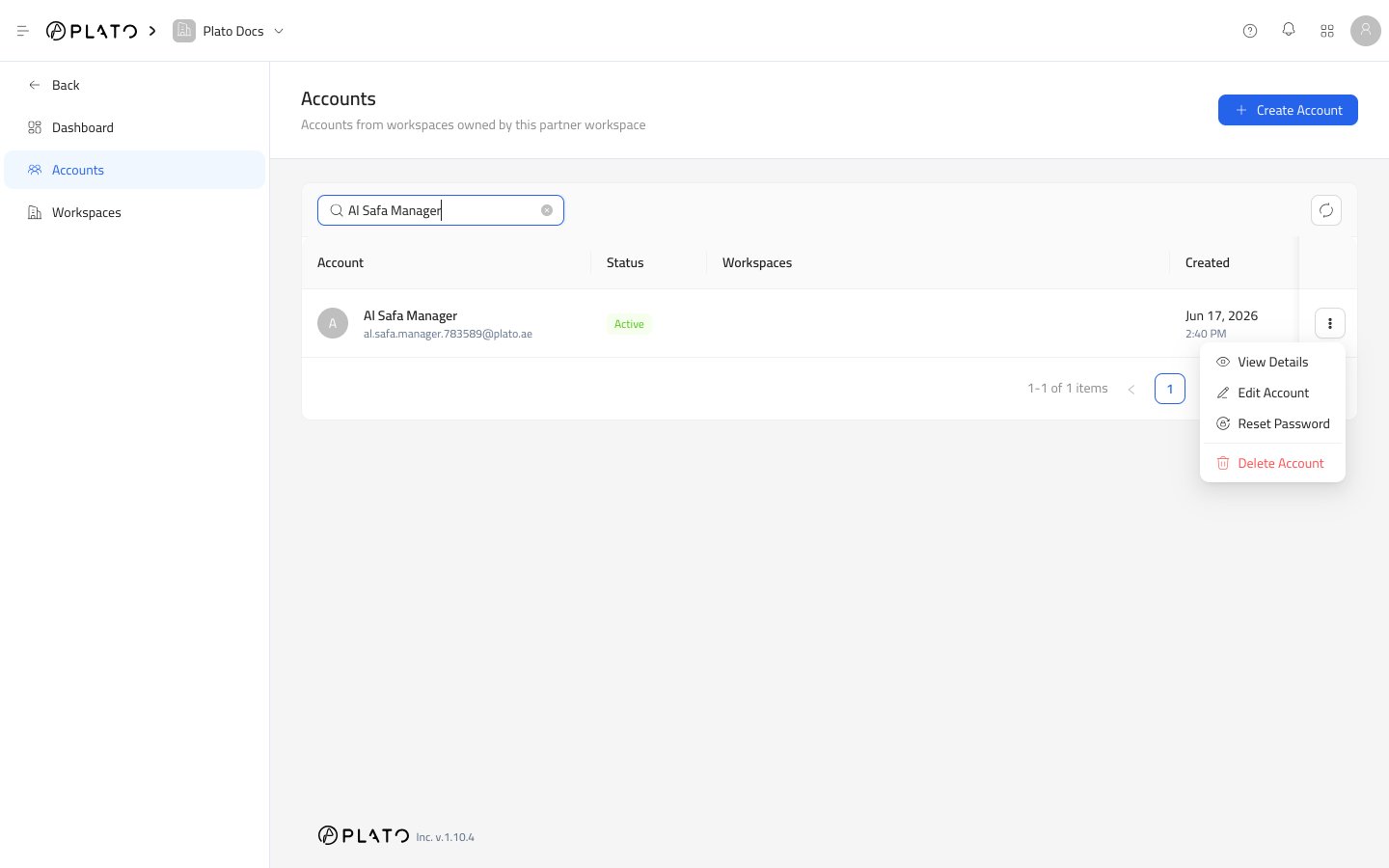
View Details
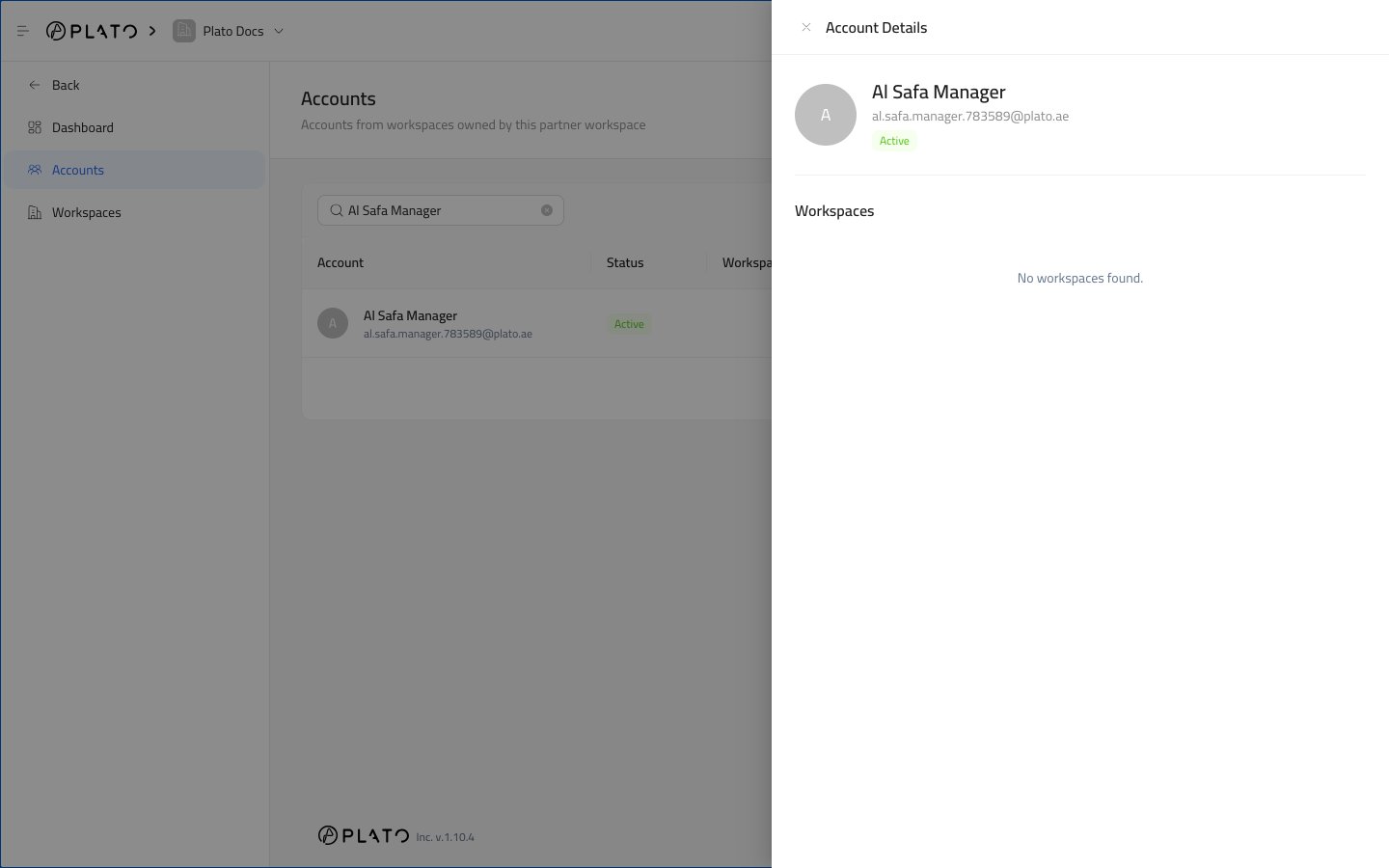
UseView Details when you only need to inspect the account.
The details drawer shows the account identity, email verification state, active or inactive status, and connected workspaces.
Edit Account
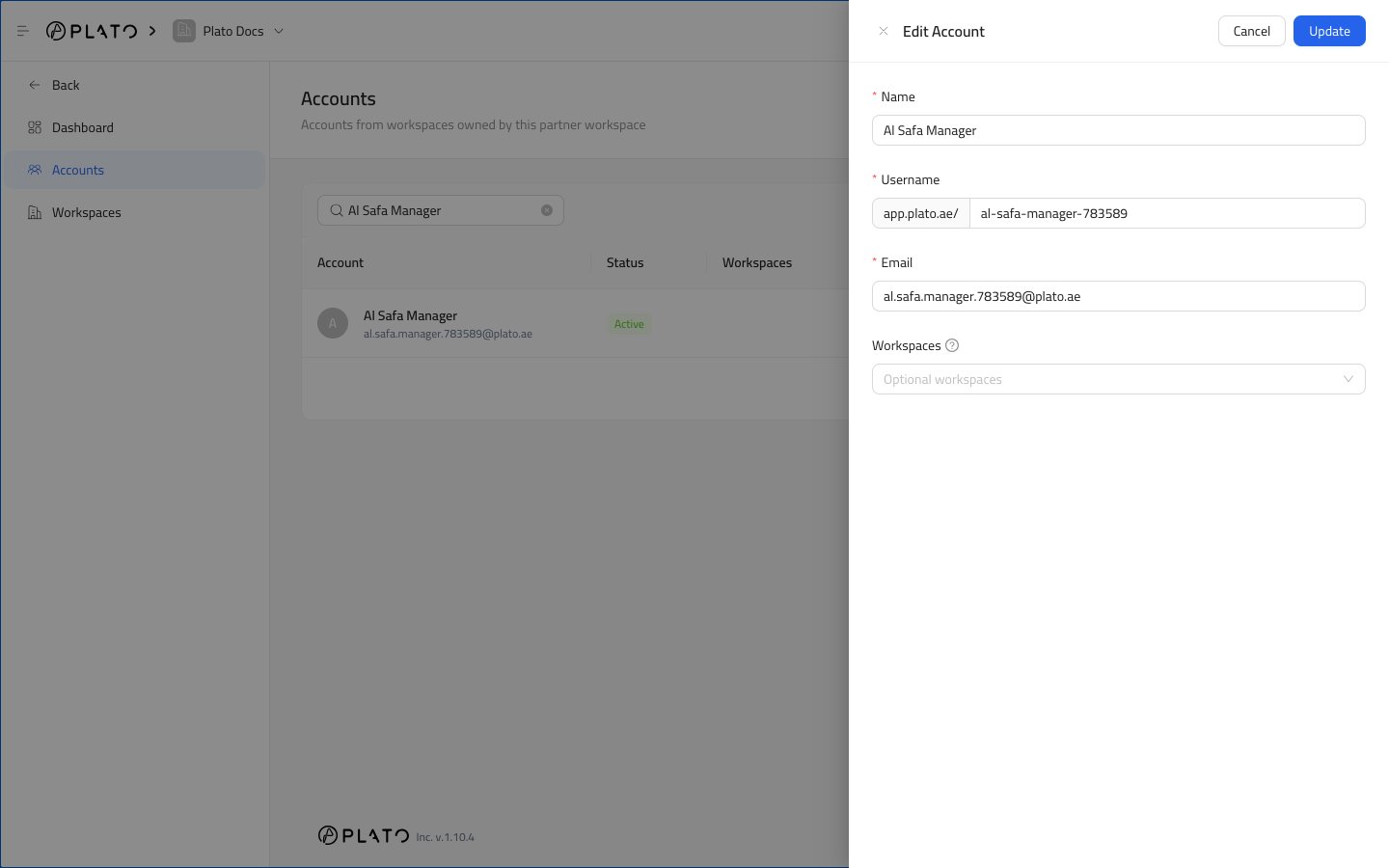
UseEdit Account when the customer name, email, username, or workspace access needs to change.
Changing workspace access controls which partner-owned workspaces the account can open.
Plato may ask for your password before saving the change.
Activate Or Deactivate
Use the status control to switch an account between active and inactive. Deactivate an account when access should pause but the account should remain available for review or reactivation. Activate the account again when the customer should be able to use it normally.Reset Password
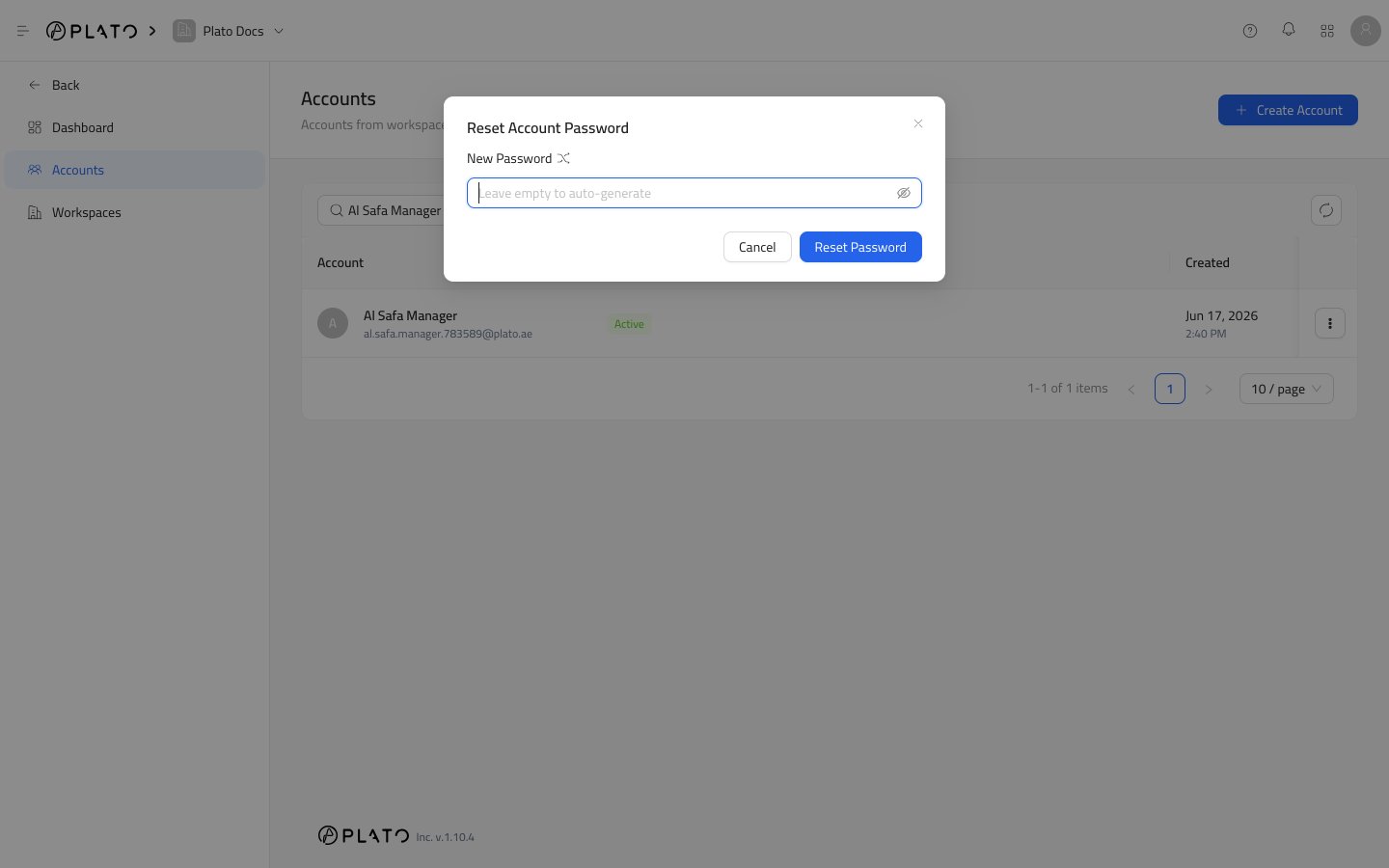
UseReset Password when the customer cannot sign in or needs a fresh password.
You can enter a new password manually or generate one.
After saving, share the new password through your approved support process. Do not paste customer passwords into public tickets, screenshots, or shared docs.
Delete Account
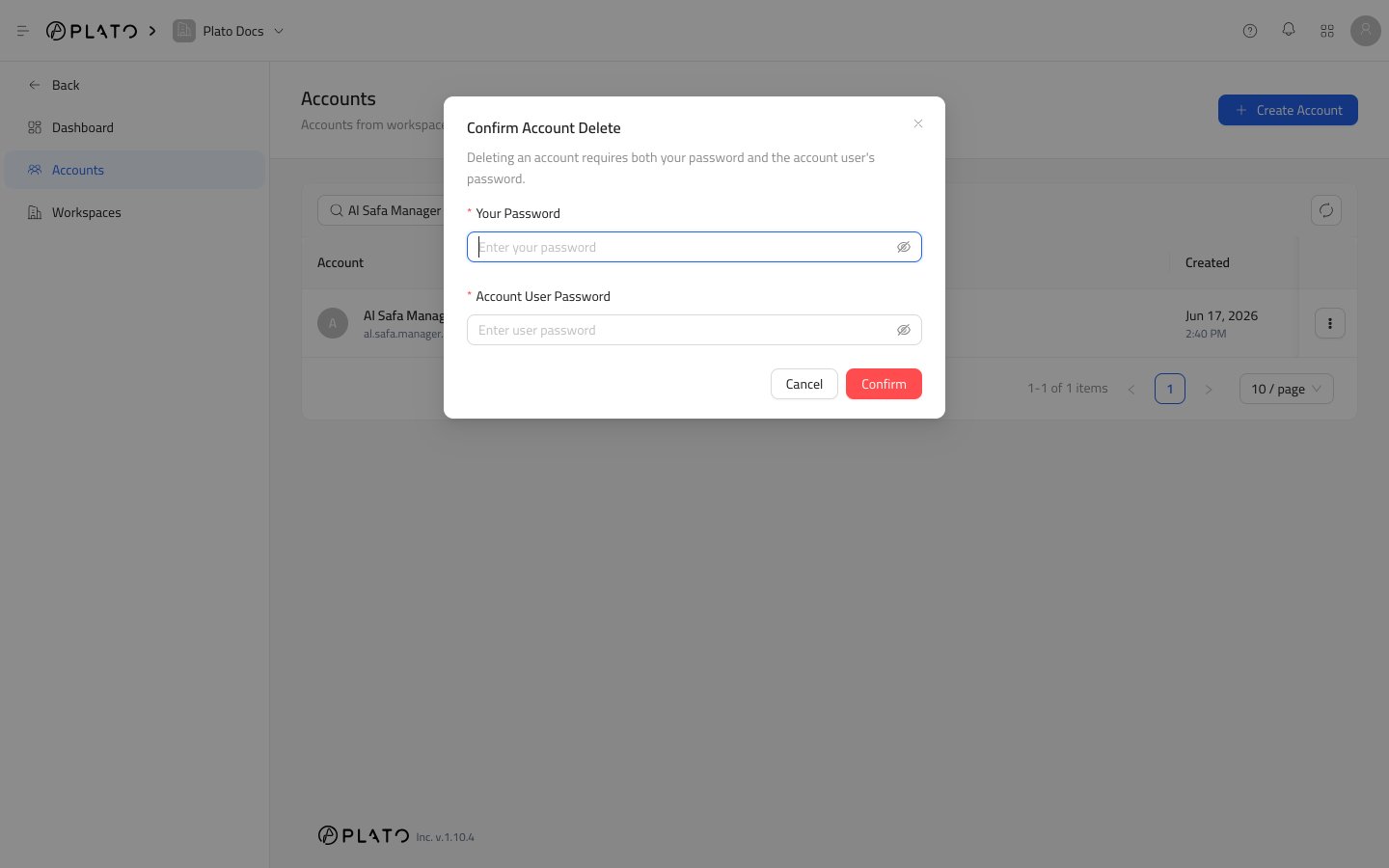
UseDelete Account only when the account should be removed from Plato.
Deletion may ask for two confirmations:
- Your password, to confirm that you are allowed to perform the action.
- The account user’s password, to confirm the exact account being removed.