

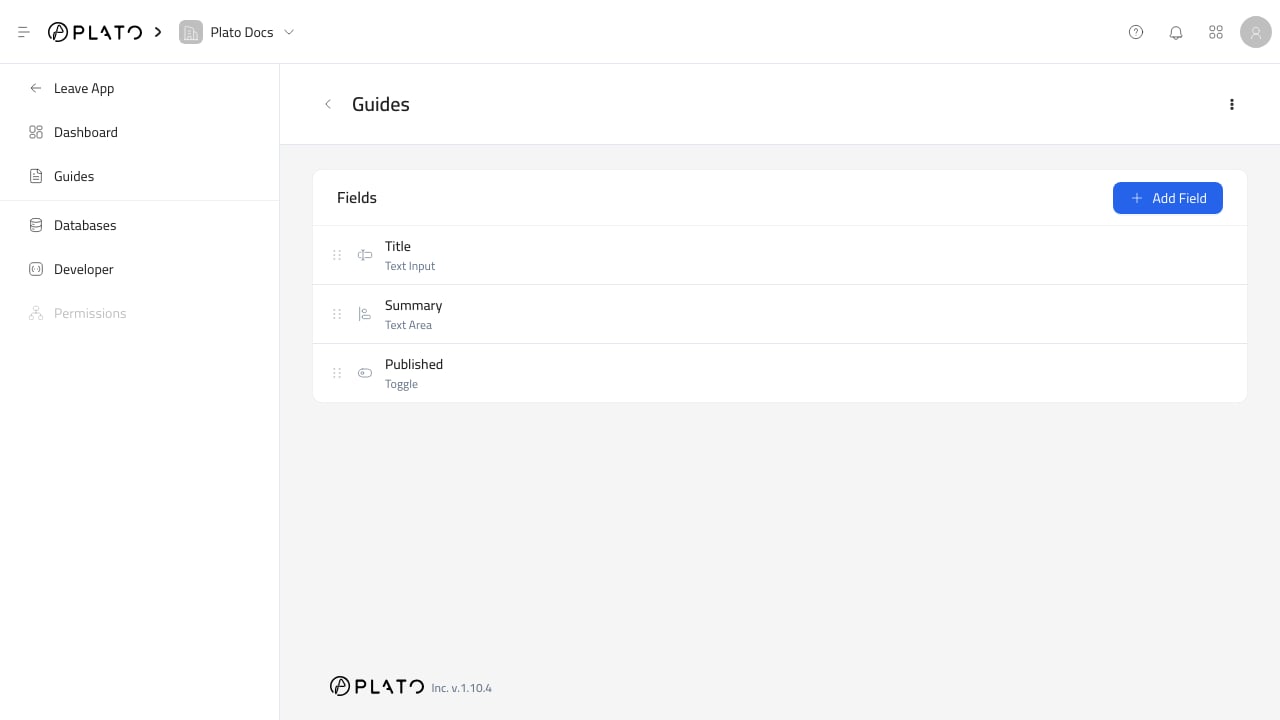
Field Types
CMS supports these field groups:- Text and numbers:
Text Input,Text Area,Rich Text,Number,Slider, andJSON. - Selection:
Dropdown,Checkbox,Radio,Toggle, andRating. - Date and time:
Date,Time, andDate & Time. - Media and files:
File,Image,Color, andIcon. - Relations:
Many to One,One to Many, andMany to Many. - Geo and maps:
Map Point.
Schema Settings
TheSchema tab controls the field key, data type, labels, helper text, placeholder text, default value, localization, and basic storage behavior.
The field key is the most important setting. It is used in saved entry values, filters, generated TypeScript types, API examples, and relation display templates.
Use keys like title, slug, description, hero_image, published_at, and sort_order.
Field Settings
TheField tab changes based on the field type.
Examples:
- Text fields can set input type, prefix, suffix, min length, max length, and character count.
- Select fields can define options, multiple selection, search, clear behavior, and custom values.
- Number fields can define min, max, step, precision, prefix, and suffix.
- File and image fields can define accepted types, max file size, max files, folder, crop, and aspect ratio.
- Relation fields choose a related table, display field, display template, delete behavior, and create or edit behavior.
- JSON fields can use raw JSON or tags mode.
- Map point fields can set default zoom and center.
Interface Settings
TheInterface tab controls how the entry form is arranged.
Use it to add tabs, sections, groups, dividers, field width, icons, font style, trimming, clear buttons, masked input, and copy controls.
This is useful when a database has many fields and editors need a cleaner form.
Display Settings
TheDisplay tab controls table and detail presentation.
You can choose display type, template, date format, number format, column width, sortable behavior, filterable behavior, and hidden behavior.
Hide fields from display when they are needed for API logic but should not clutter the entry list.
Conditions
TheConditions tab lets a field appear only when another field matches a rule.
Use conditions for optional sections. For example, show External URL only when Link Type equals External.