

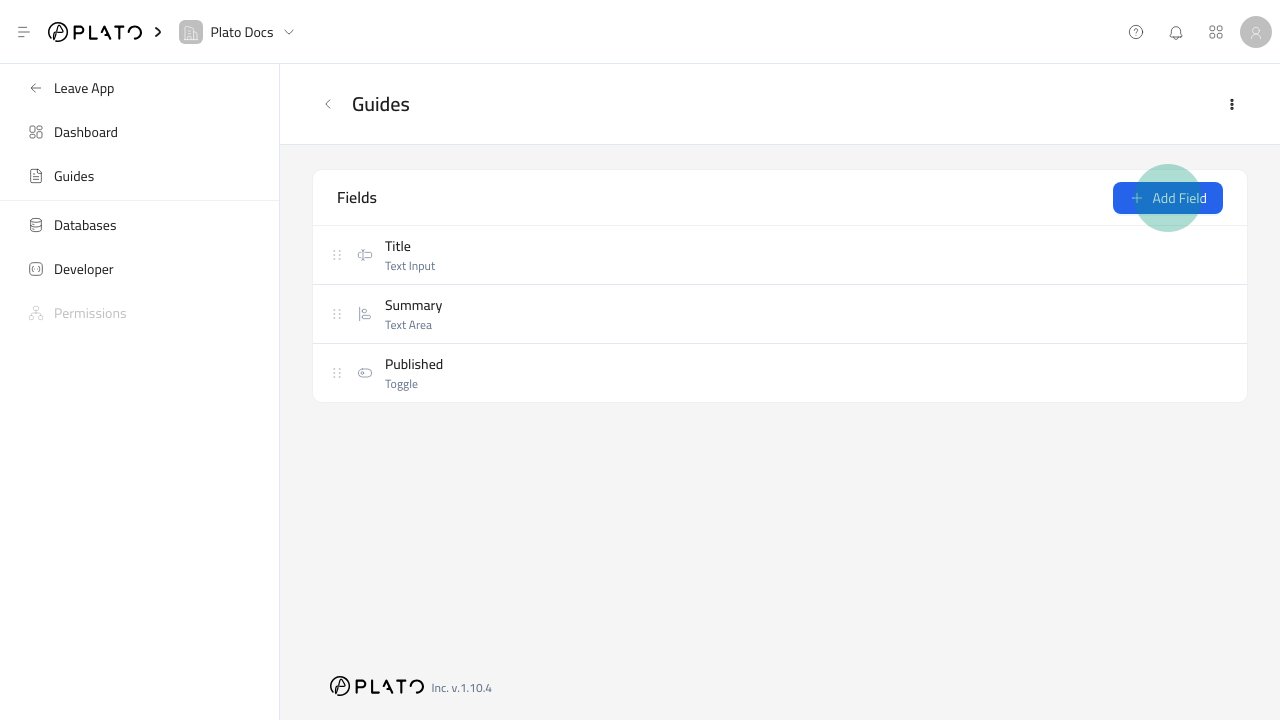
Open The Schema Editor
- Open
CMS. - Go to
Databases. - Open the row menu for the database.
- Click
Edit Schema. - Click
Add Field.
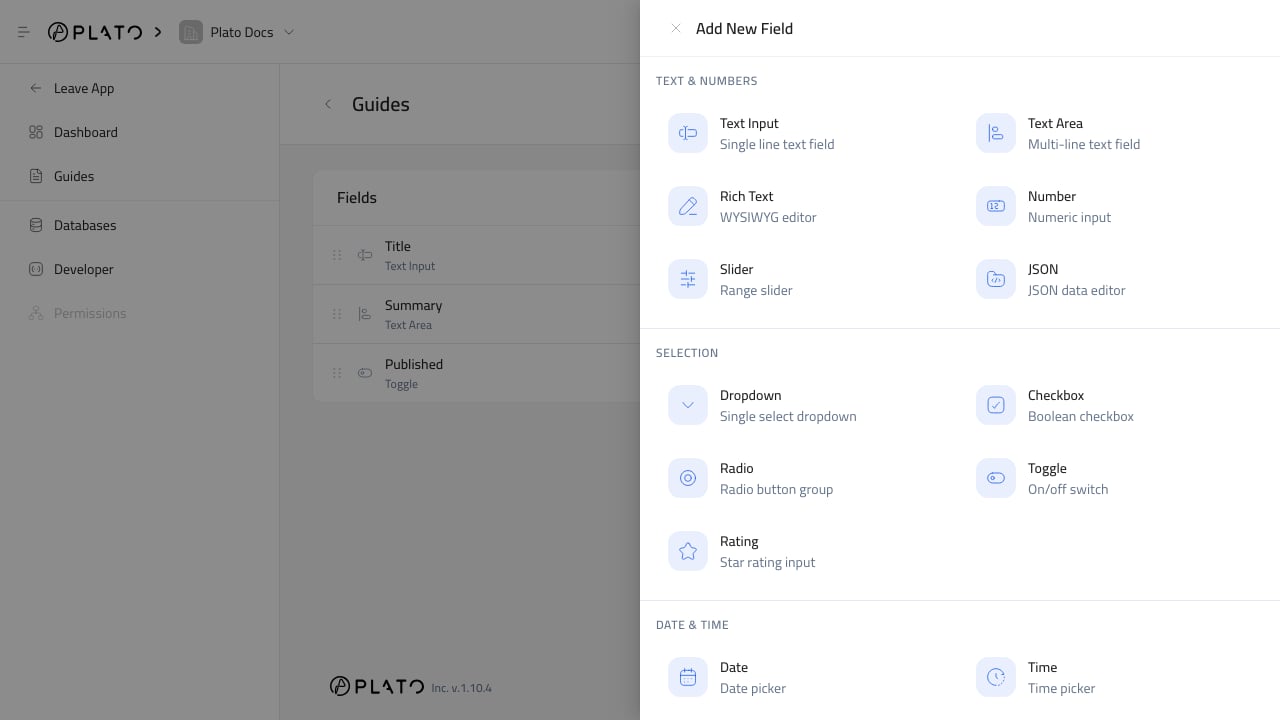
Choose The Field Type
Choose the field type that best matches the content editors will enter. Good examples:- Use
Text Inputfor names, slugs, URLs, emails, and short labels. - Use
Text AreaorRich Textfor longer body content. - Use
Imagefor one or more images from Drive. - Use
Dropdown,Radio, orCheckboxwhen editors must choose from known options. - Use
DateorDate & Timefor scheduled or time-based content. - Use
Relationfields when an entry should point to another CMS table or supported system table. - Use
Map Pointfor a saved location.
Fill The Schema Tab
Add:- Field key.
- Data type when editable.
- Label.
- Helper text when the field needs guidance.
- Placeholder when it helps editors understand the expected value.
- Default value when new entries should start with a value.
Required for values that must be filled before saving.
Turn on Localization when the field value should be entered per language.
Configure The Field Tab
Use the field-specific settings to control input behavior. For example, add select options for dropdowns, file limits for media fields, number limits for numeric fields, and a target table for relation fields.Arrange The Form
Use theInterface tab to group related fields.
For large tables, use tabs and sections. For compact tables, field widths and dividers may be enough.
Save And Test
After creating fields, open the table entry list and clickAdd Entry.
Check that:
- Required fields are clear.
- Labels and helper text make sense.
- Localized fields show language tabs.
- Relation fields show useful option labels.
- The table list displays the columns staff need most.