

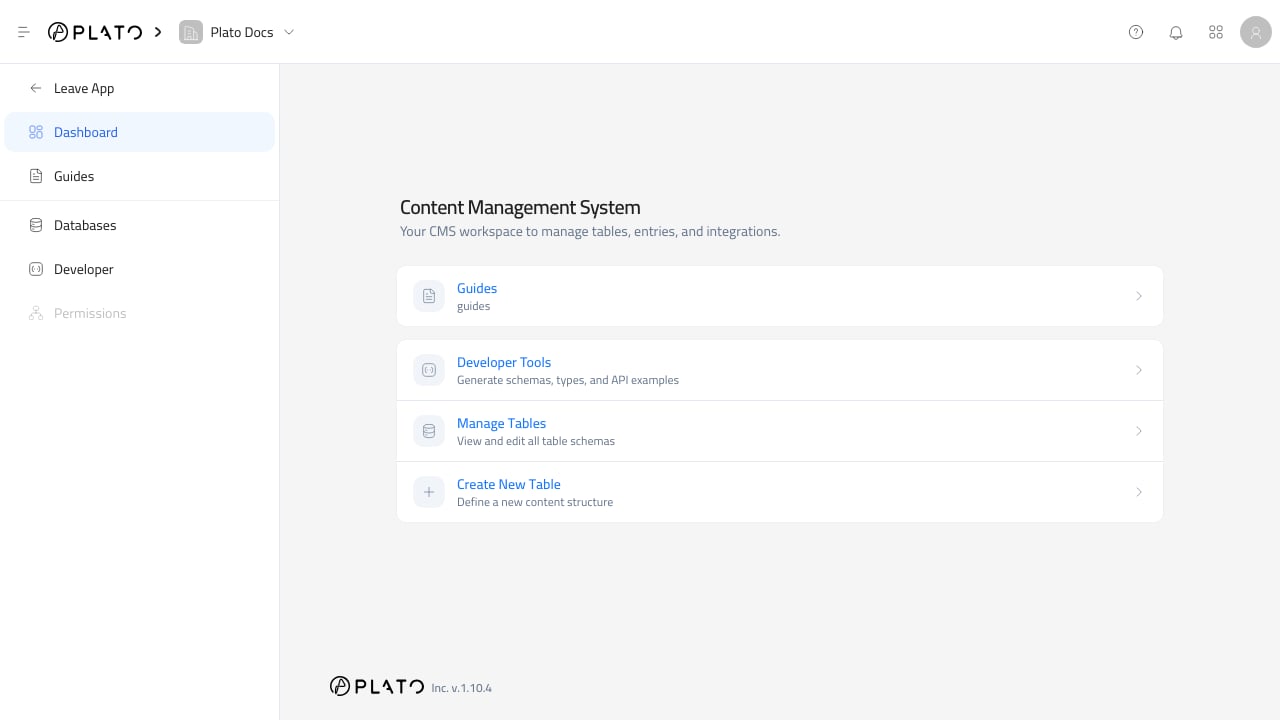
What You Can Do
With CMS, you can:- Create content tables.
- Group tables into folders.
- Add fields that control the entry form and table columns.
- Create, edit, filter, reorder, inspect, and delete entries.
- Connect entries to other CMS tables or supported system tables.
- Localize field labels and entry values.
- Generate TypeScript API client code and API examples from the current schemas.
Start Here
Open And Navigate
Learn the CMS sidebar, dashboard, database list, and main working areas.
Create A Database
Build a new content table and choose the identifier other tools will use.
Add Fields
Add the fields staff will fill in when creating entries.
Create Entries
Add content, edit existing records, and keep entries clean.
Relations
Connect one CMS table to another when content belongs together.
Developer Tools
Review generated code and API examples for trusted integrations.
A Good Setup Path
For a new CMS area, work in this order:- Create folders for major content areas when the workspace will have many tables.
- Create the database.
- Choose a stable identifier.
- Add fields in the order staff should fill them.
- Configure field display, layout, relations, and conditions.
- Add a few sample entries.
- Open Developer Tools if another app or website needs API access.
Before You Add Content
Spend a minute on table and field names before entering a lot of data. The table identifier and field keys are used by integrations and generated code. Keep them short, readable, and stable, such aslocations, featured_services, title, slug, image, and sort_order.