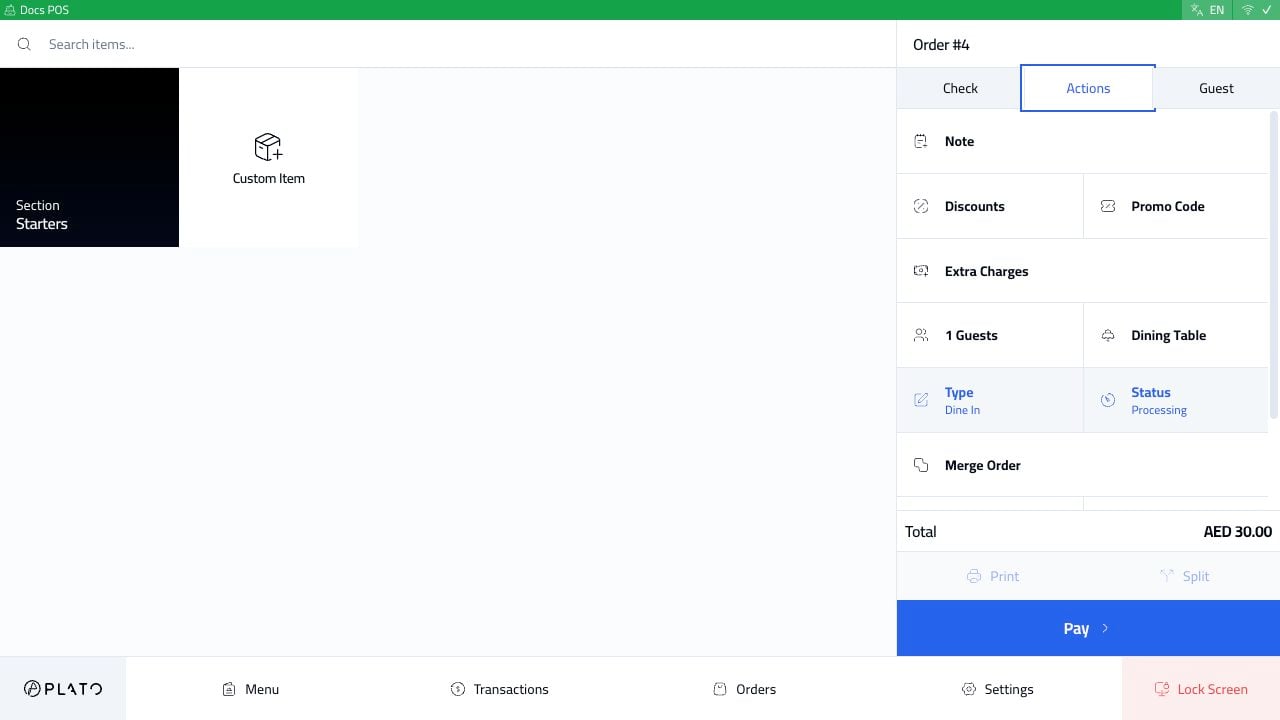
Use this page when something needs to be corrected after an order is already active. Open the order, then choose Actions in the order sidebar. Order actions panel
What The Actions Tab Contains

The Actions tab can include:
  • Order note.
  • Discounts.
  • Promo code.
  • Extra charges.
  • Guest count.
  • Dining table.
  • Order type.
  • Order status.
  • Merge order.
  • Payments.
  • Related orders.
The exact actions depend on the POS configuration and the current order state.

Change Status Or Cancel An Order

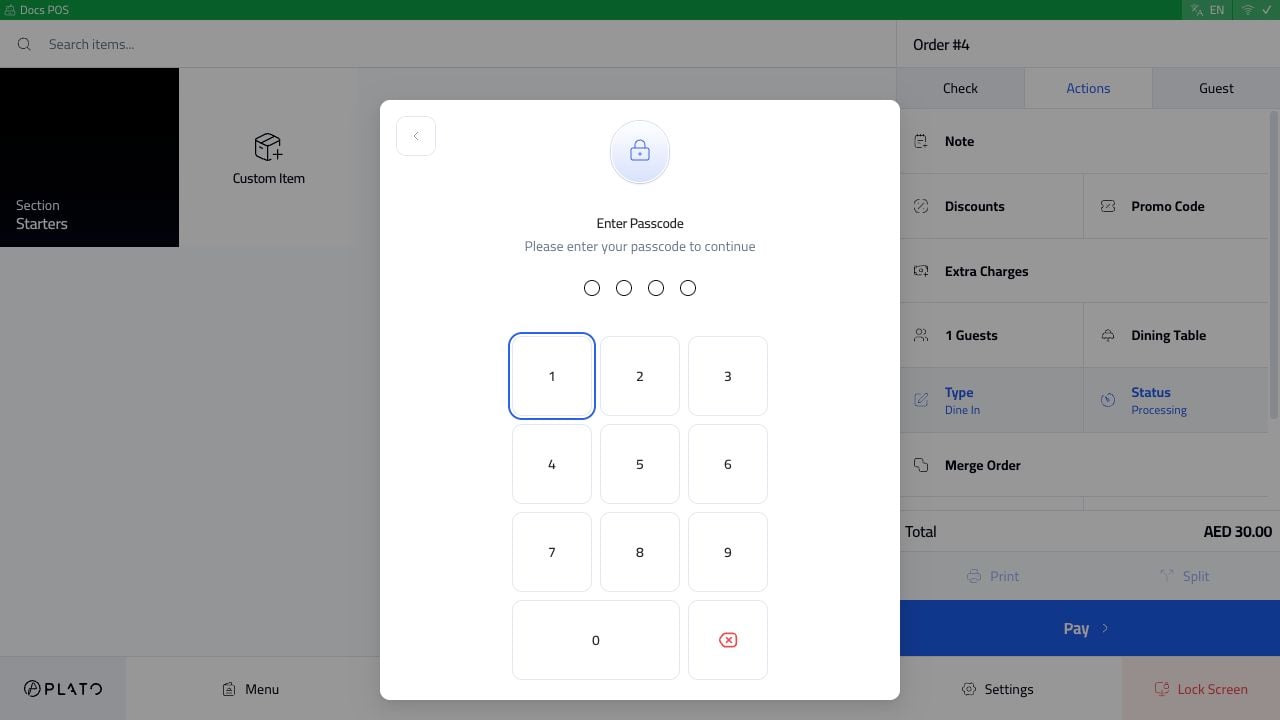
Click Status when the order needs a protected status change, such as cancellation. Order status passcode If the station asks for a passcode, an authorized manager or member must enter it. This prevents accidental cancellations during service.
Void One Item

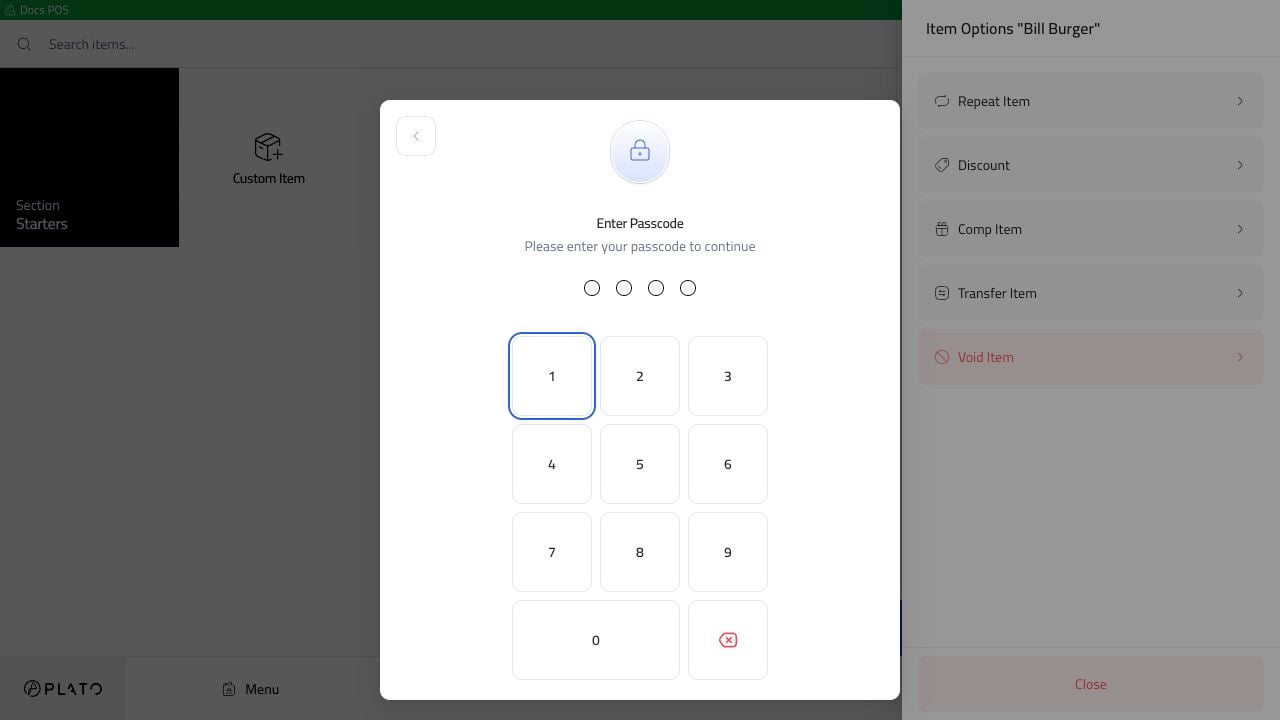
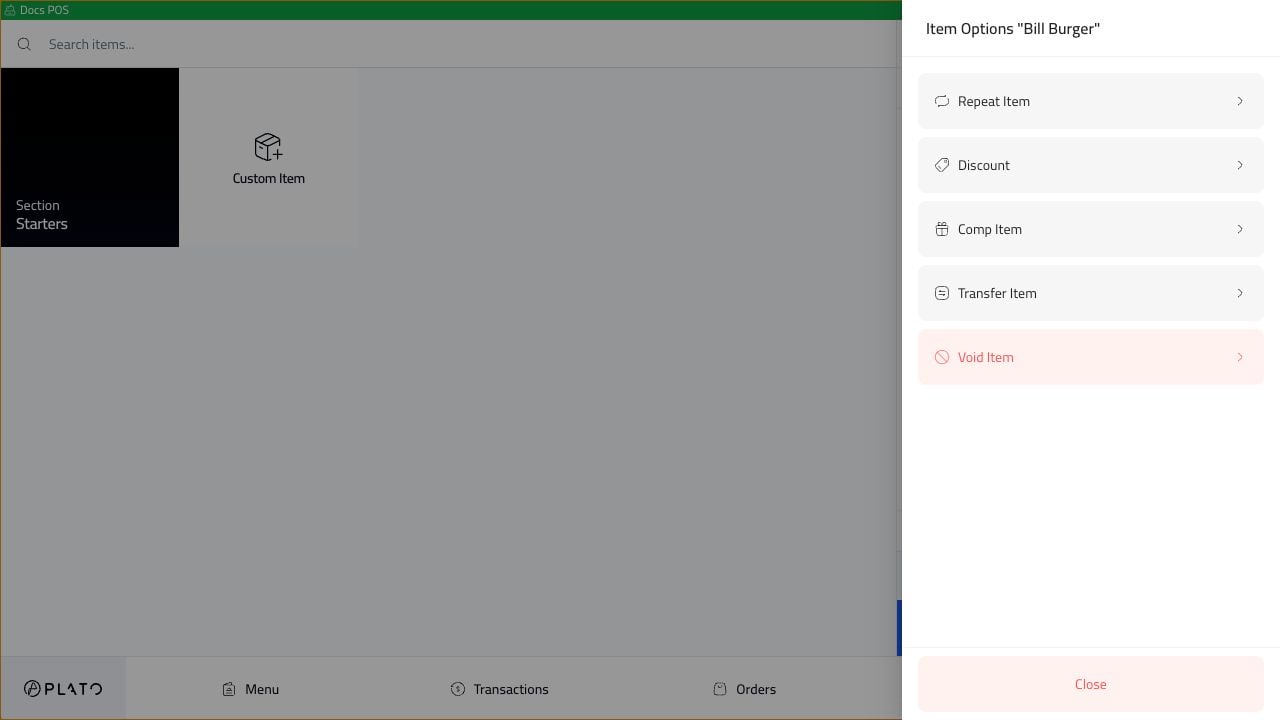
Tap the item row in the check. Item row actions Choose Void Item. Void item passcode If the station asks for a passcode, enter the authorized code and continue with the void reason when prompted.
Reopen A Closed Order

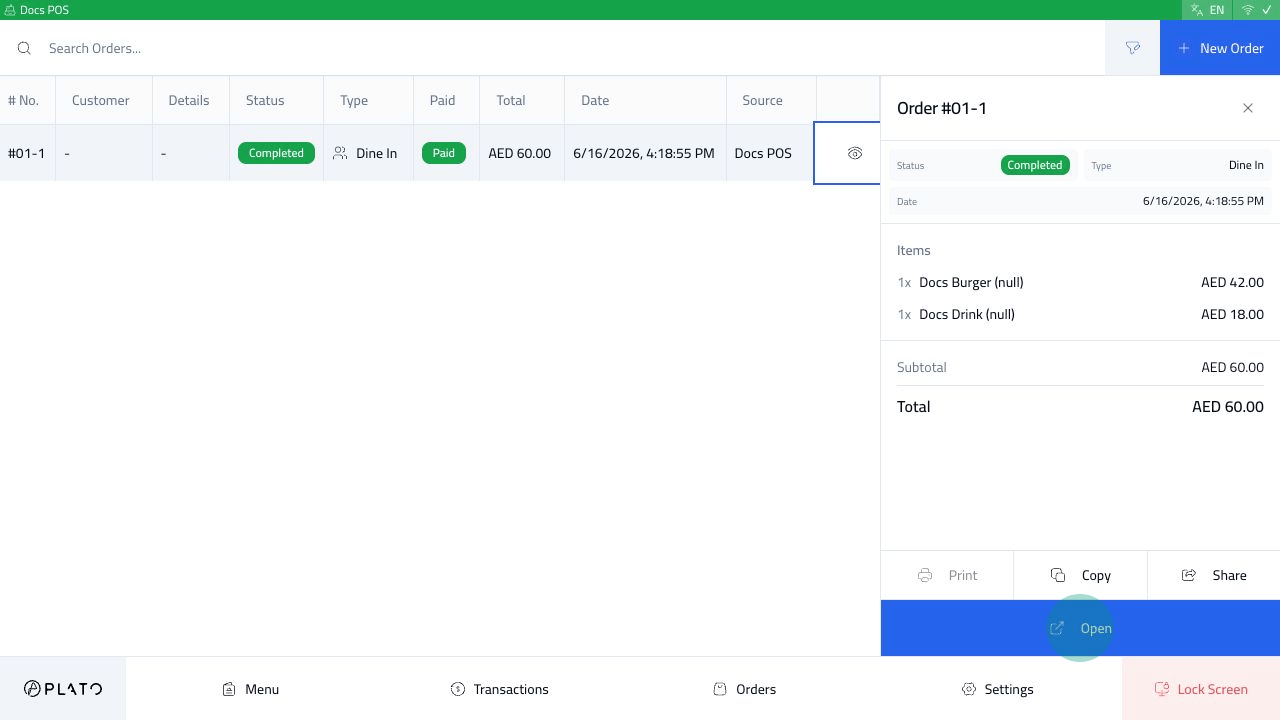
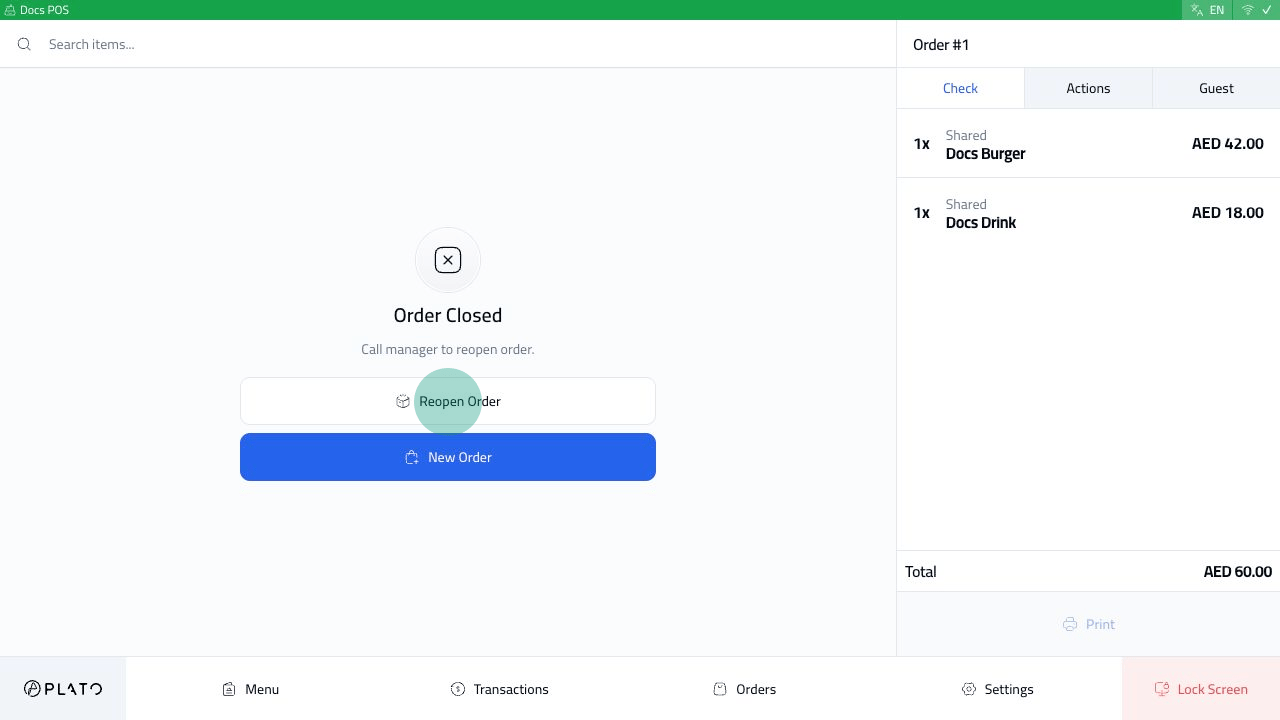
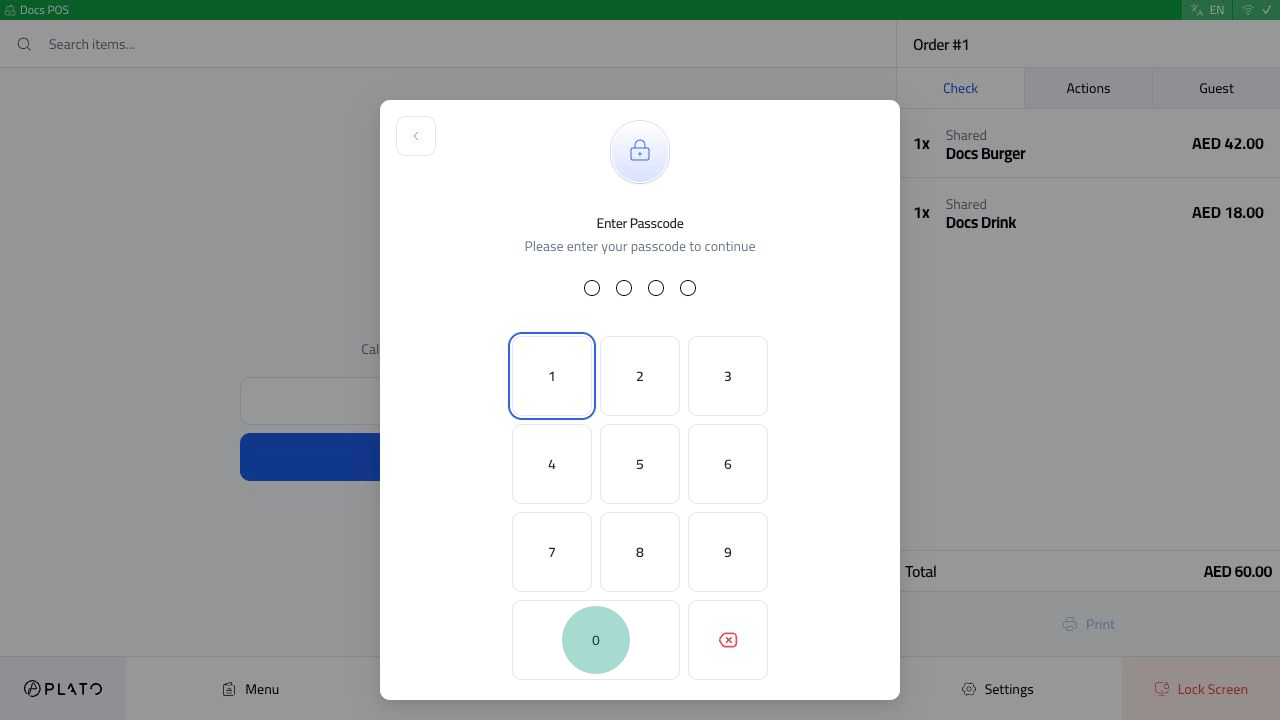
Open the completed order from the Orders list, then click Open. Completed order drawer The closed order opens with Reopen Order. Closed order reopened view Click Reopen Order. Protected workstations ask for an authorized passcode before the order can continue. Reopen passcode If your restaurant requires a reason after authorization, enter a clear reason so managers can review it later.