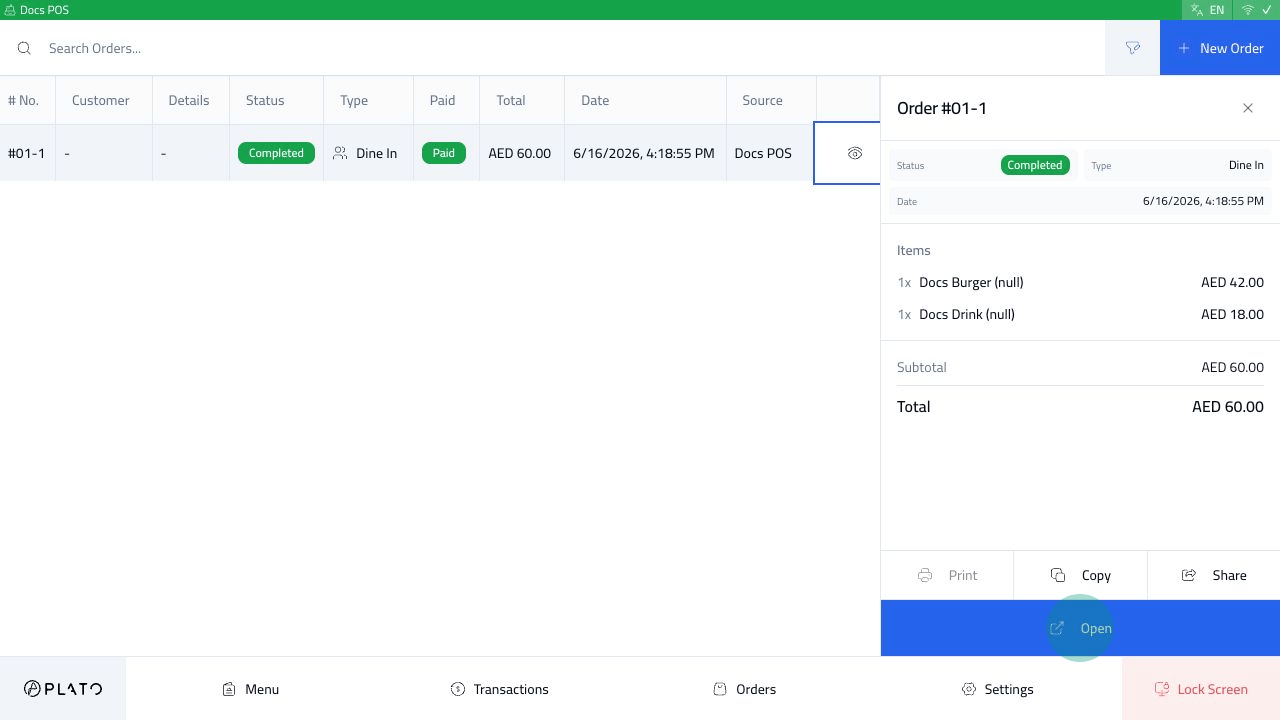
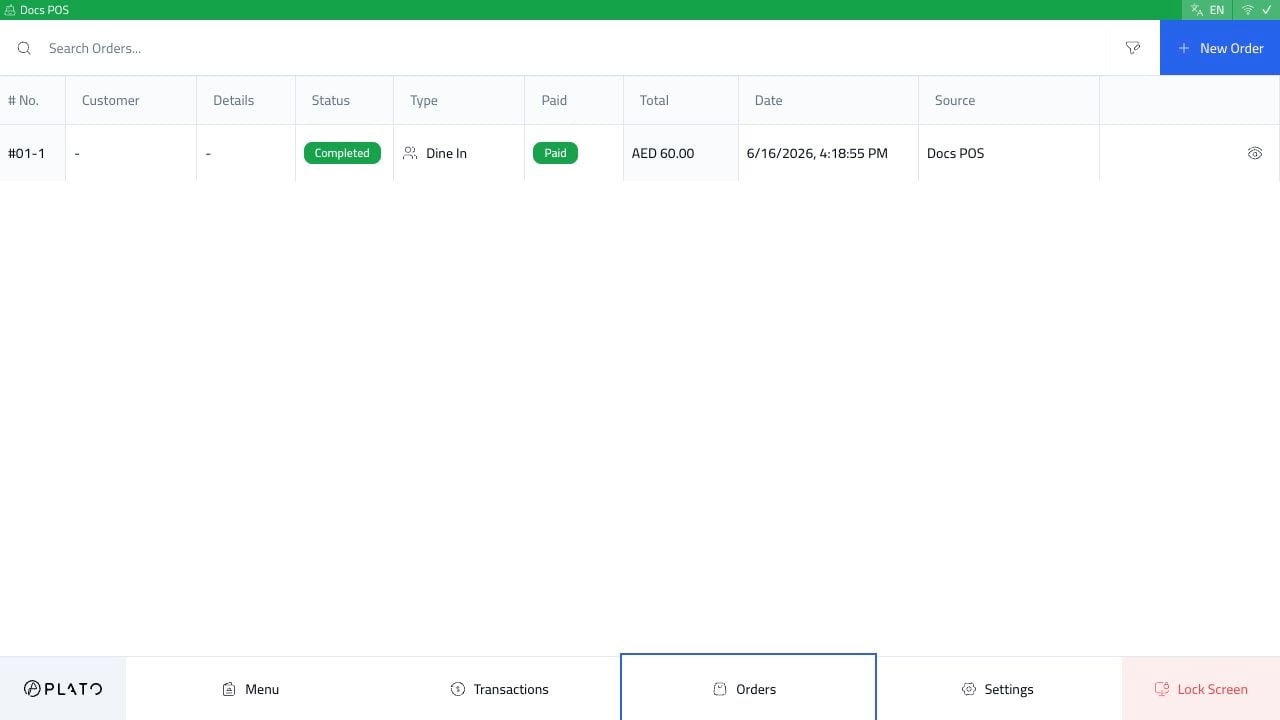
Orders from the POS bottom bar to open the order list.
When To Use It
Open the orders list when staff need to:- Find an existing order.
- Continue a draft or active order.
- Review pending online orders.
- Check order status.
- Reopen or copy an order when allowed.
Search Orders
Use the search box when you know the order number, customer, or visible reference.Open Filters
Click the filter icon near the search box.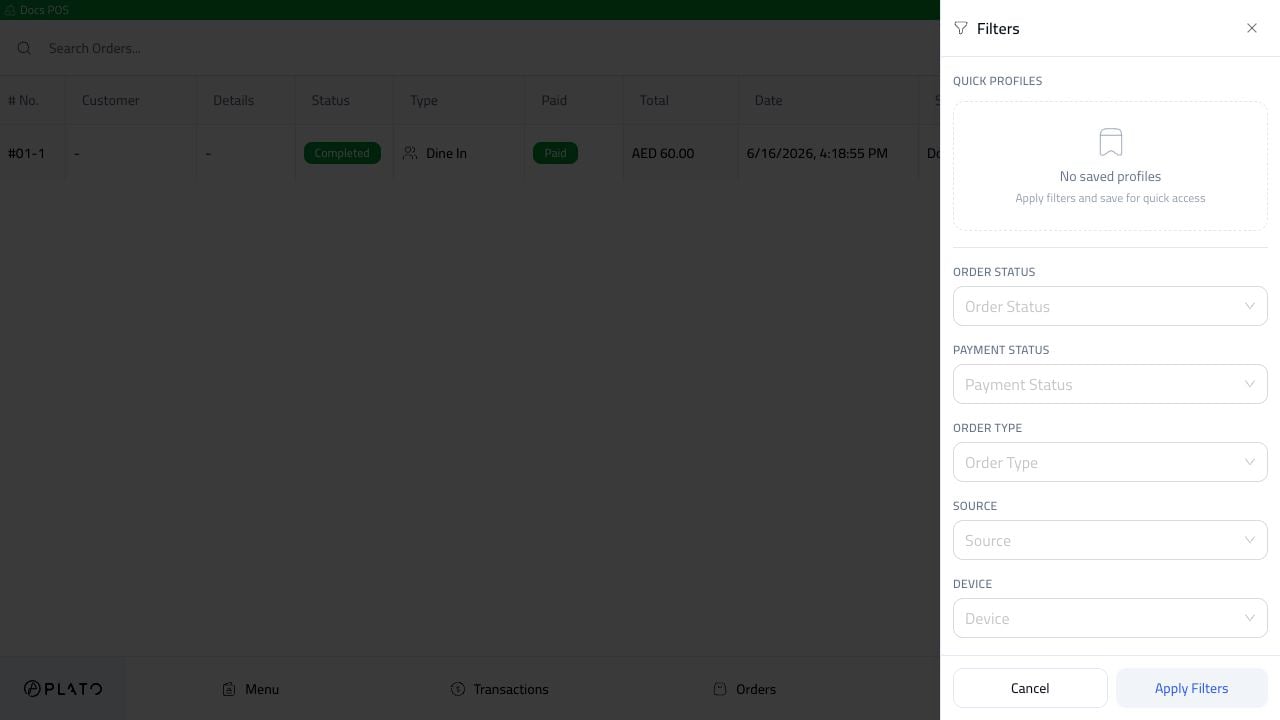
Filter By Status
OpenOrder Status to filter by:
- Draft.
- Pending.
- Processing.
- Completed.
- Cancelled.
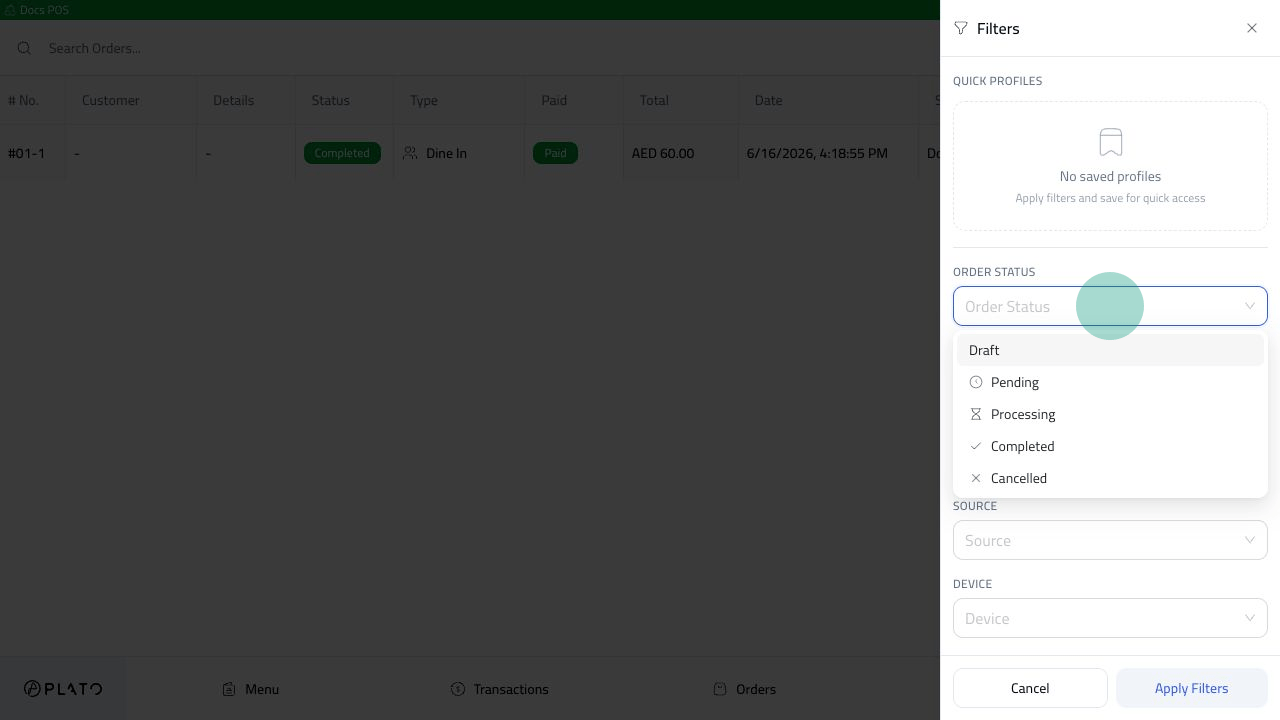
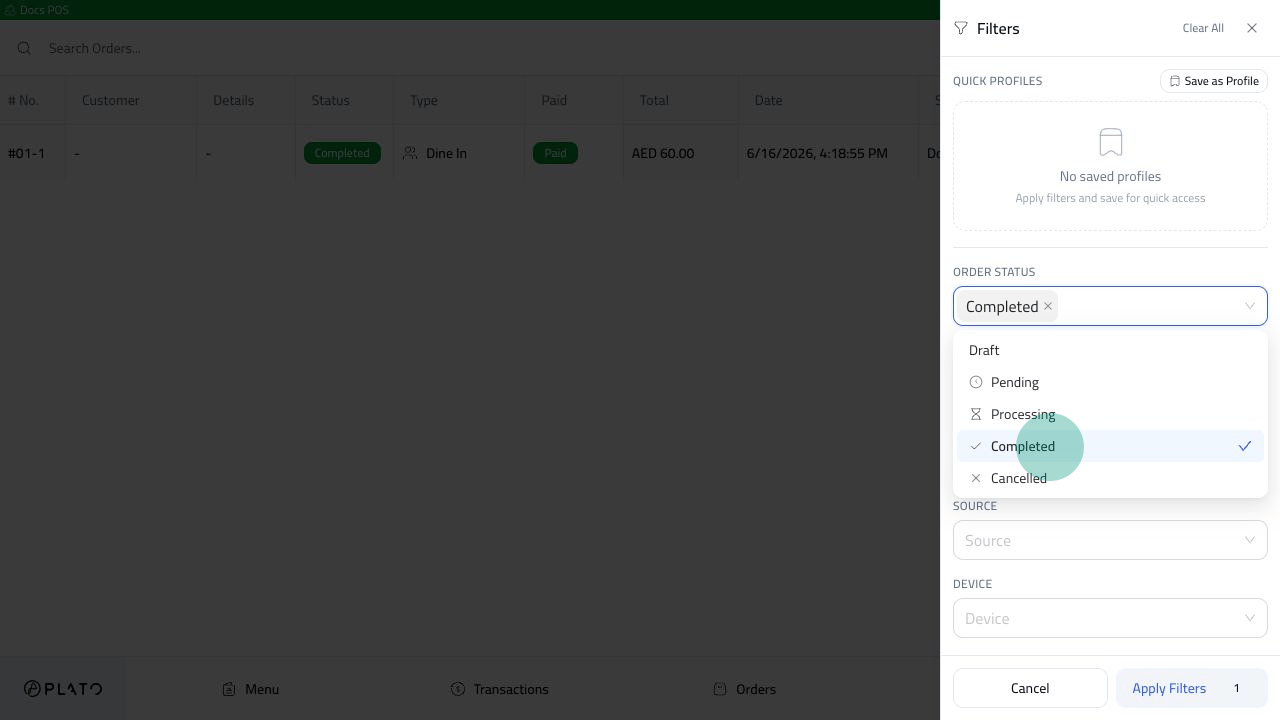
Apply Filters to update the list.
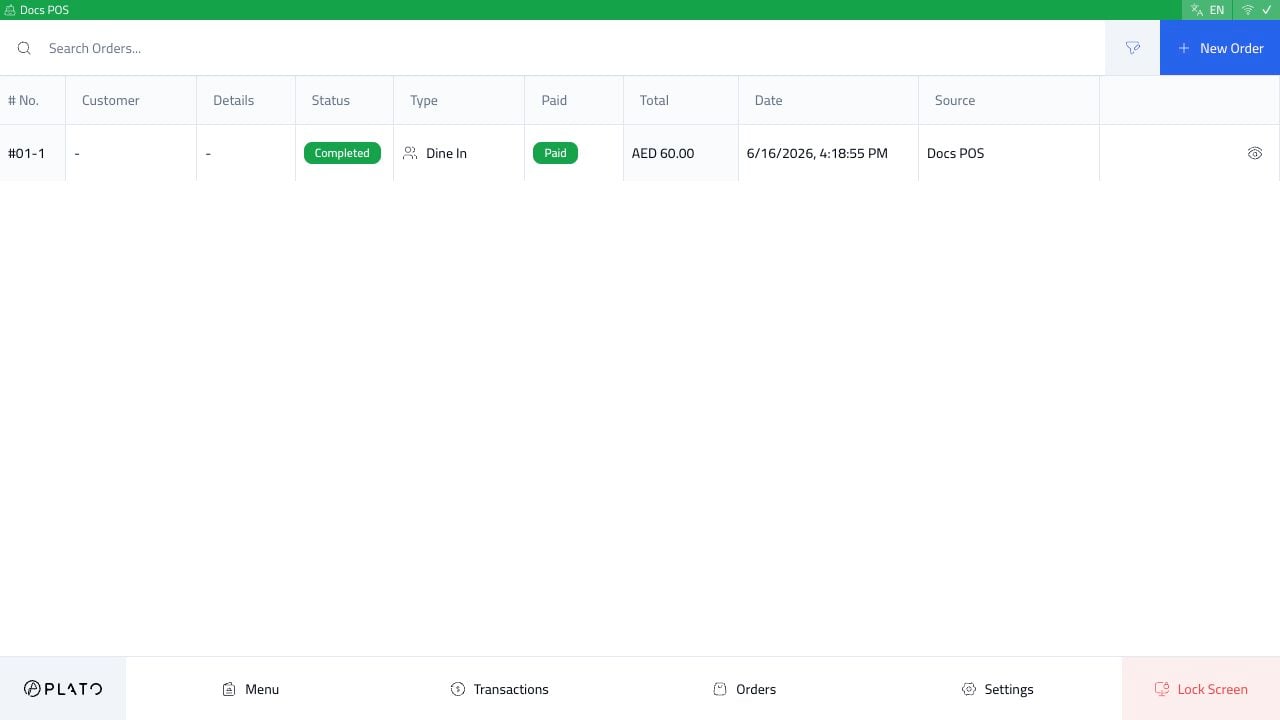
Open An Order From The List
Click the view button on the order row.