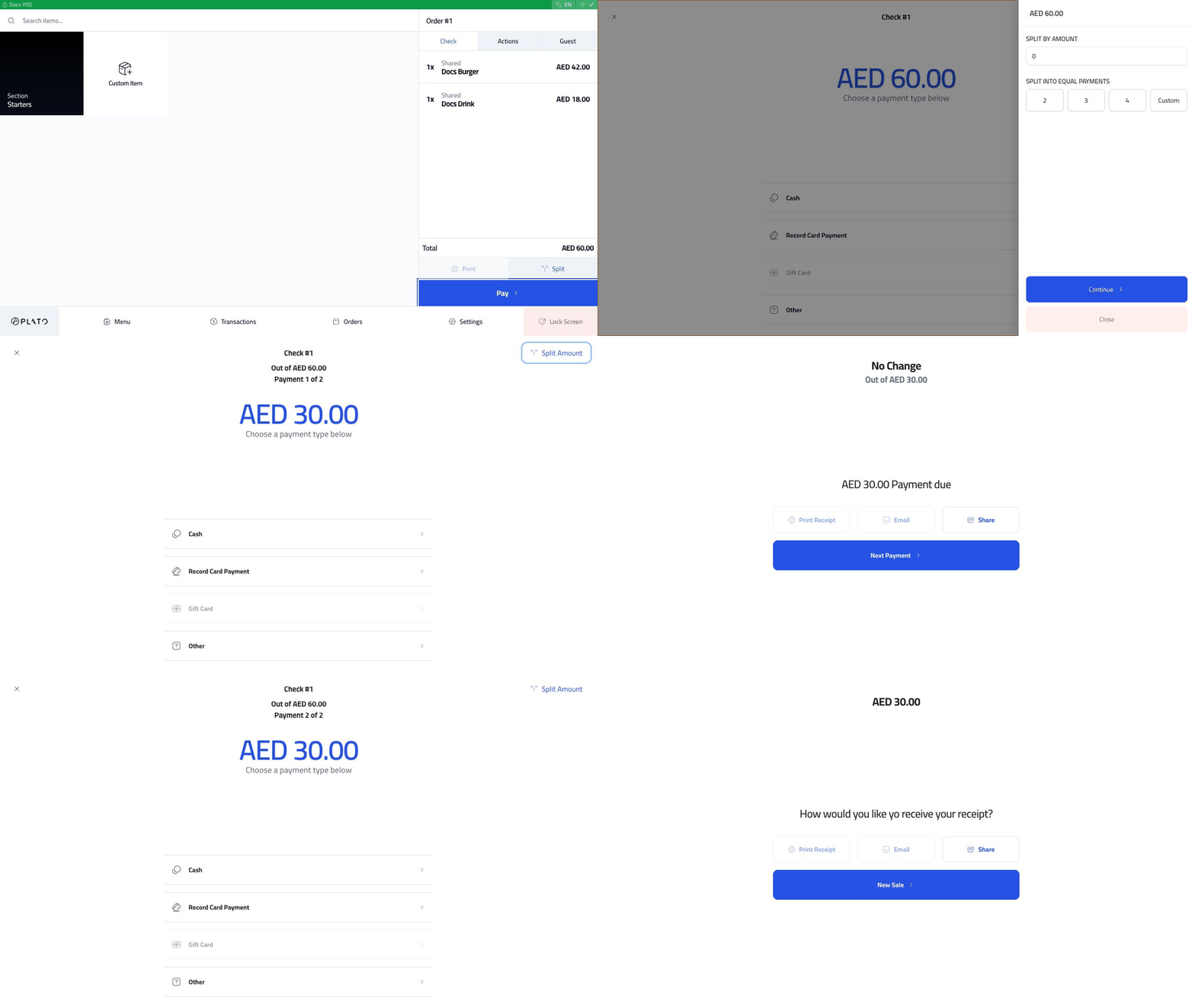
Use split payment when one check stays as one order, but the customer wants to pay the total using more than one payment method. Split payment walkthrough

Open Payment

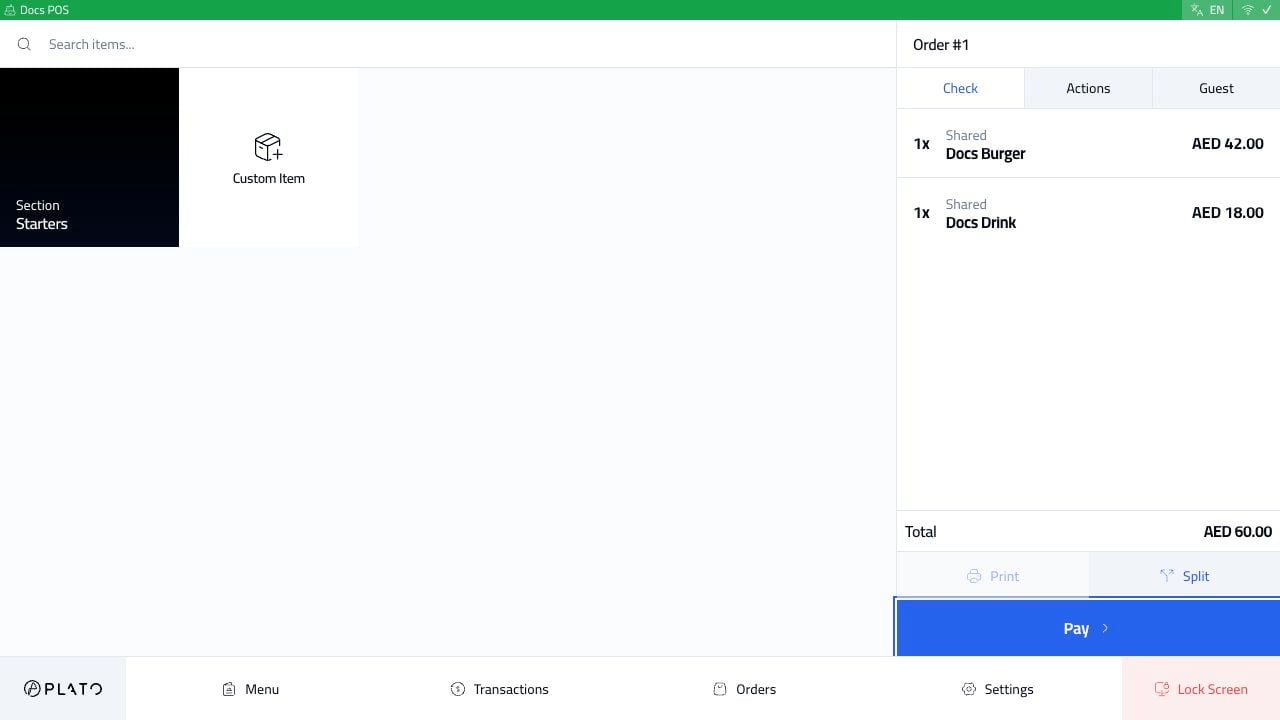
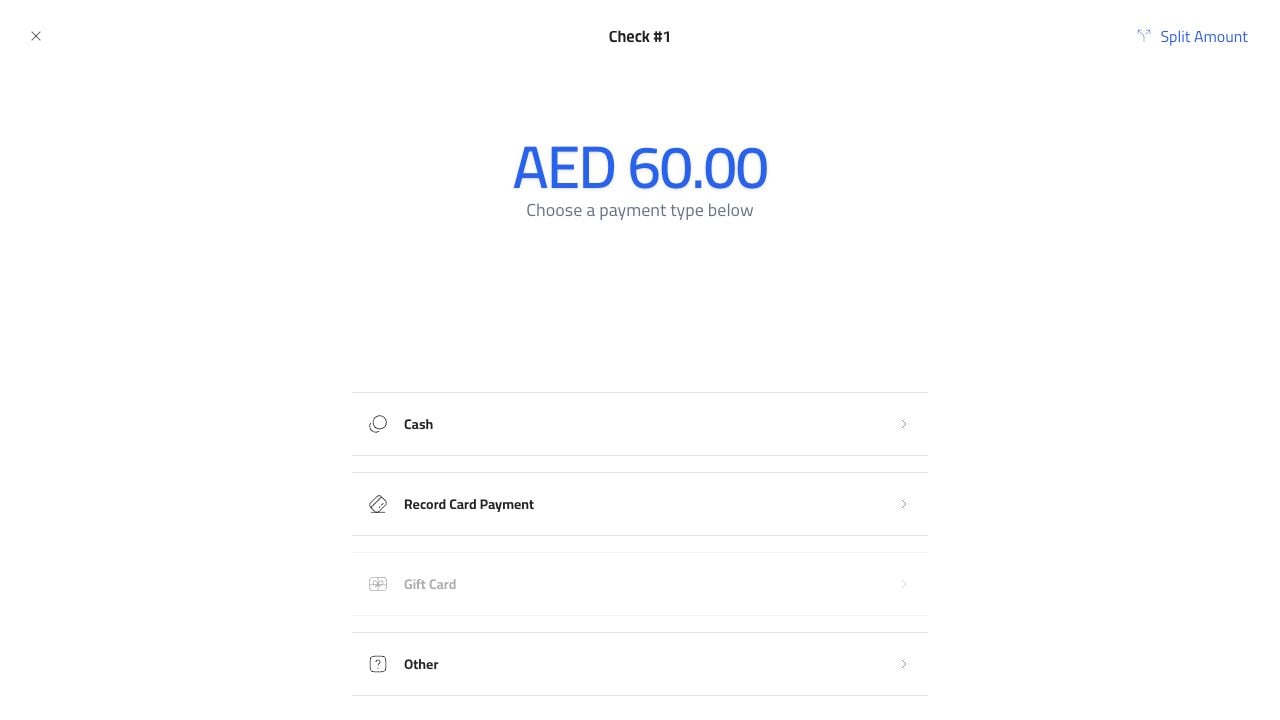
Start from a sent order and click Pay. Order ready for payment The payment screen shows the full amount due and the available payment methods. Payment screen

Choose Split Amount

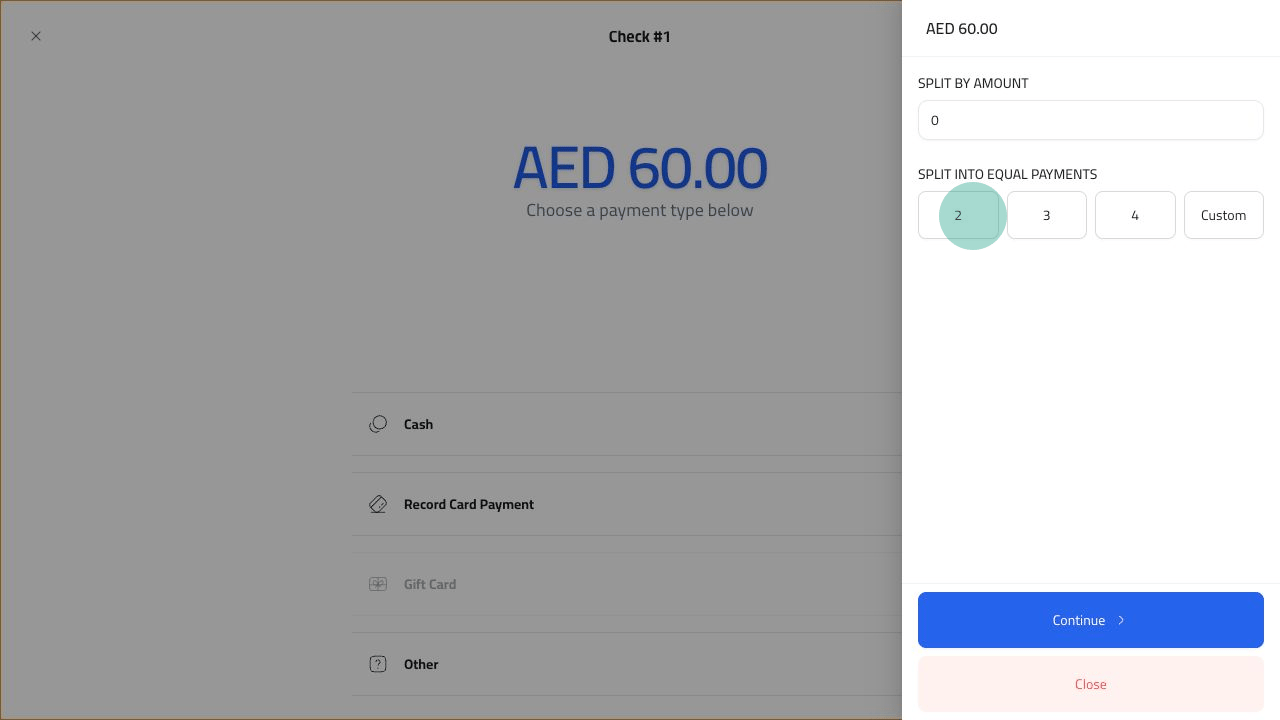
Click Split Amount. Split amount screen Choose an equal split, such as 2, 3, or 4, or use a custom amount when the payments are not equal.

Take Payment 1

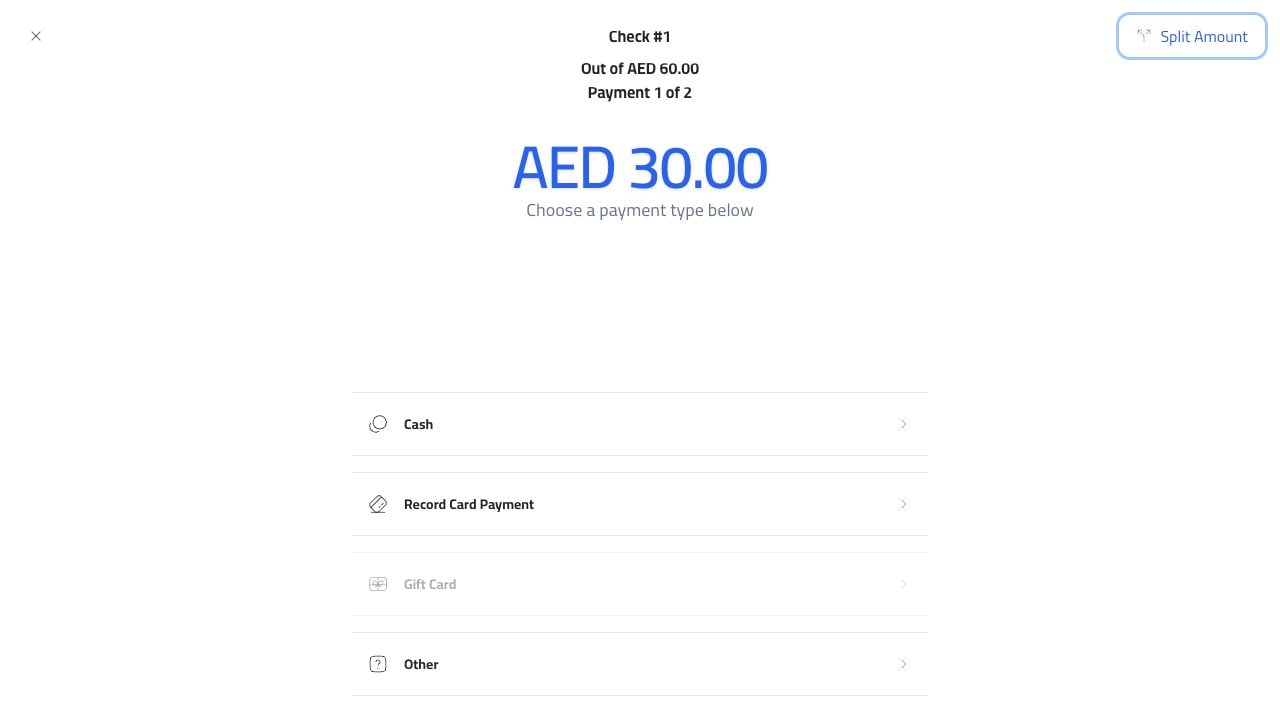
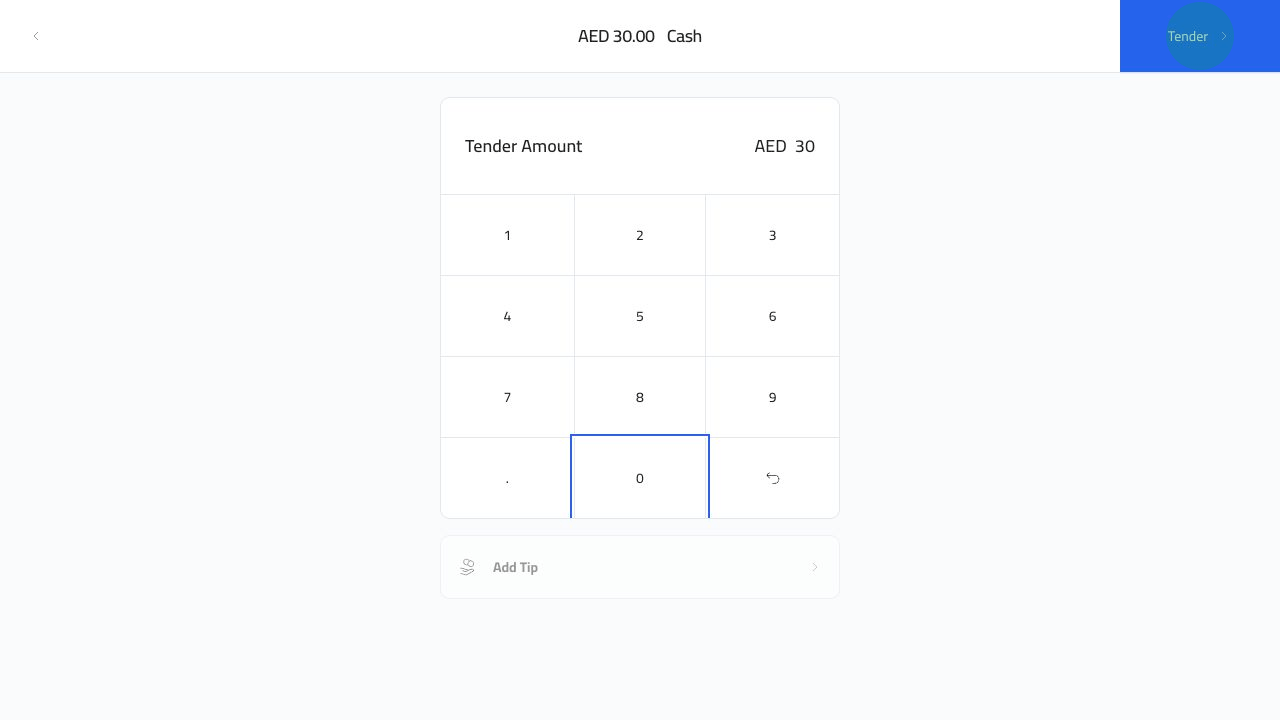
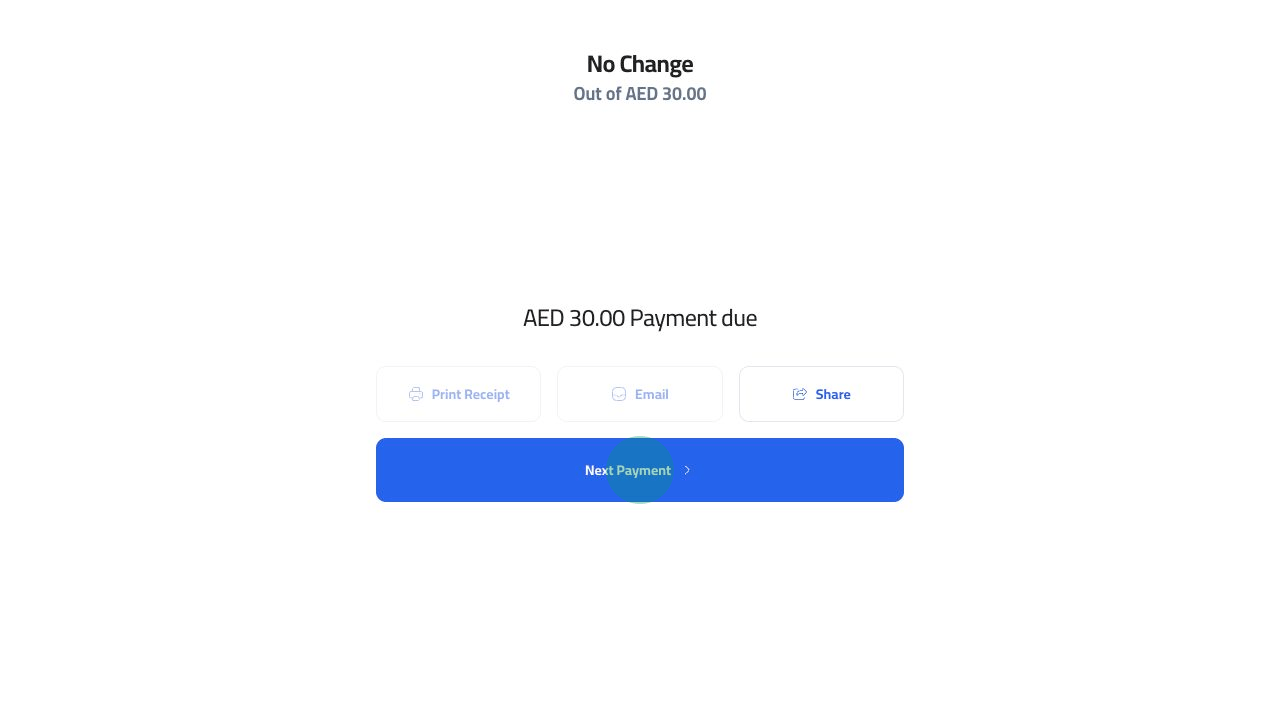
After choosing 2, Plato shows Payment 1 of 2. First split payment Choose the payment method for the first part. In this example, the first half is cash. Enter the cash tender and click Tender. Split cash amount entered Plato confirms the first payment and offers Next Payment. First split payment complete

Take Payment 2

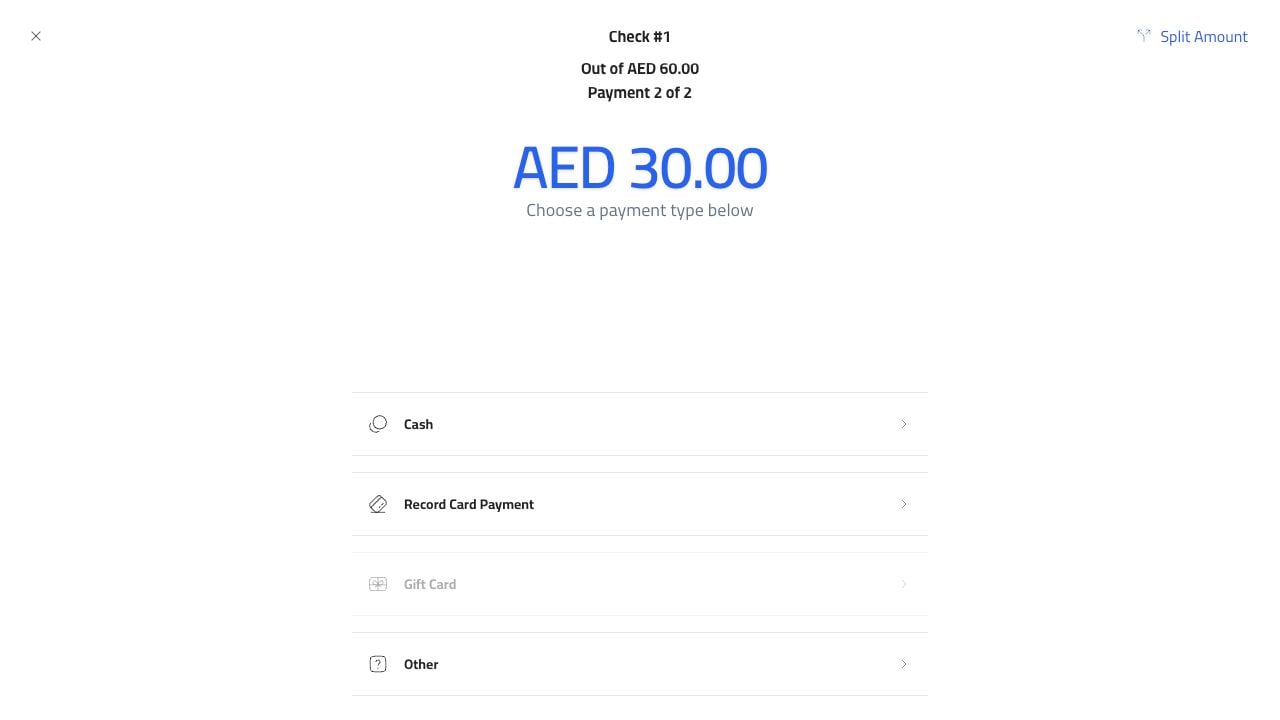
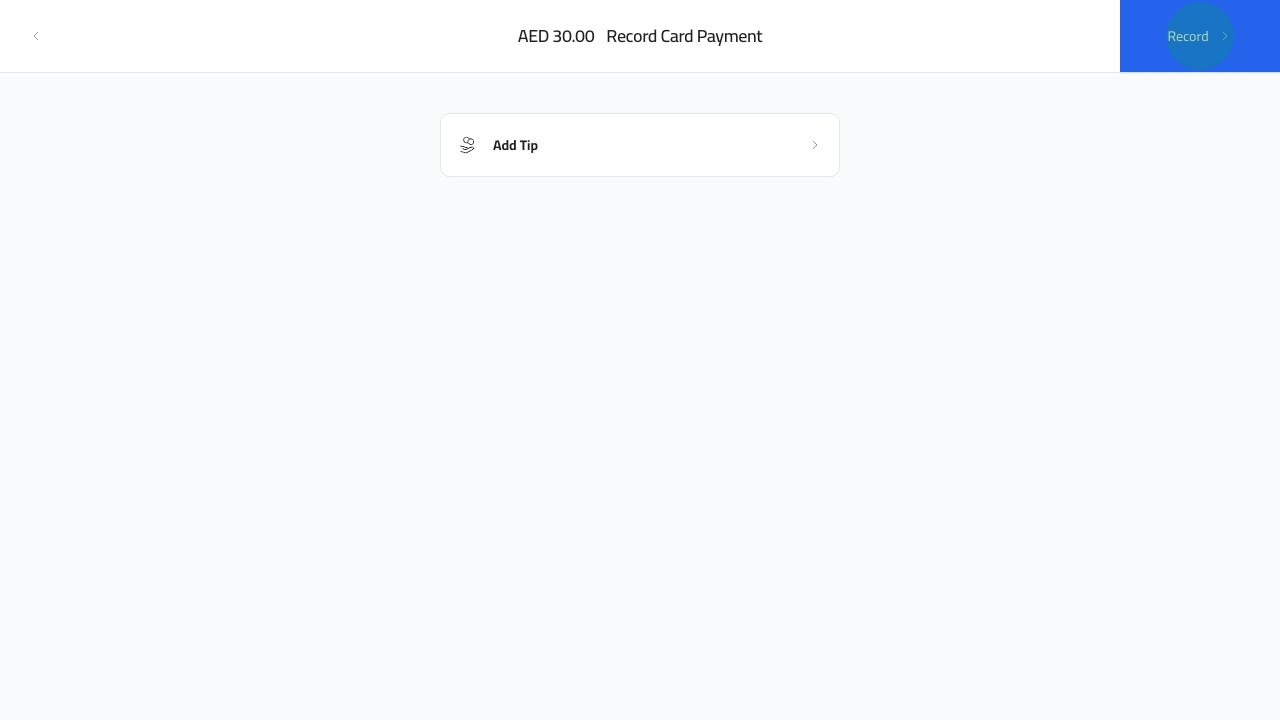
Click Next Payment. Plato shows Payment 2 of 2. Second split payment methods Choose Record Card Payment for the second half, then click Record after the terminal payment is approved. Record second split card payment
Close The Order

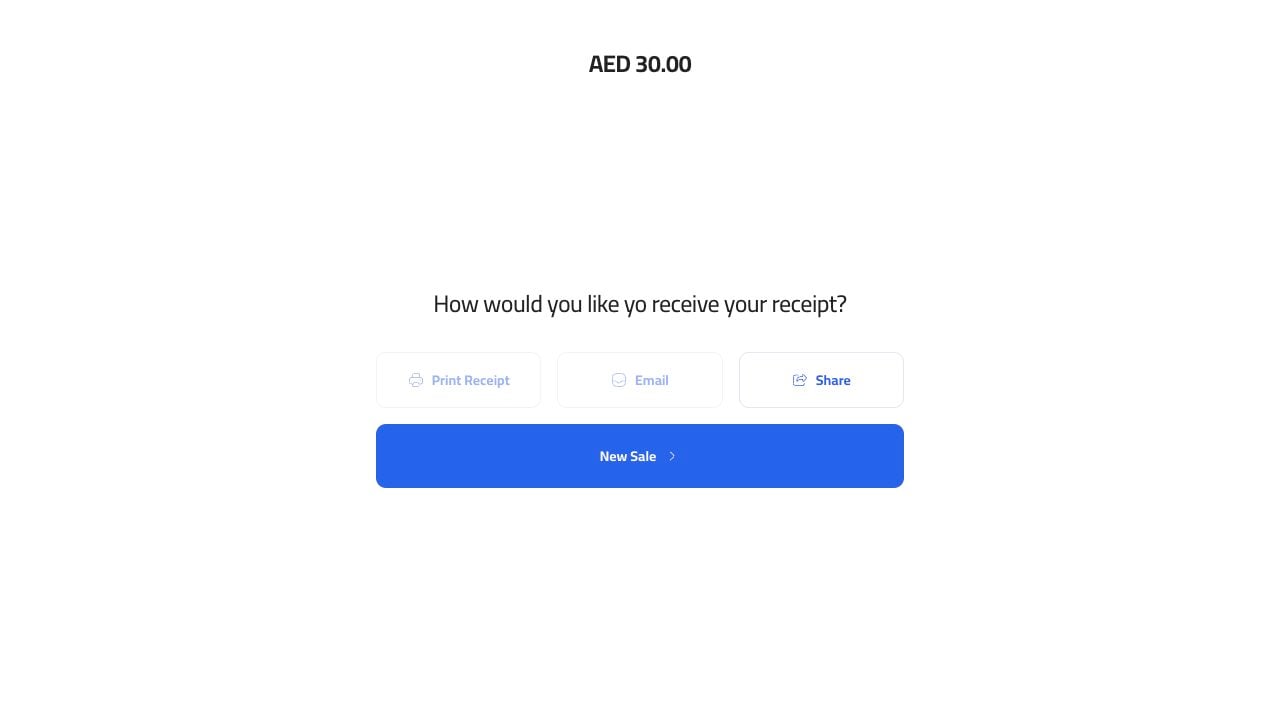
After the last payment is recorded, the order closes and the receipt screen appears. Split payment receipt