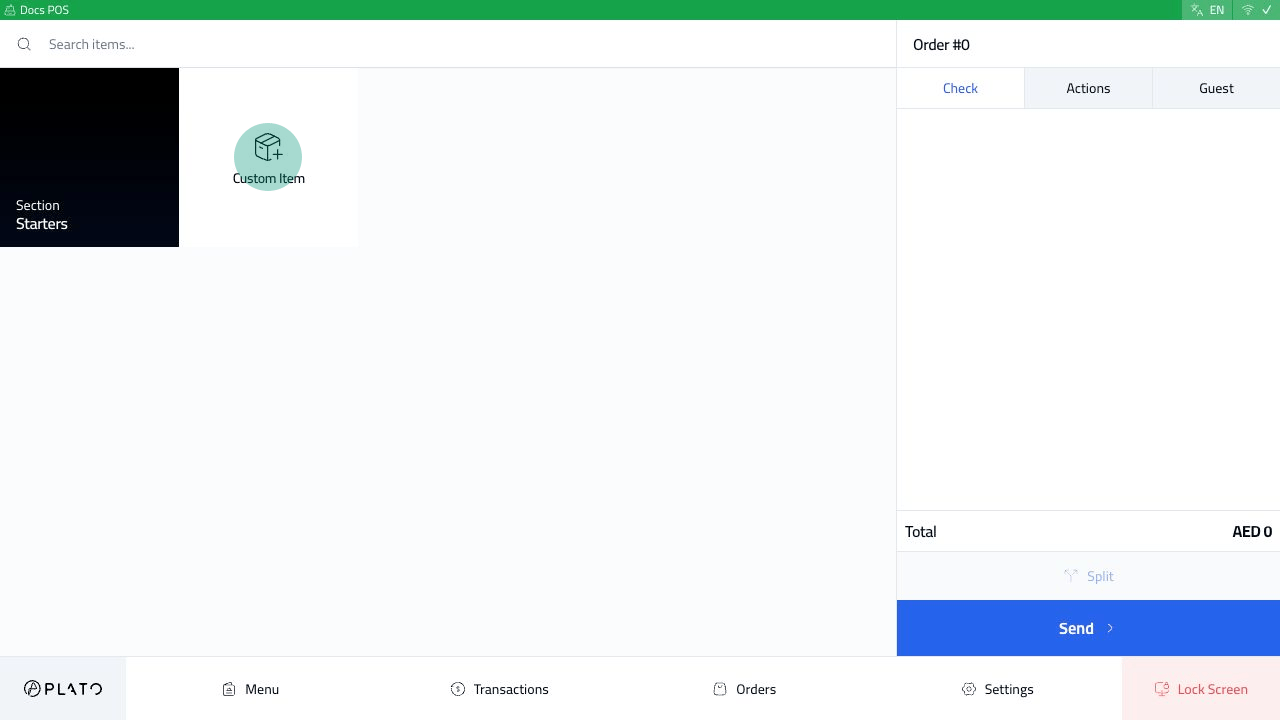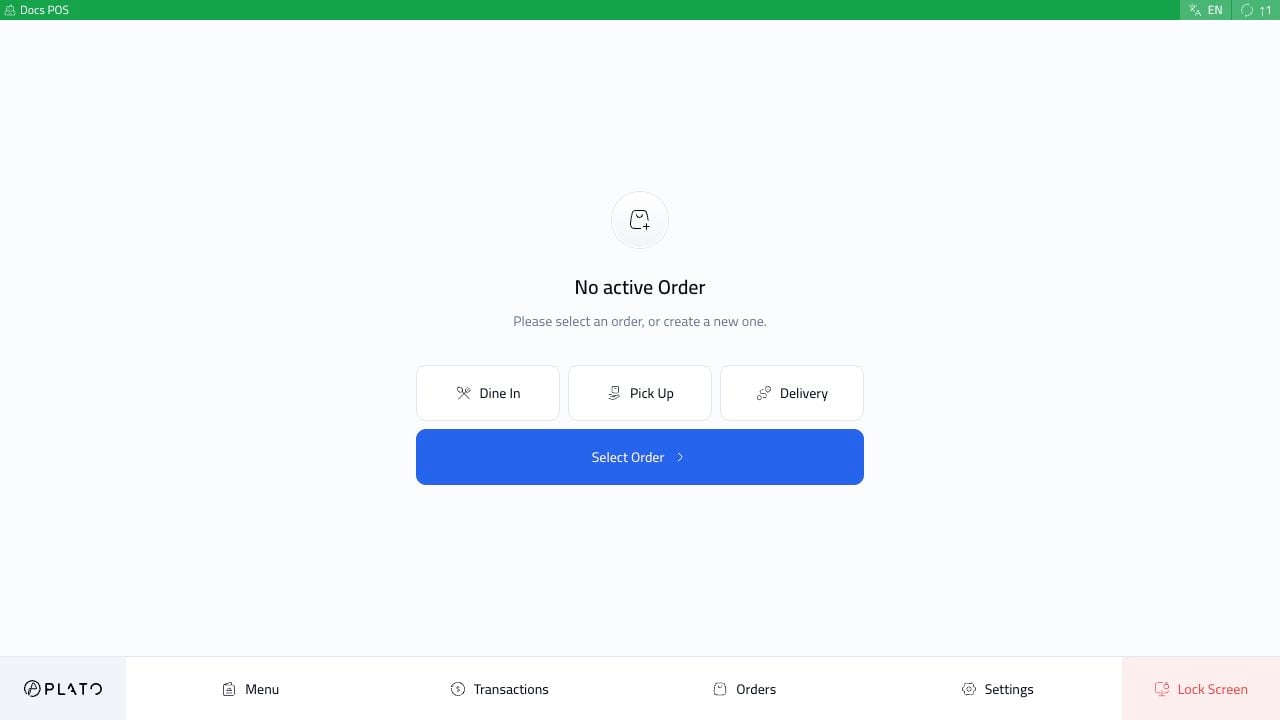
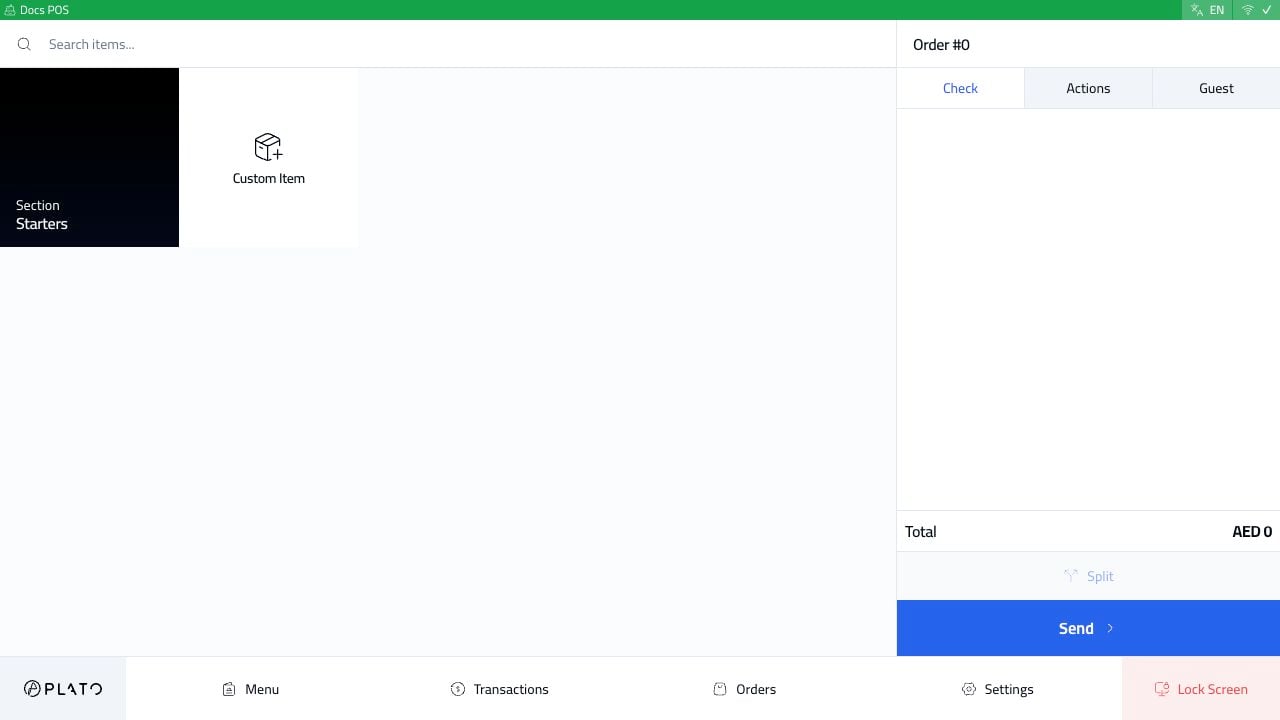
Use this flow when a cashier or server needs to create a normal POS order and send it to the next service step. Start from the POS screen with no active order. POS ready screen

Choose The Order Type

Choose the order type the customer needs. In this example, the cashier starts a dine-in order. Dine In order type Common order types include:
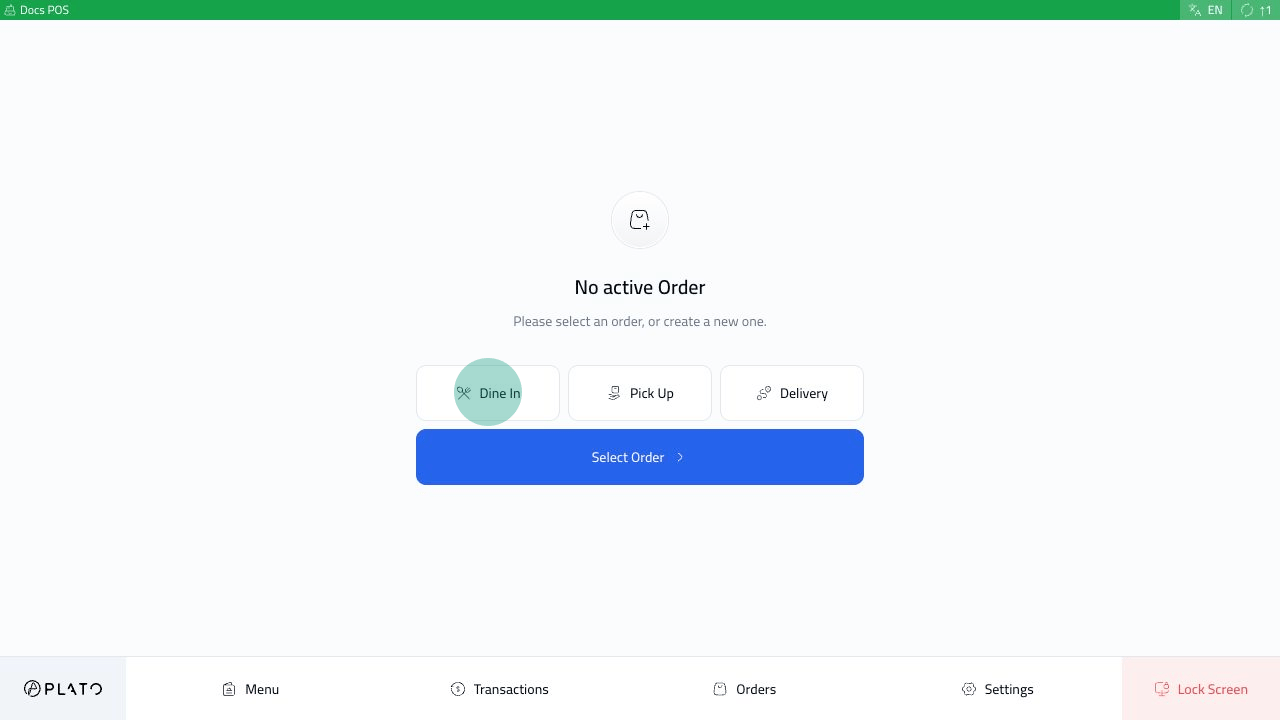
  • Dine In.
  • Pick Up.
  • Delivery.
  • Drive Thru.
  • Food aggregator orders, when they are enabled.
Only the order types enabled in POS config appear here.

Check The New Order

After choosing an order type, the check opens on the right side. Dine-in order created Check the order number and make sure the customer is in the right order type before adding items.
Add Items To The Check

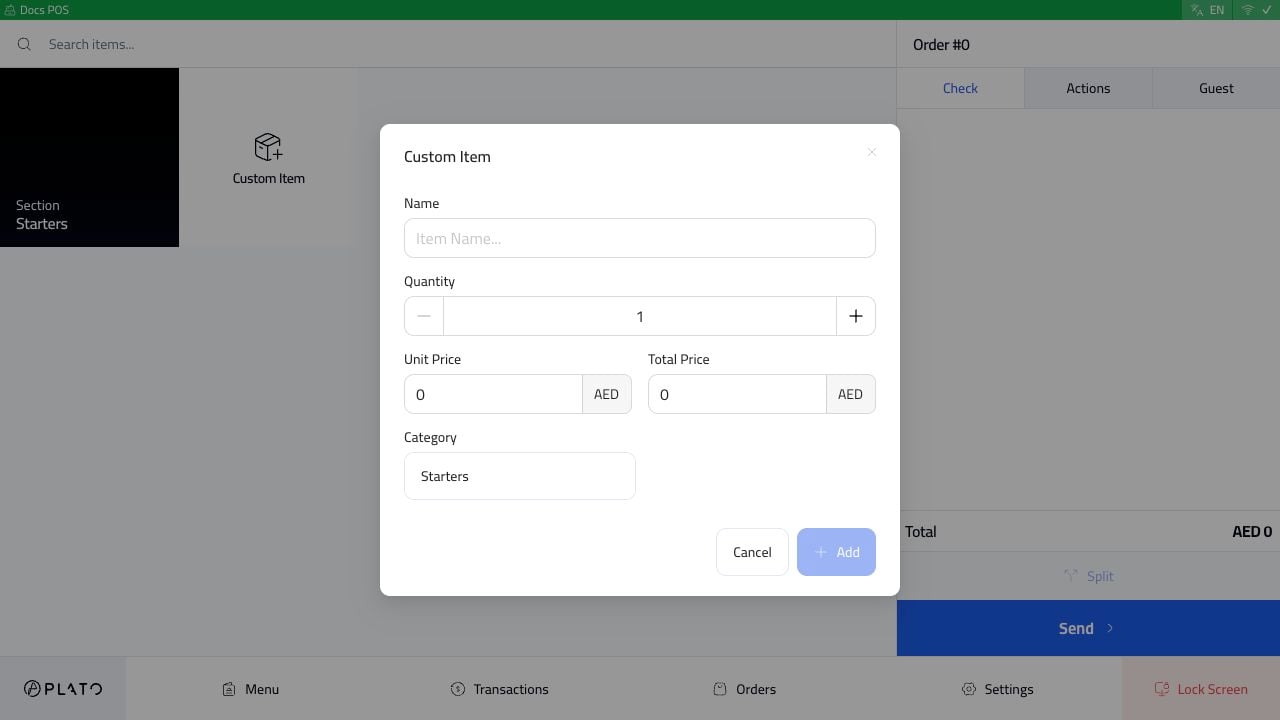
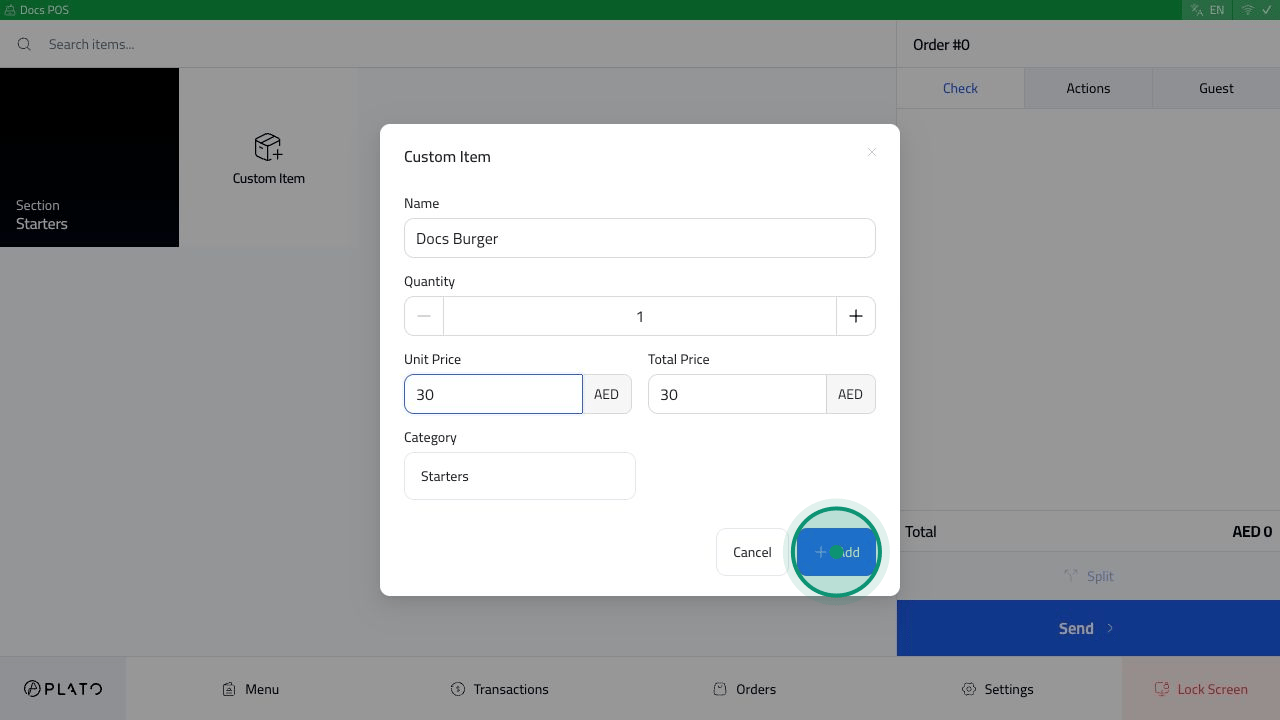
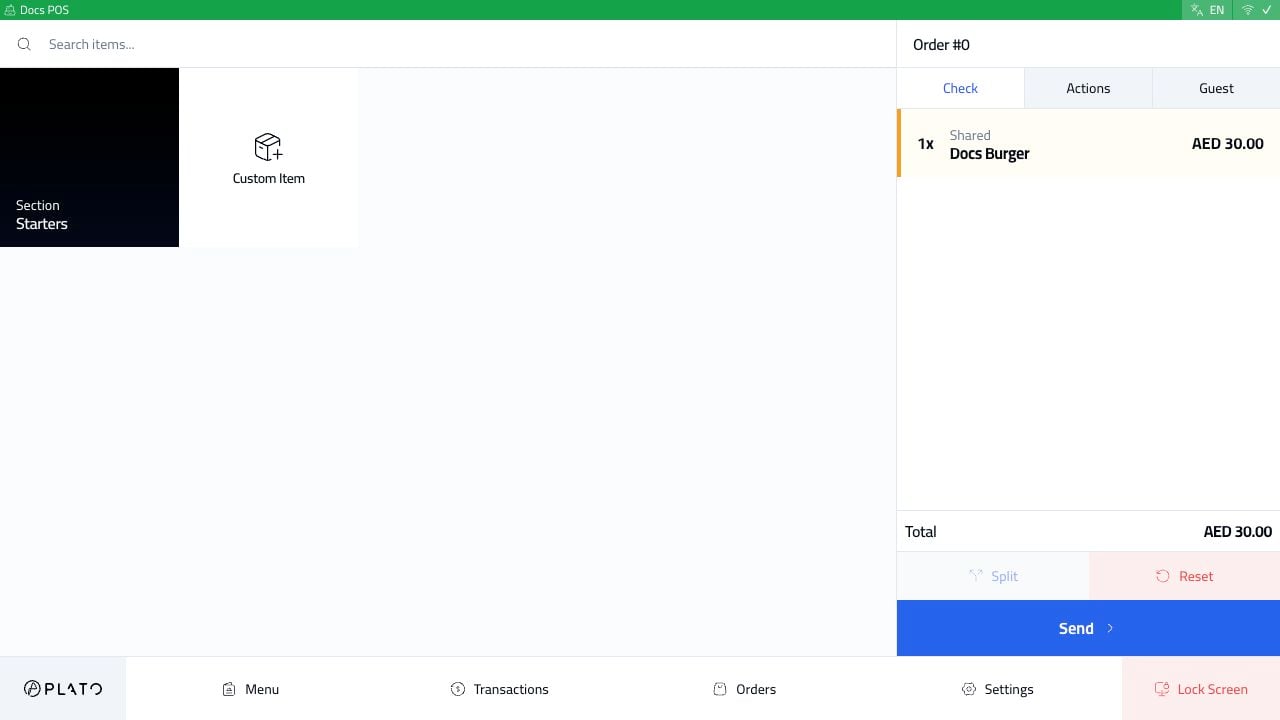
Select products from the menu. When the item does not exist in the menu, use Custom Item. Custom Item button The custom item form lets the cashier enter the item name, quantity, price, and category. Custom item form Enter the details, then click Add. Custom item filled The item appears on the check. Item added to check Add the rest of the customer items before sending the order. If the restaurant uses menu products, modifiers, notes, or seats, complete those details before sending.

Send The Order

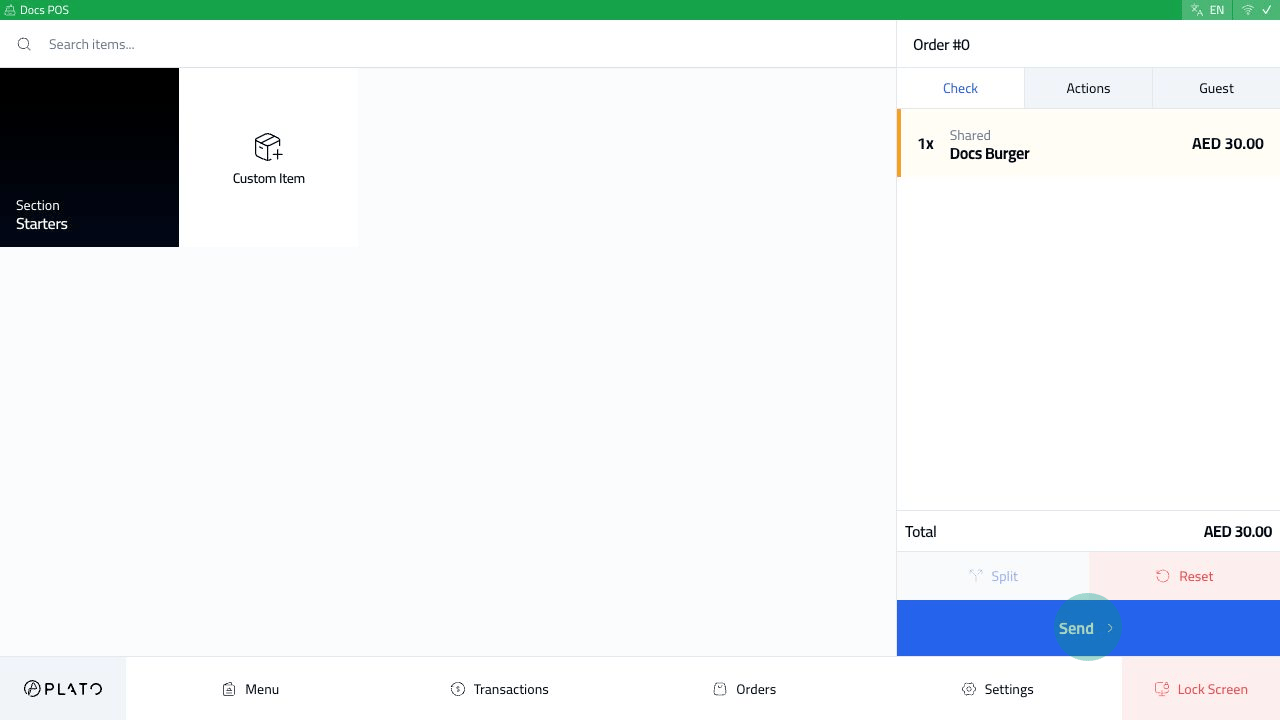
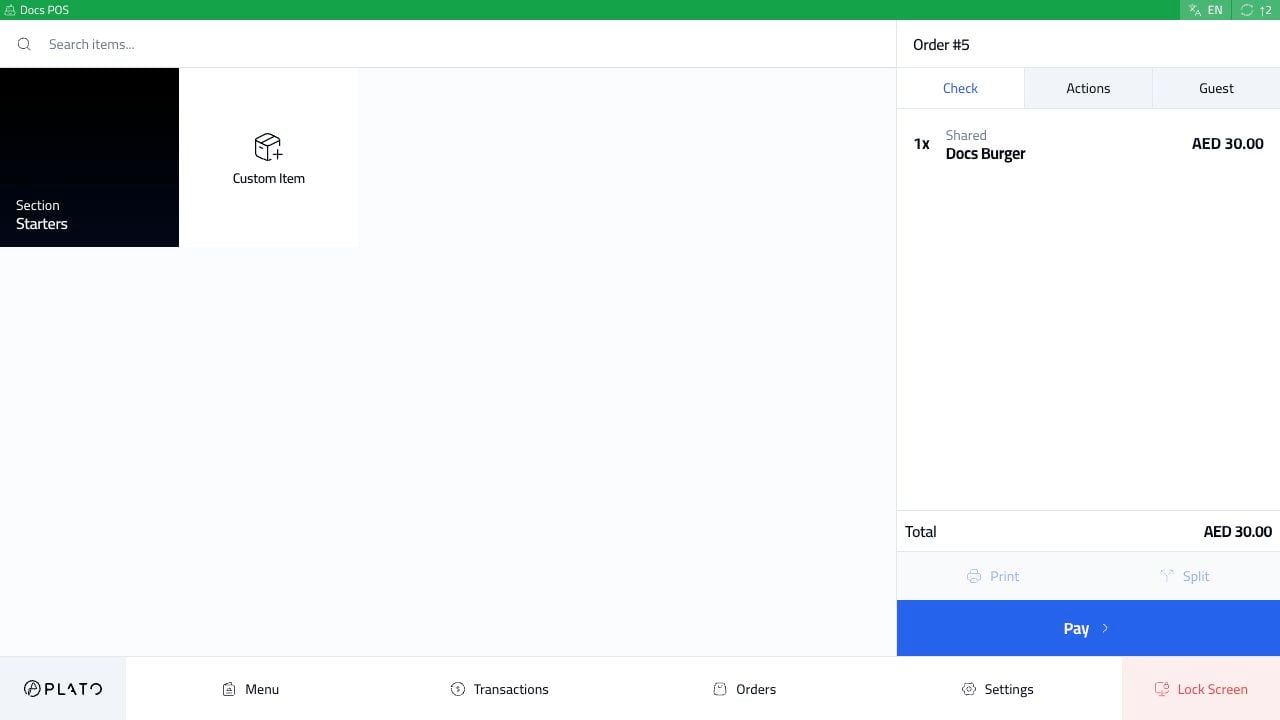
Click Send. Send order button After the order is sent, Plato keeps the check open and shows the service actions. Order sent active check Depending on the device setup, sending can update the order status, send KDS tickets, and make printing or payment actions available.

What To Check Before Payment

Before clicking Pay, confirm:
  1. The right order type is selected.
  2. The items and quantities are correct.
  3. Notes, modifiers, seats, and table details are correct when used.
  4. The total matches what the customer expects.