> ## Documentation Index
> Fetch the complete documentation index at: https://docs.plato.ae/llms.txt
> Use this file to discover all available pages before exploring further.
# Siparişleri Düzelt, Öğeleri İptal Et ve Yeniden Aç
> Personelin hizmet etkinliğini düzeltmesi, geçersiz kılması veya yeniden açması gerektiğinde korumalı sipariş eylemlerini kullanın.
Bir sipariş aktif hale geldikten sonra bir şeyin düzeltilmesi gerektiğinde bu sayfayı kullanın.
Siparişi açın, ardından sipariş kenar çubuğunda `Actions`'yi seçin.
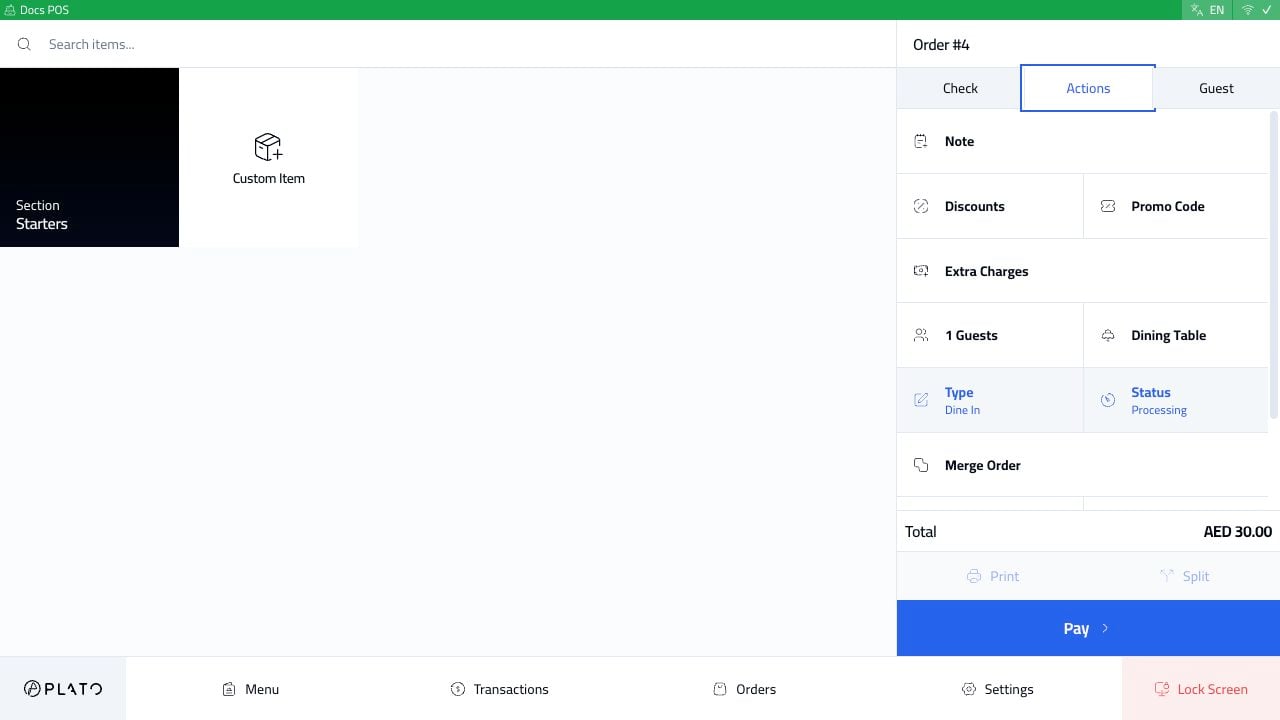 ## Eylemler Sekmesinin İçeriği
Eylemler sekmesi şunları içerebilir:
* Sipariş notu.
* İndirimler.
* Promosyon kodu.
* Ekstra ücretler.
* Misafir sayısı.
* Yemek masası.
* Sipariş türü.
* Sipariş durumu.
* Siparişi birleştir.
* Ödemeler.
* İlgili siparişler.
Kesin eylemler POS konfigürasyonuna ve mevcut sipariş durumuna bağlıdır.
## Durumu Değiştirin veya Siparişi İptal Edin
Siparişin iptal gibi korumalı bir durum değişikliğine ihtiyacı olduğunda `Status`'ye tıklayın.
## Eylemler Sekmesinin İçeriği
Eylemler sekmesi şunları içerebilir:
* Sipariş notu.
* İndirimler.
* Promosyon kodu.
* Ekstra ücretler.
* Misafir sayısı.
* Yemek masası.
* Sipariş türü.
* Sipariş durumu.
* Siparişi birleştir.
* Ödemeler.
* İlgili siparişler.
Kesin eylemler POS konfigürasyonuna ve mevcut sipariş durumuna bağlıdır.
## Durumu Değiştirin veya Siparişi İptal Edin
Siparişin iptal gibi korumalı bir durum değişikliğine ihtiyacı olduğunda `Status`'ye tıklayın.
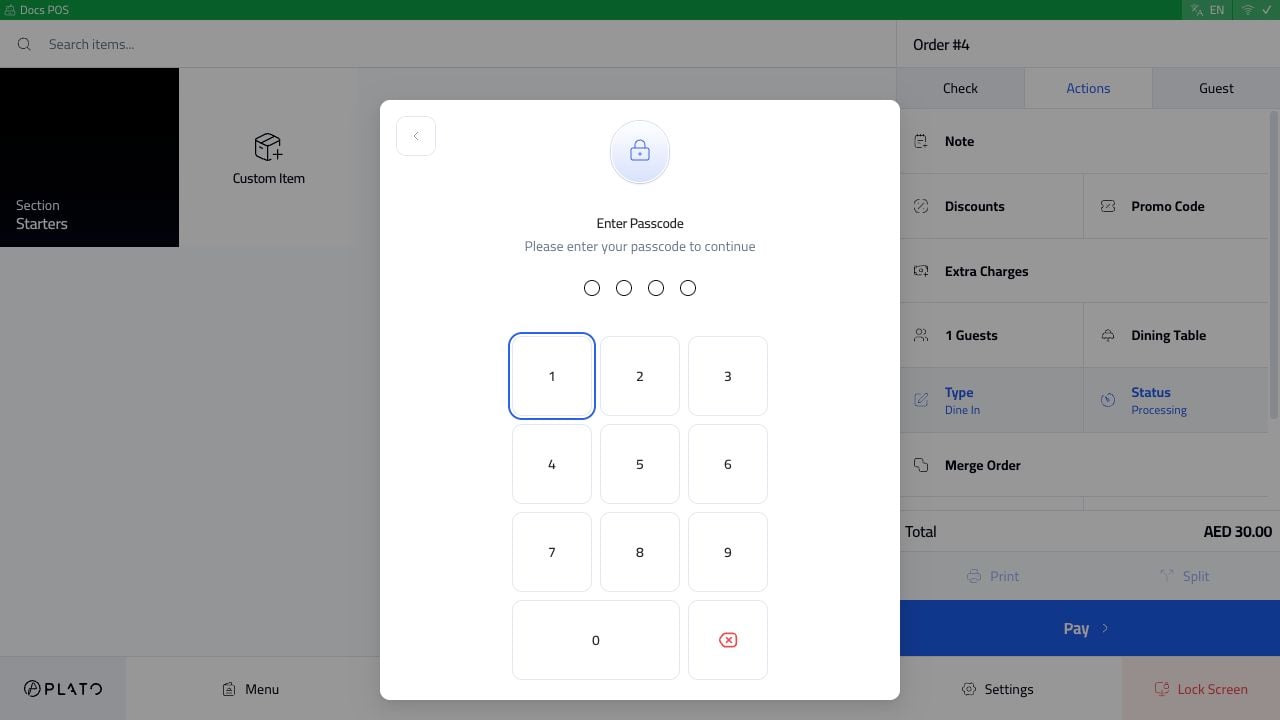 İstasyon şifre isterse yetkili bir yönetici veya üyenin şifreyi girmesi gerekmektedir. Bu, hizmet sırasında kazara iptallerin önlenmesini sağlar.
## Bir Öğeyi İptal Et
Çekteki öğe satırına dokunun.
İstasyon şifre isterse yetkili bir yönetici veya üyenin şifreyi girmesi gerekmektedir. Bu, hizmet sırasında kazara iptallerin önlenmesini sağlar.
## Bir Öğeyi İptal Et
Çekteki öğe satırına dokunun.
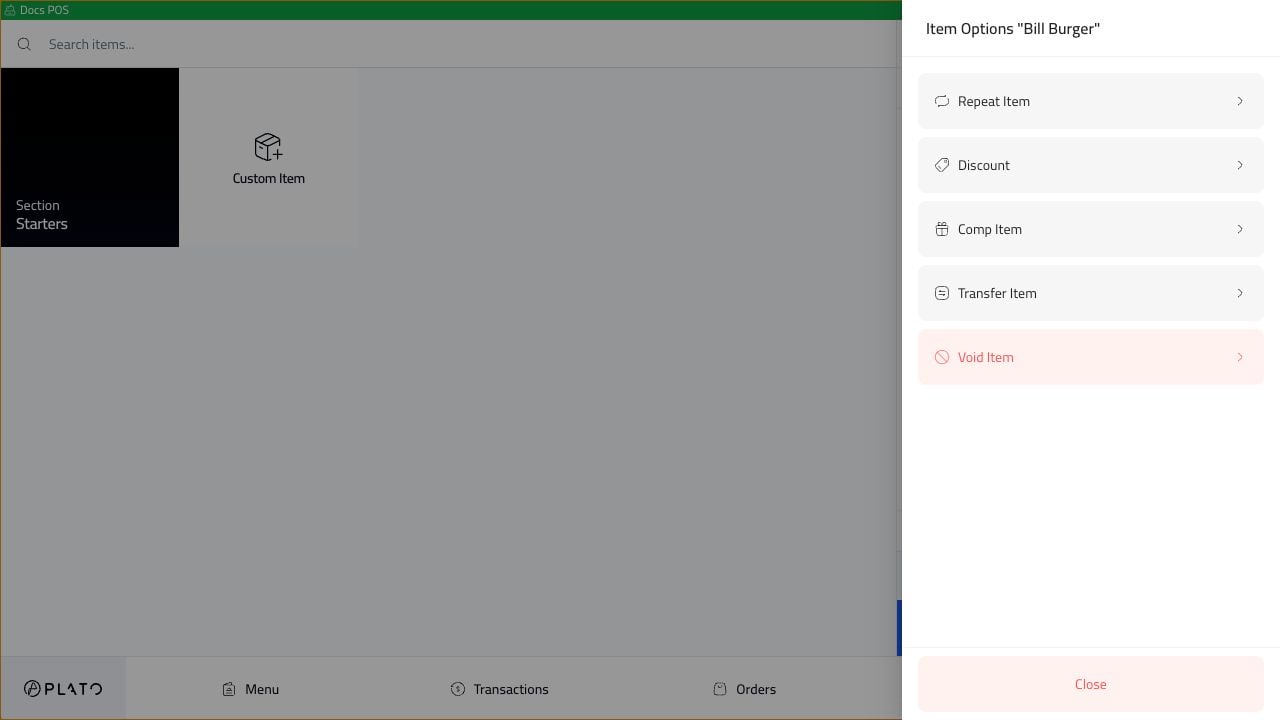 `Void Item`'yi seçin.
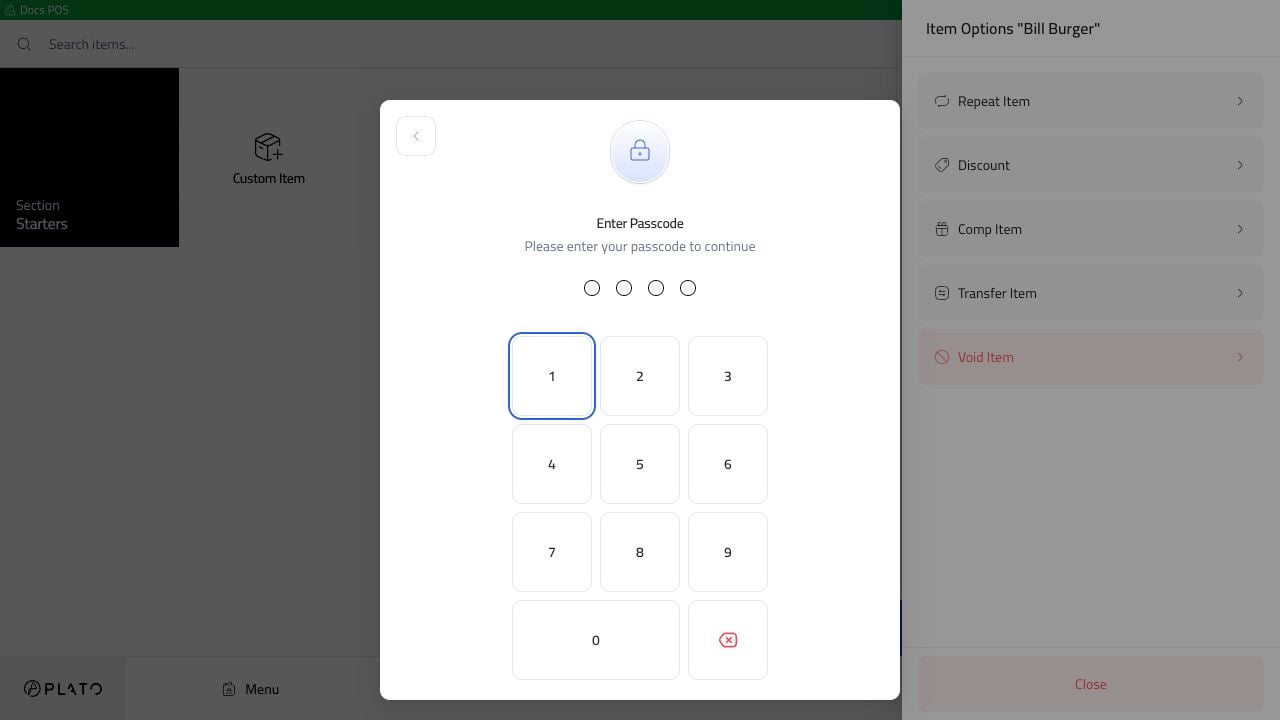 İstasyon şifre isterse yetkili kodu girin ve istendiğinde geçersiz sebep ile devam edin.
## Kapatılmış Bir Siparişi Yeniden Açma
Tamamlanan siparişi Siparişler listesinden açın ve ardından `Open` seçeneğine tıklayın.
İstasyon şifre isterse yetkili kodu girin ve istendiğinde geçersiz sebep ile devam edin.
## Kapatılmış Bir Siparişi Yeniden Açma
Tamamlanan siparişi Siparişler listesinden açın ve ardından `Open` seçeneğine tıklayın.
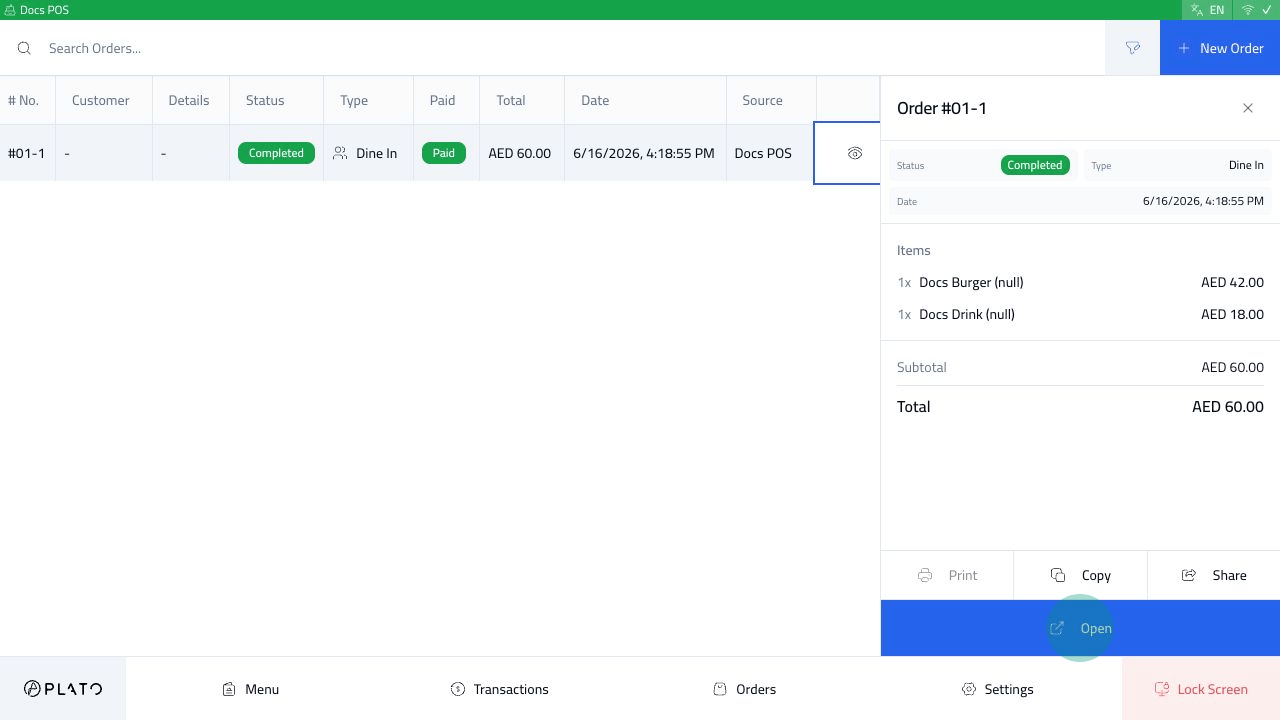 Kapalı emir `Reopen Order` ile açılır.
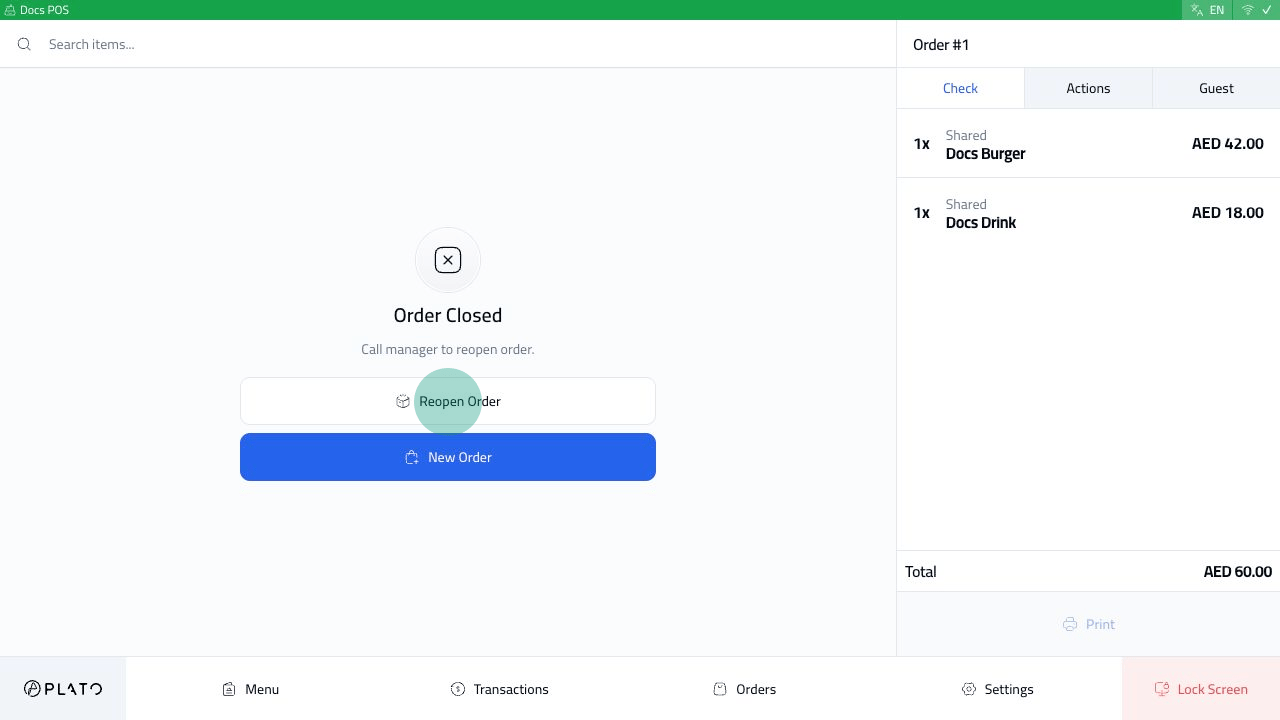 `Reopen Order`'ye tıklayın. Korumalı iş istasyonları, siparişin devam edebilmesi için yetkili bir parola ister.
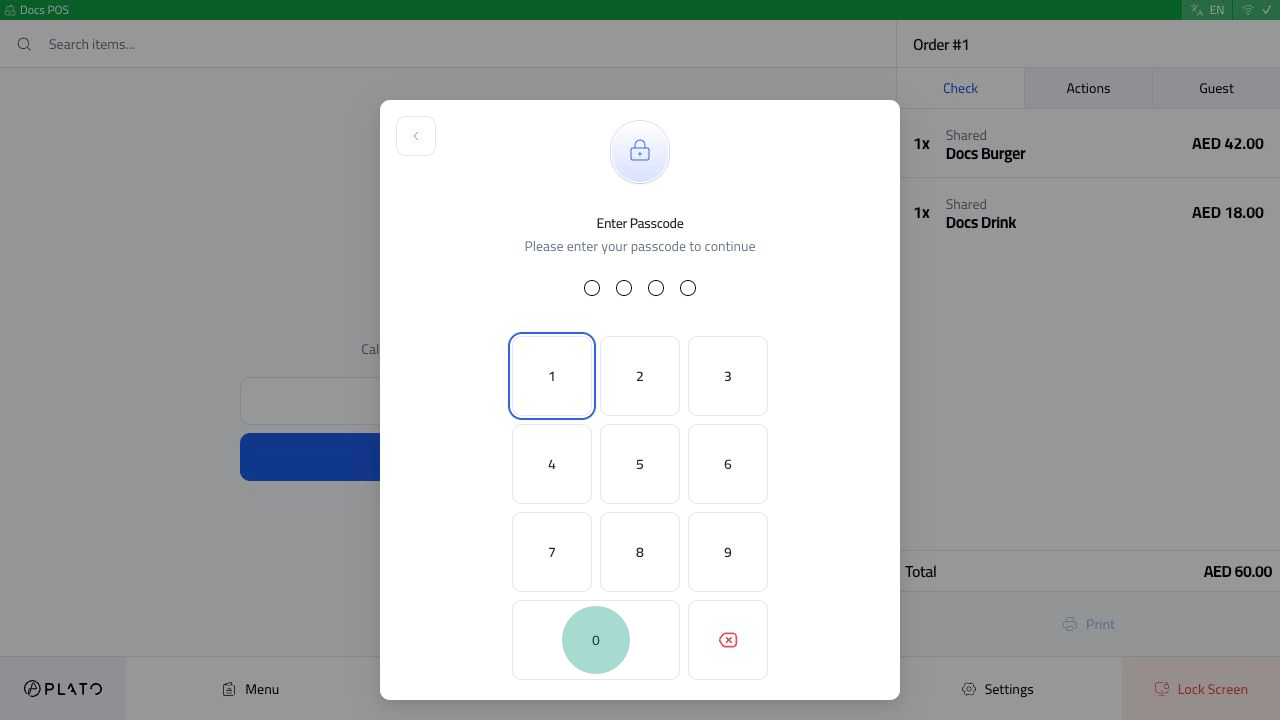 Restoranınız yetkilendirme sonrasında bir neden gerektiriyorsa yöneticilerin daha sonra inceleyebilmesi için açık bir neden girin.