> ## Documentation Index
> Fetch the complete documentation index at: https://docs.plato.ae/llms.txt
> Use this file to discover all available pages before exploring further.
# Sipariş Oluşturun ve Gönderin
> Bir sipariş başlatın, öğeleri ekleyin ve bunu servis akışına gönderin.
Bir kasiyerin veya sunucunun normal bir POS siparişi oluşturması ve bunu bir sonraki hizmet adımına göndermesi gerektiğinde bu akışı kullanın.
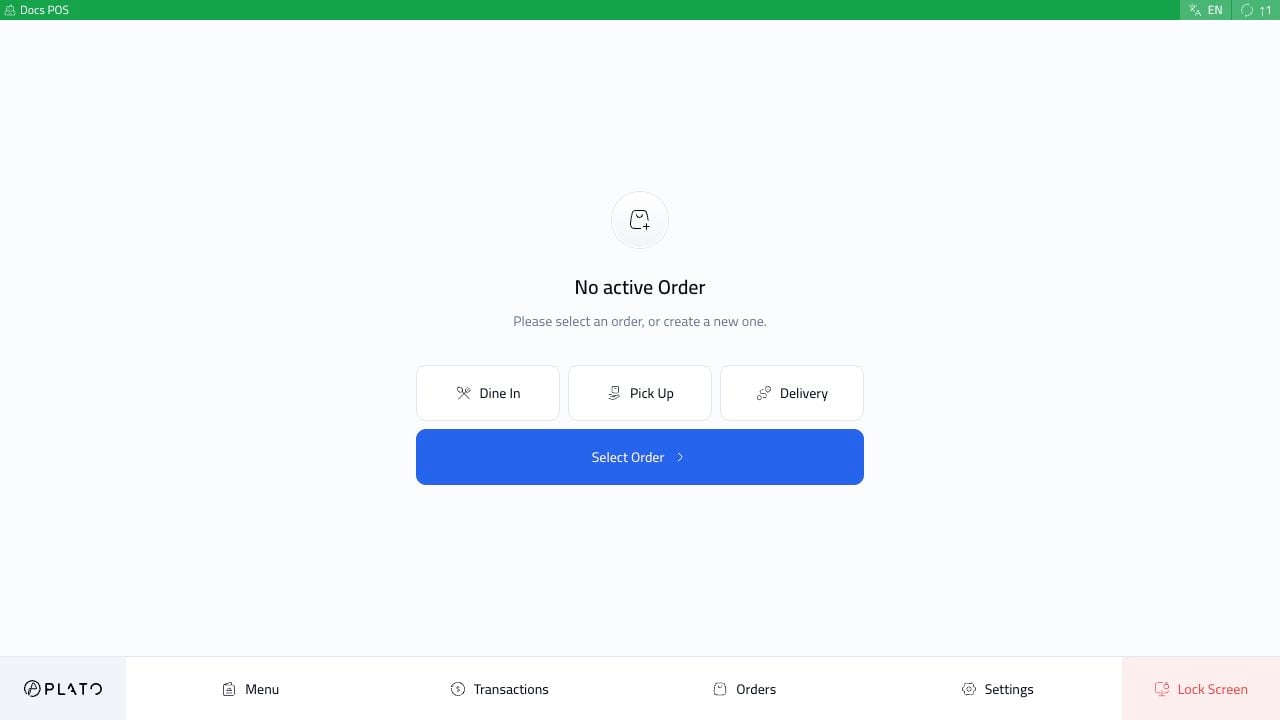
Aktif bir sipariş olmadan POS ekranından başlayın.
 ## Sipariş Tipini Seçin
Müşterinin ihtiyaç duyduğu sipariş türünü seçin. Bu örnekte kasiyer yemek siparişini başlatıyor.
## Sipariş Tipini Seçin
Müşterinin ihtiyaç duyduğu sipariş türünü seçin. Bu örnekte kasiyer yemek siparişini başlatıyor.
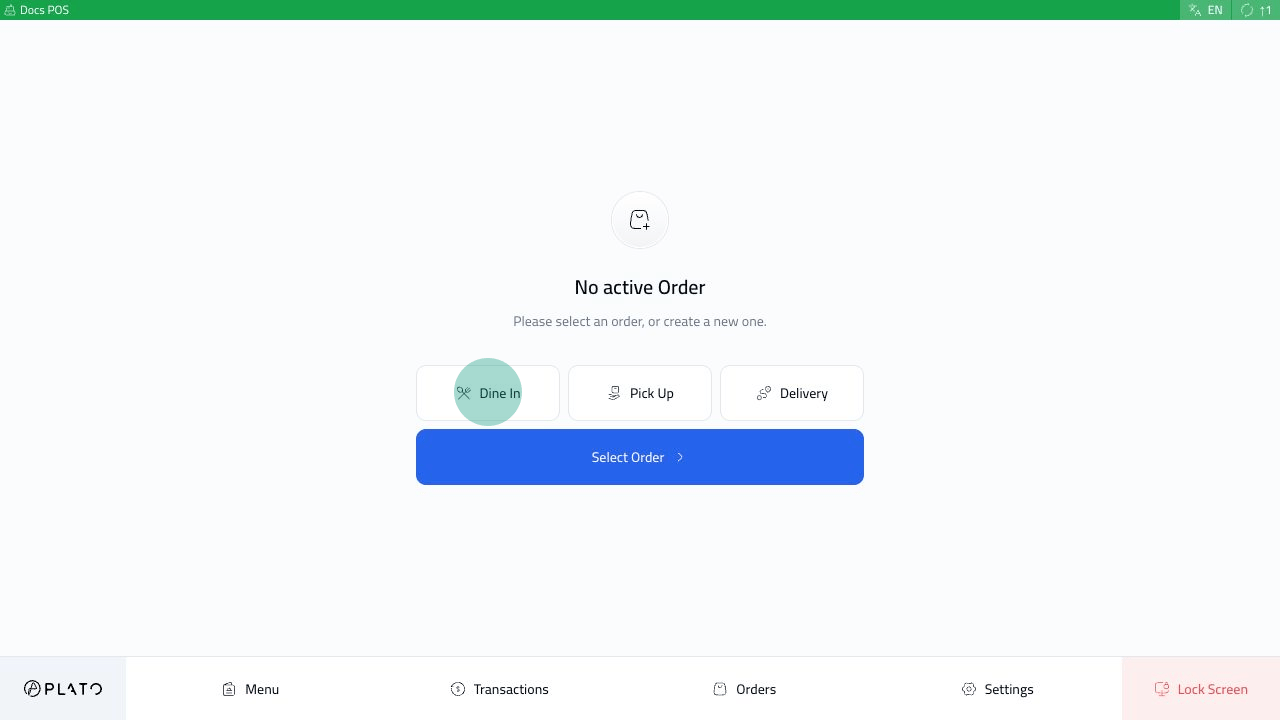 Yaygın sipariş türleri şunları içerir:
* Yemek yiyin.
* Toplamak.
* Teslimat.
* Drive aracılığıyla.
* Etkinleştirildiğinde gıda toplayıcı siparişleri.
Burada yalnızca POS yapılandırmasında etkinleştirilen sipariş türleri görünür.
## Yeni Siparişi Kontrol Edin
Emir tipini seçtikten sonra sağ tarafta çek açılır.
Yaygın sipariş türleri şunları içerir:
* Yemek yiyin.
* Toplamak.
* Teslimat.
* Drive aracılığıyla.
* Etkinleştirildiğinde gıda toplayıcı siparişleri.
Burada yalnızca POS yapılandırmasında etkinleştirilen sipariş türleri görünür.
## Yeni Siparişi Kontrol Edin
Emir tipini seçtikten sonra sağ tarafta çek açılır.
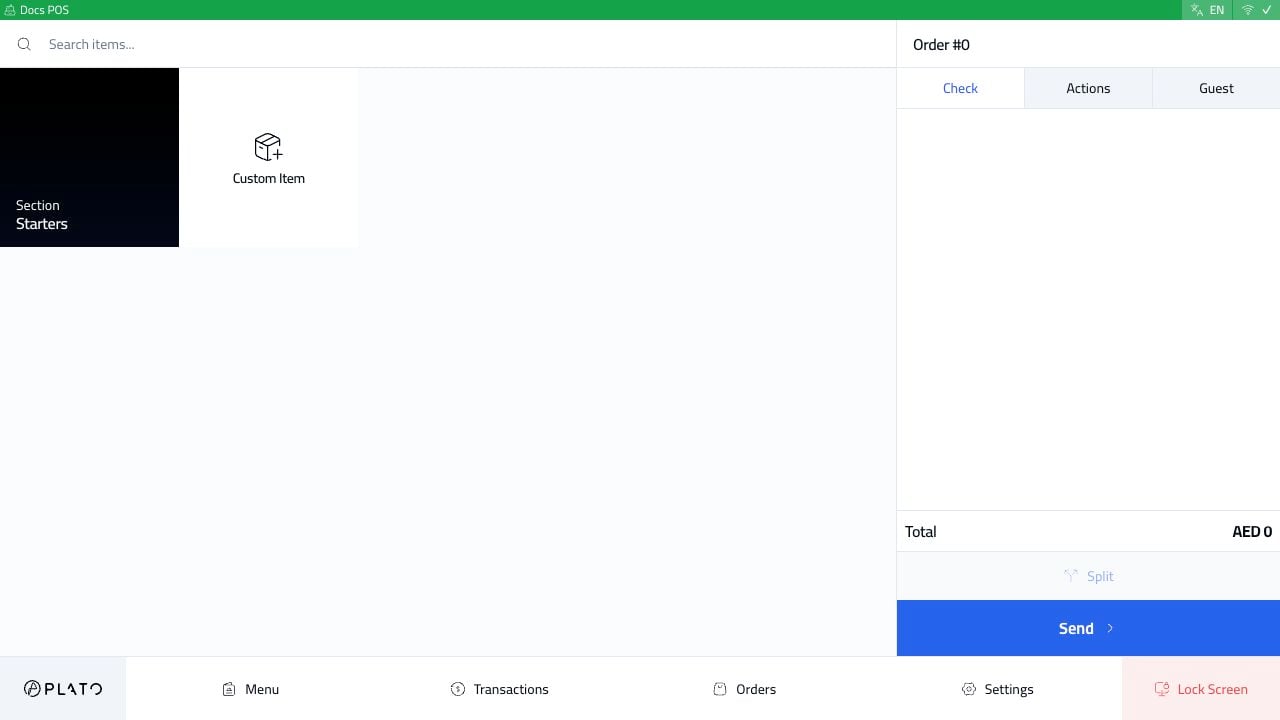 Sipariş numarasını kontrol edin ve ürün eklemeden önce müşterinin doğru sipariş türünde olduğundan emin olun.
## Çeke Öğe Ekle
Menüden ürünleri seçin. Öğe menüde bulunmadığında `Custom Item`'yi kullanın.
Sipariş numarasını kontrol edin ve ürün eklemeden önce müşterinin doğru sipariş türünde olduğundan emin olun.
## Çeke Öğe Ekle
Menüden ürünleri seçin. Öğe menüde bulunmadığında `Custom Item`'yi kullanın.
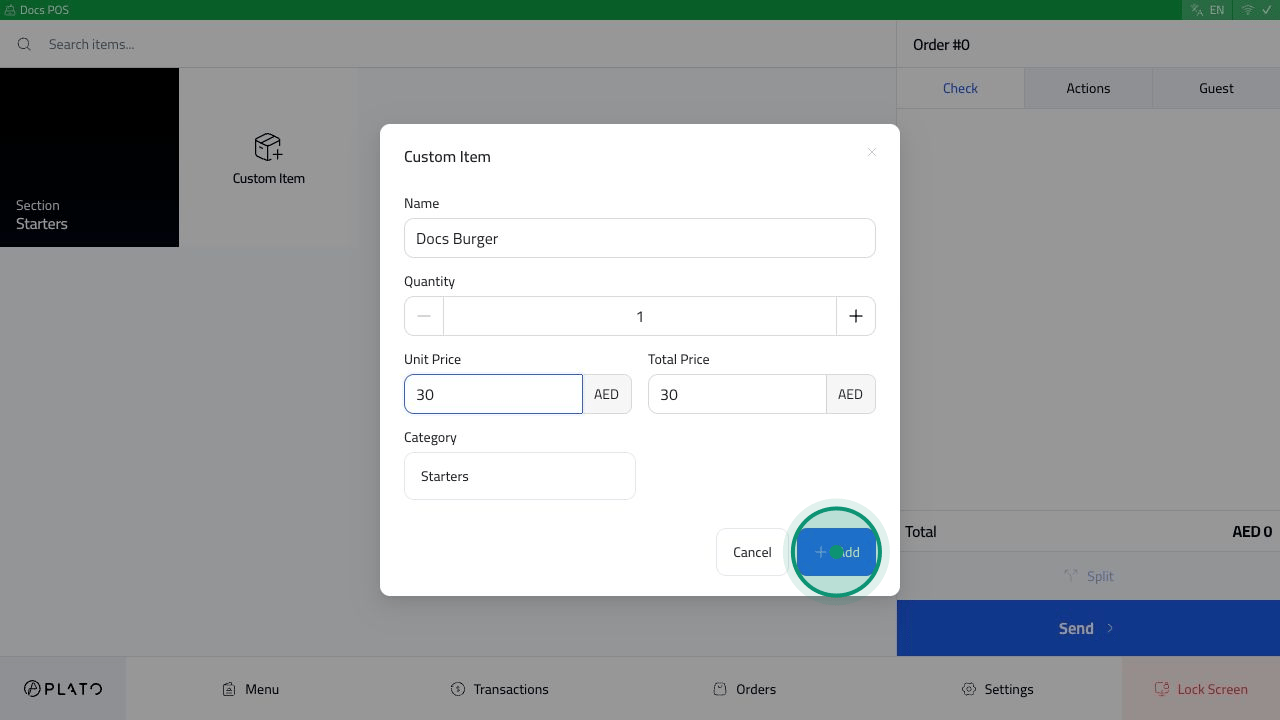
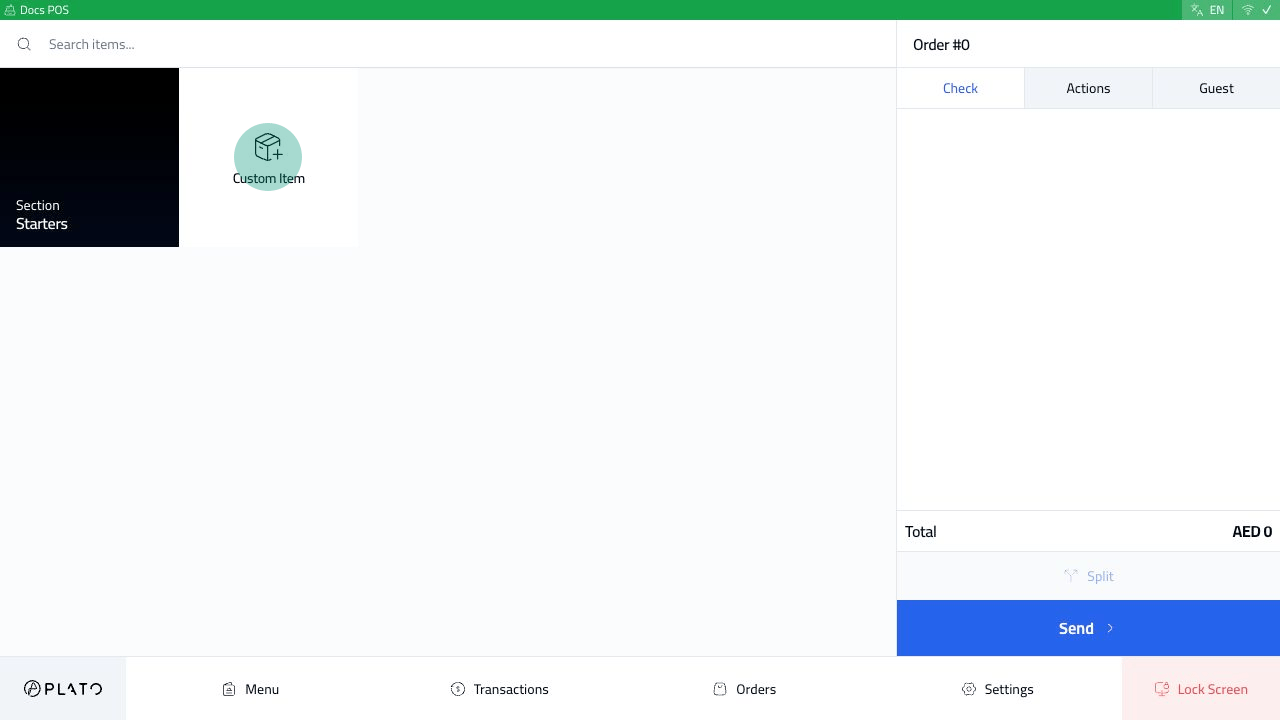 Özel ürün formu, kasiyerin ürün adını, miktarını, fiyatını ve kategorisini girmesine olanak tanır.
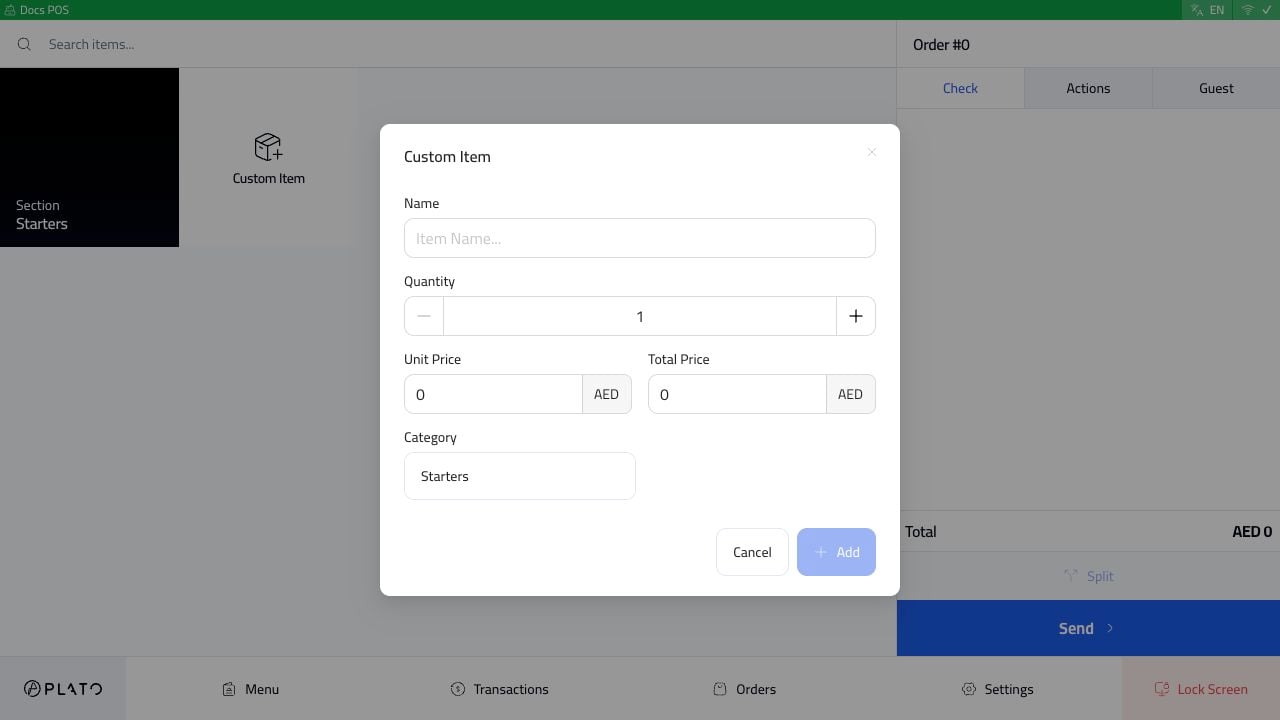 Ayrıntıları girin ve ardından `Add`'ye tıklayın.
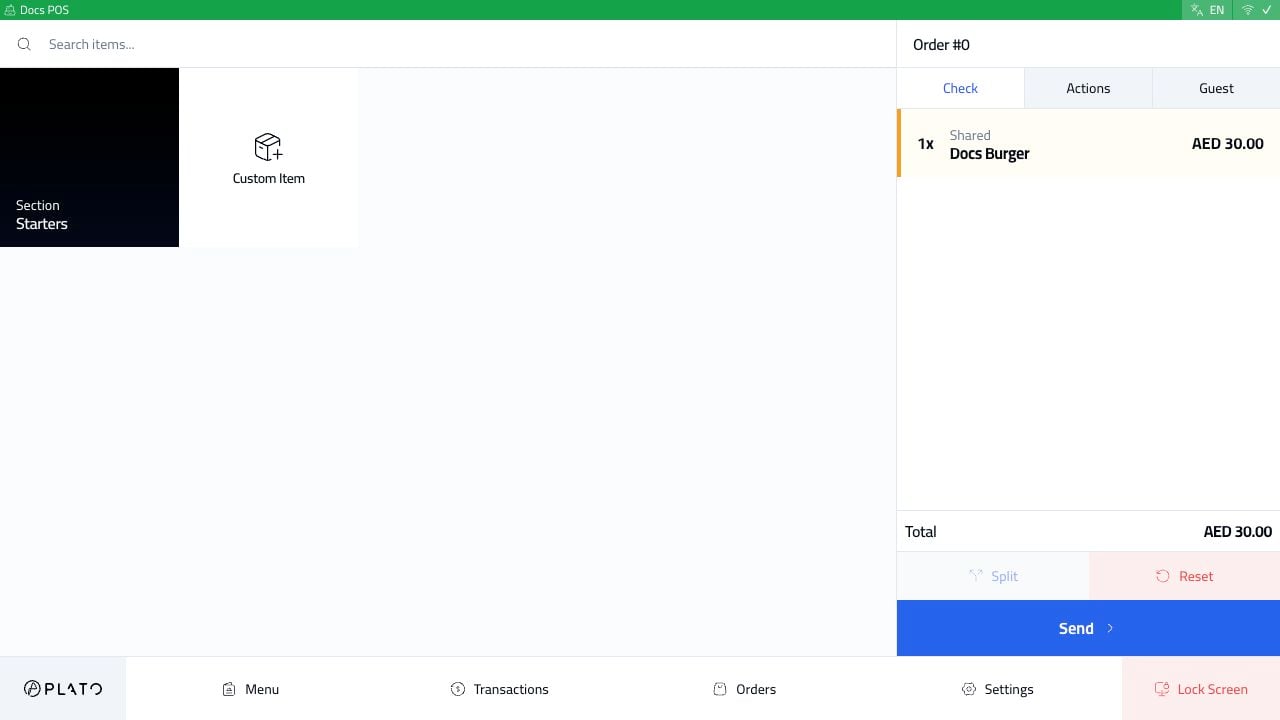
 Öğe çekte görünür.
 Siparişi göndermeden önce müşteri öğelerinin geri kalanını ekleyin.
Restoranda menü ürünleri, değiştiriciler, notlar veya koltuklar kullanılıyorsa göndermeden önce bu ayrıntıları tamamlayın.
## Siparişi Gönder
`Send`'ye tıklayın.
Siparişi göndermeden önce müşteri öğelerinin geri kalanını ekleyin.
Restoranda menü ürünleri, değiştiriciler, notlar veya koltuklar kullanılıyorsa göndermeden önce bu ayrıntıları tamamlayın.
## Siparişi Gönder
`Send`'ye tıklayın.
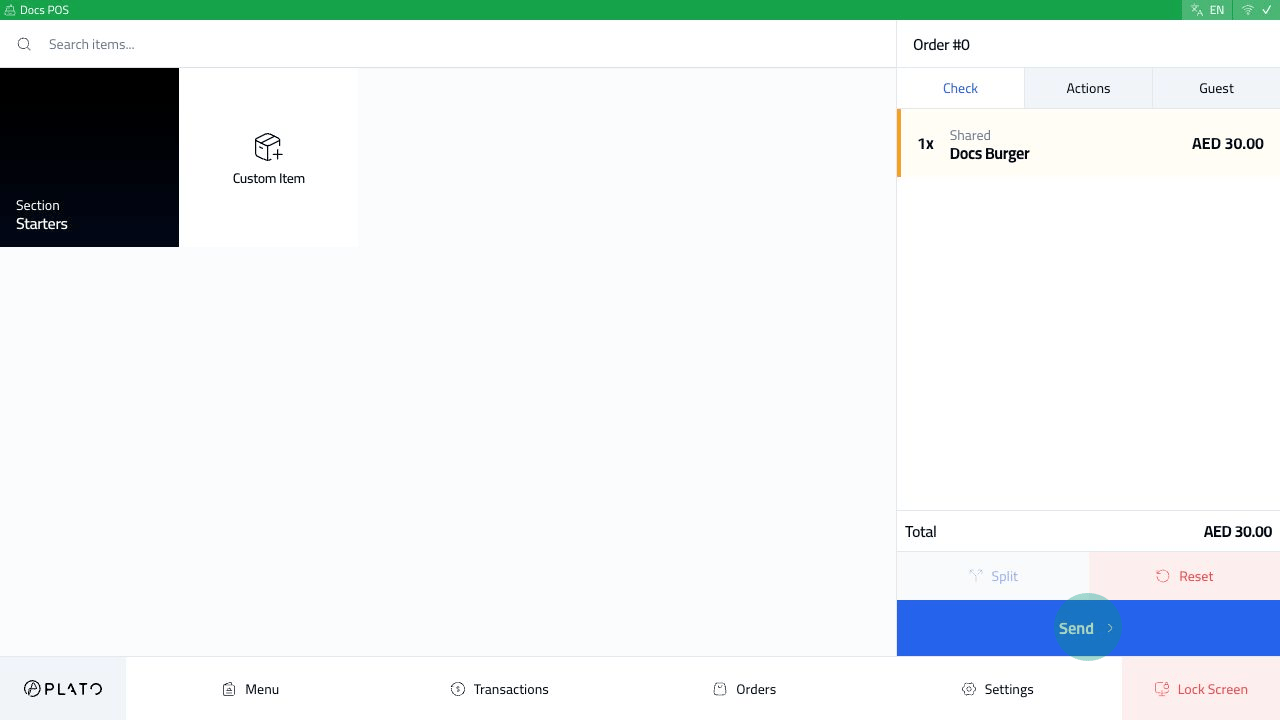 Sipariş gönderildikten sonra Plato çeki açık tutar ve servis eylemlerini gösterir.
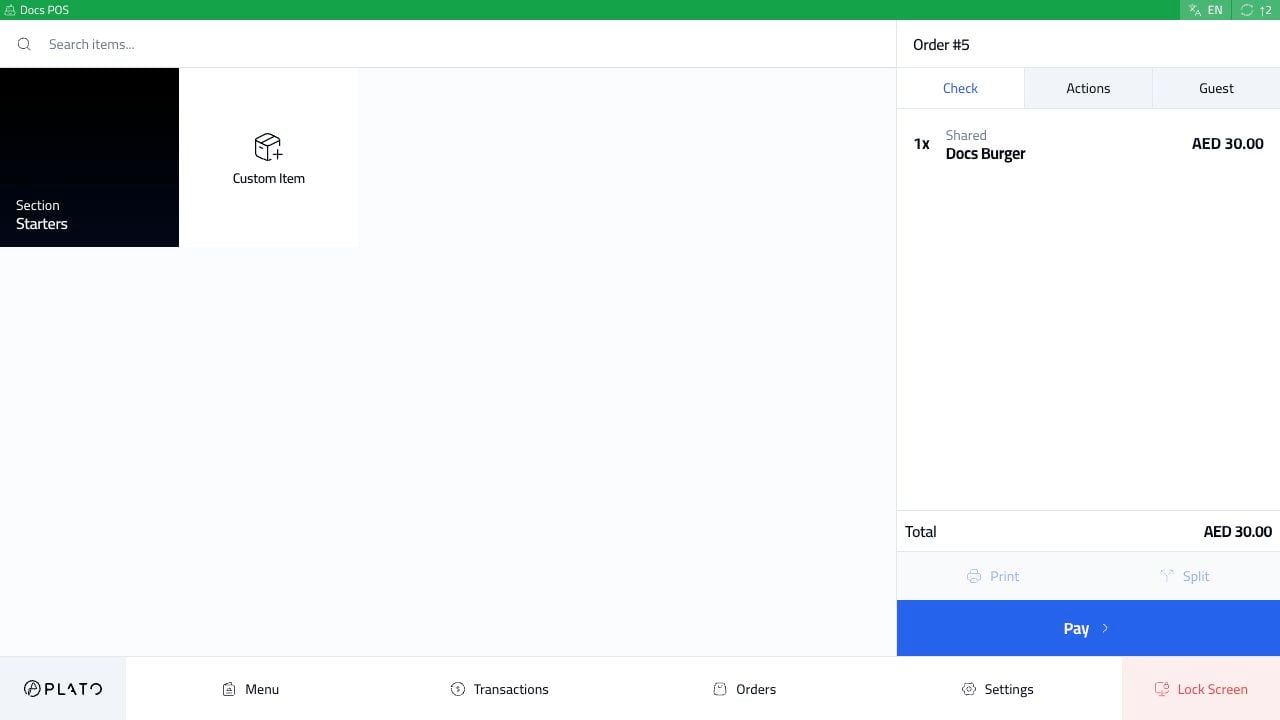 Cihaz kurulumuna bağlı olarak gönderme, sipariş durumunu güncelleyebilir, KDS biletleri gönderebilir ve yazdırma veya ödeme işlemlerini kullanılabilir hale getirebilir.
## Ödemeden Önce Neleri Kontrol Etmelisiniz?
`Pay`'ye tıklamadan önce şunu onaylayın:
1. Doğru sipariş tipi seçilir.
2. Öğeler ve miktarlar doğrudur.
3. Notlar, değiştiriciler, koltuklar ve masa ayrıntıları kullanıldığında doğrudur.
4. Toplam, müşterinin beklediğiyle eşleşir.
Cihaz kurulumuna bağlı olarak gönderme, sipariş durumunu güncelleyebilir, KDS biletleri gönderebilir ve yazdırma veya ödeme işlemlerini kullanılabilir hale getirebilir.
## Ödemeden Önce Neleri Kontrol Etmelisiniz?
`Pay`'ye tıklamadan önce şunu onaylayın:
1. Doğru sipariş tipi seçilir.
2. Öğeler ve miktarlar doğrudur.
3. Notlar, değiştiriciler, koltuklar ve masa ayrıntıları kullanıldığında doğrudur.
4. Toplam, müşterinin beklediğiyle eşleşir.