> ## Documentation Index
> Fetch the complete documentation index at: https://docs.plato.ae/llms.txt
> Use this file to discover all available pages before exploring further.
# Menus
> Create online menus, open menu editors, and manage public menu URLs.
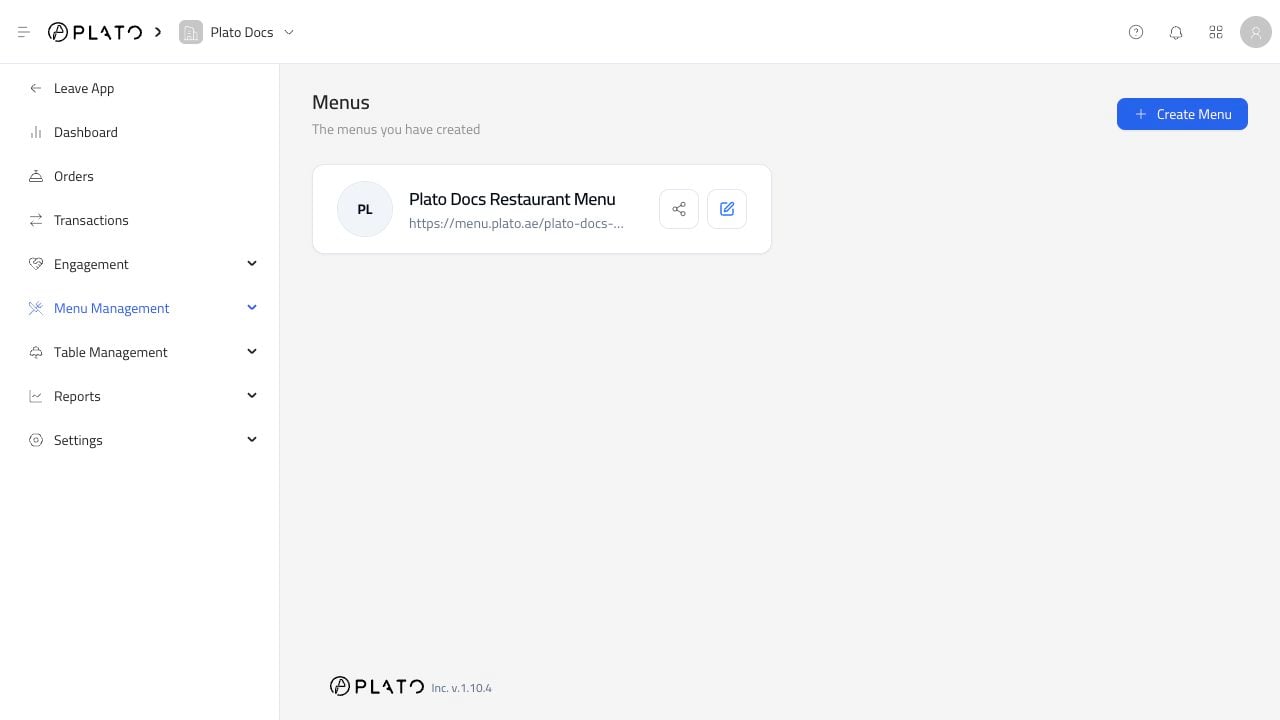
The Menus page is where you create and open online menus for your restaurant.
 ## Create A Menu
Click `Create Menu` to start a new menu.
## Create A Menu
Click `Create Menu` to start a new menu.
 Add:
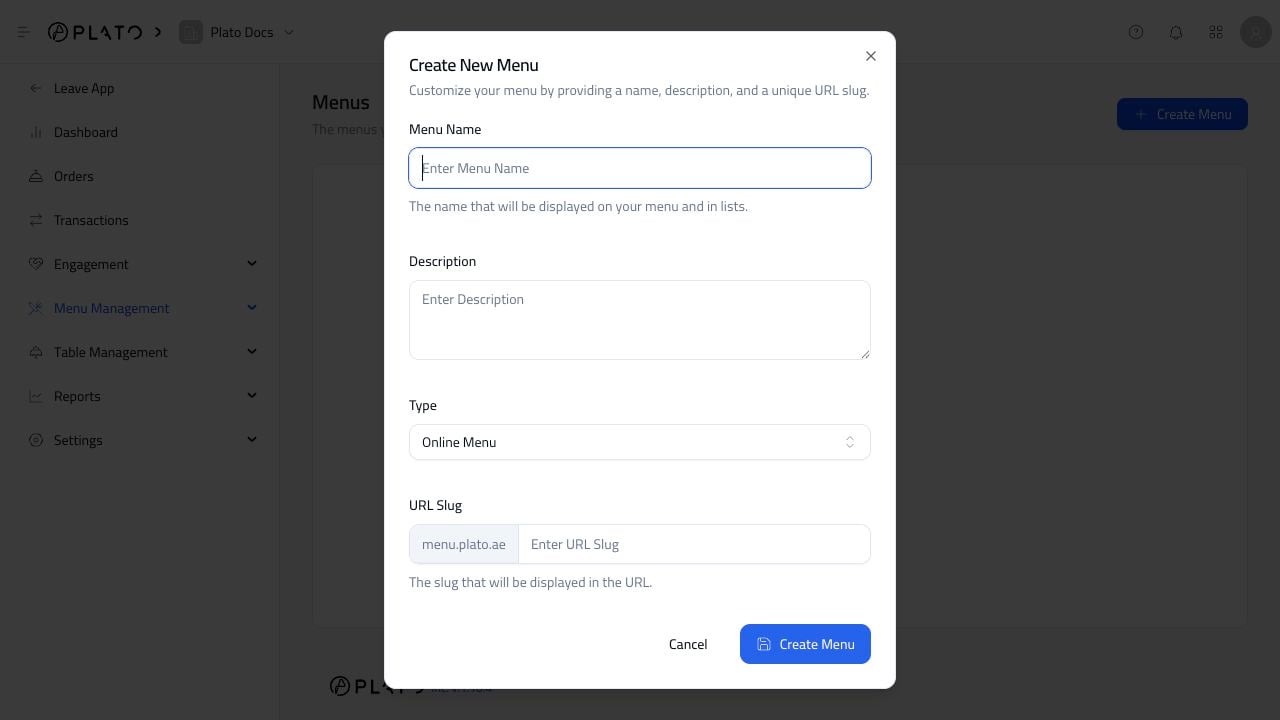
* A clear menu name.
* A short description.
* The menu type.
* The domain.
* A URL slug.
Use a slug that works well in a QR code or printed material. Short names like `main-menu`, `downtown`, or `breakfast` are easier for customers to read.
## Open A Menu
After a menu exists, open it from the Menus list to reach the menu editor.
The editor is where you add products to the public menu, configure ordering, style the menu, and test the public URL.
## Public URL
Each online menu has a public URL. Open it after making changes so you can confirm the customer view before sharing the link or printing QR codes.
Add:
* A clear menu name.
* A short description.
* The menu type.
* The domain.
* A URL slug.
Use a slug that works well in a QR code or printed material. Short names like `main-menu`, `downtown`, or `breakfast` are easier for customers to read.
## Open A Menu
After a menu exists, open it from the Menus list to reach the menu editor.
The editor is where you add products to the public menu, configure ordering, style the menu, and test the public URL.
## Public URL
Each online menu has a public URL. Open it after making changes so you can confirm the customer view before sharing the link or printing QR codes.