> ## Documentation Index
> Fetch the complete documentation index at: https://docs.plato.ae/llms.txt
> Use this file to discover all available pages before exploring further.
# Categories
> Create menu categories so products are easier to organize and filter.
Categories help staff organize products and help customers browse the menu.
 ## Create A Category
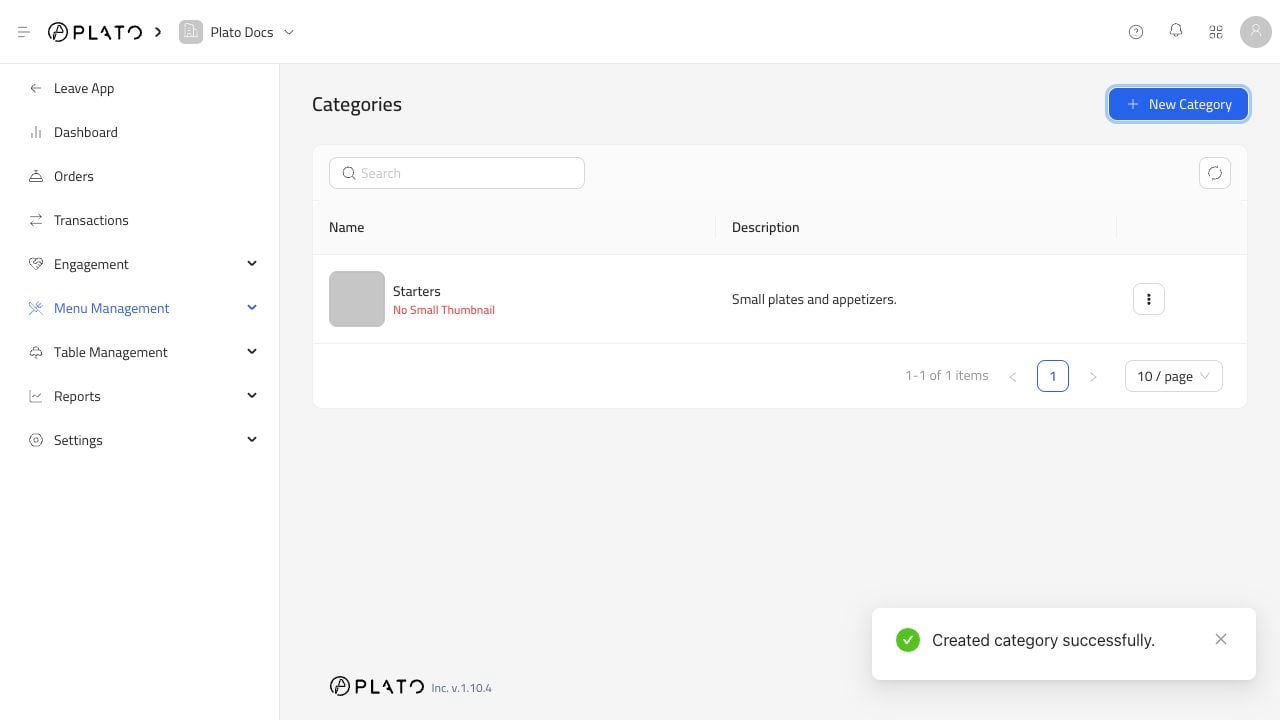
Click `New Category`.
## Create A Category
Click `New Category`.
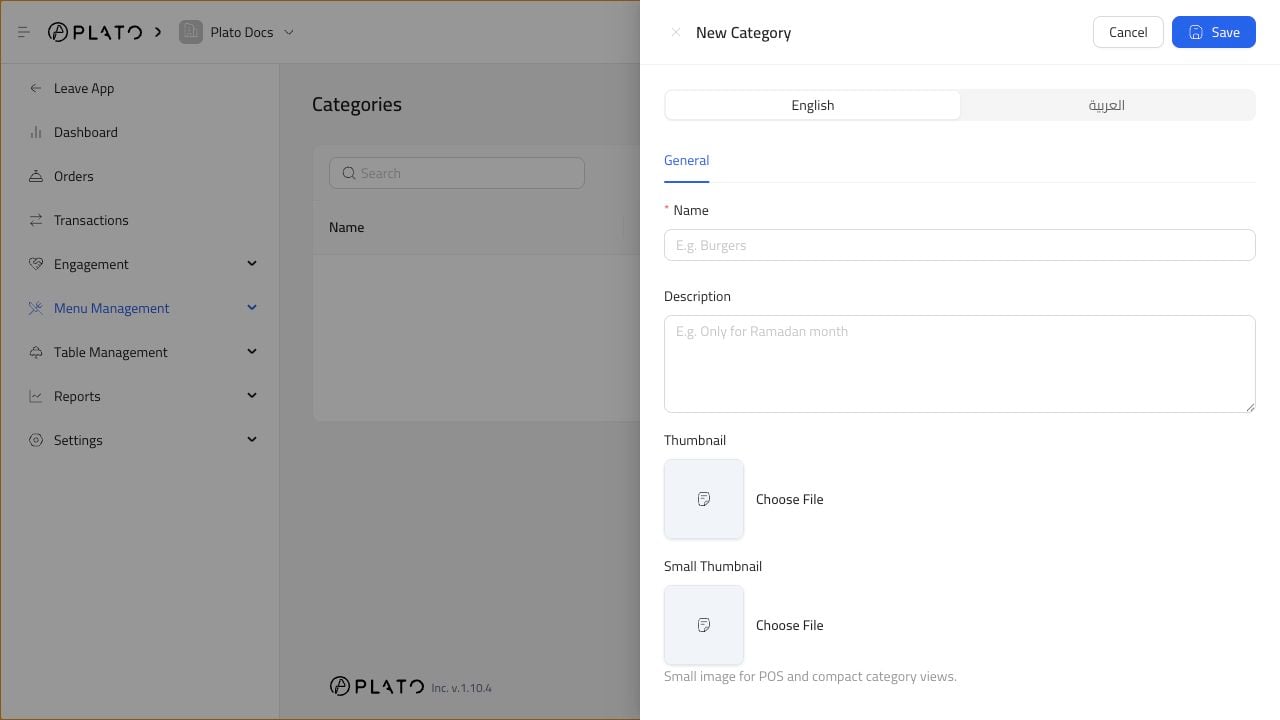 Add a name and optional description. You can also upload category images for menu and POS views.
Use simple names such as `Starters`, `Burgers`, `Desserts`, or `Drinks`.
## When To Use Categories
Create categories before adding many products. Products can be filtered and displayed more cleanly when every item has the right category.
If a product belongs to a temporary campaign, create a seasonal category and remove or hide it later.
Add a name and optional description. You can also upload category images for menu and POS views.
Use simple names such as `Starters`, `Burgers`, `Desserts`, or `Drinks`.
## When To Use Categories
Create categories before adding many products. Products can be filtered and displayed more cleanly when every item has the right category.
If a product belongs to a temporary campaign, create a seasonal category and remove or hide it later.