> ## Documentation Index
> Fetch the complete documentation index at: https://docs.plato.ae/llms.txt
> Use this file to discover all available pages before exploring further.
# Add Products To A Menu
> Add existing products to the menu builder.
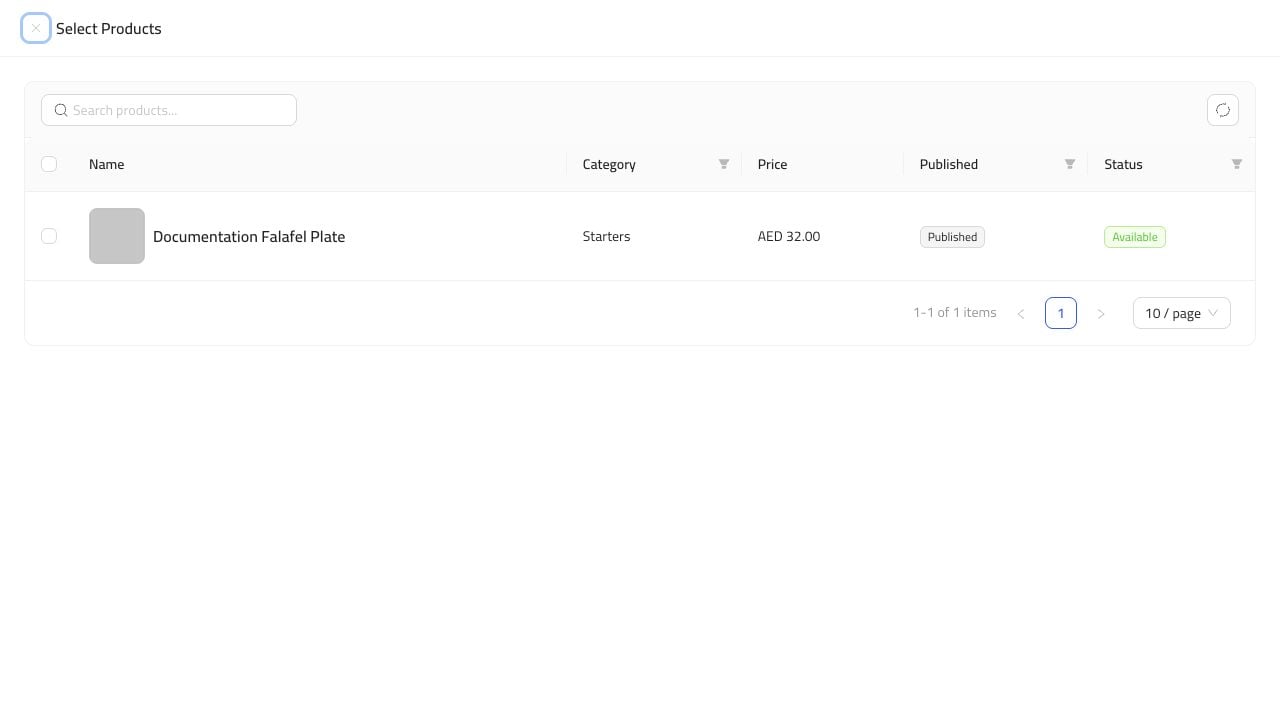
Use `Select Products` when the product already exists in the product catalog.
 ## Add Existing Products
1. Open the menu.
2. Go to `Builder`.
3. Click `Add Block`.
4. Choose `Select Products`.
5. Search or browse for the product.
6. Select the product row.
7. Click the add button.
8. Save the menu.
## After Adding
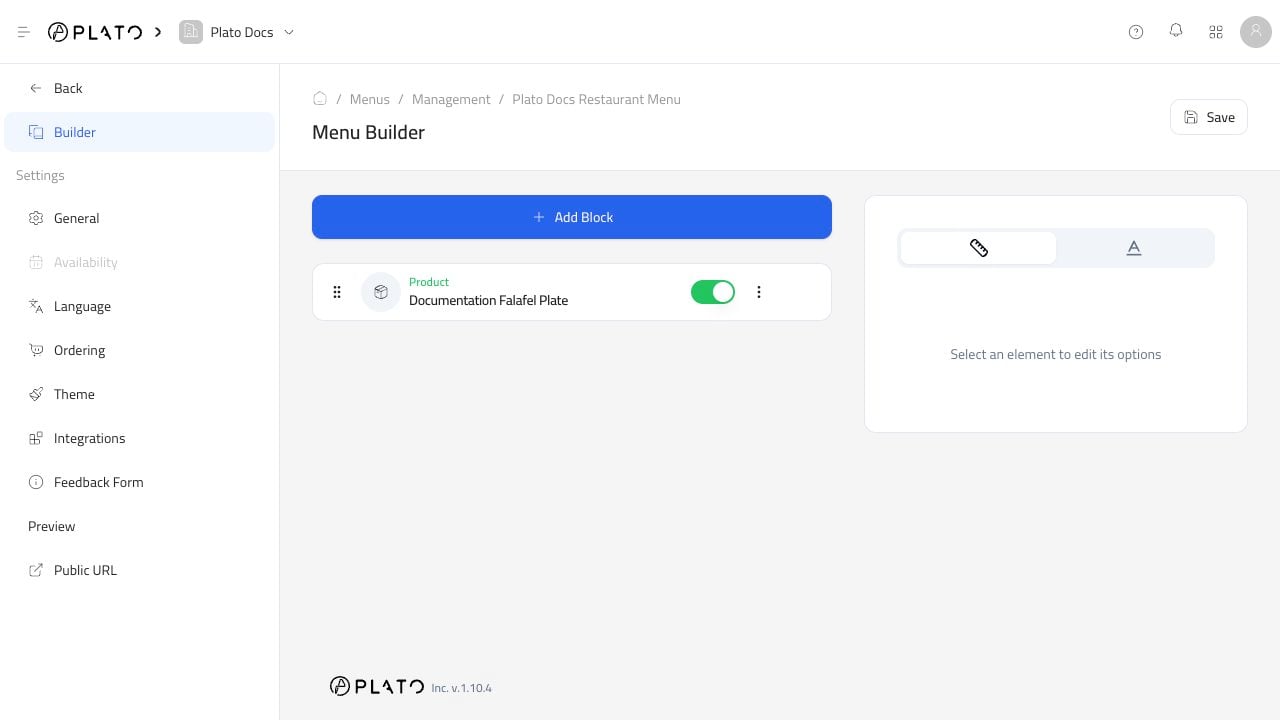
The product appears as a block in the builder.
## Add Existing Products
1. Open the menu.
2. Go to `Builder`.
3. Click `Add Block`.
4. Choose `Select Products`.
5. Search or browse for the product.
6. Select the product row.
7. Click the add button.
8. Save the menu.
## After Adding
The product appears as a block in the builder.
 Open the public menu after saving so you can confirm the item is visible to customers.