> ## Documentation Index
> Fetch the complete documentation index at: https://docs.plato.ae/llms.txt
> Use this file to discover all available pages before exploring further.
# Builder
> Add blocks and products to the public online menu.
The menu Builder controls the content customers see on the public menu.
 ## Add A Block
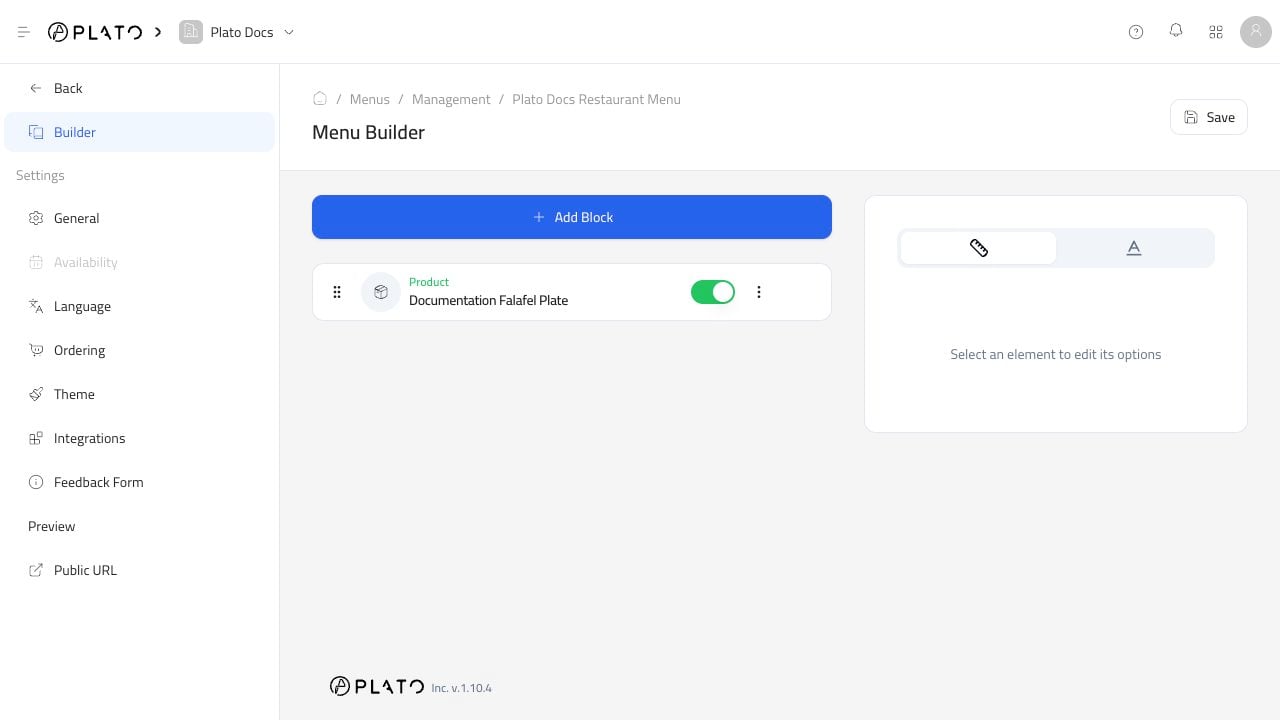
Click `Add Block` to add content.
## Add A Block
Click `Add Block` to add content.
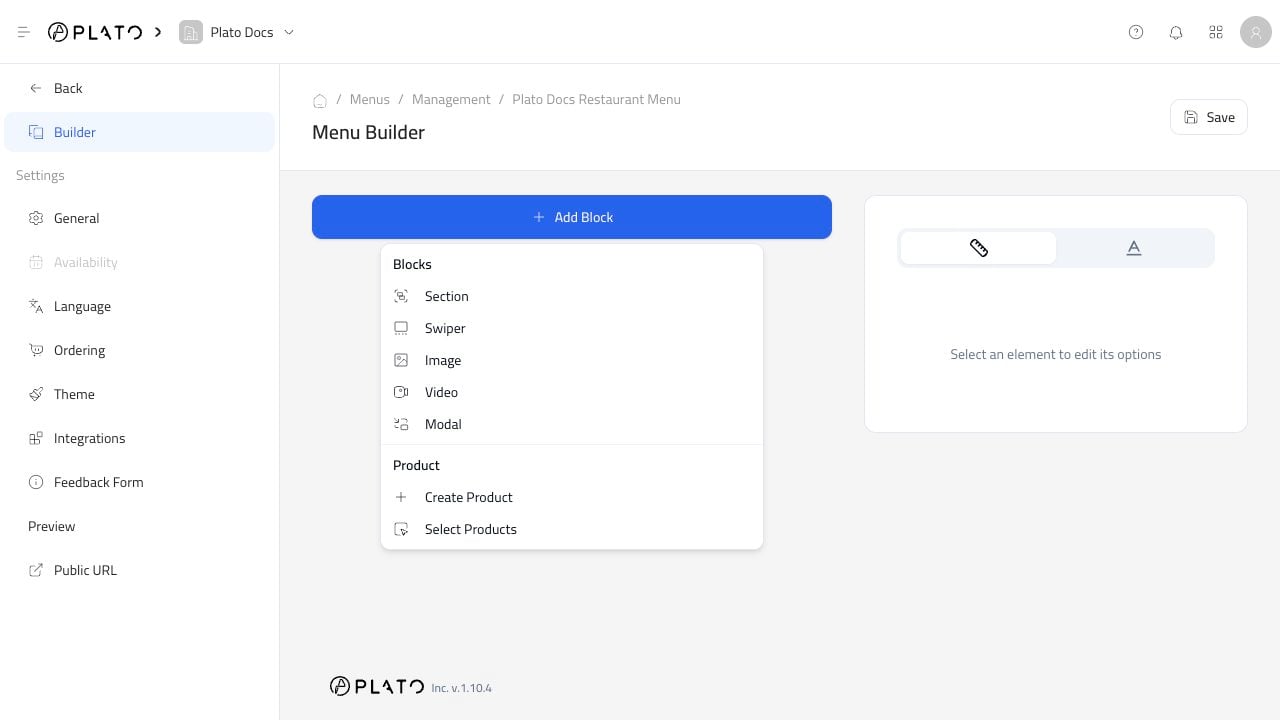 You can add layout blocks such as sections, swipers, images, videos, and modals. You can also add products by creating a new product or selecting existing products.
## Add Existing Products
Use `Select Products` when the item already exists in Products.
You can add layout blocks such as sections, swipers, images, videos, and modals. You can also add products by creating a new product or selecting existing products.
## Add Existing Products
Use `Select Products` when the item already exists in Products.
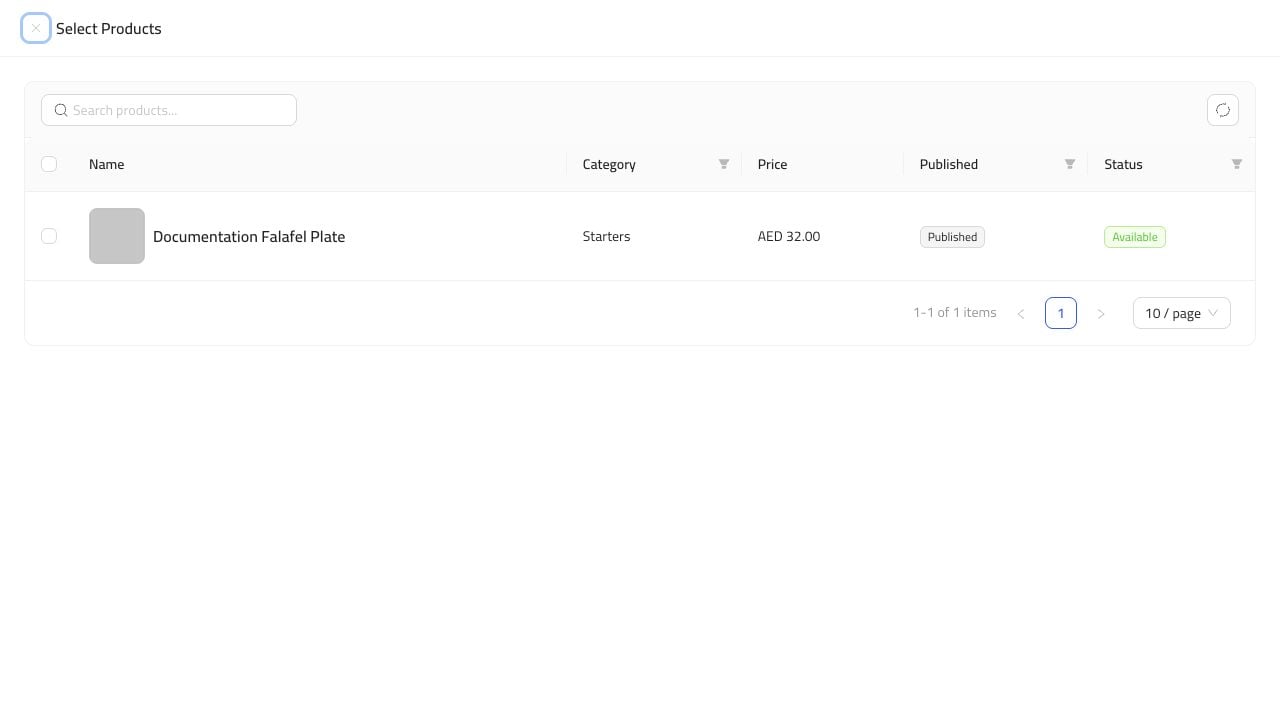 Select the product row, then click the add button that appears. After the product appears in the builder, click `Save`.
## Keep The Menu Easy To Browse
Group products in a way customers understand. A simple menu usually works better than a long mixed list.
Useful patterns:
* Put common categories first.
* Keep seasonal or limited items in their own section.
* Use images only when they help customers choose.
* Hide products that are not ready to sell.
* Open the public menu after saving to check the customer experience.
Select the product row, then click the add button that appears. After the product appears in the builder, click `Save`.
## Keep The Menu Easy To Browse
Group products in a way customers understand. A simple menu usually works better than a long mixed list.
Useful patterns:
* Put common categories first.
* Keep seasonal or limited items in their own section.
* Use images only when they help customers choose.
* Hide products that are not ready to sell.
* Open the public menu after saving to check the customer experience.