> ## Documentation Index
> Fetch the complete documentation index at: https://docs.plato.ae/llms.txt
> Use this file to discover all available pages before exploring further.
# Wallets
> Add partner workspace wallets and record wallet credits, debits, refunds, and adjustments.
Wallets track partner-managed balances for a workspace.
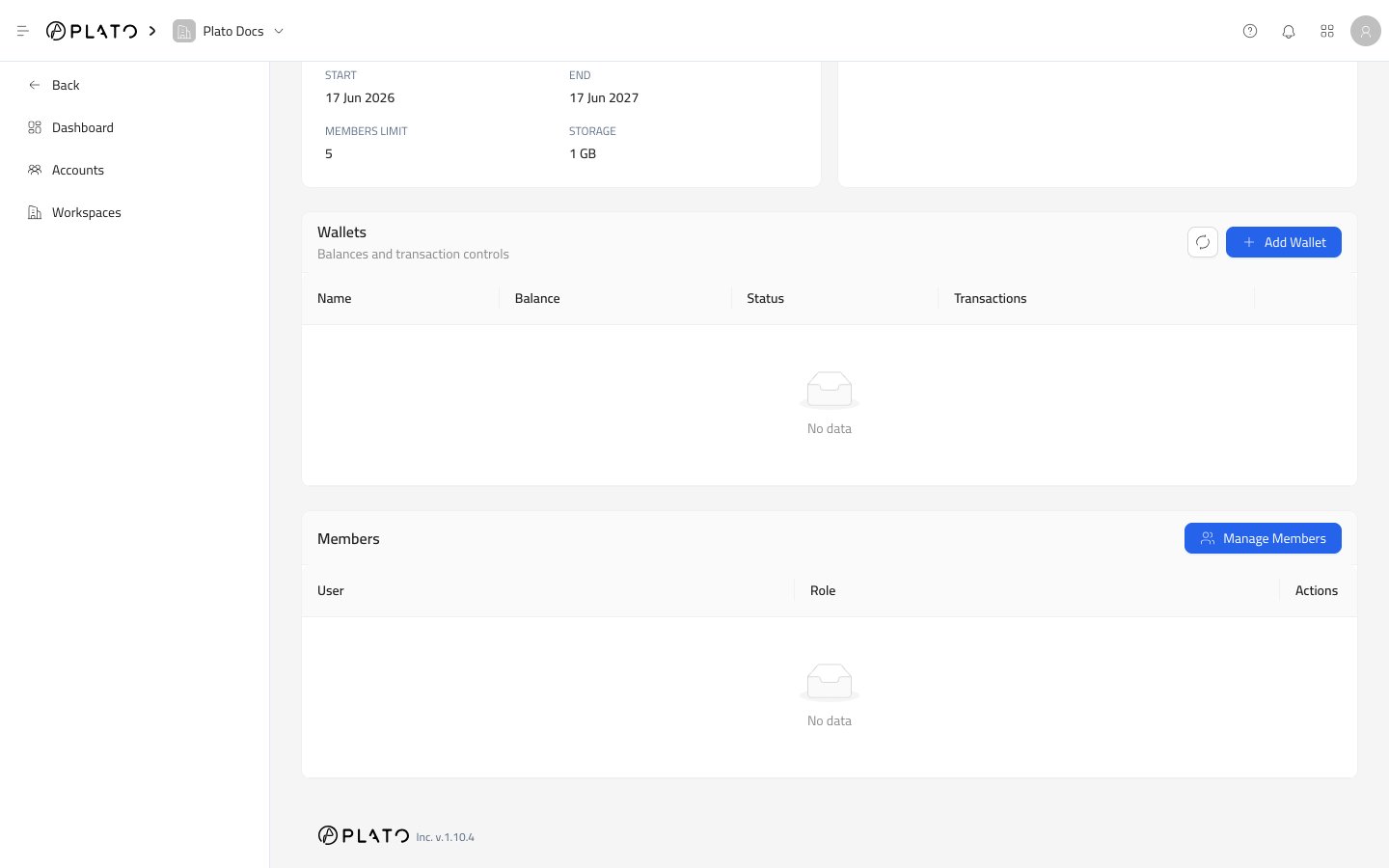
Open a workspace details page, then use the Wallets area.
 ## Add A Wallet
1. Open a workspace details page.
2. Go to the `Wallets` area.
3. Click `Add Wallet`.
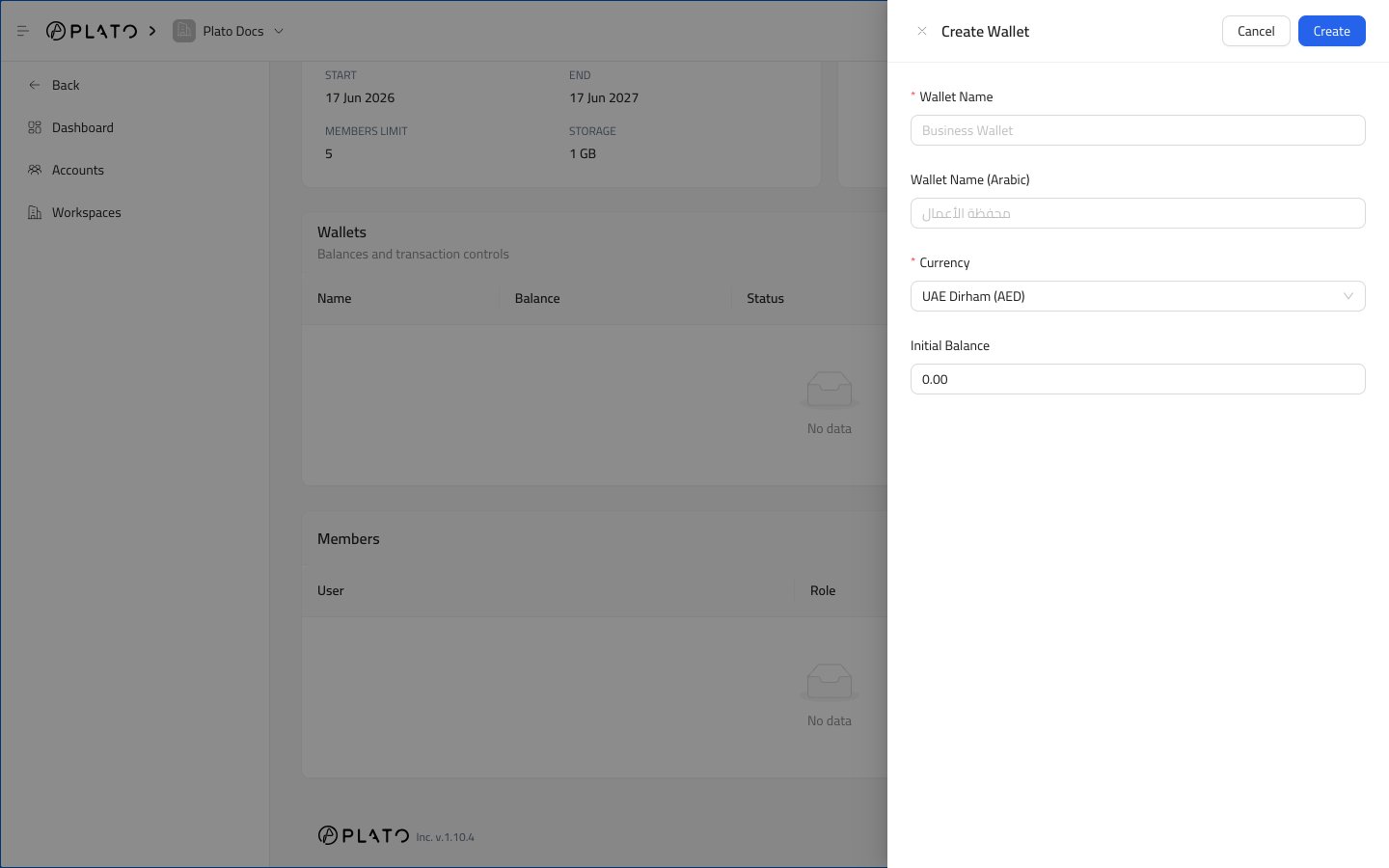
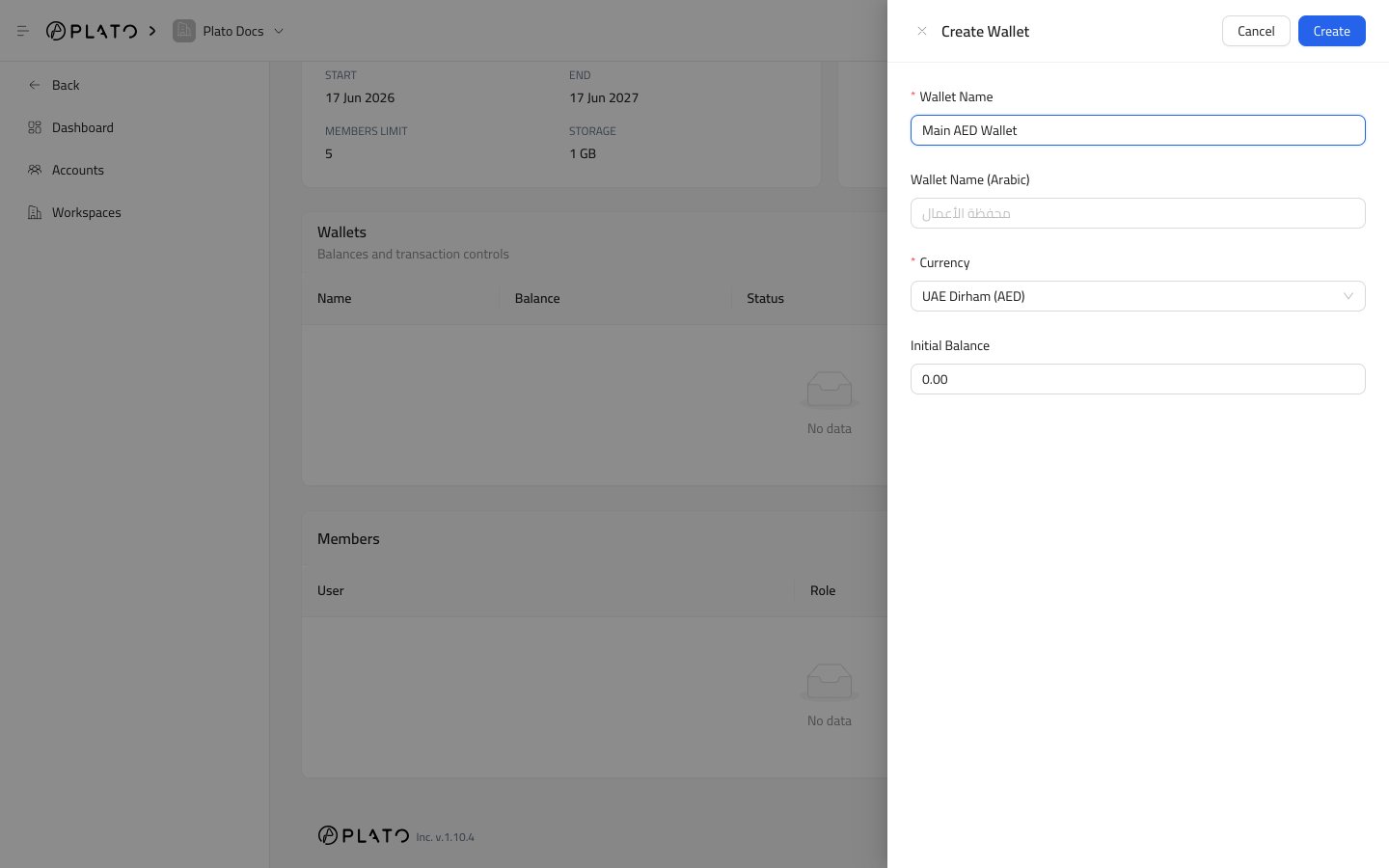
4. Fill the wallet details.
5. Click `Create`.
## Add A Wallet
1. Open a workspace details page.
2. Go to the `Wallets` area.
3. Click `Add Wallet`.
4. Fill the wallet details.
5. Click `Create`.
 ## Wallet Fields
`Wallet Name` is the name shown in the workspace.
`Wallet Name (Arabic)` is optional, and helps teams working in Arabic.
`Currency` controls the wallet currency. Available options can include UAE Dirham, US Dollar, and Saudi Riyal.
`Initial Balance` sets the starting balance.
## Wallet Fields
`Wallet Name` is the name shown in the workspace.
`Wallet Name (Arabic)` is optional, and helps teams working in Arabic.
`Currency` controls the wallet currency. Available options can include UAE Dirham, US Dollar, and Saudi Riyal.
`Initial Balance` sets the starting balance.
 ## Wallet List
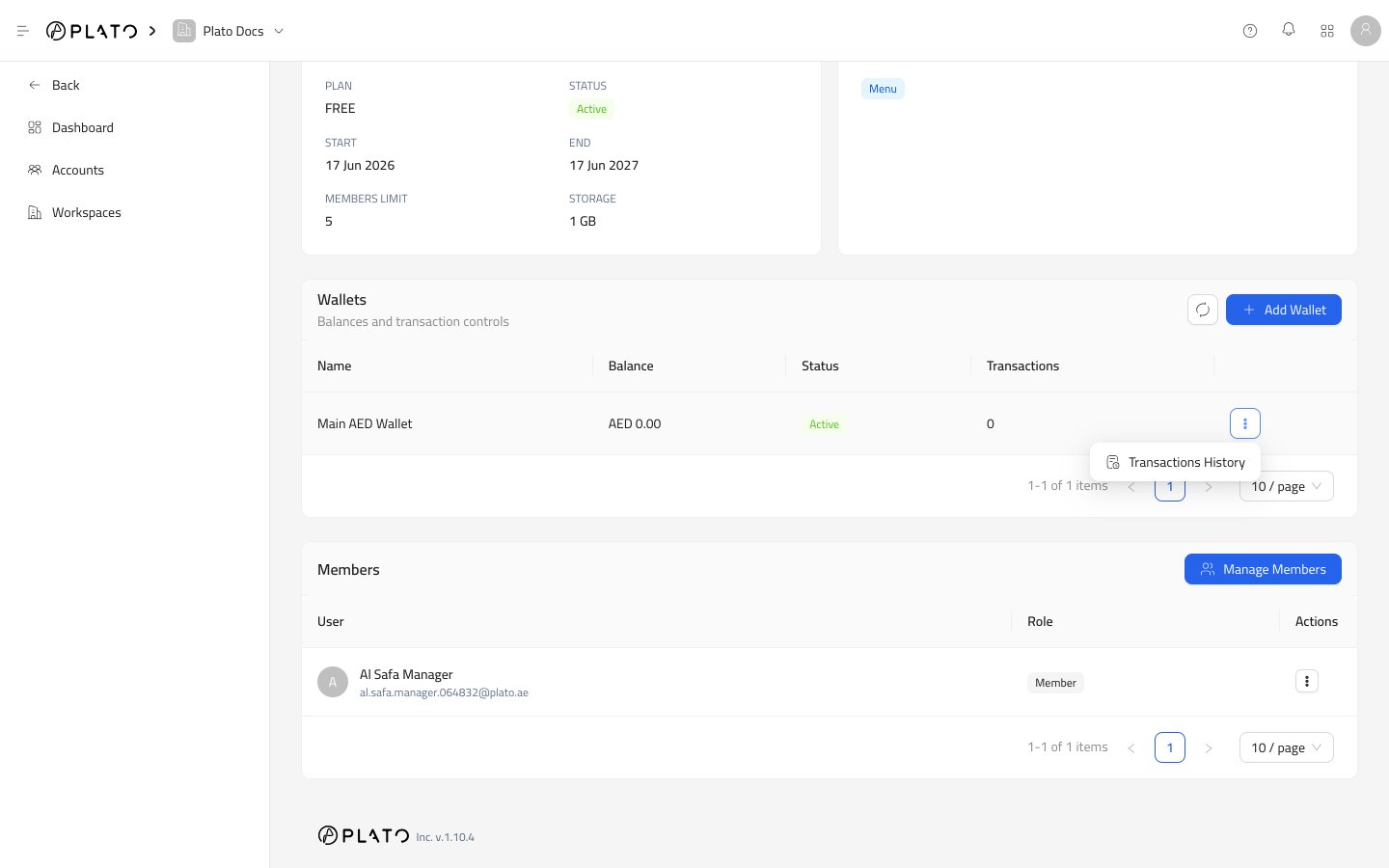
After a wallet is created, it appears in the Wallets table.
## Wallet List
After a wallet is created, it appears in the Wallets table.
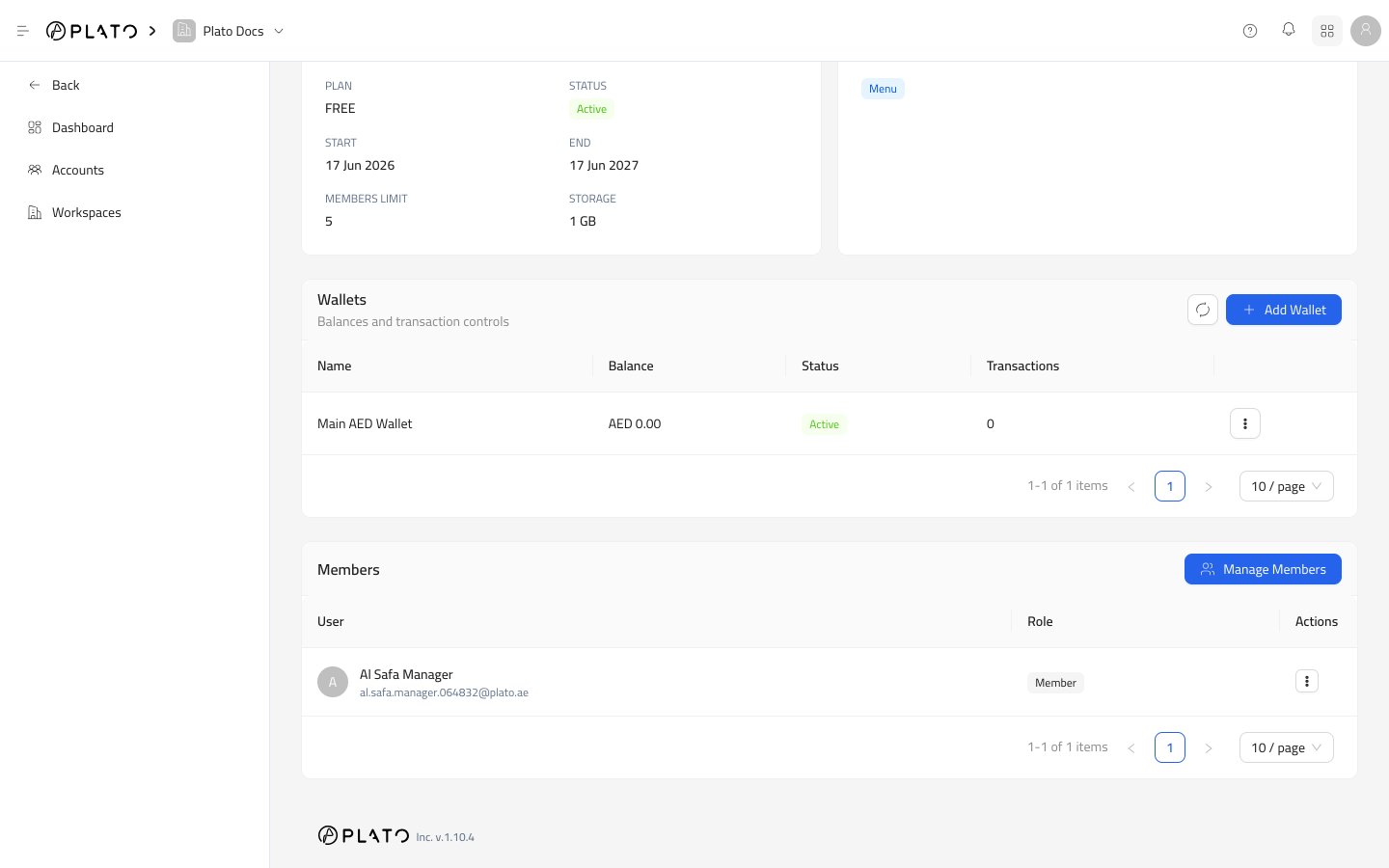 The table shows:
* Wallet name.
* Current balance.
* Status.
* Transaction count.
* Row actions.
The table shows:
* Wallet name.
* Current balance.
* Status.
* Transaction count.
* Row actions.
 ## Transactions History
Open the row actions menu and choose `Transactions History`.
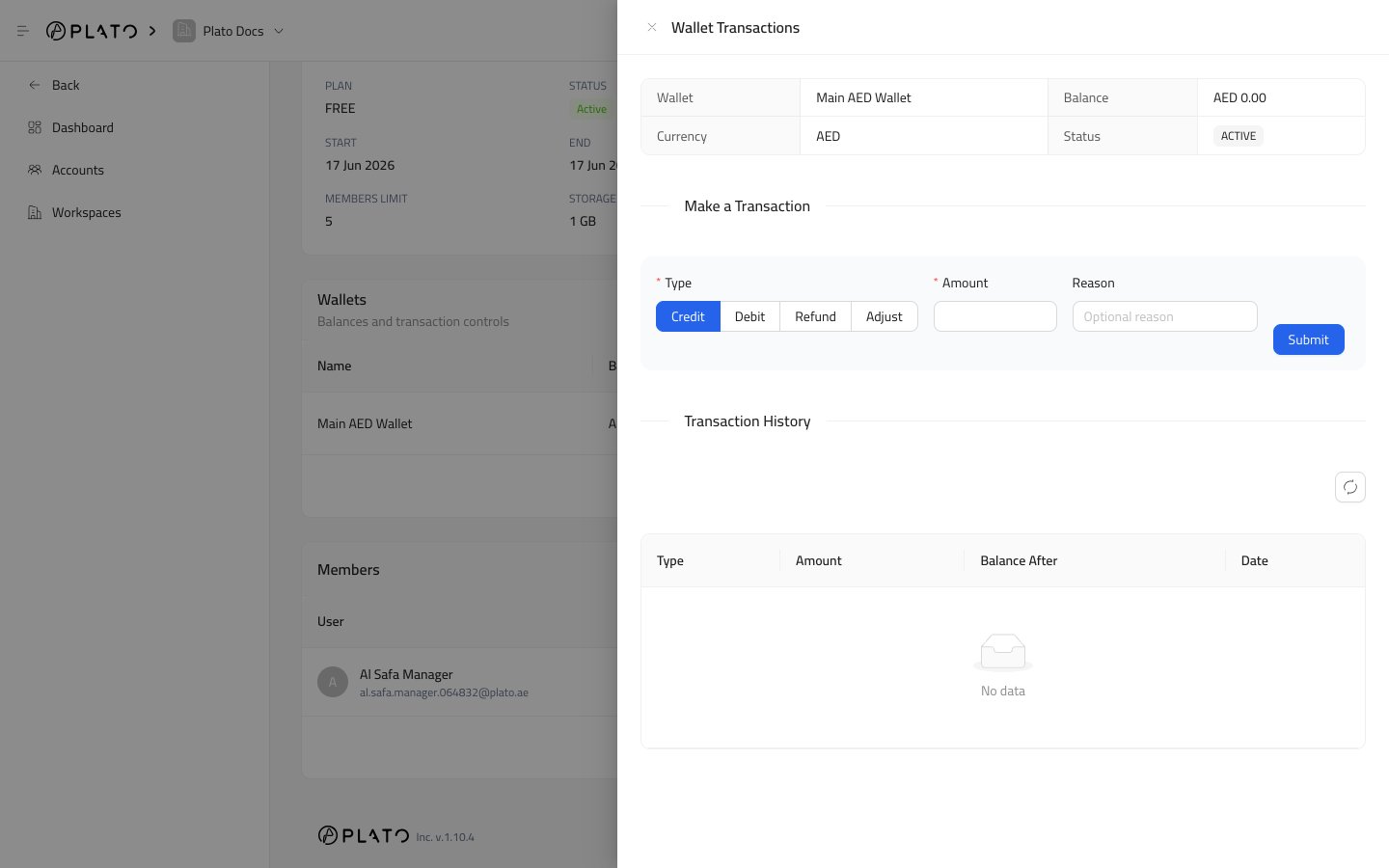
The drawer shows wallet details, a transaction form, and the transaction history table.
## Transactions History
Open the row actions menu and choose `Transactions History`.
The drawer shows wallet details, a transaction form, and the transaction history table.
 ## Transaction Types
`Credit` increases the wallet balance.
`Refund` also increases the wallet balance.
`Debit` decreases the wallet balance.
`Adjustment` decreases the wallet balance.
Use the type that matches the real business action. Add a short reason so the history is easy to understand later.
## Transaction Fields
`Amount` is the value to add or subtract. It must be greater than zero.
`Reason` is optional, but recommended for support and finance review.
After saving, Plato updates the balance and adds the transaction to history.
## Refresh
Use the refresh button in the Wallets area when a teammate just added a wallet or transaction and you need the newest balance.
## Transaction Types
`Credit` increases the wallet balance.
`Refund` also increases the wallet balance.
`Debit` decreases the wallet balance.
`Adjustment` decreases the wallet balance.
Use the type that matches the real business action. Add a short reason so the history is easy to understand later.
## Transaction Fields
`Amount` is the value to add or subtract. It must be greater than zero.
`Reason` is optional, but recommended for support and finance review.
After saving, Plato updates the balance and adds the transaction to history.
## Refresh
Use the refresh button in the Wallets area when a teammate just added a wallet or transaction and you need the newest balance.