> ## Documentation Index
> Fetch the complete documentation index at: https://docs.plato.ae/llms.txt
> Use this file to discover all available pages before exploring further.
# Workspace Members
> Add partner accounts to a workspace, remove members, and transfer workspace ownership.
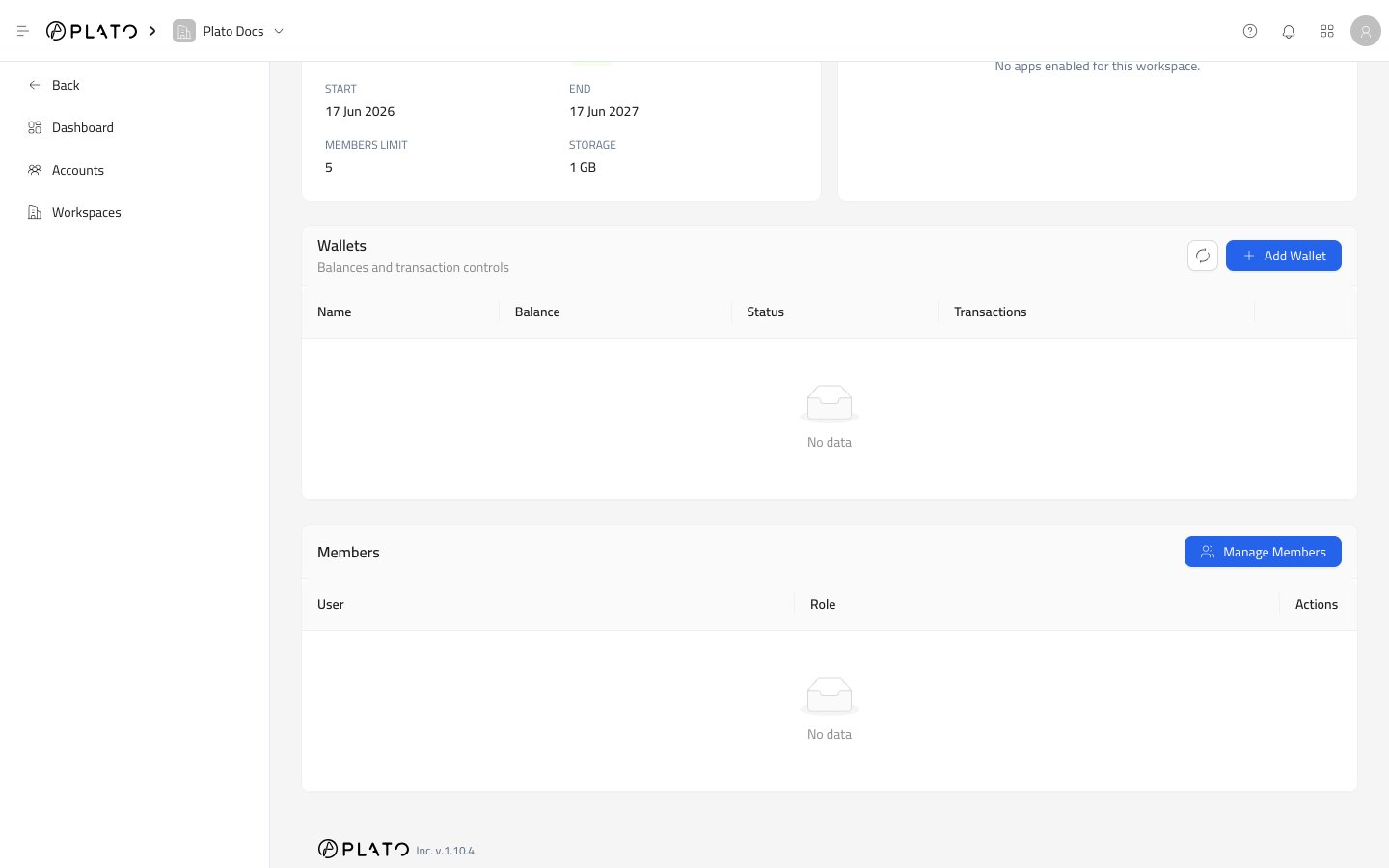
Workspace members are the accounts that can open a partner-owned customer workspace.
Open a workspace, then use `Manage Members` from the Members area.
 ## Manage Members
Use `Manage Members` when an existing partner account needs access to the workspace.
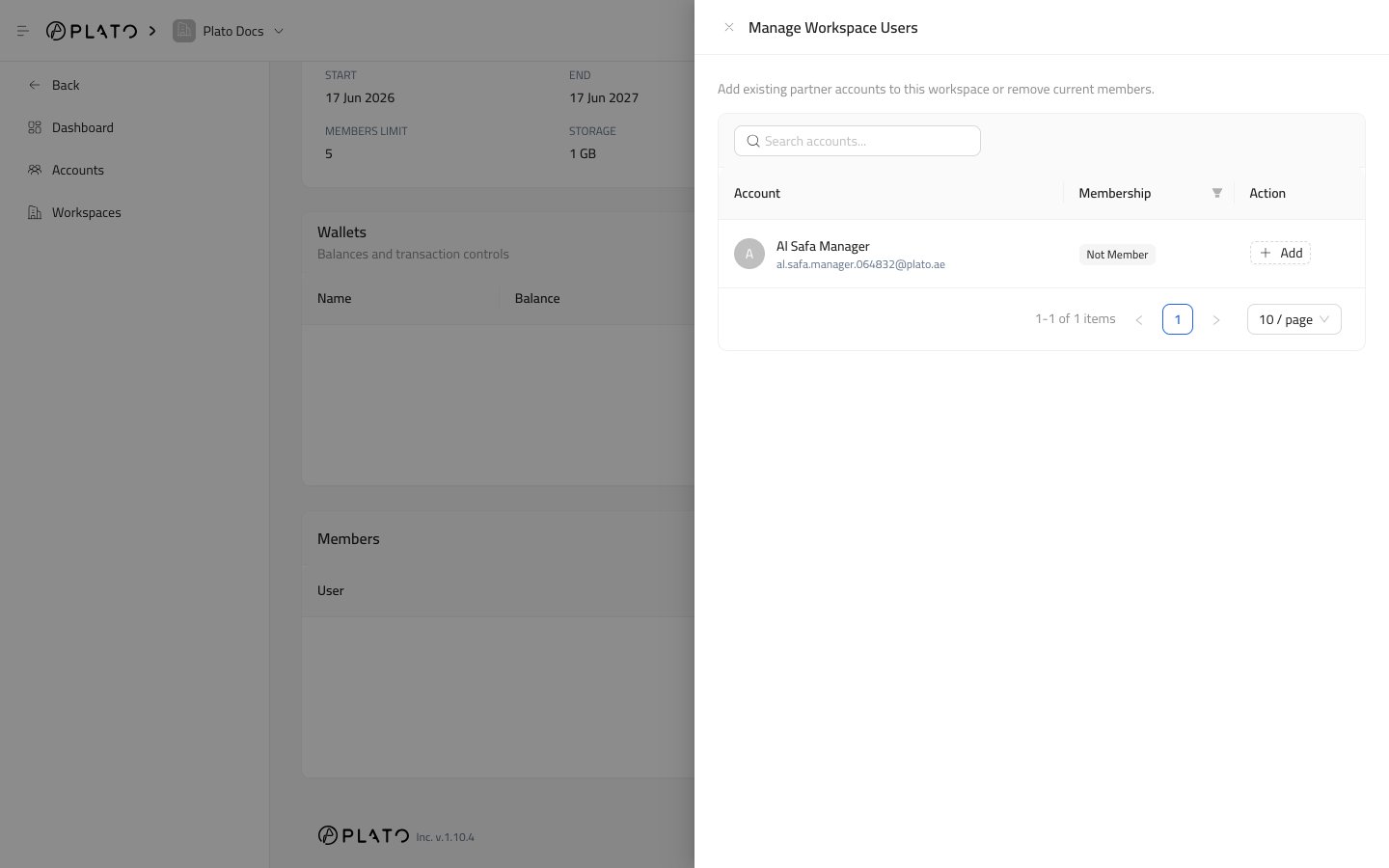
The drawer lets you search accounts, filter by membership state, add accounts, and remove existing members.
## Manage Members
Use `Manage Members` when an existing partner account needs access to the workspace.
The drawer lets you search accounts, filter by membership state, add accounts, and remove existing members.
 ## Search
Use the search field when the partner account list is long.
Search by name, email, or username.
## Membership Filter
Use the membership filter to switch between:
* `Member`, for accounts already connected to the workspace.
* `Not Member`, for accounts that can still be added.
## Add A Member
1. Open `Manage Members`.
2. Switch to `Not Member` if needed.
3. Find the account.
4. Click `Add`.
5. Confirm your password if Plato asks.
After adding, the account can open the workspace according to its role.
## Search
Use the search field when the partner account list is long.
Search by name, email, or username.
## Membership Filter
Use the membership filter to switch between:
* `Member`, for accounts already connected to the workspace.
* `Not Member`, for accounts that can still be added.
## Add A Member
1. Open `Manage Members`.
2. Switch to `Not Member` if needed.
3. Find the account.
4. Click `Add`.
5. Confirm your password if Plato asks.
After adding, the account can open the workspace according to its role.
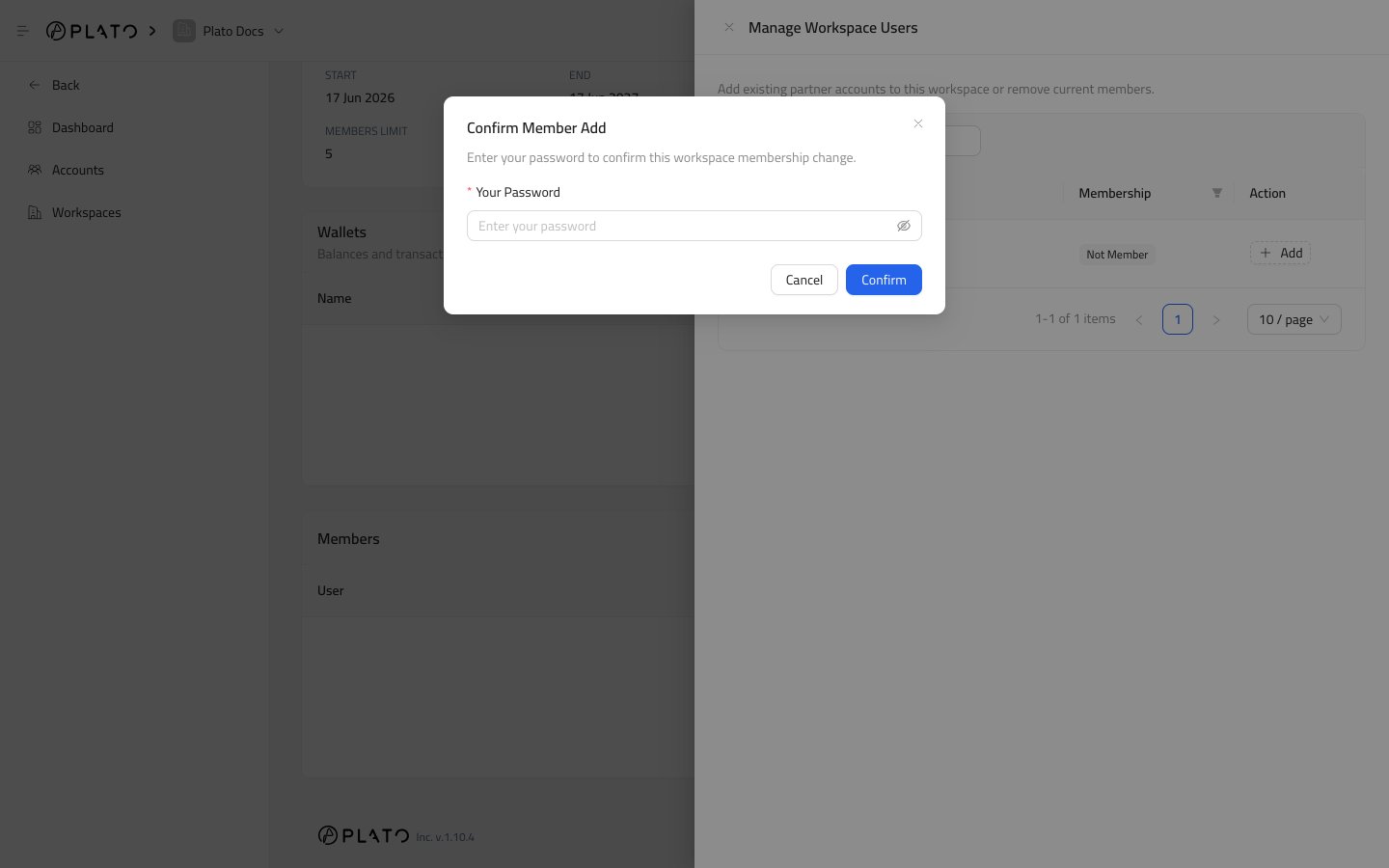 The member appears in the workspace Members table after the action is saved.
 ## Remove A Member
1. Open `Manage Members`.
2. Switch to `Member` if needed.
3. Find the account.
4. Click `Remove`.
5. Confirm your password if Plato asks.
Use remove when the account should no longer access this workspace.
## Member Row Actions
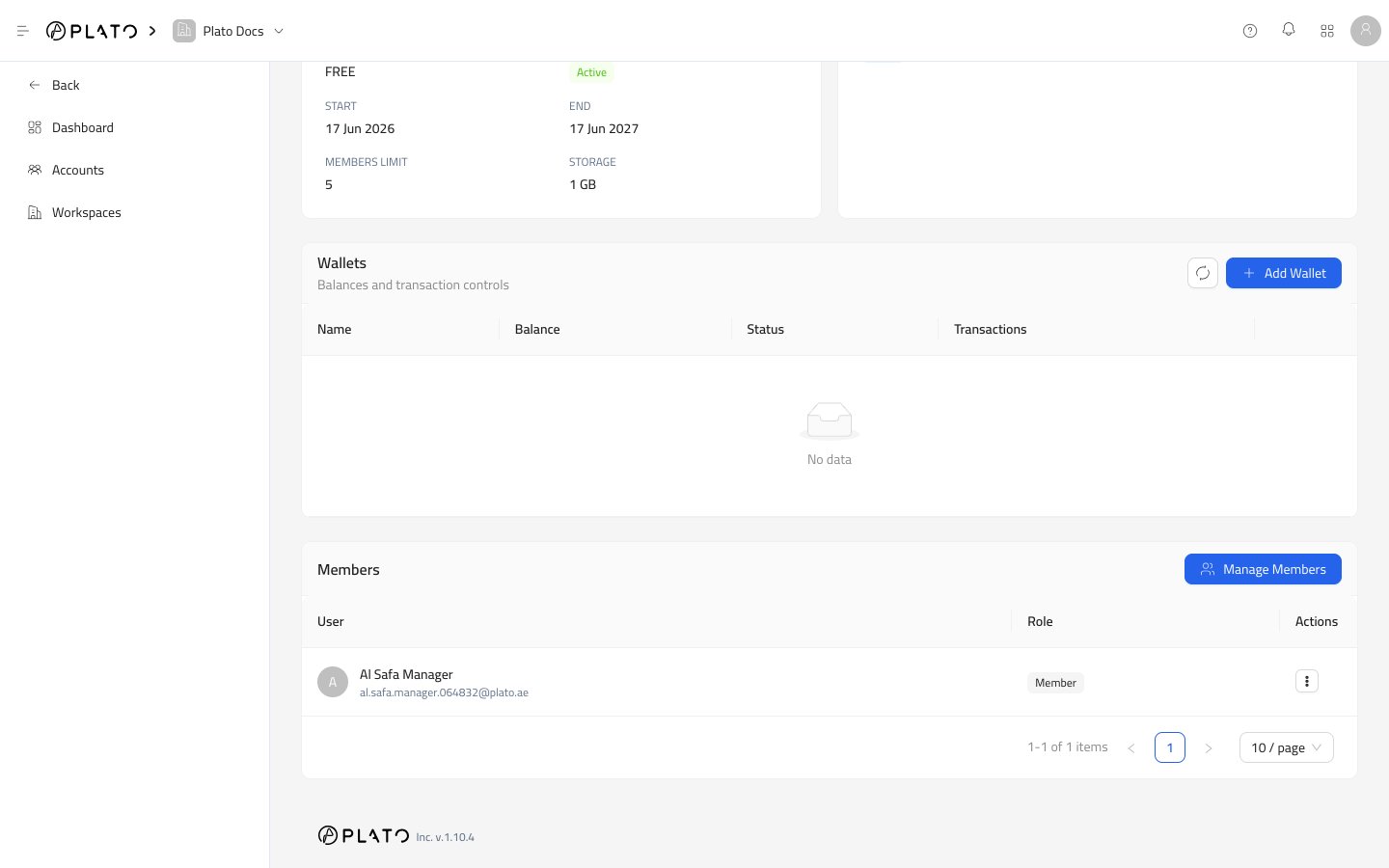
Inside the workspace Members table, the row actions menu can include:
* `Make Owner`, for transferring workspace ownership to that member.
* `Remove`, for removing that member from the workspace.
`Make Owner` is not available for the current owner.
## Good Access Practice
Create one account per person. Avoid sharing one account between several customer team members, because it makes access and password resets harder to control.
## Remove A Member
1. Open `Manage Members`.
2. Switch to `Member` if needed.
3. Find the account.
4. Click `Remove`.
5. Confirm your password if Plato asks.
Use remove when the account should no longer access this workspace.
## Member Row Actions
Inside the workspace Members table, the row actions menu can include:
* `Make Owner`, for transferring workspace ownership to that member.
* `Remove`, for removing that member from the workspace.
`Make Owner` is not available for the current owner.
## Good Access Practice
Create one account per person. Avoid sharing one account between several customer team members, because it makes access and password resets harder to control.