> ## Documentation Index
> Fetch the complete documentation index at: https://docs.plato.ae/llms.txt
> Use this file to discover all available pages before exploring further.
# Partners
> Manage partner-owned workspaces, accounts, subscriptions, renewals, members, and wallet balances.
Partners is the Plato app for teams that manage customer workspaces under a partner relationship.
Use it when you need to create a workspace for a customer, add the customer account, control which Plato apps they can use, keep subscription dates and limits updated, review renewal health, and manage workspace wallets.
 ## What You Can Do
With Partners, you can:
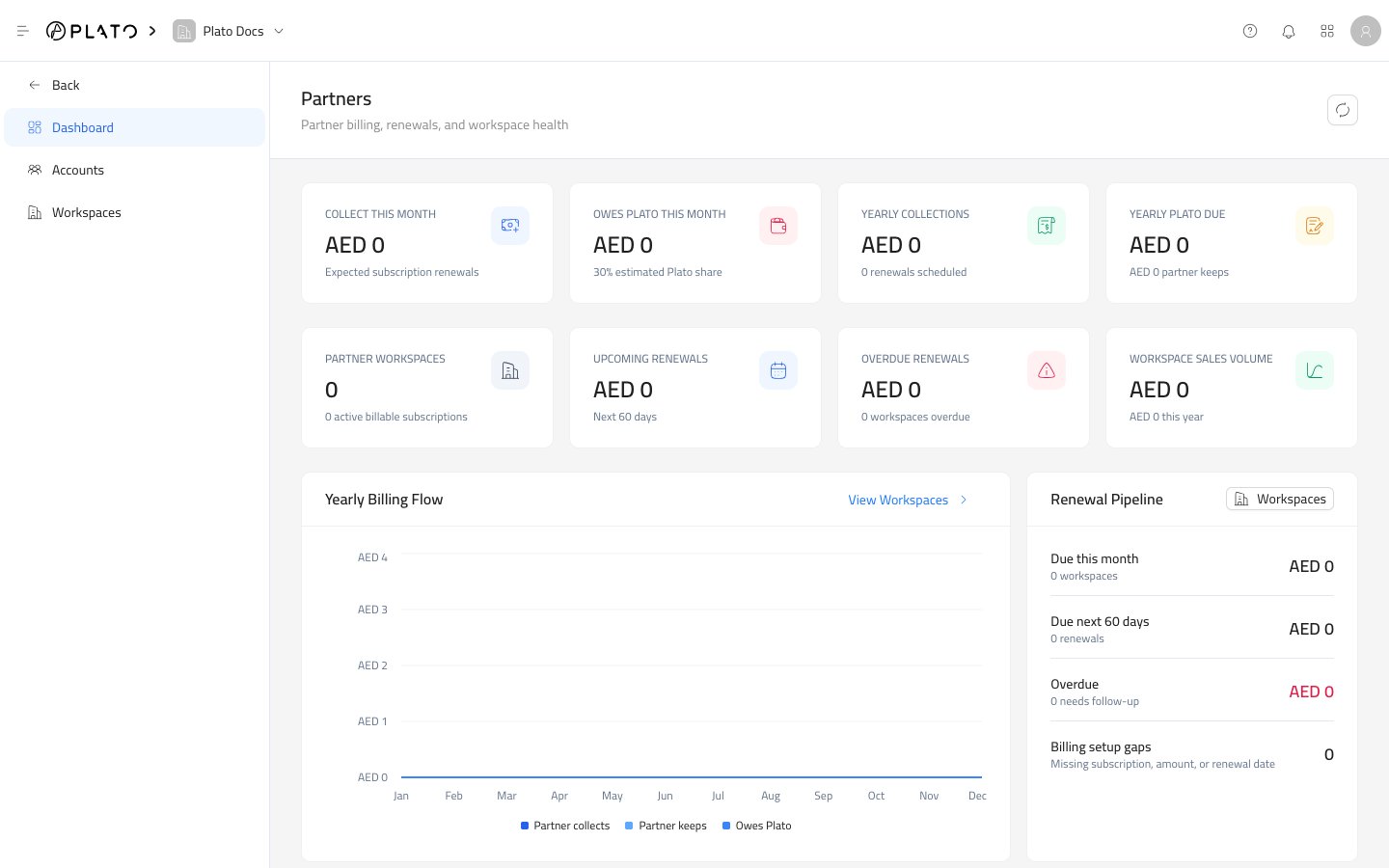
* Review collection, renewal, overdue, and workspace health from one dashboard.
* Create and manage customer accounts.
* Activate or deactivate an account.
* Reset an account password when a customer needs help signing in.
* Create customer workspaces.
* Choose the apps enabled for each workspace.
* Set subscription plans, renewal dates, amounts, and limits.
* Add or remove partner accounts from a workspace.
* Review and manage workspace wallets.
* Record wallet credits, debits, refunds, and adjustments.
## Start Here
Understand billing, renewal, overdue, and workspace health cards.
Search customer accounts, open details, edit accounts, reset passwords, and delete accounts.
Add a customer login and optionally connect it to one or more workspaces.
Search workspaces, open details, edit setup, manage members, and delete workspaces.
Set the workspace name, slug, apps, subscription, dates, and usage limits.
Add wallets and review wallet transactions for a partner workspace.
## A Good Partner Setup Path
For a new customer, work in this order:
1. Create the workspace.
2. Choose the apps the customer should use.
3. Set the subscription plan, amount, dates, status, and limits.
4. Create the customer account.
5. Add the account to the workspace.
6. Add wallets only when the workspace needs partner-managed balances.
7. Return to the dashboard to confirm the workspace appears in the right renewal and billing areas.
## Before You Start
Partners is permission-controlled. If you do not see the app, ask a workspace admin to check your role and the workspace app access.
Actions that change sensitive data may ask you to confirm your own password. This protects customer accounts, workspaces, and billing records from accidental changes.
## What You Can Do
With Partners, you can:
* Review collection, renewal, overdue, and workspace health from one dashboard.
* Create and manage customer accounts.
* Activate or deactivate an account.
* Reset an account password when a customer needs help signing in.
* Create customer workspaces.
* Choose the apps enabled for each workspace.
* Set subscription plans, renewal dates, amounts, and limits.
* Add or remove partner accounts from a workspace.
* Review and manage workspace wallets.
* Record wallet credits, debits, refunds, and adjustments.
## Start Here
Understand billing, renewal, overdue, and workspace health cards.
Search customer accounts, open details, edit accounts, reset passwords, and delete accounts.
Add a customer login and optionally connect it to one or more workspaces.
Search workspaces, open details, edit setup, manage members, and delete workspaces.
Set the workspace name, slug, apps, subscription, dates, and usage limits.
Add wallets and review wallet transactions for a partner workspace.
## A Good Partner Setup Path
For a new customer, work in this order:
1. Create the workspace.
2. Choose the apps the customer should use.
3. Set the subscription plan, amount, dates, status, and limits.
4. Create the customer account.
5. Add the account to the workspace.
6. Add wallets only when the workspace needs partner-managed balances.
7. Return to the dashboard to confirm the workspace appears in the right renewal and billing areas.
## Before You Start
Partners is permission-controlled. If you do not see the app, ask a workspace admin to check your role and the workspace app access.
Actions that change sensitive data may ask you to confirm your own password. This protects customer accounts, workspaces, and billing records from accidental changes.