> ## Documentation Index
> Fetch the complete documentation index at: https://docs.plato.ae/llms.txt
> Use this file to discover all available pages before exploring further.
# KDS
> Use Kitchen Display screens to receive tickets, move items through preparation, and manage kitchen timing.
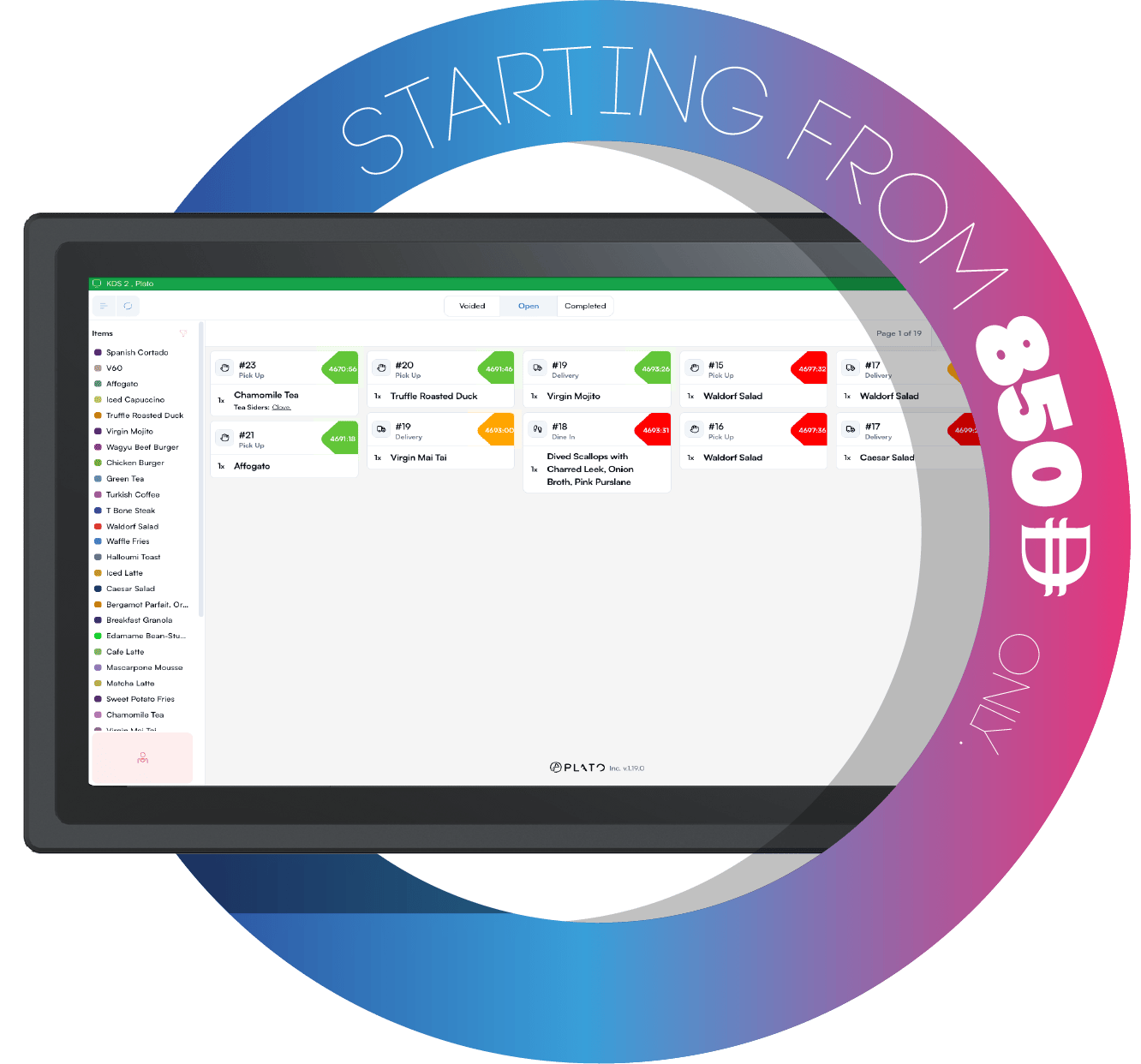
KDS is the kitchen display screen. It receives kitchen work from POS and helps staff move tickets from new, preparing, and ready states.
 ## Where KDS Fits
POS sends the order. KDS receives the kitchen items. Kitchen staff tap tickets or individual items as food moves through preparation.
Use separate KDS screens when each kitchen station needs a focused queue, such as hot kitchen, drinks, desserts, or packing.
## Start With These Guides
Learn the kitchen board layout before service starts.
Read tickets, use filters, and keep the queue moving.
Tap tickets and items forward as the kitchen prepares them.
Adjust behavior that affects the kitchen screen during service.
Choose which items and service types should appear on the screen.
Set preparation timing so late tickets are easier to spot.
## Where KDS Fits
POS sends the order. KDS receives the kitchen items. Kitchen staff tap tickets or individual items as food moves through preparation.
Use separate KDS screens when each kitchen station needs a focused queue, such as hot kitchen, drinks, desserts, or packing.
## Start With These Guides
Learn the kitchen board layout before service starts.
Read tickets, use filters, and keep the queue moving.
Tap tickets and items forward as the kitchen prepares them.
Adjust behavior that affects the kitchen screen during service.
Choose which items and service types should appear on the screen.
Set preparation timing so late tickets are easier to spot.