> ## Documentation Index
> Fetch the complete documentation index at: https://docs.plato.ae/llms.txt
> Use this file to discover all available pages before exploring further.
# Open POS And Start A Shift
> Open the POS device, start the session, and check the first service screen.
Open the POS device on the cashier station before service starts.
The station starts from the session screen when it is locked, newly opened, or after a previous session ended.
 ## Start The Session
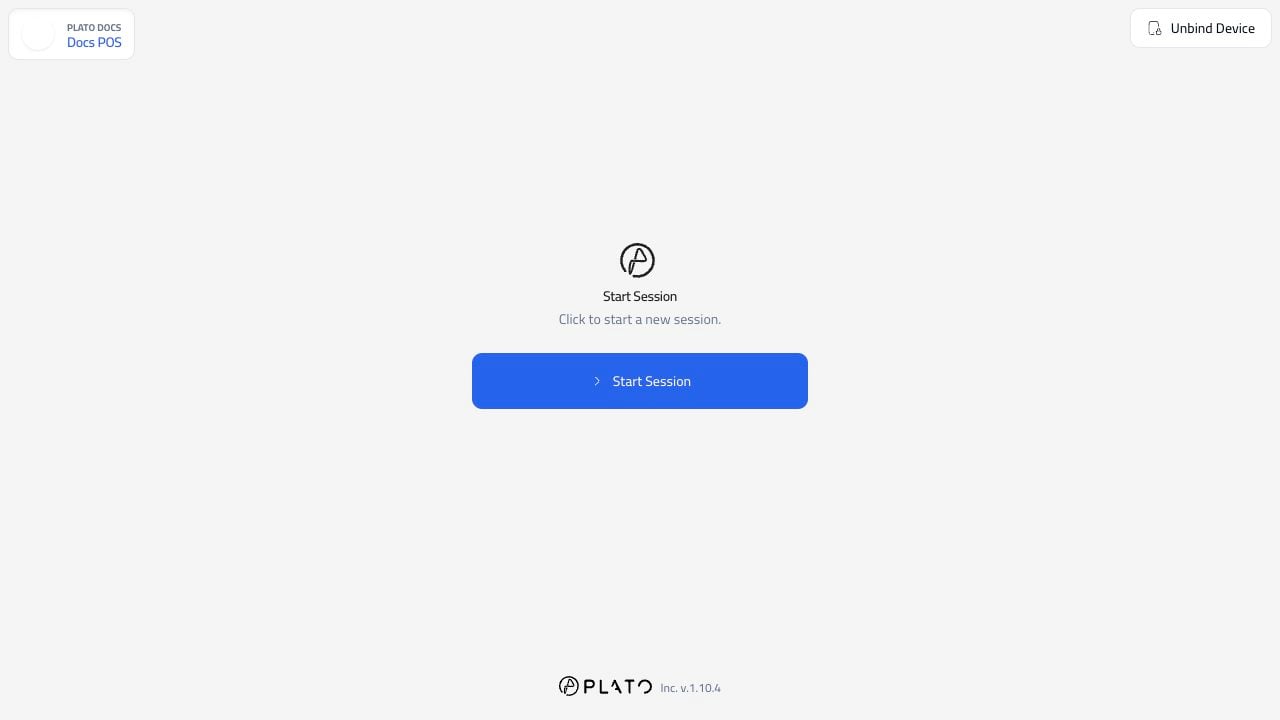
Click `Start Session`.
## Start The Session
Click `Start Session`.
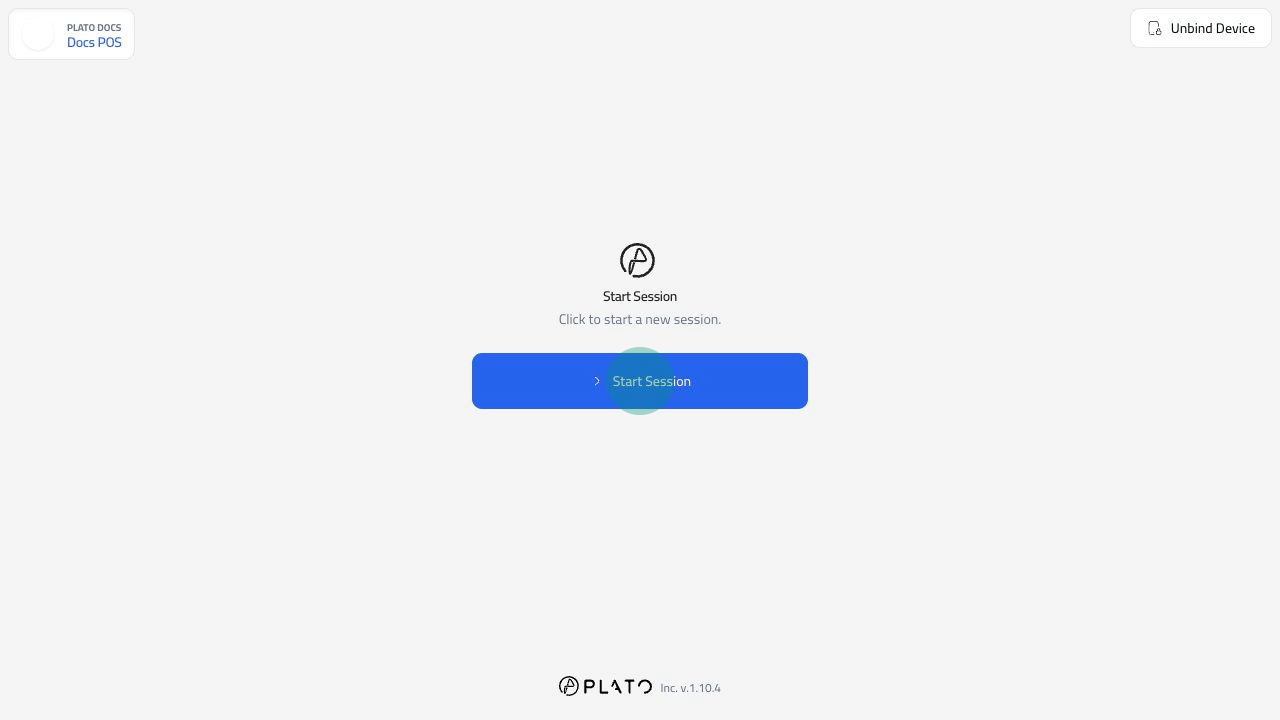 If the station asks for a passcode, enter the passcode your manager gave you.
## Confirm The Station Is Ready
After the session opens, POS shows the order starting area and the bottom navigation.
If the station asks for a passcode, enter the passcode your manager gave you.
## Confirm The Station Is Ready
After the session opens, POS shows the order starting area and the bottom navigation.
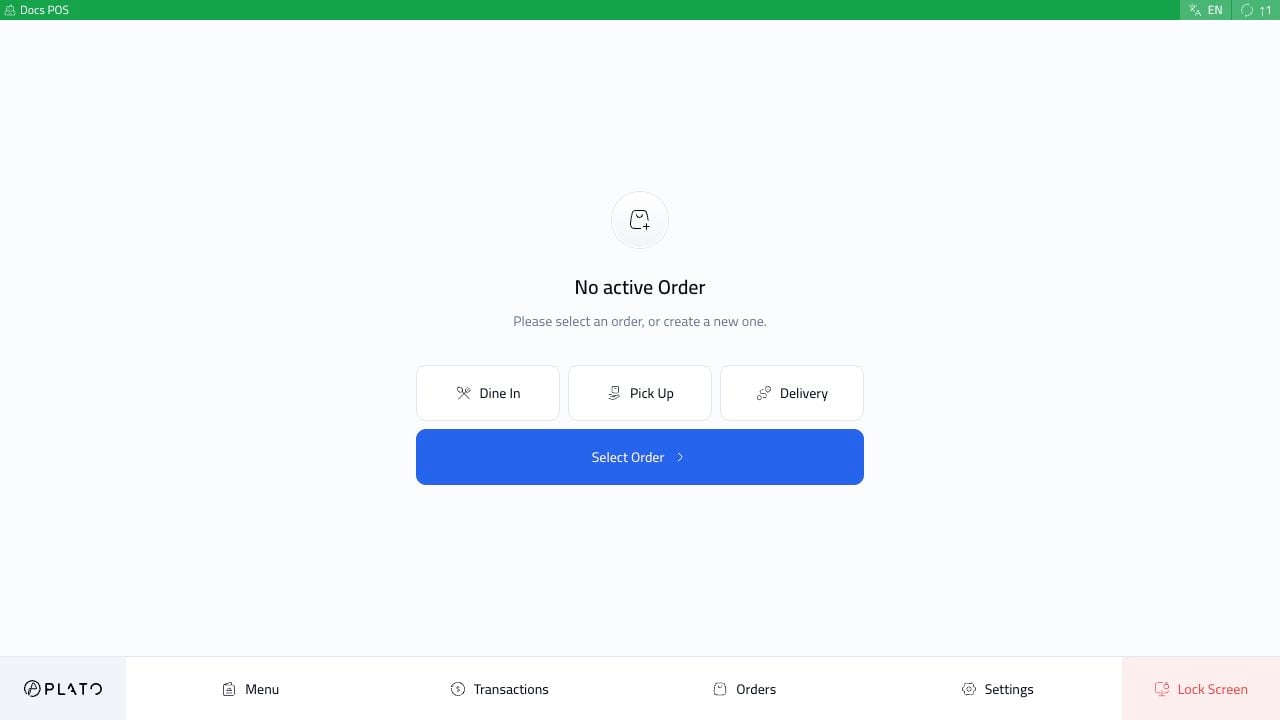 Before service starts, check that:
1. The correct POS name appears in the top bar.
2. The station is online.
3. The correct order types are visible, such as `Dine In`, `Pick Up`, and `Delivery`.
4. The bottom navigation has the tools this station should use, such as `Menu`, `Transactions`, `Orders`, `Settings`, and `Lock Screen`.
If an order type is missing, ask a manager to check the POS device configuration.
## Lock The Station
Use `Lock Screen` when staff step away from the device.
Before service starts, check that:
1. The correct POS name appears in the top bar.
2. The station is online.
3. The correct order types are visible, such as `Dine In`, `Pick Up`, and `Delivery`.
4. The bottom navigation has the tools this station should use, such as `Menu`, `Transactions`, `Orders`, `Settings`, and `Lock Screen`.
If an order type is missing, ask a manager to check the POS device configuration.
## Lock The Station
Use `Lock Screen` when staff step away from the device.
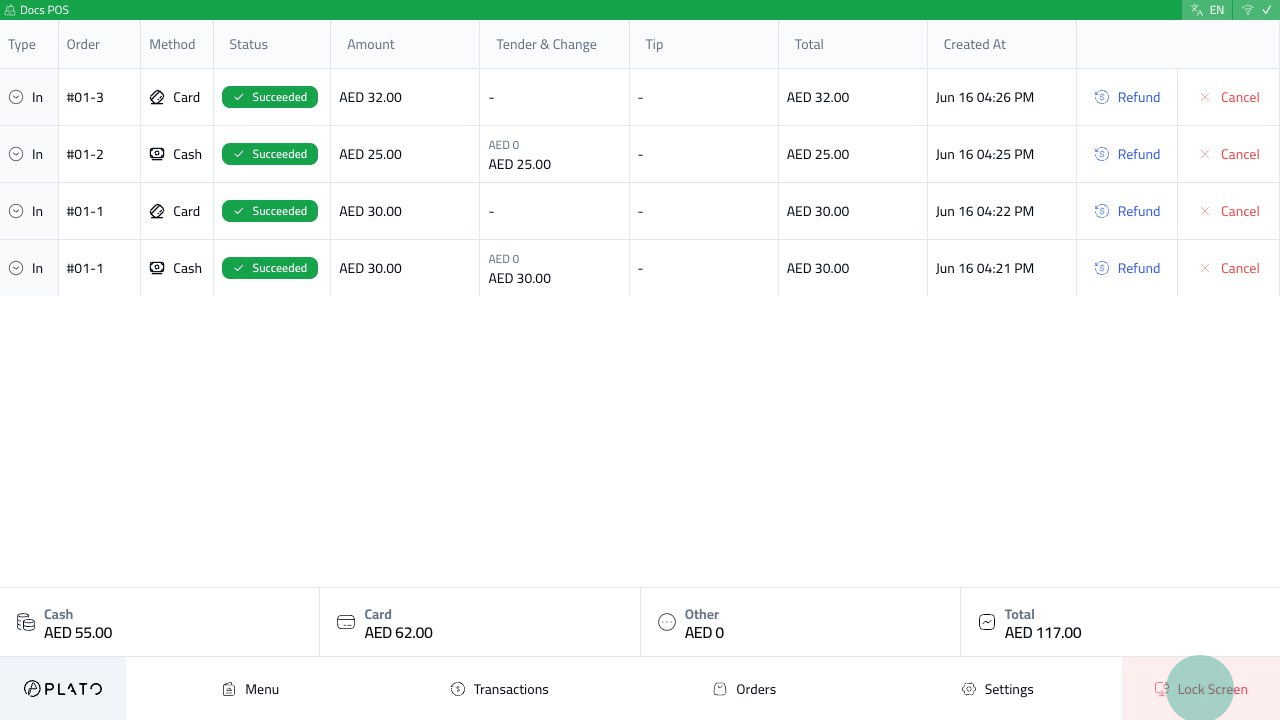 Locking the station returns it to the session screen without unbinding the device.