> ## Documentation Index
> Fetch the complete documentation index at: https://docs.plato.ae/llms.txt
> Use this file to discover all available pages before exploring further.

# Split One Payment Across Cash And Card

> Split the amount due into separate payments and record each method.

Use split payment when one check stays as one order, but the customer wants to pay the total using more than one payment method.
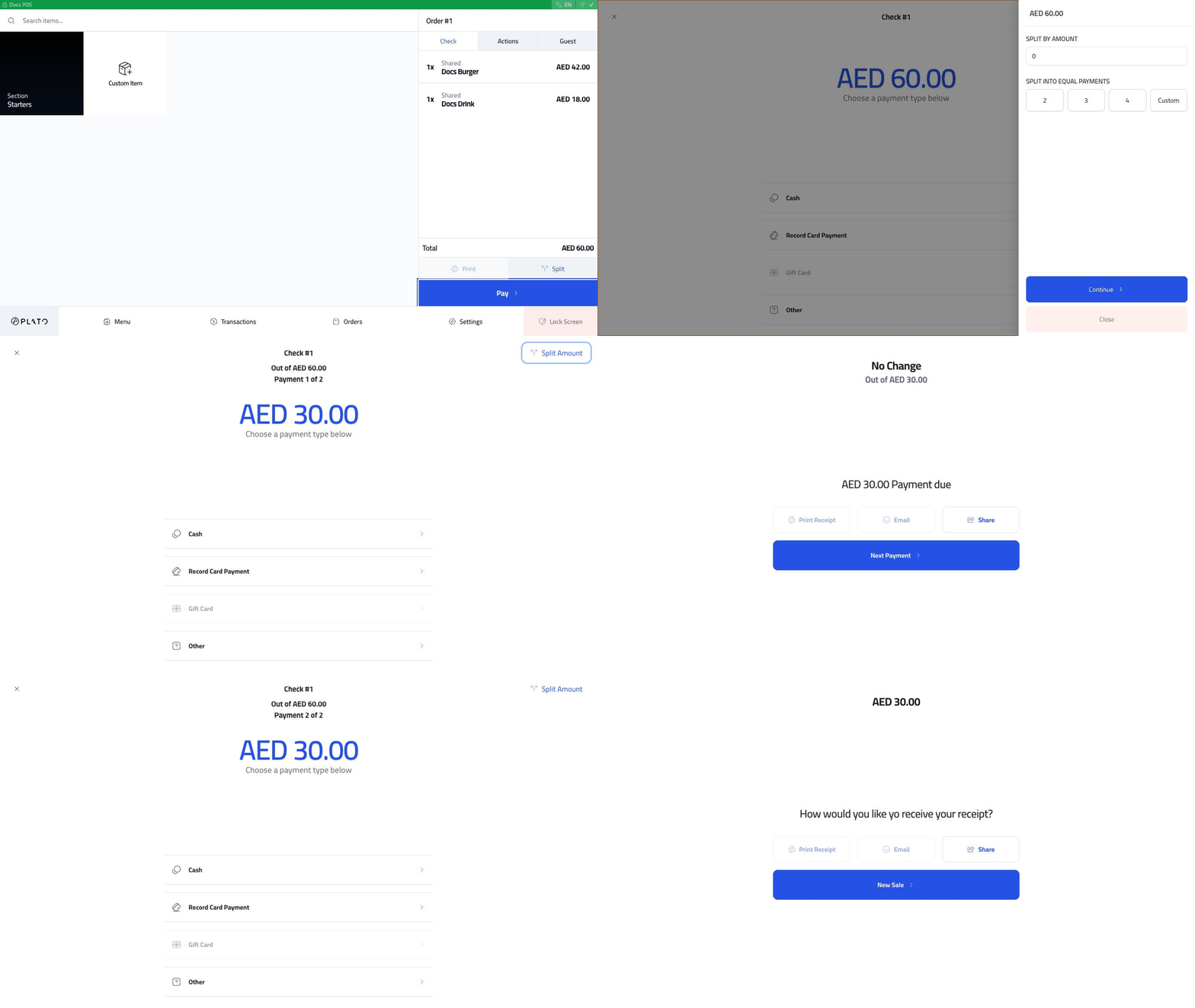
<img src="https://mintcdn.com/platoae/BPT5cVutD7nA9lgH/images/kds-pos/pos-flows/walkthrough-split-payment.gif?s=73819932f051034e4bff874d6e3c3e18" alt="Split payment walkthrough" width="960" height="540" data-path="images/kds-pos/pos-flows/walkthrough-split-payment.gif" />

## Open Payment

Start from a sent order and click `Pay`.
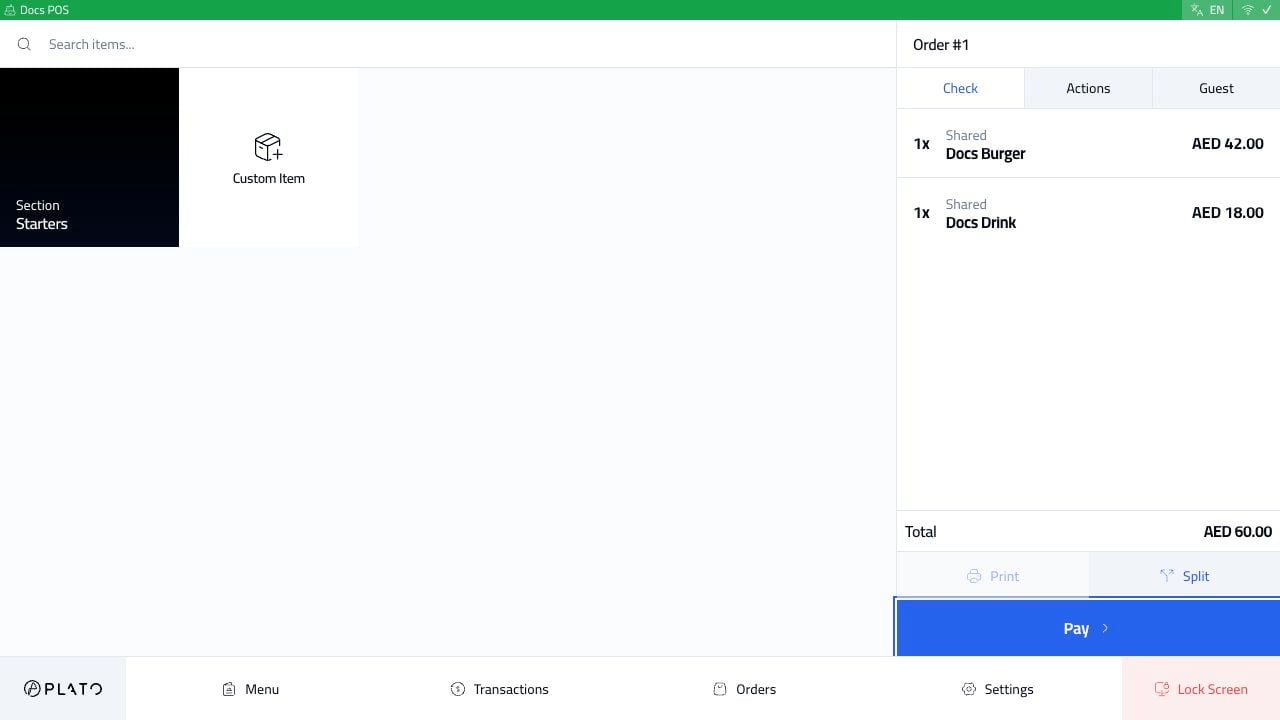
<img src="https://mintcdn.com/platoae/BPT5cVutD7nA9lgH/images/kds-pos/pos-flows/09-order-sent-active-check.png?fit=max&auto=format&n=BPT5cVutD7nA9lgH&q=85&s=832273ea4706250c1c612ae50f592568" alt="Order ready for payment" width="1280" height="720" data-path="images/kds-pos/pos-flows/09-order-sent-active-check.png" />

The payment screen shows the full amount due and the available payment methods.
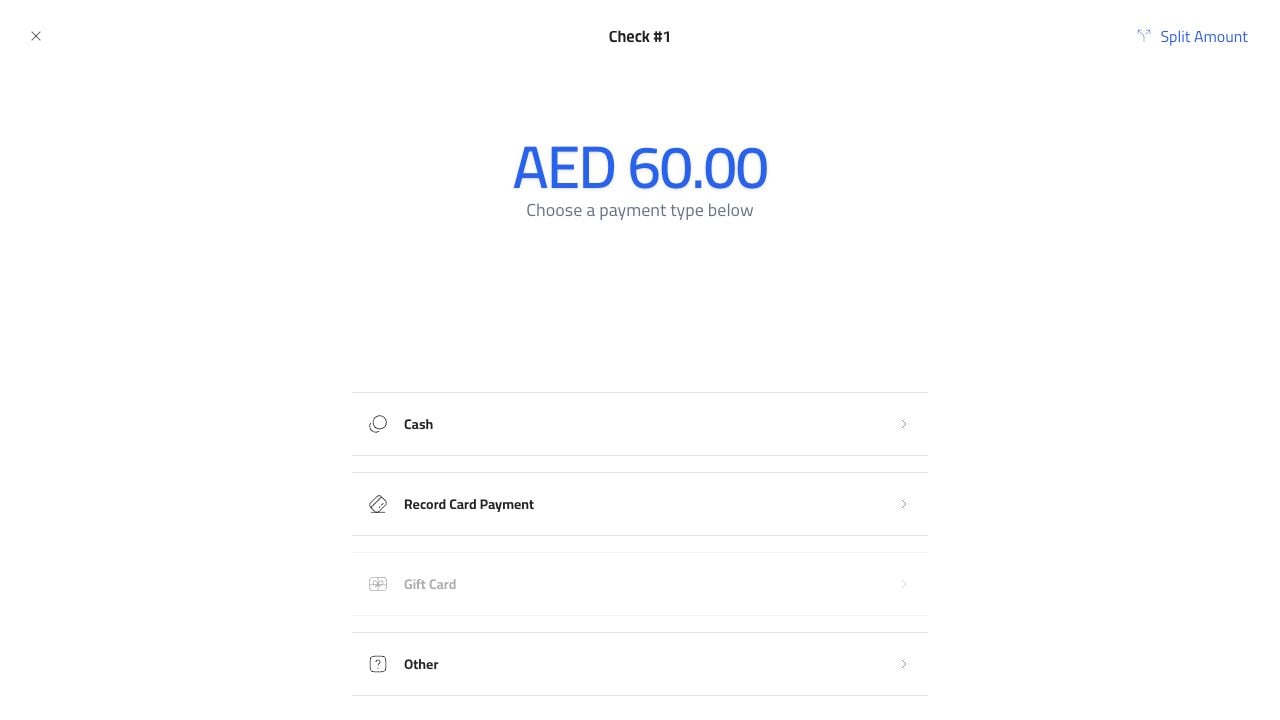
<img src="https://mintcdn.com/platoae/BPT5cVutD7nA9lgH/images/kds-pos/pos-flows/10-payment-screen.png?fit=max&auto=format&n=BPT5cVutD7nA9lgH&q=85&s=27a82121008e1c076f5fdde02cc09c3f" alt="Payment screen" width="1280" height="720" data-path="images/kds-pos/pos-flows/10-payment-screen.png" />

## Choose Split Amount

Click `Split Amount`.
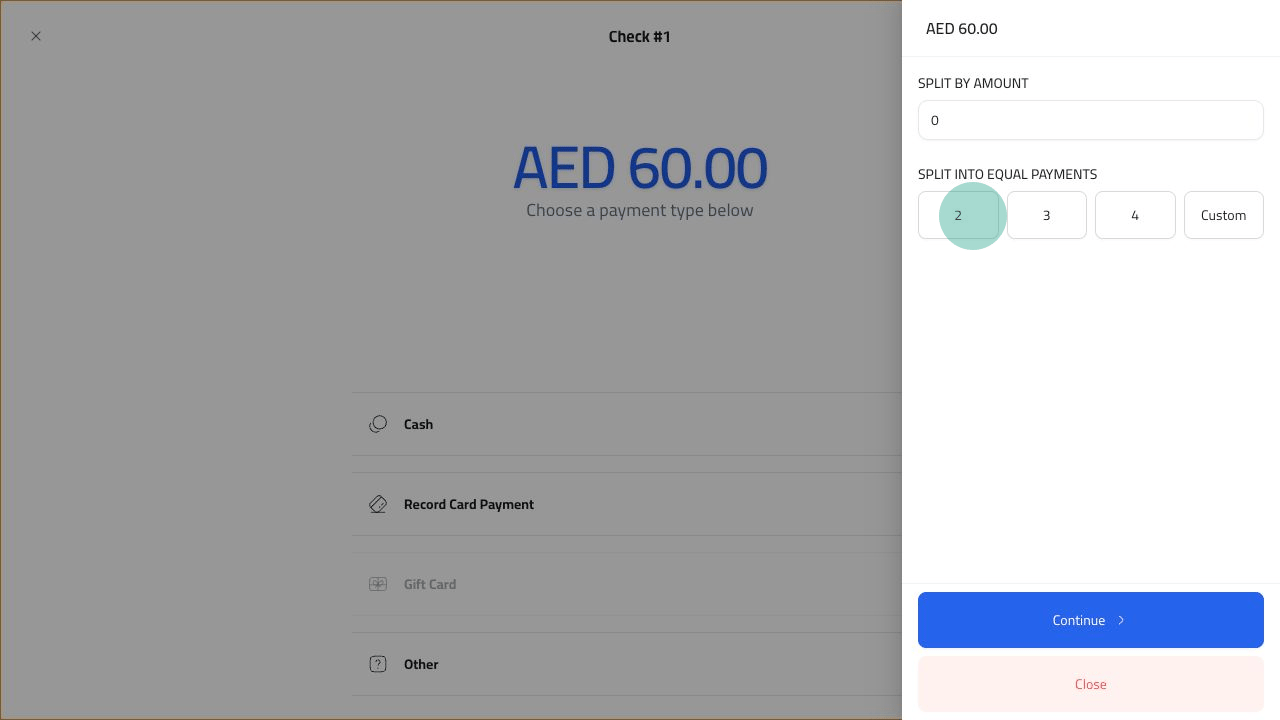
<img src="https://mintcdn.com/platoae/BPT5cVutD7nA9lgH/images/kds-pos/pos-flows/11-split-payment-screen-tap.png?fit=max&auto=format&n=BPT5cVutD7nA9lgH&q=85&s=298f849afecaa0c6419eed5cdd2f528e" alt="Split amount screen" width="1280" height="720" data-path="images/kds-pos/pos-flows/11-split-payment-screen-tap.png" />

Choose an equal split, such as `2`, `3`, or `4`, or use a custom amount when the payments are not equal.

## Take Payment 1

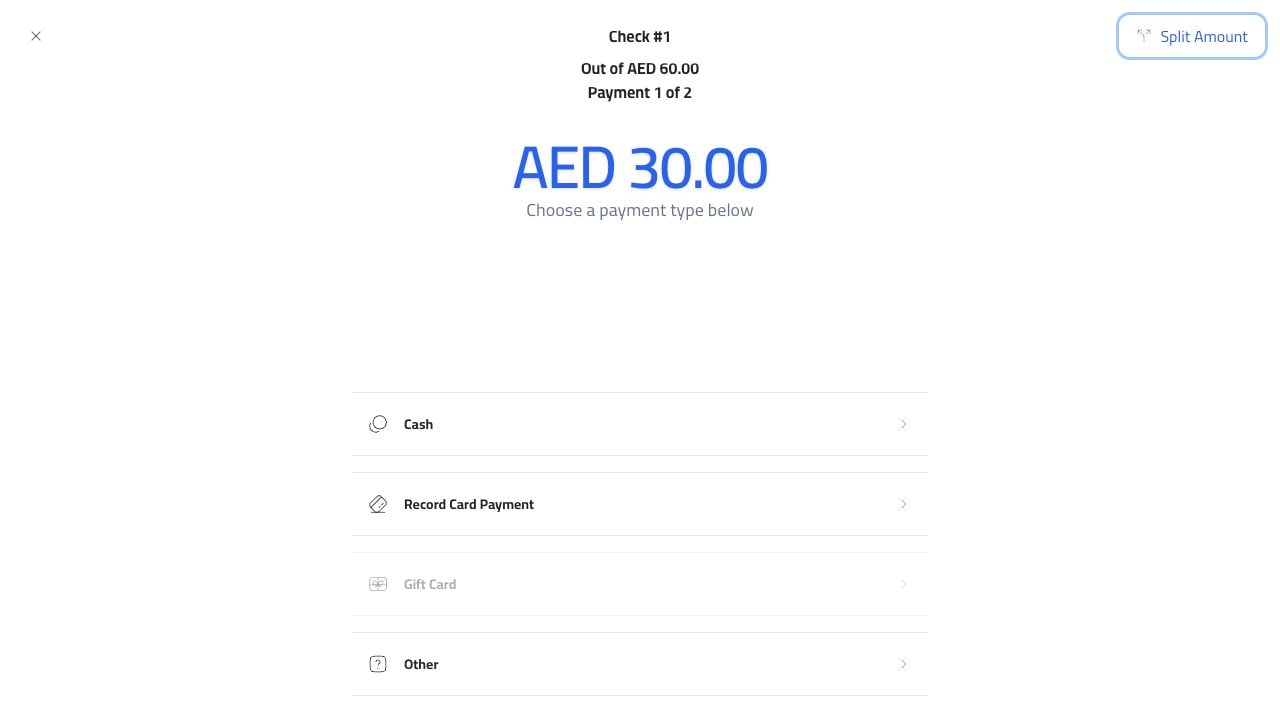
After choosing `2`, Plato shows `Payment 1 of 2`.
<img src="https://mintcdn.com/platoae/BPT5cVutD7nA9lgH/images/kds-pos/pos-flows/13-split-payment-after-two.png?fit=max&auto=format&n=BPT5cVutD7nA9lgH&q=85&s=187204712b09adc1d1af7a18958d274c" alt="First split payment" width="1280" height="720" data-path="images/kds-pos/pos-flows/13-split-payment-after-two.png" />

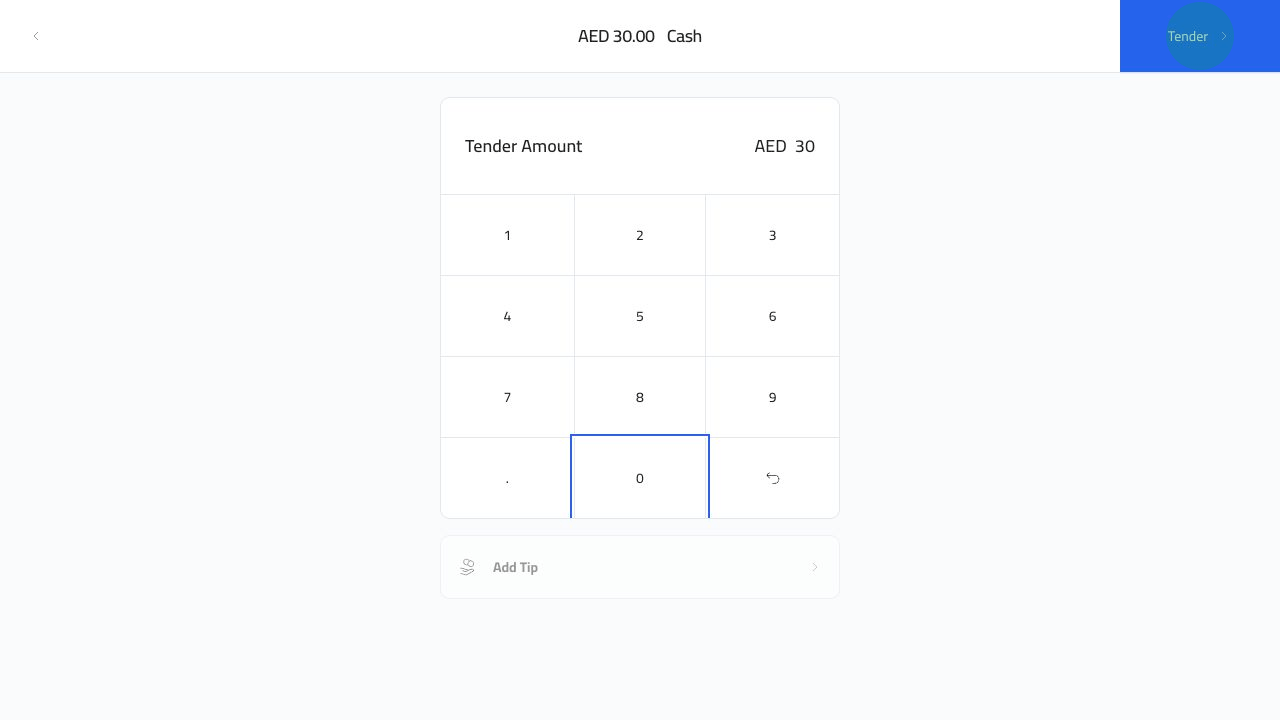
Choose the payment method for the first part. In this example, the first half is cash.

Enter the cash tender and click `Tender`.
<img src="https://mintcdn.com/platoae/BPT5cVutD7nA9lgH/images/kds-pos/pos-flows/16-split-payment-cash-amount-entered-tap.png?fit=max&auto=format&n=BPT5cVutD7nA9lgH&q=85&s=d56580ef2f707e0e95c4d0ade1b51460" alt="Split cash amount entered" width="1280" height="720" data-path="images/kds-pos/pos-flows/16-split-payment-cash-amount-entered-tap.png" />

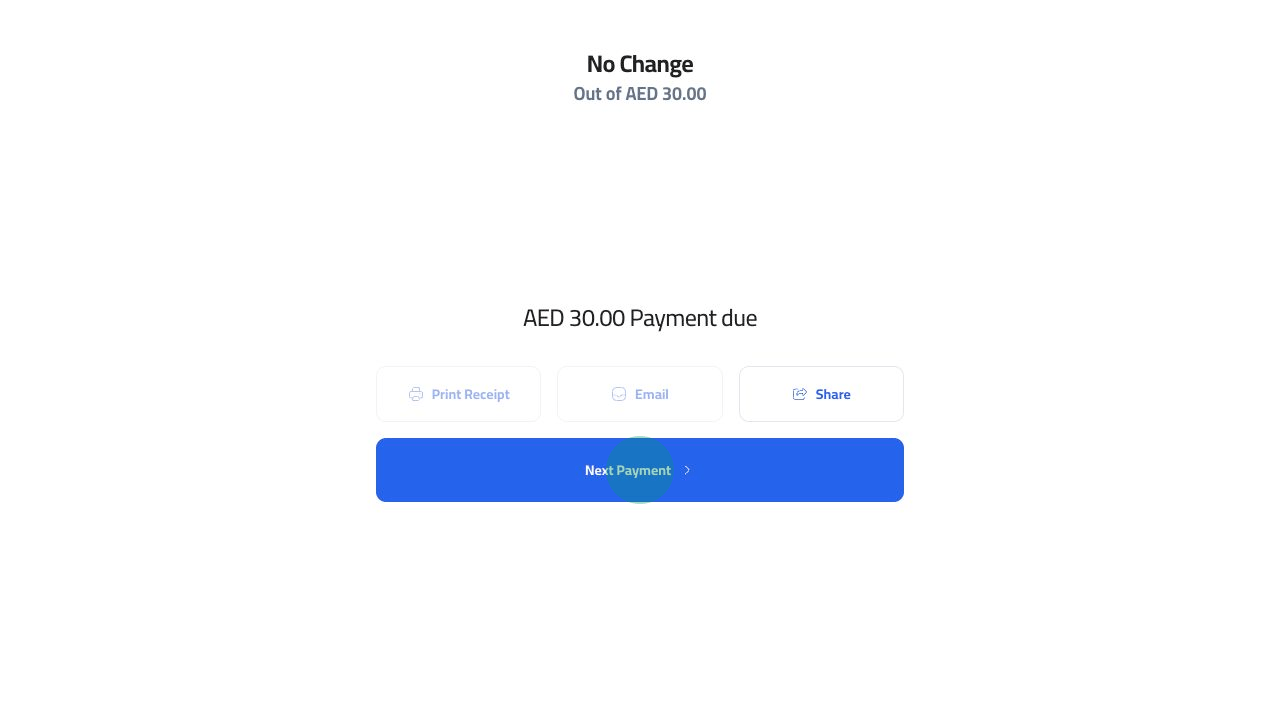
Plato confirms the first payment and offers `Next Payment`.
<img src="https://mintcdn.com/platoae/BPT5cVutD7nA9lgH/images/kds-pos/pos-flows/17-split-payment-card-step-tap.png?fit=max&auto=format&n=BPT5cVutD7nA9lgH&q=85&s=a51d98aa36515ccb9abf73e602565888" alt="First split payment complete" width="1280" height="720" data-path="images/kds-pos/pos-flows/17-split-payment-card-step-tap.png" />

## Take Payment 2

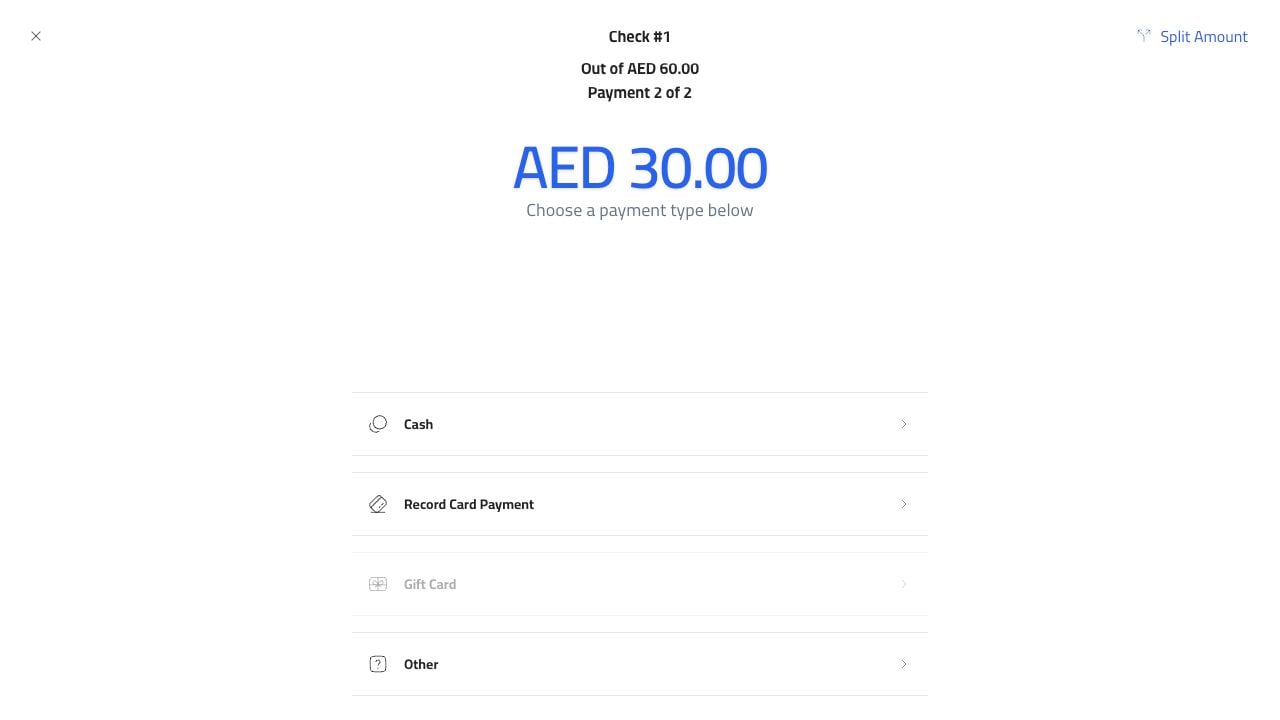
Click `Next Payment`. Plato shows `Payment 2 of 2`.
<img src="https://mintcdn.com/platoae/BPT5cVutD7nA9lgH/images/kds-pos/pos-flows/18-split-payment-second-method.png?fit=max&auto=format&n=BPT5cVutD7nA9lgH&q=85&s=7d4f33eb258aa71f40f301a40d1e863f" alt="Second split payment methods" width="1280" height="720" data-path="images/kds-pos/pos-flows/18-split-payment-second-method.png" />

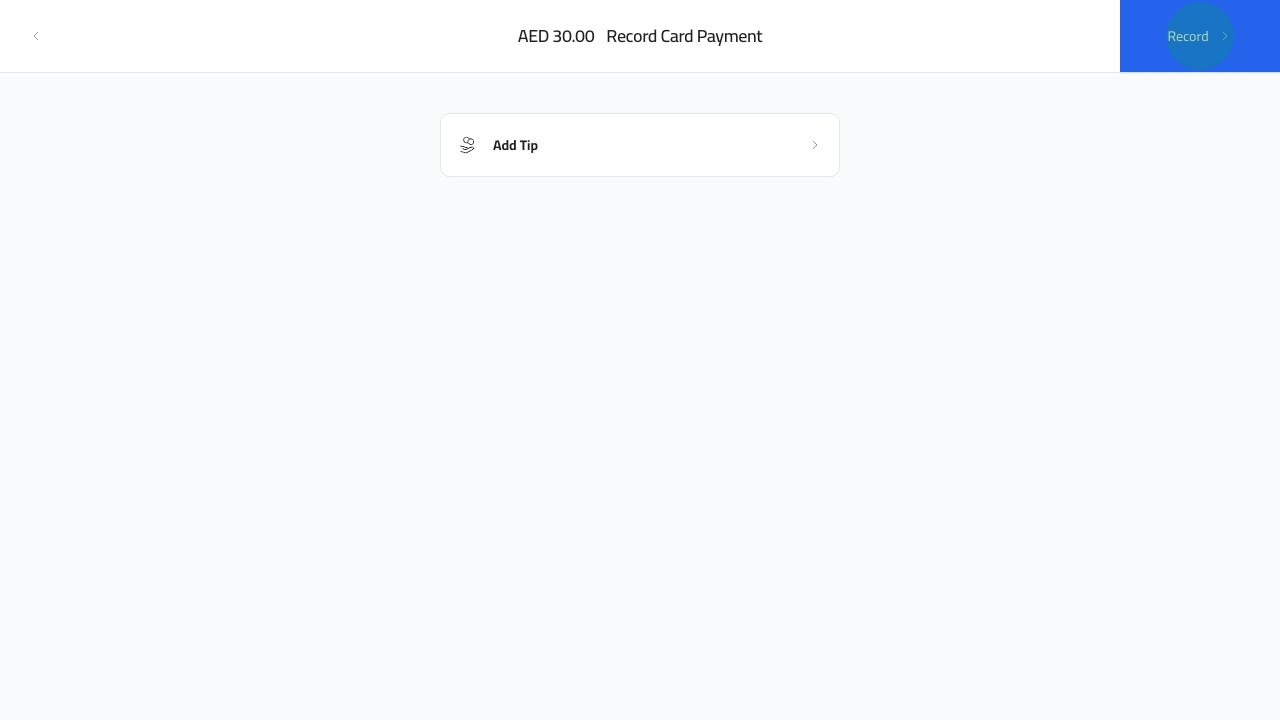
Choose `Record Card Payment` for the second half, then click `Record` after the terminal payment is approved.
<img src="https://mintcdn.com/platoae/BPT5cVutD7nA9lgH/images/kds-pos/pos-flows/19-split-payment-complete-card-tap.png?fit=max&auto=format&n=BPT5cVutD7nA9lgH&q=85&s=5bec55d0b06a1e91a77341d09bc10627" alt="Record second split card payment" width="1280" height="720" data-path="images/kds-pos/pos-flows/19-split-payment-complete-card-tap.png" />

## Close The Order

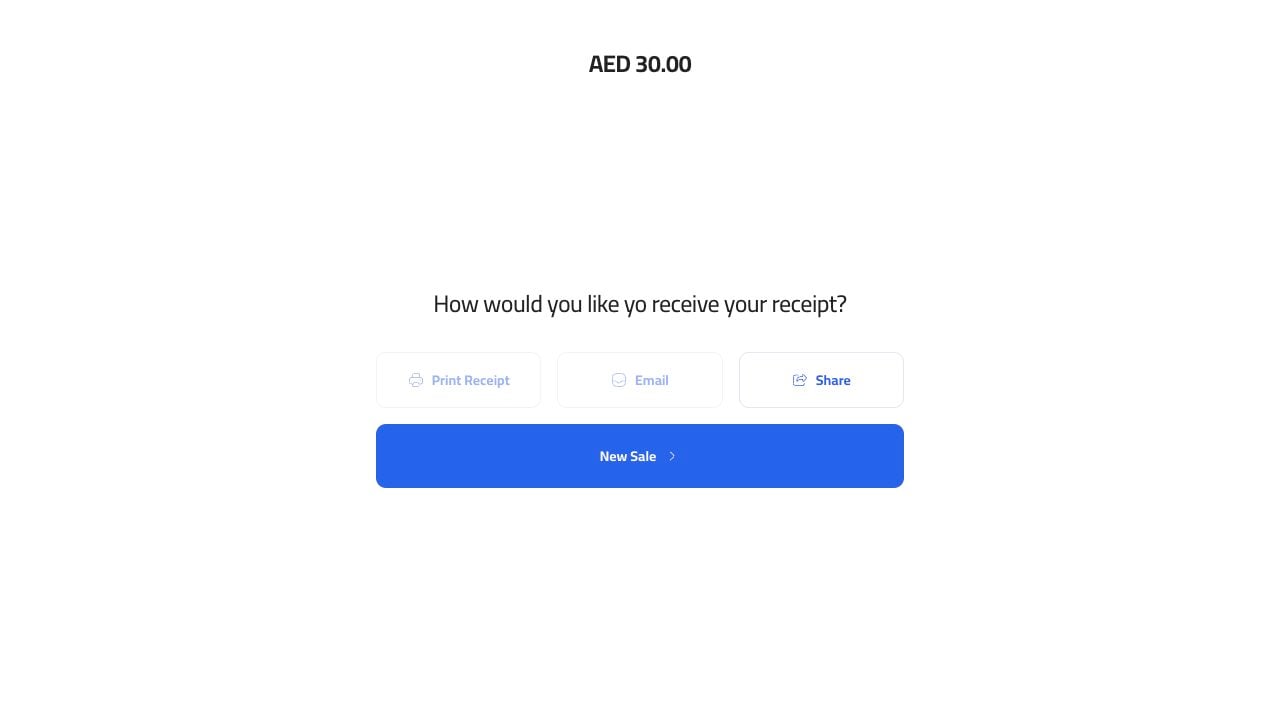
After the last payment is recorded, the order closes and the receipt screen appears.
<img src="https://mintcdn.com/platoae/BPT5cVutD7nA9lgH/images/kds-pos/pos-flows/20-split-payment-paid-receipt.png?fit=max&auto=format&n=BPT5cVutD7nA9lgH&q=85&s=7c717c8059398c4425cfe399277c440f" alt="Split payment receipt" width="1280" height="720" data-path="images/kds-pos/pos-flows/20-split-payment-paid-receipt.png" />
