> ## Documentation Index
> Fetch the complete documentation index at: https://docs.plato.ae/llms.txt
> Use this file to discover all available pages before exploring further.

# Split A Bill Into Separate Checks

> Move items into separate checks before taking payment.

Use bill split when guests at the same table want separate checks. This is different from split payment: bill split separates items into checks, while split payment divides the amount due on one check.
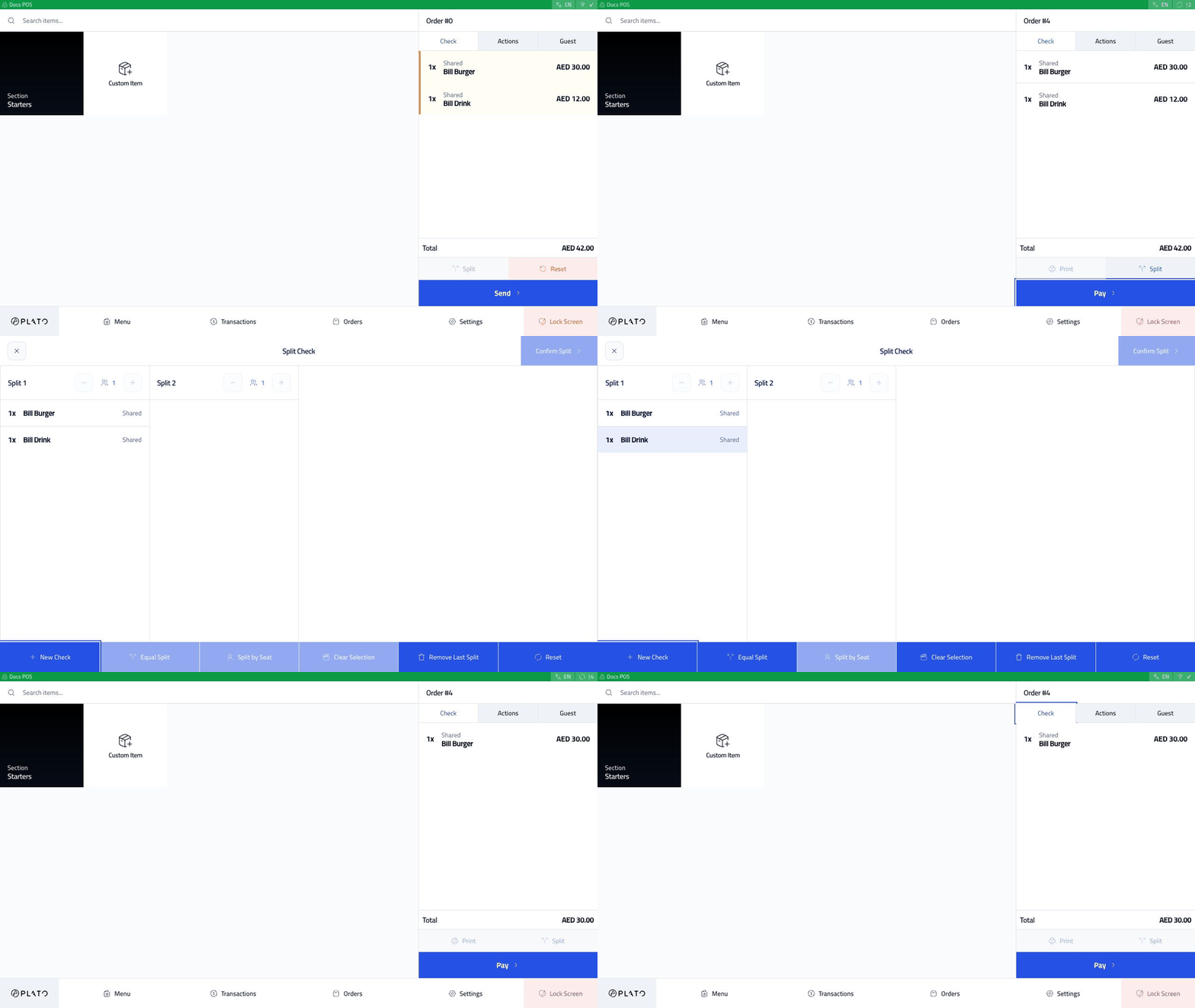
<img src="https://mintcdn.com/platoae/BPT5cVutD7nA9lgH/images/kds-pos/pos-flows/walkthrough-split-bill.gif?s=3f175dc43b65df582eb25a69529dbba8" alt="Split bill walkthrough" width="960" height="540" data-path="images/kds-pos/pos-flows/walkthrough-split-bill.gif" />

## Start With A Sent Dine-In Order

The order must be dine-in, sent, synced, and have more than one item before the `Split` button becomes available.
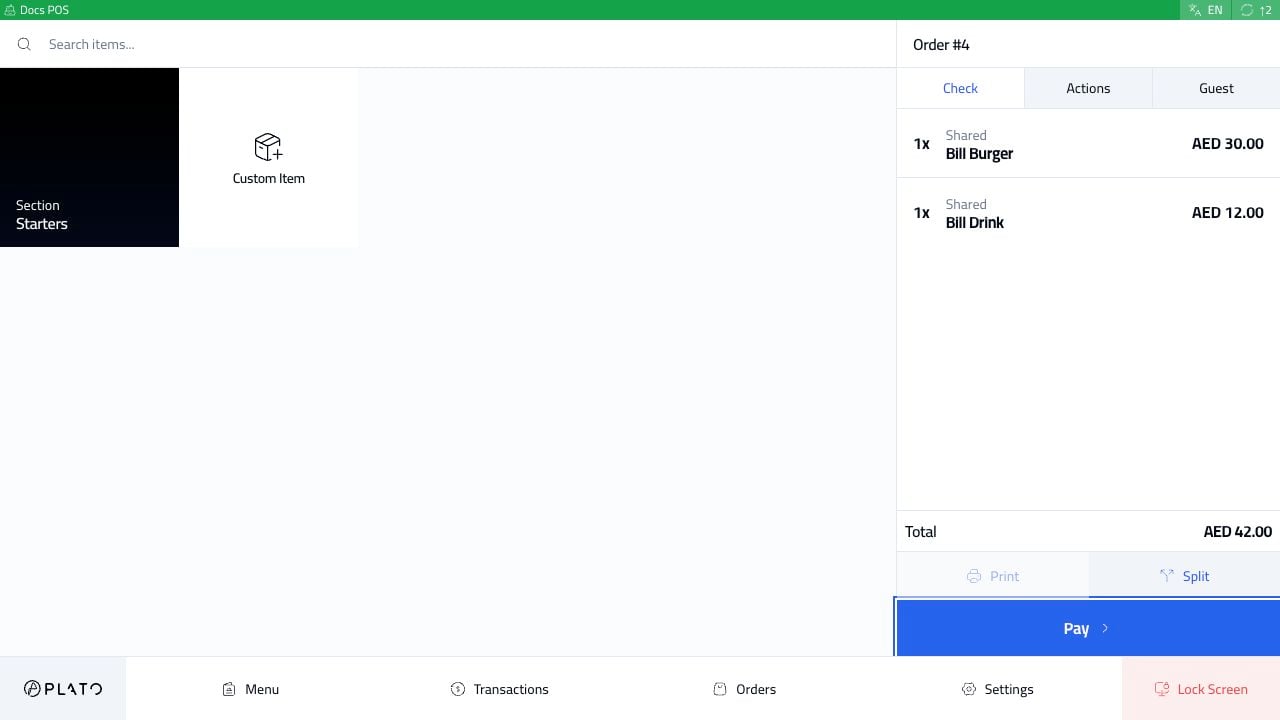
<img src="https://mintcdn.com/platoae/BPT5cVutD7nA9lgH/images/kds-pos/pos-flows/55-split-bill-sent.png?fit=max&auto=format&n=BPT5cVutD7nA9lgH&q=85&s=478f7da4de65a77881276beeb0b132c9" alt="Split bill order sent" width="1280" height="720" data-path="images/kds-pos/pos-flows/55-split-bill-sent.png" />

## Open Split

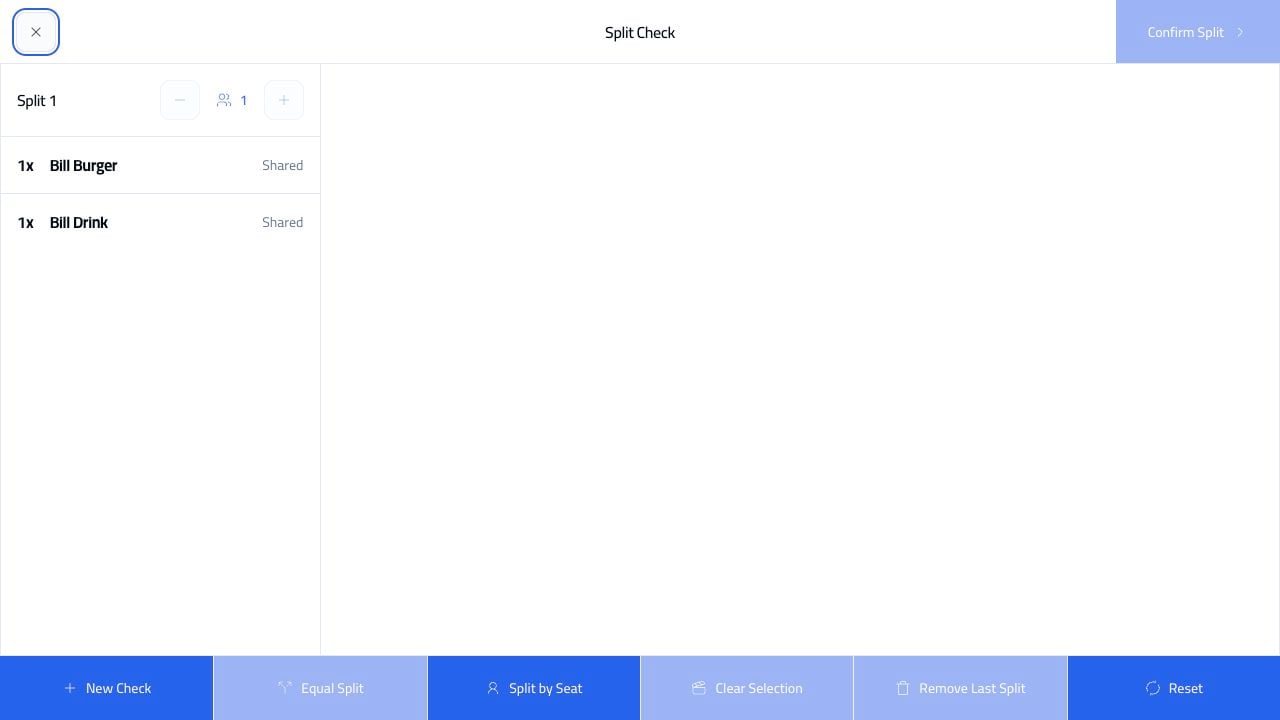
Click `Split`.

<img src="https://mintcdn.com/platoae/BPT5cVutD7nA9lgH/images/kds-pos/pos-flows/56-split-bill-screen.png?fit=max&auto=format&n=BPT5cVutD7nA9lgH&q=85&s=8c15905e0cdcbbcc675d94aea7898014" alt="Split bill screen" width="1280" height="720" data-path="images/kds-pos/pos-flows/56-split-bill-screen.png" />

The first view shows all items in `Split 1`.

## Add Another Check

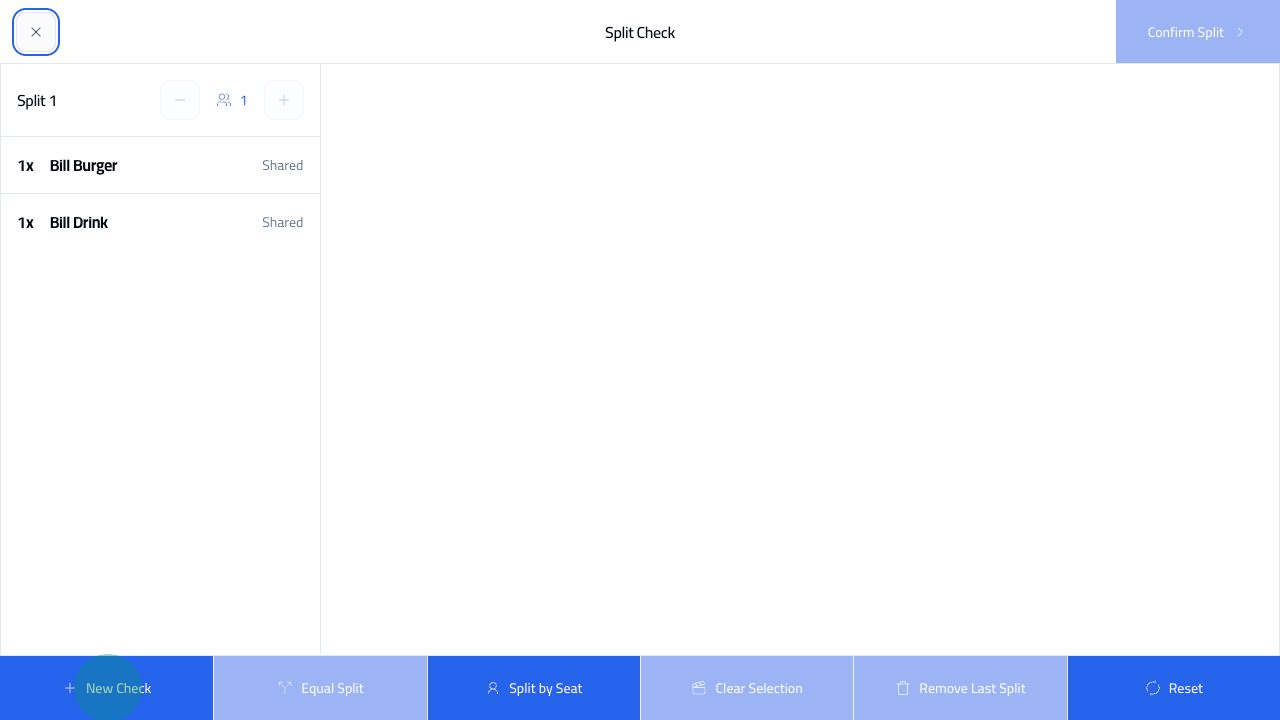
Click `New Check`.
<img src="https://mintcdn.com/platoae/BPT5cVutD7nA9lgH/images/kds-pos/pos-flows/57-split-bill-new-check-tap.png?fit=max&auto=format&n=BPT5cVutD7nA9lgH&q=85&s=646ebd83be8bca19243ad61aaa49c2f5" alt="Split bill new check" width="1280" height="720" data-path="images/kds-pos/pos-flows/57-split-bill-new-check-tap.png" />

Plato adds `Split 2` next to the original check.

## Move Items

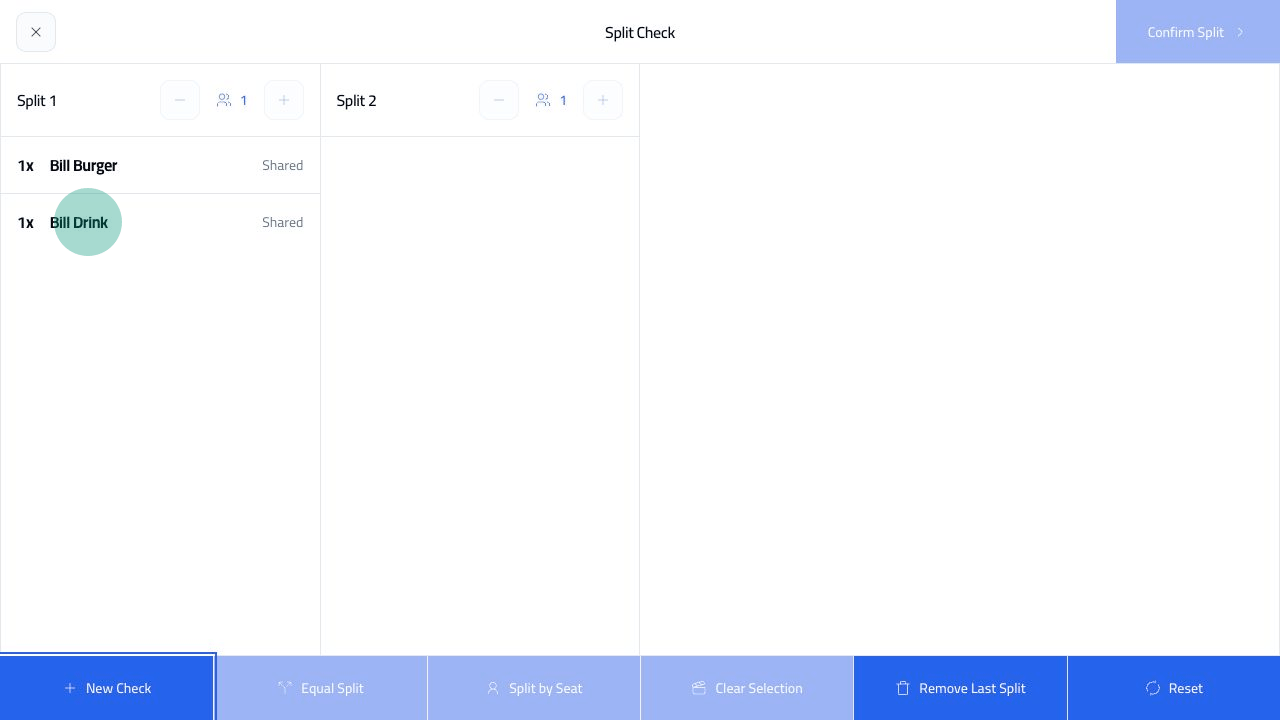
Select the item you want to move.
<img src="https://mintcdn.com/platoae/BPT5cVutD7nA9lgH/images/kds-pos/pos-flows/58-split-bill-item-selected-tap.png?fit=max&auto=format&n=BPT5cVutD7nA9lgH&q=85&s=9193731bb096a5dede0a659f2aa57ca6" alt="Split bill item selected" width="1280" height="720" data-path="images/kds-pos/pos-flows/58-split-bill-item-selected-tap.png" />

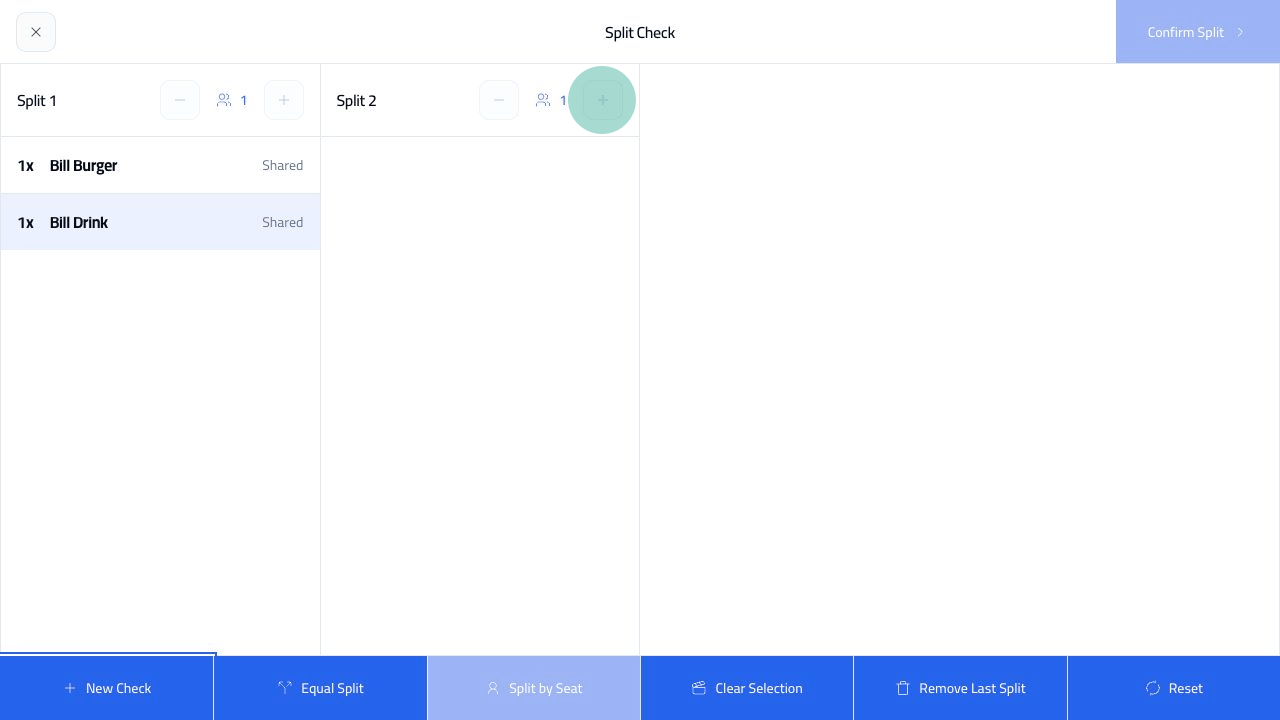
Click the plus button on the destination check. The selected item moves into that check.
<img src="https://mintcdn.com/platoae/BPT5cVutD7nA9lgH/images/kds-pos/pos-flows/59-split-bill-item-moved-tap.png?fit=max&auto=format&n=BPT5cVutD7nA9lgH&q=85&s=54cefe6abecf6011daaee5fbde9efd5f" alt="Split bill item moved" width="1280" height="720" data-path="images/kds-pos/pos-flows/59-split-bill-item-moved-tap.png" />

## Confirm The Split

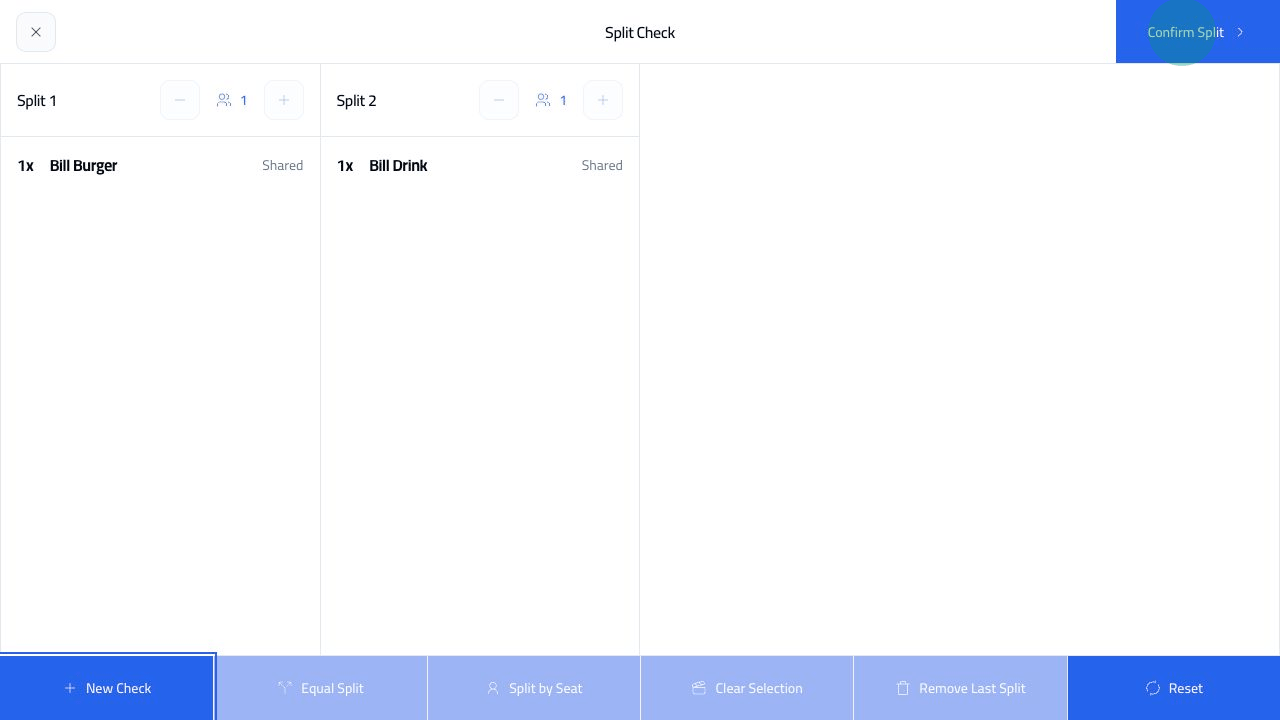
Click `Confirm Split`.
<img src="https://mintcdn.com/platoae/BPT5cVutD7nA9lgH/images/kds-pos/pos-flows/60-split-bill-confirmed-tap.png?fit=max&auto=format&n=BPT5cVutD7nA9lgH&q=85&s=3d2df1005be99433fa2aac0cc53fadff" alt="Split bill confirmed" width="1280" height="720" data-path="images/kds-pos/pos-flows/60-split-bill-confirmed-tap.png" />

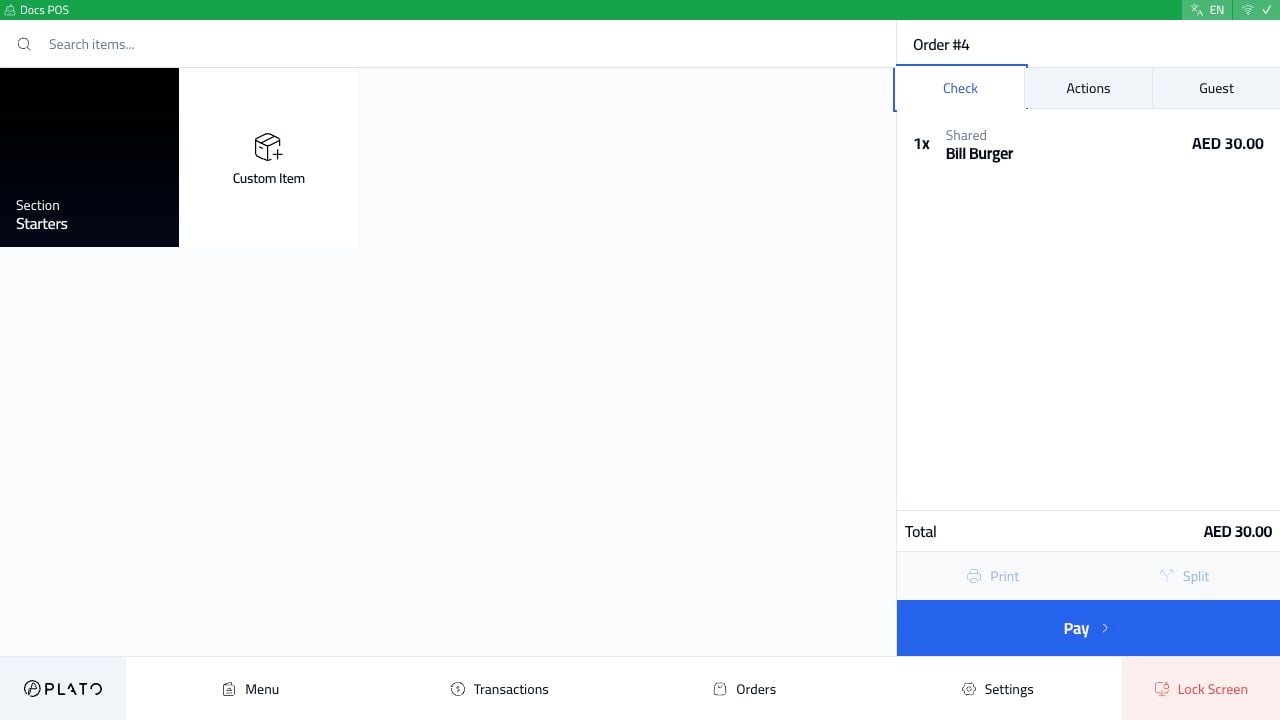
After confirmation, each check can be handled separately.
<img src="https://mintcdn.com/platoae/BPT5cVutD7nA9lgH/images/kds-pos/pos-flows/64-split-bill-result-check.png?fit=max&auto=format&n=BPT5cVutD7nA9lgH&q=85&s=0d536eb33df0fc320d00bebd2978c4ab" alt="Split bill result check" width="1280" height="720" data-path="images/kds-pos/pos-flows/64-split-bill-result-check.png" />