> ## Documentation Index
> Fetch the complete documentation index at: https://docs.plato.ae/llms.txt
> Use this file to discover all available pages before exploring further.

# Settle An Order In Cash

> Take a cash payment, enter the tendered amount, and finish the sale.

Use cash settlement when the customer pays with physical cash and the cashier needs Plato to record tender, change, and the receipt step.

## Before Taking Cash

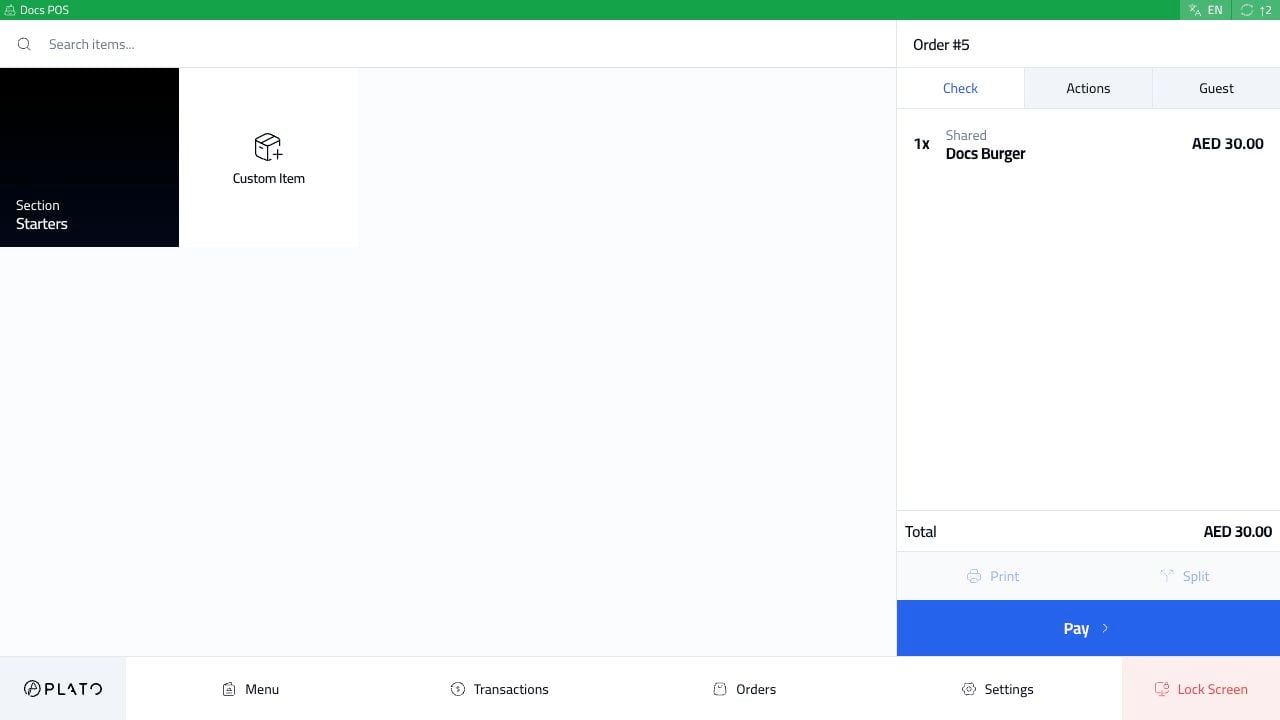
The order should already be sent or ready to pay.
<img src="https://mintcdn.com/platoae/BPT5cVutD7nA9lgH/images/kds-pos/pos-fresh/13-order-sent-ready-to-pay.png?fit=max&auto=format&n=BPT5cVutD7nA9lgH&q=85&s=ef6ac031fce3596a31129c4f48d64f04" alt="Cash order ready to pay" width="1280" height="720" data-path="images/kds-pos/pos-fresh/13-order-sent-ready-to-pay.png" />

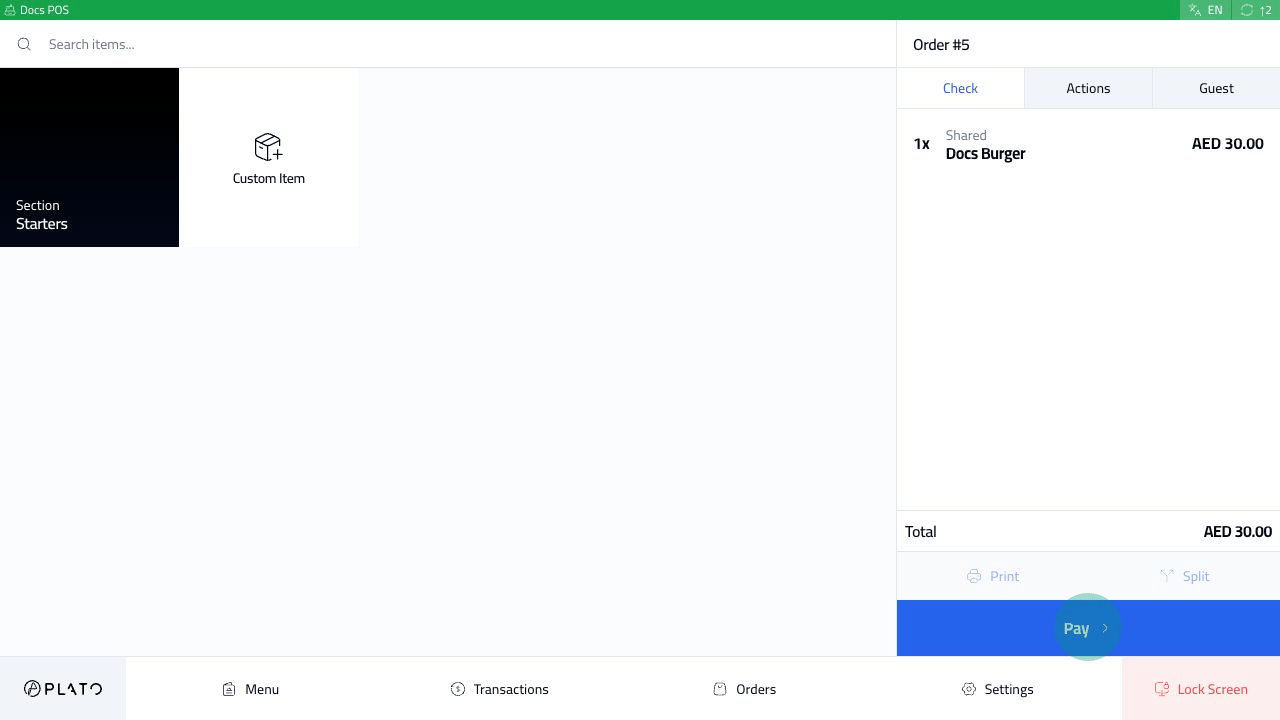
Check the total in the order sidebar before opening payment.

## Open Payment

Click `Pay`.
<img src="https://mintcdn.com/platoae/BPT5cVutD7nA9lgH/images/kds-pos/pos-fresh/14-pay-button-tap.png?fit=max&auto=format&n=BPT5cVutD7nA9lgH&q=85&s=03382c0e50123249a213e93ac7f9c25e" alt="Pay button" width="1280" height="720" data-path="images/kds-pos/pos-fresh/14-pay-button-tap.png" />

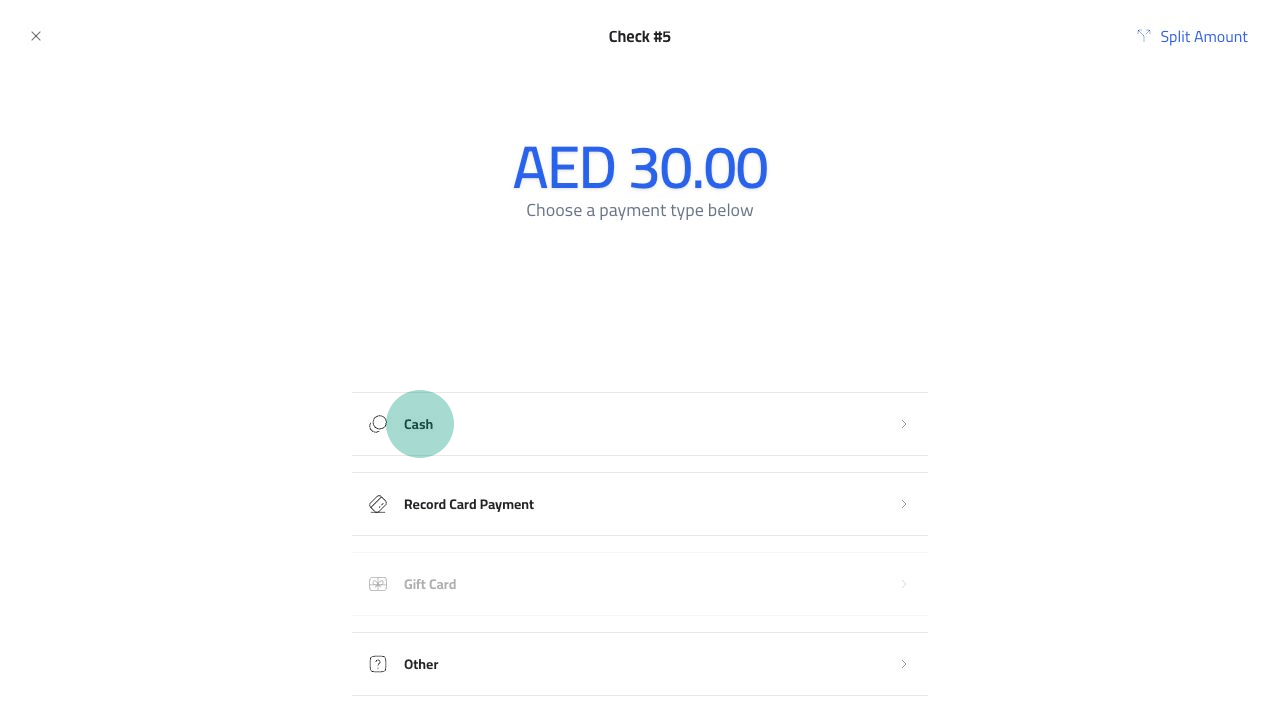
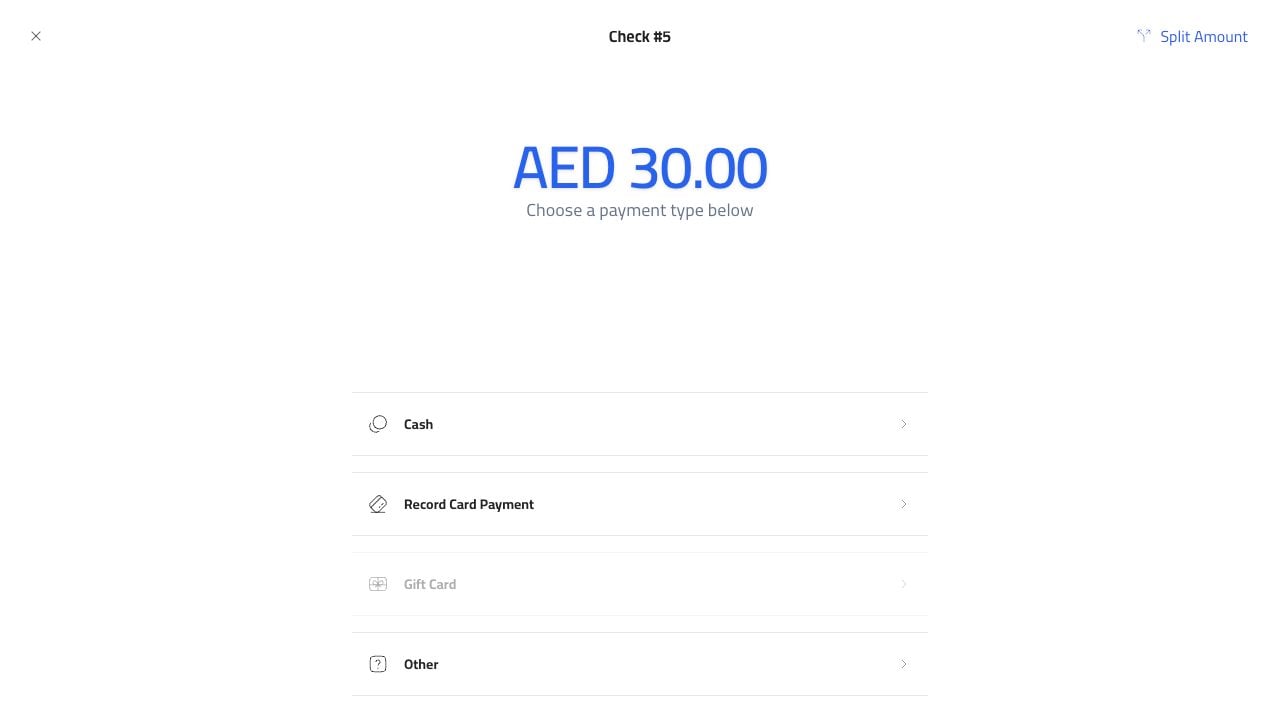
The payment screen shows the amount due and the available payment methods.
<img src="https://mintcdn.com/platoae/BPT5cVutD7nA9lgH/images/kds-pos/pos-fresh/15-payment-methods.png?fit=max&auto=format&n=BPT5cVutD7nA9lgH&q=85&s=90ade911a7339b877655ba7aec0e4140" alt="Payment methods" width="1280" height="720" data-path="images/kds-pos/pos-fresh/15-payment-methods.png" />

Choose `Cash`.

<img src="https://mintcdn.com/platoae/BPT5cVutD7nA9lgH/images/kds-pos/pos-fresh/16-cash-method-tap.png?fit=max&auto=format&n=BPT5cVutD7nA9lgH&q=85&s=18c549a1cea56a224f6e1e9dccfe68ae" alt="Cash payment method" width="1280" height="720" data-path="images/kds-pos/pos-fresh/16-cash-method-tap.png" />

## Enter Tender

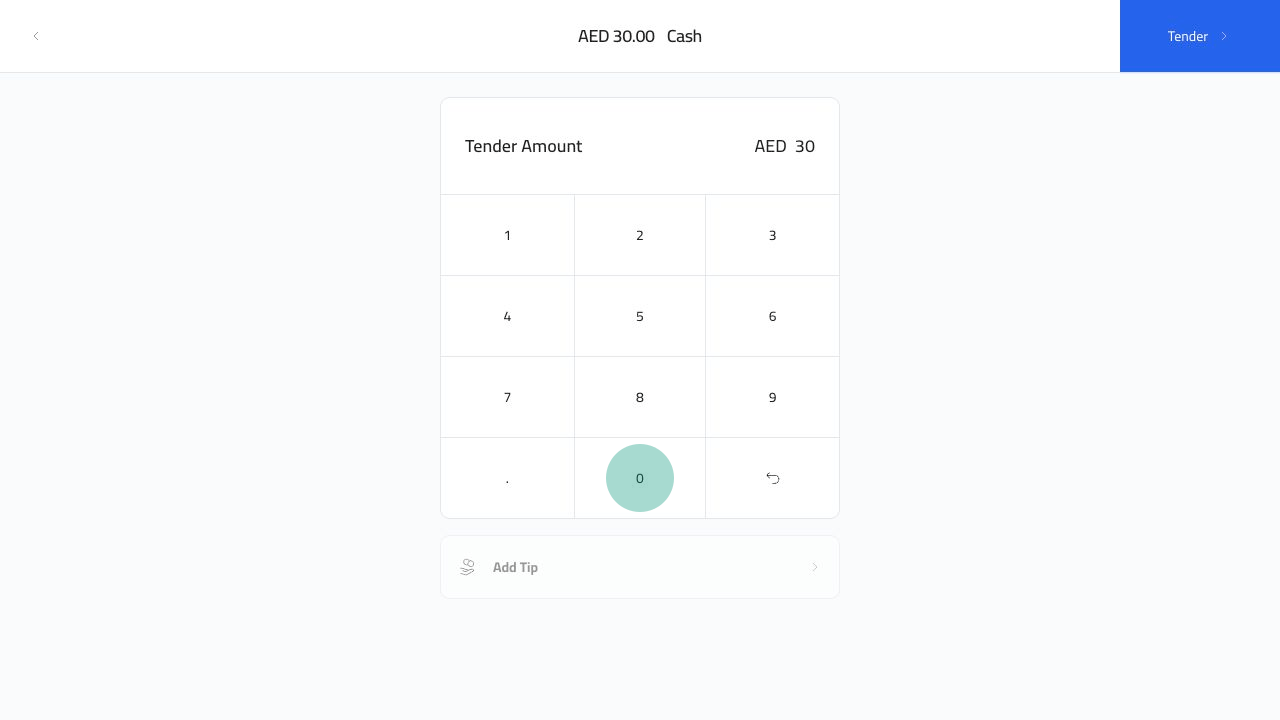
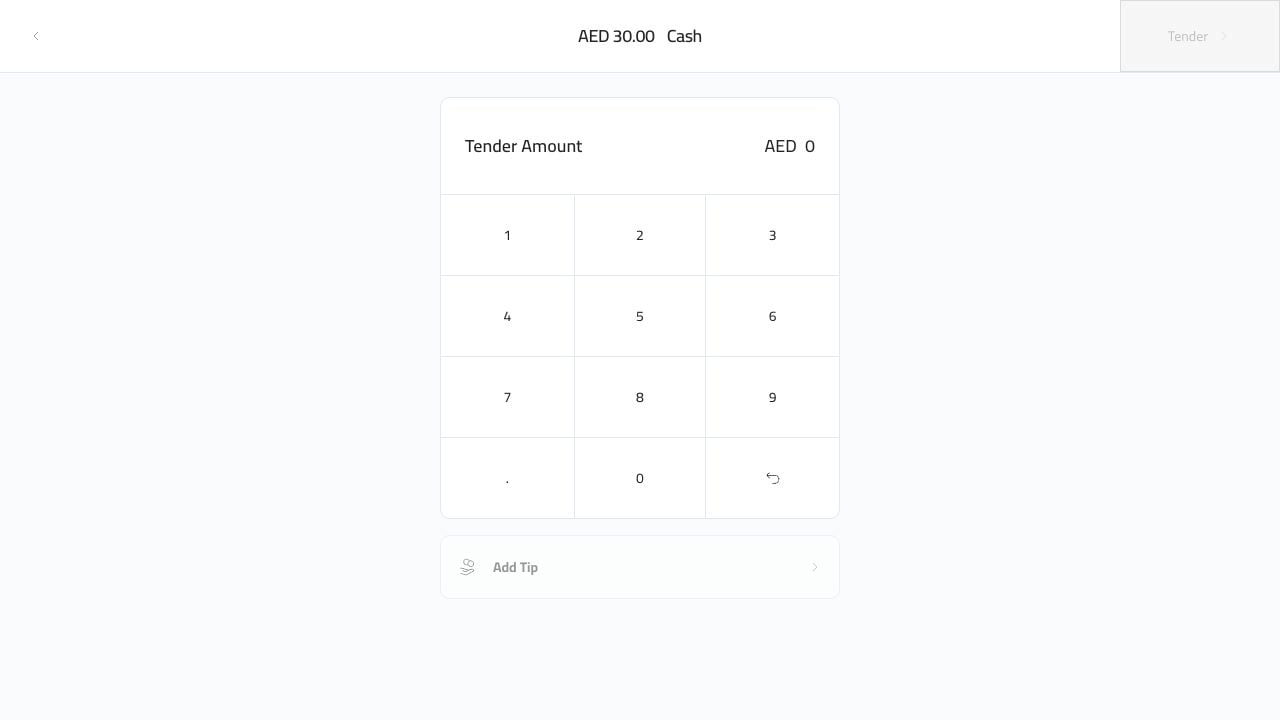
The cash tender screen shows the amount due and a keypad.
<img src="https://mintcdn.com/platoae/BPT5cVutD7nA9lgH/images/kds-pos/pos-fresh/17-cash-tender-screen.png?fit=max&auto=format&n=BPT5cVutD7nA9lgH&q=85&s=d1c5015d58d87eebc1a18f7faf77bb64" alt="Cash tender screen" width="1280" height="720" data-path="images/kds-pos/pos-fresh/17-cash-tender-screen.png" />

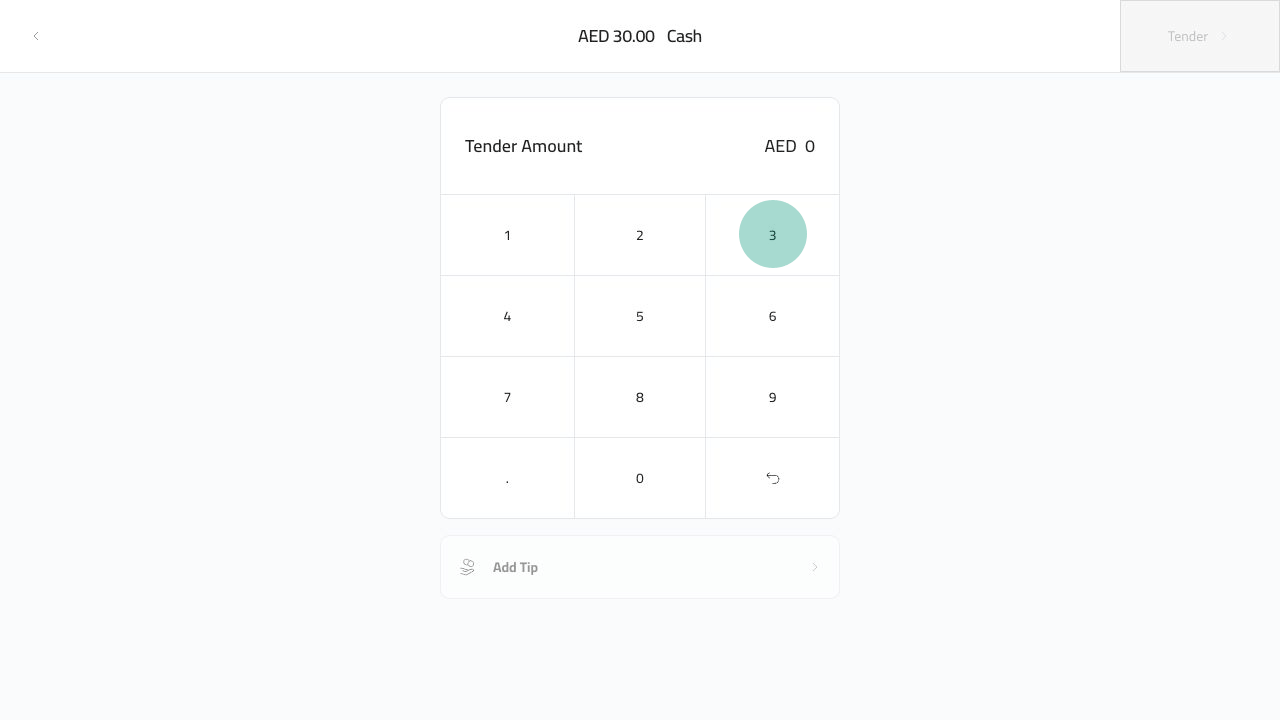
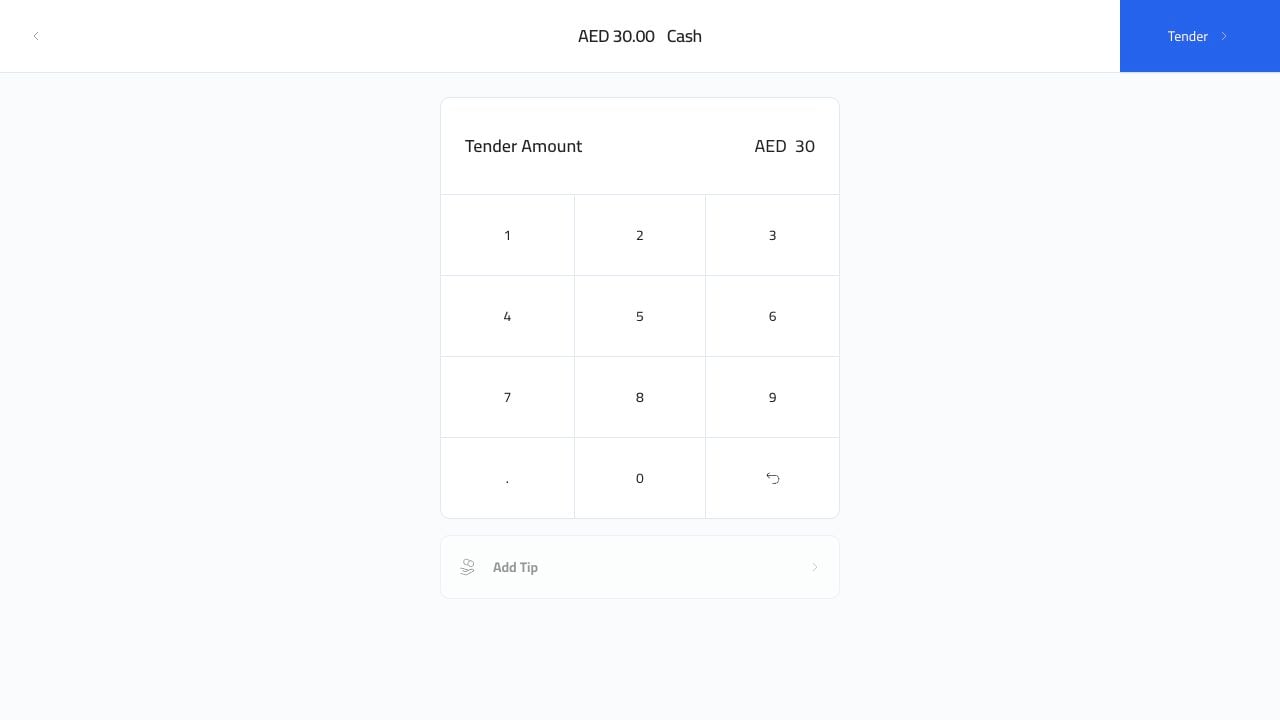
Enter the amount the customer gave you. The example below enters `30`.
<img src="https://mintcdn.com/platoae/BPT5cVutD7nA9lgH/images/kds-pos/pos-fresh/18-cash-keypad-3-tap.png?fit=max&auto=format&n=BPT5cVutD7nA9lgH&q=85&s=31f12aa3cc2bd80327eba2540fbfa82e" alt="Cash keypad 3" width="1280" height="720" data-path="images/kds-pos/pos-fresh/18-cash-keypad-3-tap.png" />

<img src="https://mintcdn.com/platoae/BPT5cVutD7nA9lgH/images/kds-pos/pos-fresh/19-cash-keypad-0-tap.png?fit=max&auto=format&n=BPT5cVutD7nA9lgH&q=85&s=b0640b1e41a72783eb8005bc616a3c67" alt="Cash keypad 0" width="1280" height="720" data-path="images/kds-pos/pos-fresh/19-cash-keypad-0-tap.png" />

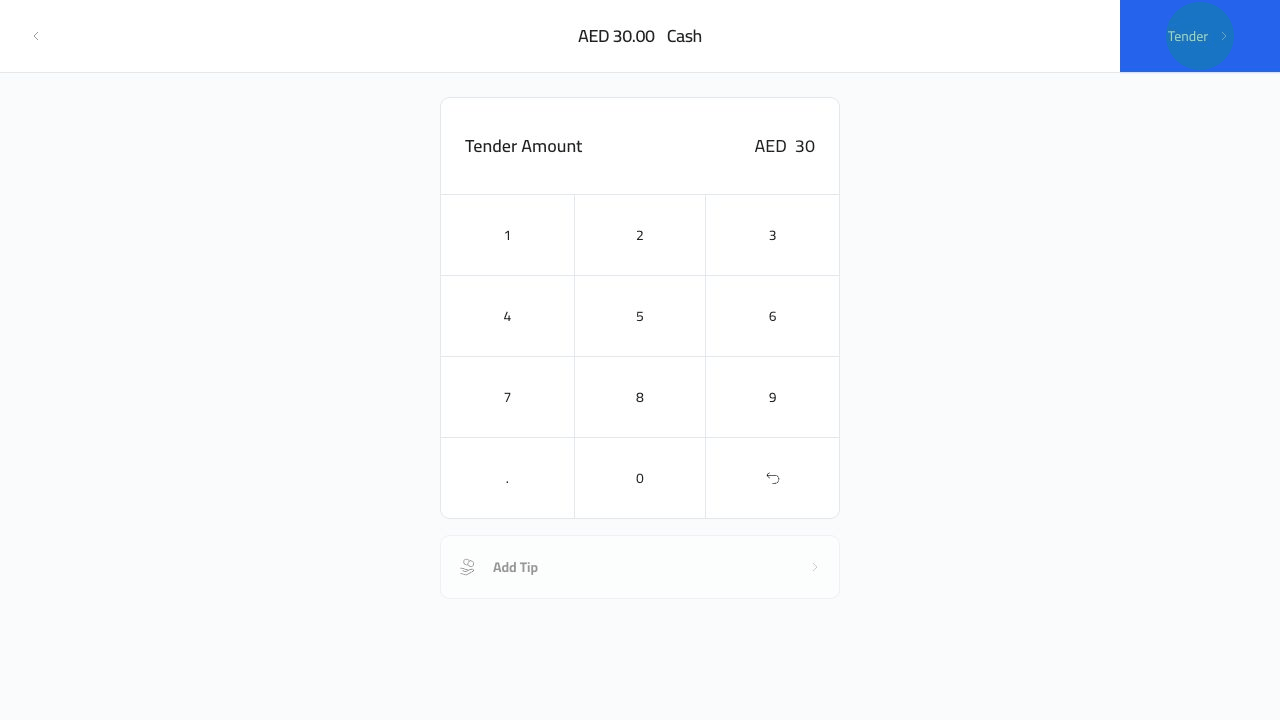
The `Tender` button becomes available after the amount is entered.
<img src="https://mintcdn.com/platoae/BPT5cVutD7nA9lgH/images/kds-pos/pos-fresh/20-cash-amount-entered.png?fit=max&auto=format&n=BPT5cVutD7nA9lgH&q=85&s=9662af72e1b9274c724aedde8ab22d14" alt="Cash amount entered" width="1280" height="720" data-path="images/kds-pos/pos-fresh/20-cash-amount-entered.png" />

## Finish The Sale

Click `Tender`.

<img src="https://mintcdn.com/platoae/BPT5cVutD7nA9lgH/images/kds-pos/pos-fresh/21-cash-tender-tap.png?fit=max&auto=format&n=BPT5cVutD7nA9lgH&q=85&s=7d13e8b6d10535421509d426b00b9e4c" alt="Tender cash payment" width="1280" height="720" data-path="images/kds-pos/pos-fresh/21-cash-tender-tap.png" />

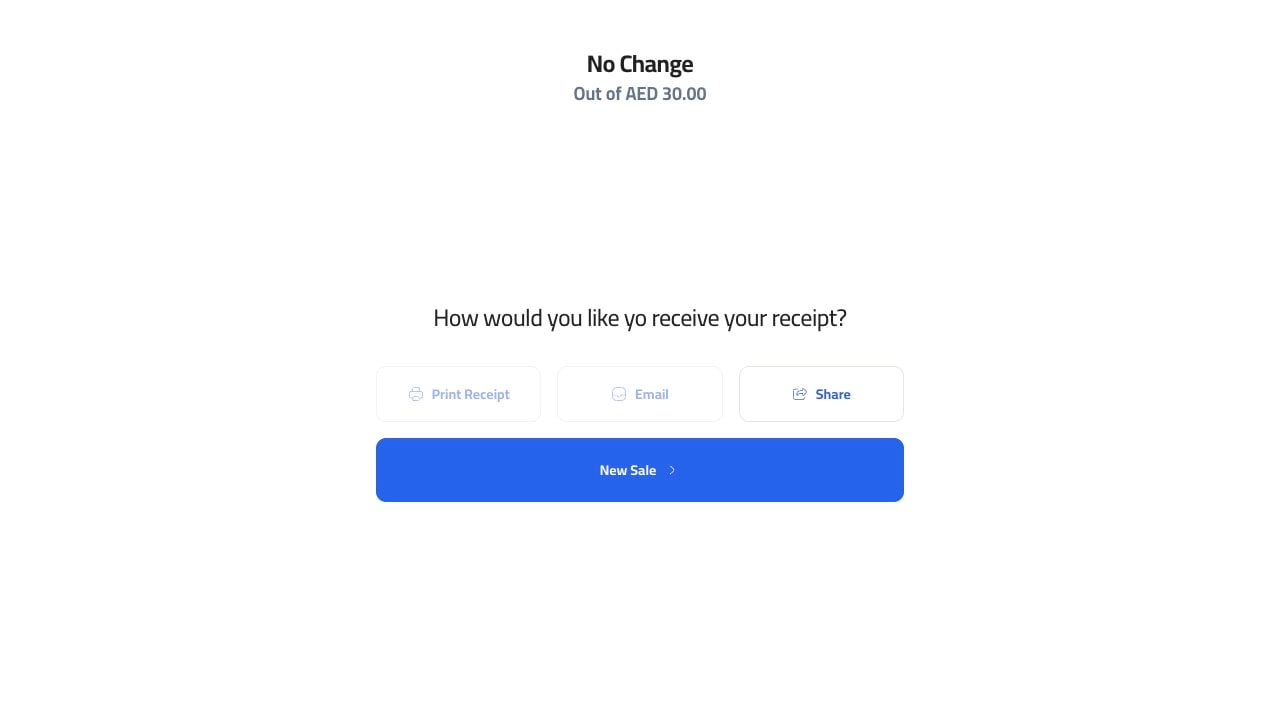
Plato closes the order and opens the receipt screen. From here the cashier can print, email, share, or start a new sale.
<img src="https://mintcdn.com/platoae/TIGnbzXxmghL4Tv_/images/kds-pos/pos-fresh/22-cash-receipt-screen.png?fit=max&auto=format&n=TIGnbzXxmghL4Tv_&q=85&s=76fde56c278be9ddf113e79fe5fa8b65" alt="Cash receipt screen" width="1280" height="720" data-path="images/kds-pos/pos-fresh/22-cash-receipt-screen.png" />

If the customer gave more than the total, use the change shown on the success screen before starting the next sale.