> ## Documentation Index
> Fetch the complete documentation index at: https://docs.plato.ae/llms.txt
> Use this file to discover all available pages before exploring further.
# Find Orders And Use Filters
> Search, filter, open, copy, and review POS orders.
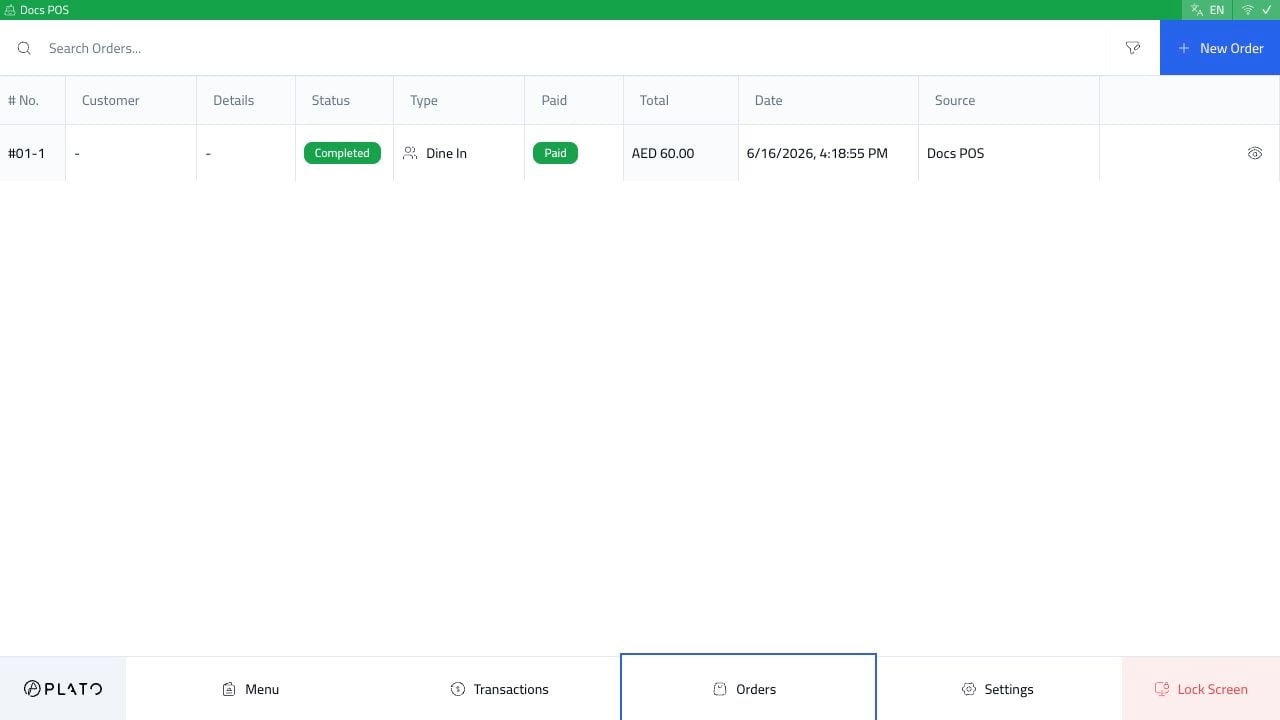
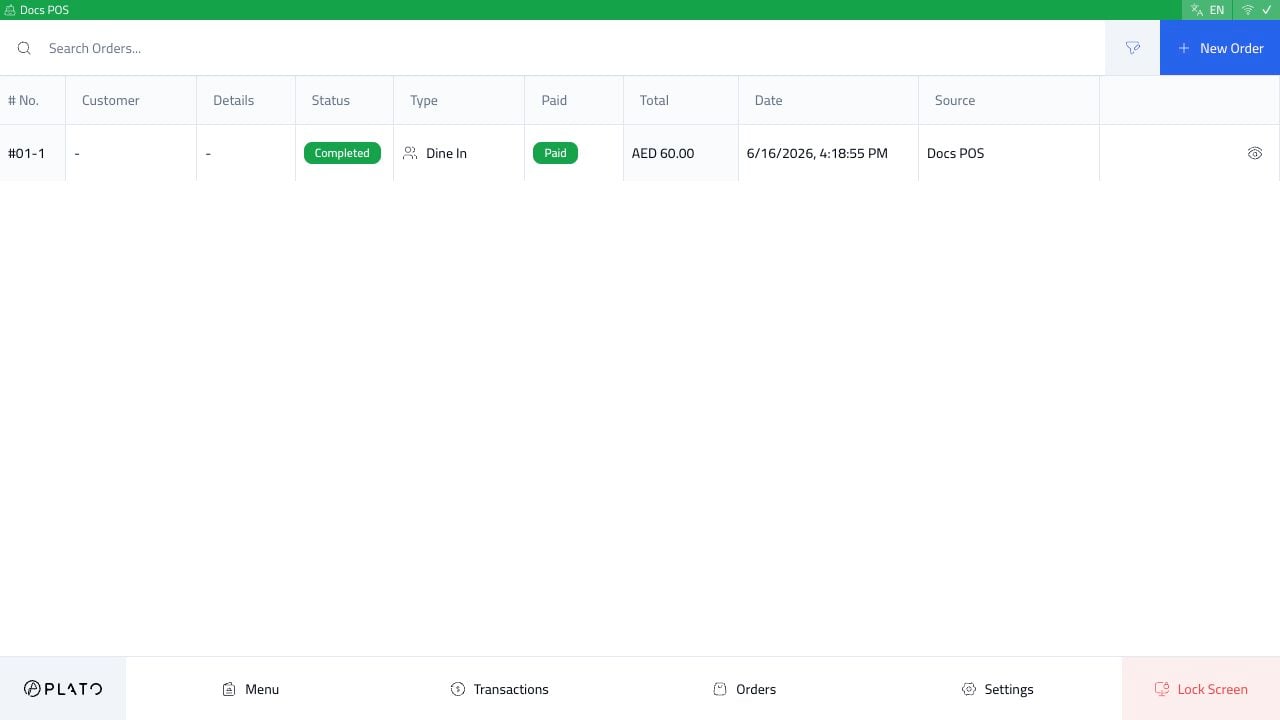
Use `Orders` from the POS bottom bar to open the order list.
 ## When To Use It
Open the orders list when staff need to:
* Find an existing order.
* Continue a draft or active order.
* Review pending online orders.
* Check order status.
* Reopen or copy an order when allowed.
## Search Orders
Use the search box when you know the order number, customer, or visible reference.
## Open Filters
Click the filter icon near the search box.
## When To Use It
Open the orders list when staff need to:
* Find an existing order.
* Continue a draft or active order.
* Review pending online orders.
* Check order status.
* Reopen or copy an order when allowed.
## Search Orders
Use the search box when you know the order number, customer, or visible reference.
## Open Filters
Click the filter icon near the search box.
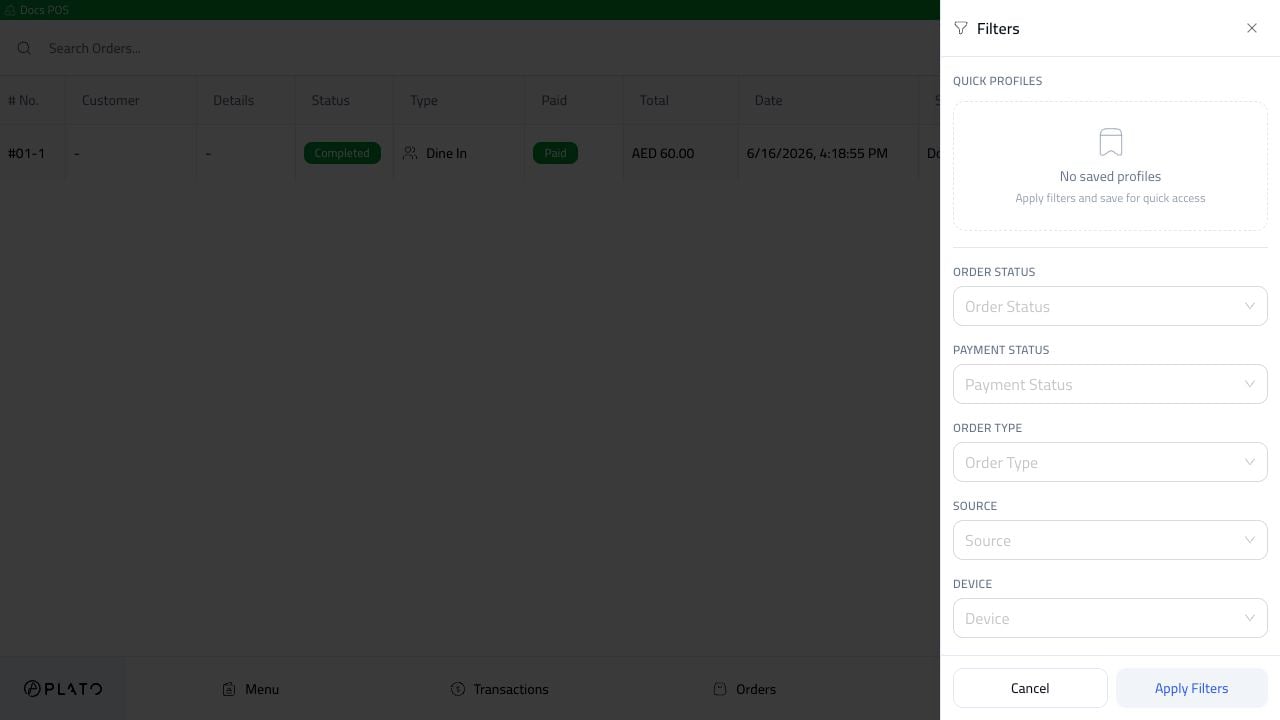 Use filters when the list is busy and staff need a specific set of orders.
## Filter By Status
Open `Order Status` to filter by:
* Draft.
* Pending.
* Processing.
* Completed.
* Cancelled.
Use filters when the list is busy and staff need a specific set of orders.
## Filter By Status
Open `Order Status` to filter by:
* Draft.
* Pending.
* Processing.
* Completed.
* Cancelled.
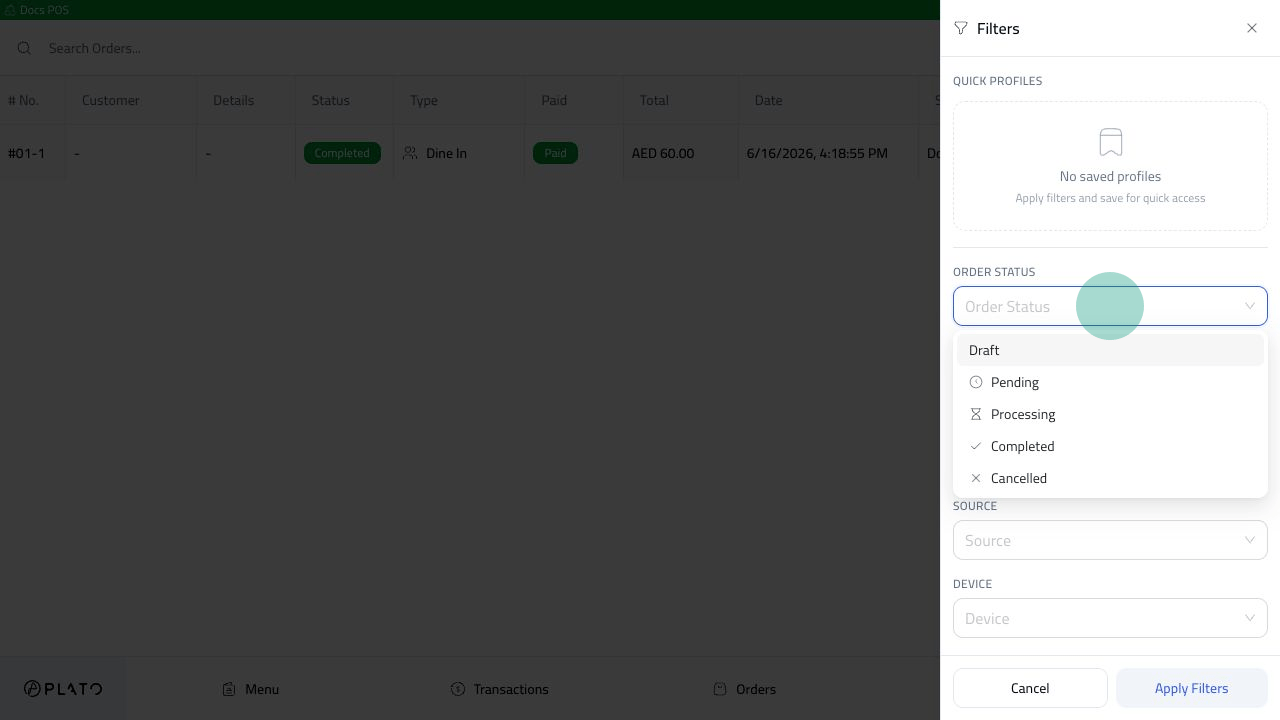 After selecting a filter, Plato shows the number of active filters.
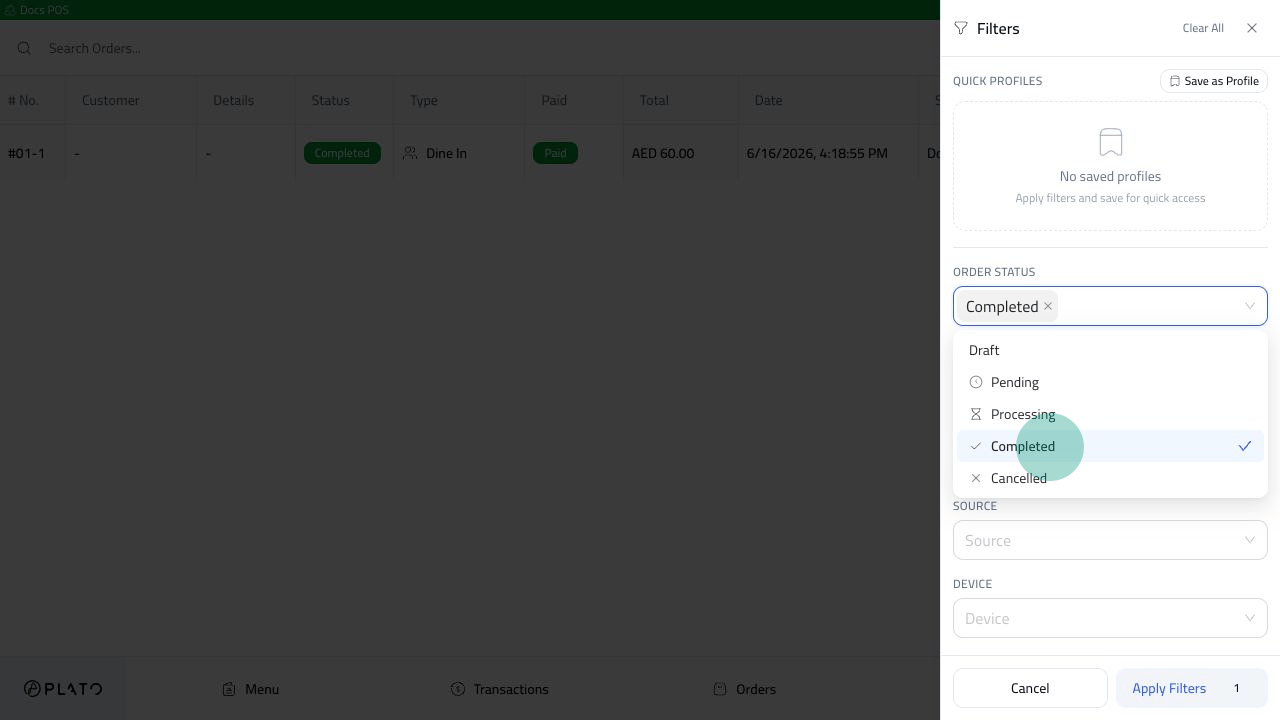 Click `Apply Filters` to update the list.
 ## Open An Order From The List
Click the view button on the order row.
## Open An Order From The List
Click the view button on the order row.
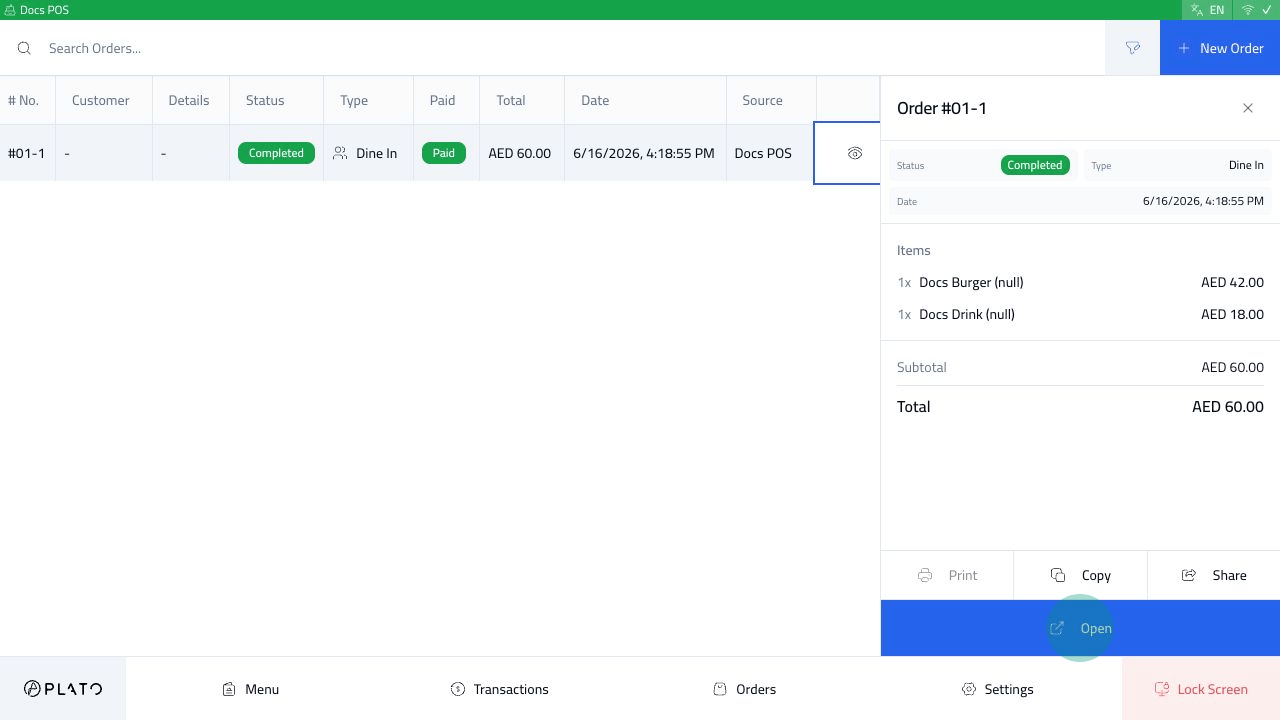 The drawer shows status, order type, date, items, totals, and quick actions such as print, copy, share, and open.
## Keyboard Navigation
If keyboard navigation is enabled in POS config, staff can move through the orders table faster with arrow keys.
The drawer shows status, order type, date, items, totals, and quick actions such as print, copy, share, and open.
## Keyboard Navigation
If keyboard navigation is enabled in POS config, staff can move through the orders table faster with arrow keys.