> ## Documentation Index
> Fetch the complete documentation index at: https://docs.plato.ae/llms.txt
> Use this file to discover all available pages before exploring further.
# Fix Orders, Void Items, And Reopen
> Use protected order actions when staff need to correct, void, or reopen service activity.
Use this page when something needs to be corrected after an order is already active.
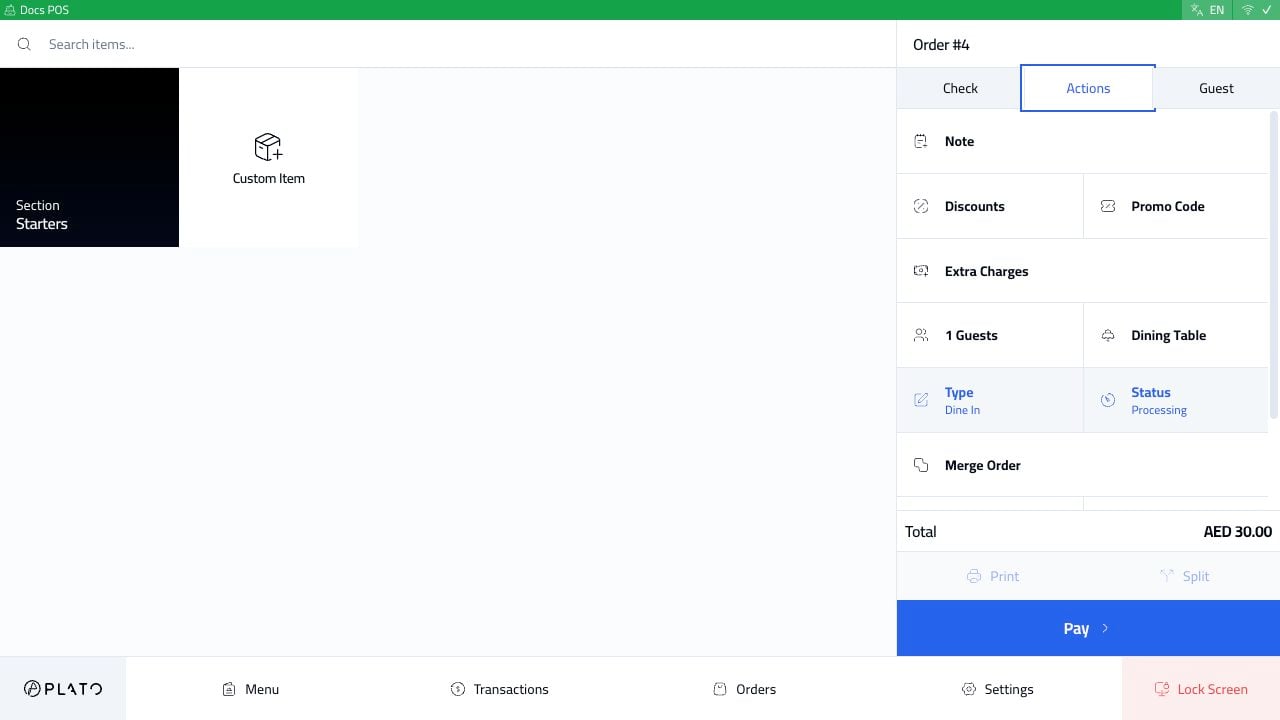
Open the order, then choose `Actions` in the order sidebar.
 ## What The Actions Tab Contains
The Actions tab can include:
* Order note.
* Discounts.
* Promo code.
* Extra charges.
* Guest count.
* Dining table.
* Order type.
* Order status.
* Merge order.
* Payments.
* Related orders.
The exact actions depend on the POS configuration and the current order state.
## Change Status Or Cancel An Order
Click `Status` when the order needs a protected status change, such as cancellation.
## What The Actions Tab Contains
The Actions tab can include:
* Order note.
* Discounts.
* Promo code.
* Extra charges.
* Guest count.
* Dining table.
* Order type.
* Order status.
* Merge order.
* Payments.
* Related orders.
The exact actions depend on the POS configuration and the current order state.
## Change Status Or Cancel An Order
Click `Status` when the order needs a protected status change, such as cancellation.
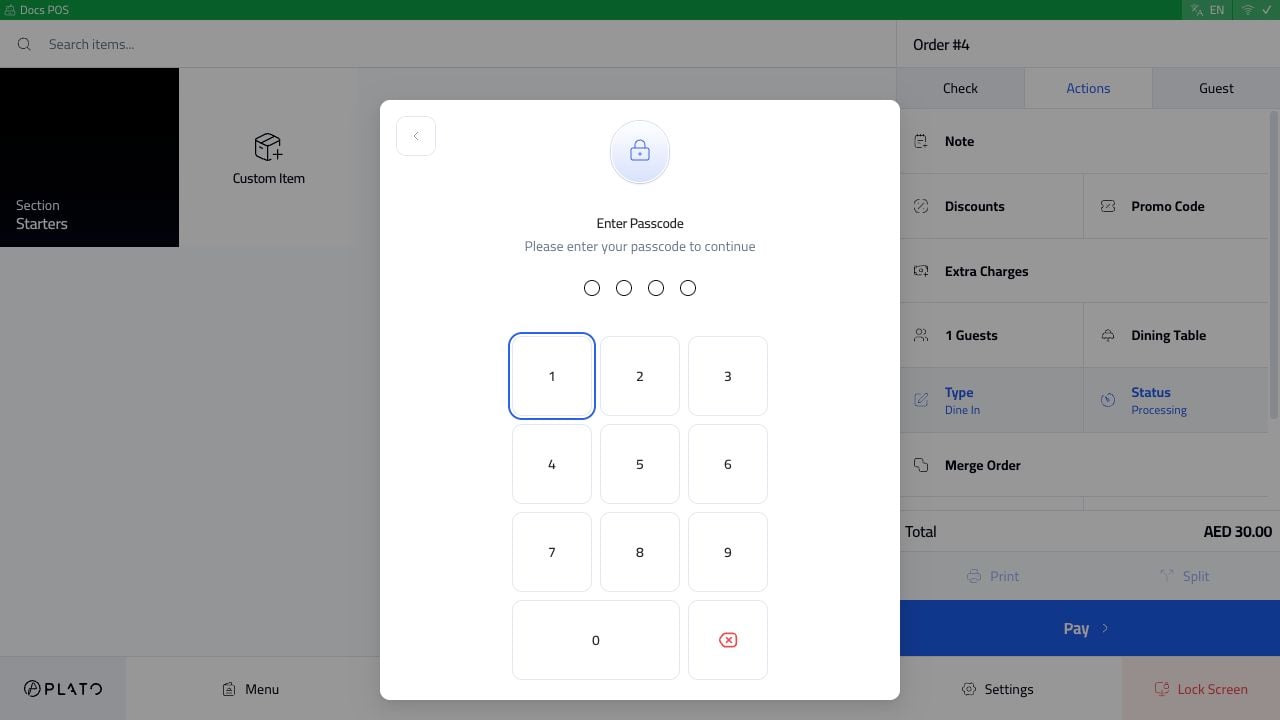 If the station asks for a passcode, an authorized manager or member must enter it. This prevents accidental cancellations during service.
## Void One Item
Tap the item row in the check.
If the station asks for a passcode, an authorized manager or member must enter it. This prevents accidental cancellations during service.
## Void One Item
Tap the item row in the check.
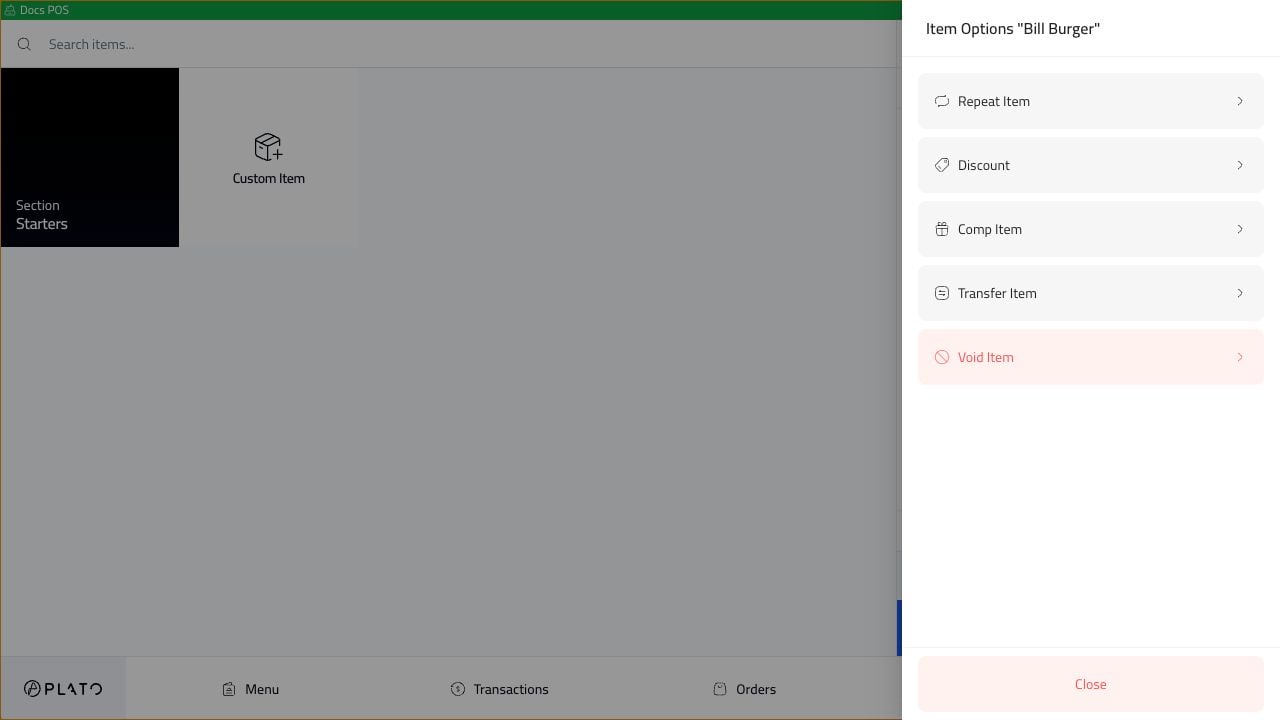 Choose `Void Item`.
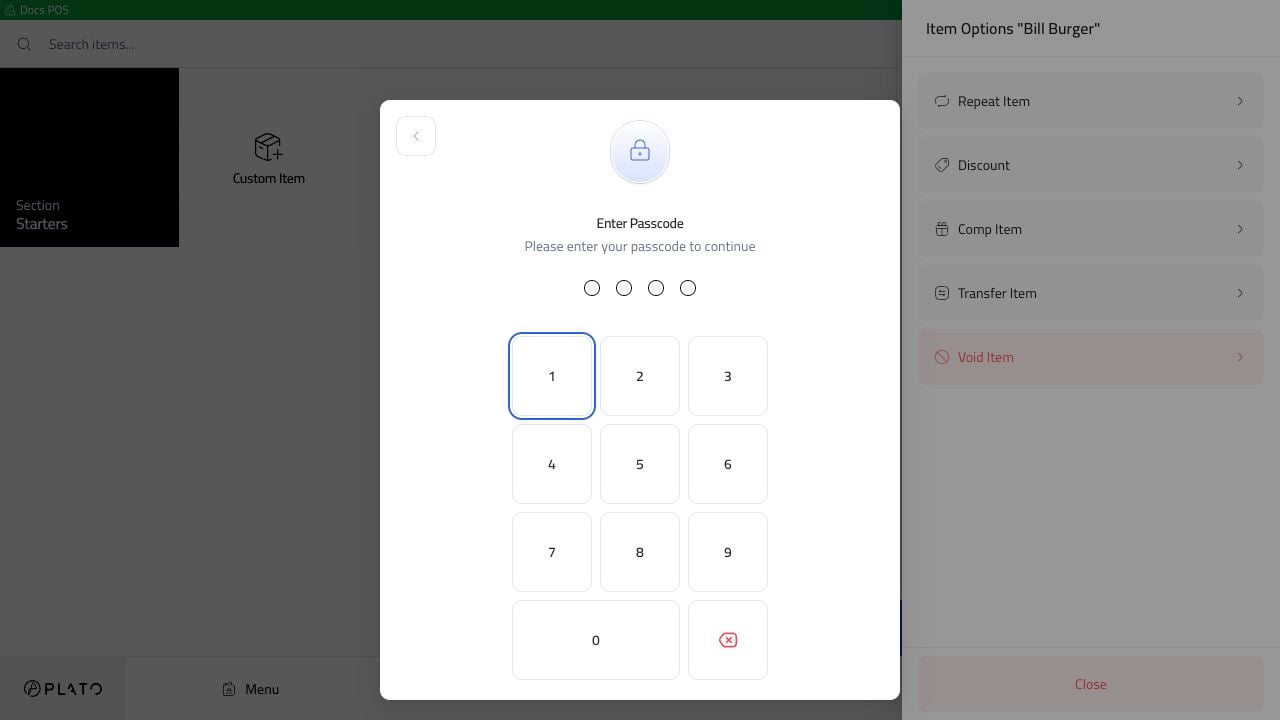 If the station asks for a passcode, enter the authorized code and continue with the void reason when prompted.
## Reopen A Closed Order
Open the completed order from the Orders list, then click `Open`.
If the station asks for a passcode, enter the authorized code and continue with the void reason when prompted.
## Reopen A Closed Order
Open the completed order from the Orders list, then click `Open`.
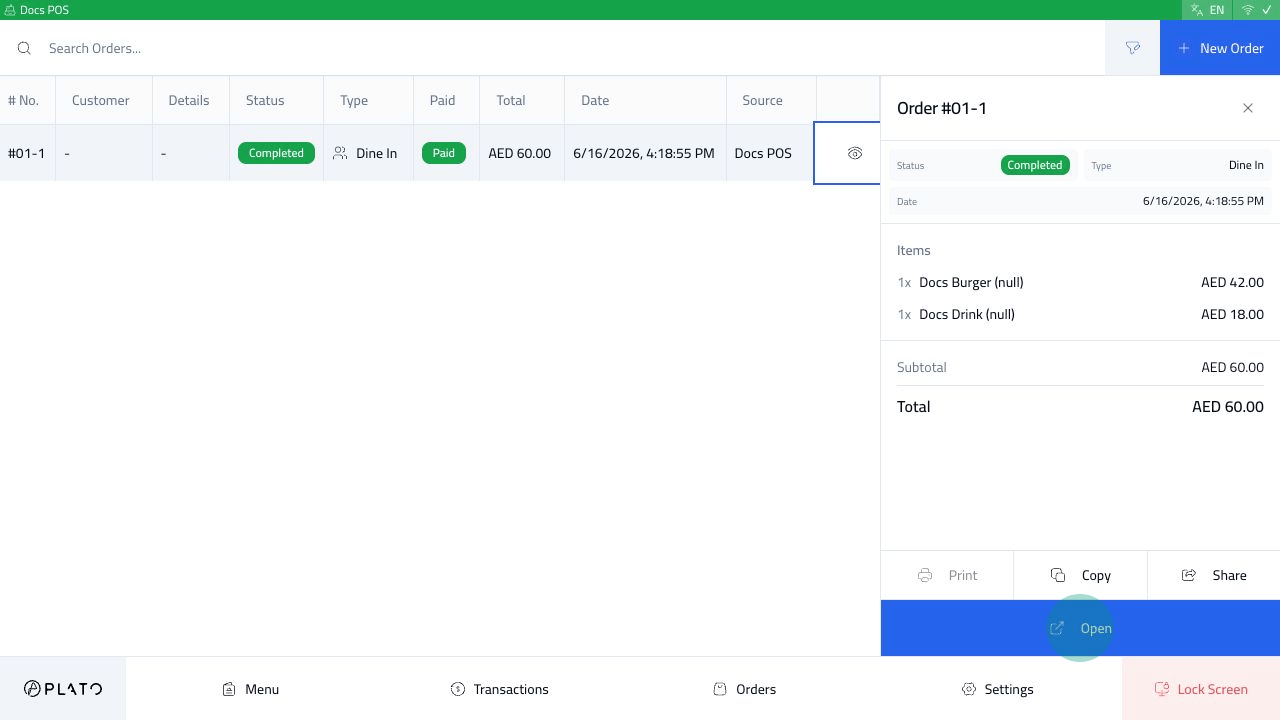 The closed order opens with `Reopen Order`.
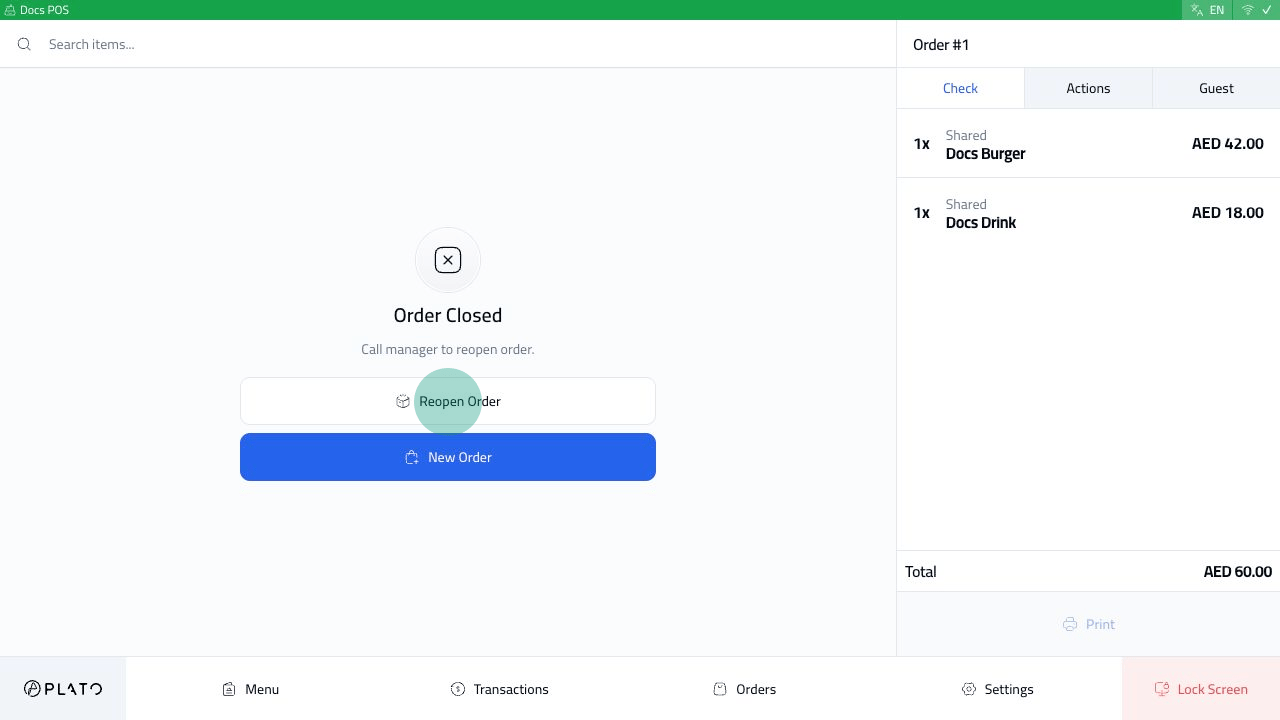 Click `Reopen Order`. Protected workstations ask for an authorized passcode before the order can continue.
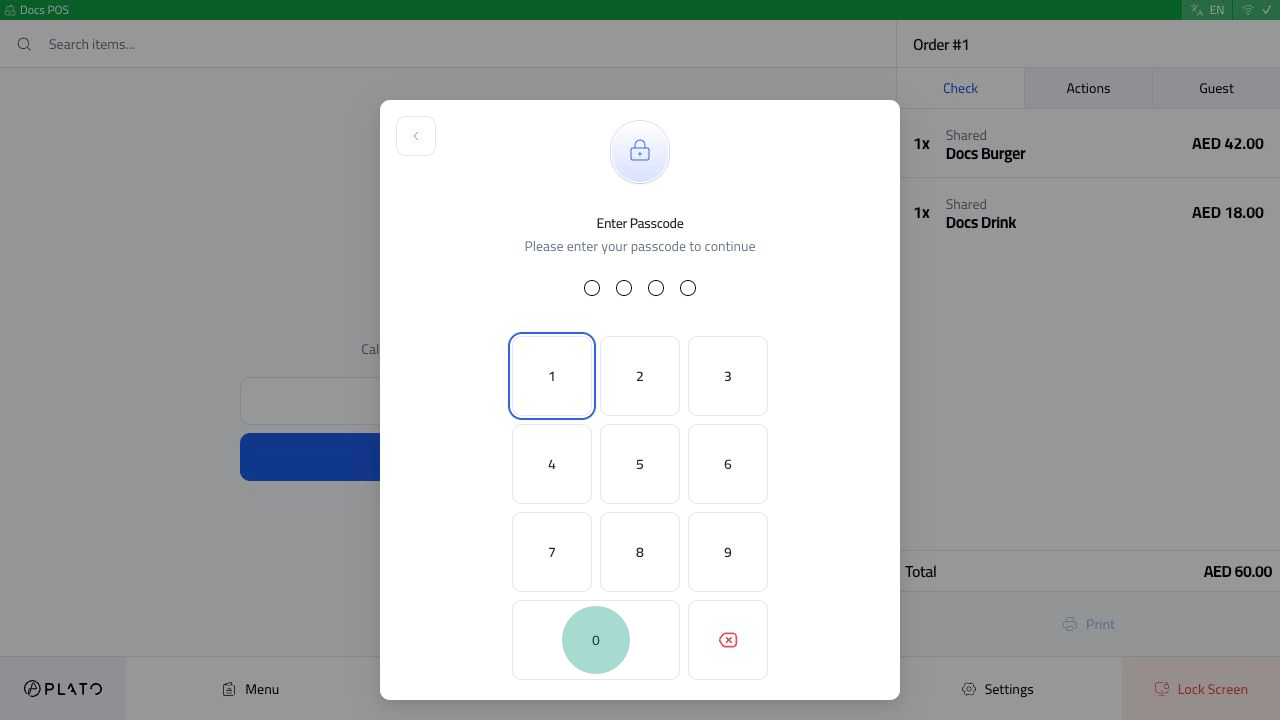 If your restaurant requires a reason after authorization, enter a clear reason so managers can review it later.