> ## Documentation Index
> Fetch the complete documentation index at: https://docs.plato.ae/llms.txt
> Use this file to discover all available pages before exploring further.
# Restaurant Devices
> Learn how staff use Plato POS, Call Center POS, KDS, printers, and connected restaurant devices.
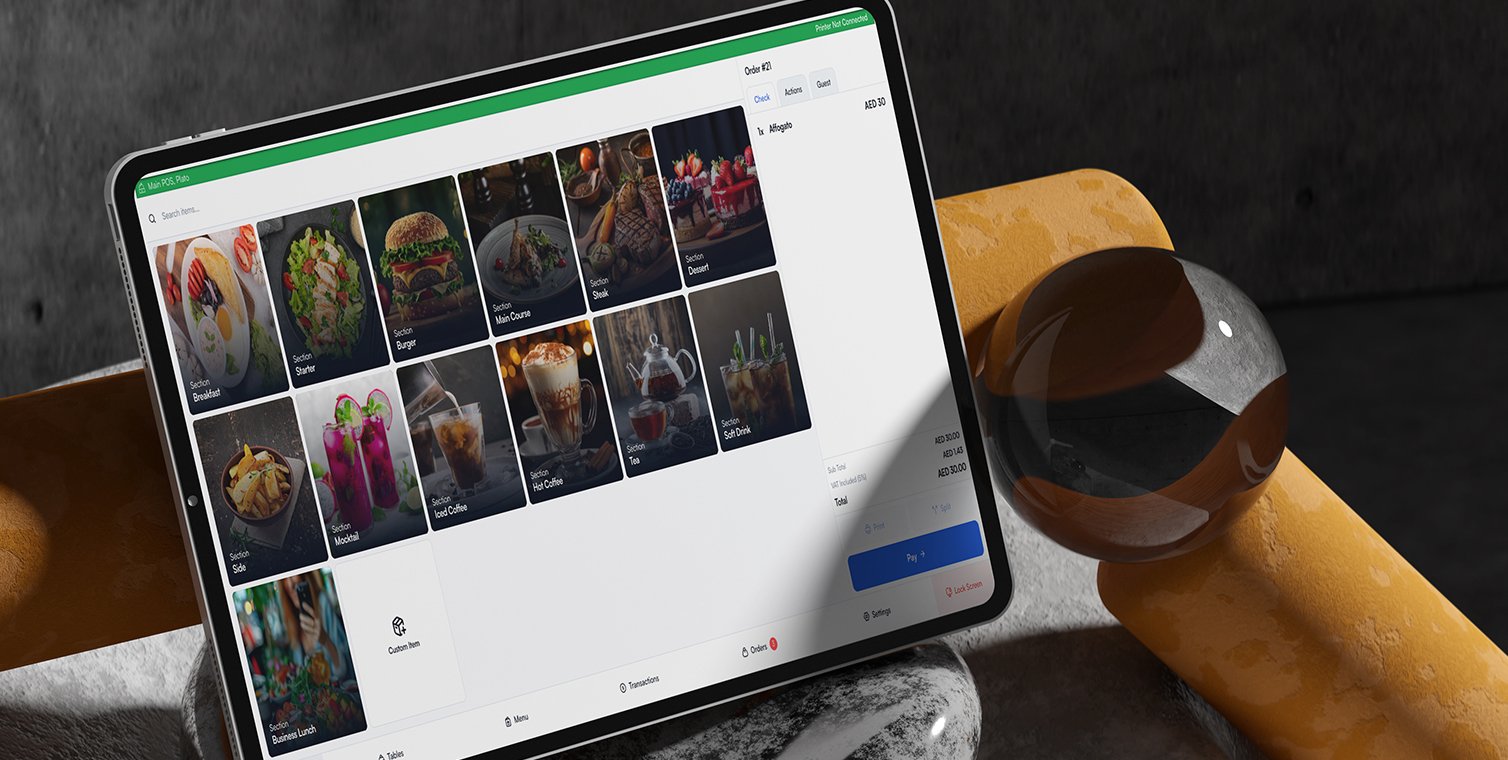
Restaurant Devices covers the screens staff use during service.
Use this section when you are opening a cashier station, taking an order, sending items to the kitchen, settling cash or Visa payments, splitting bills, reviewing orders, or running the kitchen display.
 ## Start With The Job
Pick the path that matches what the staff member is trying to do:
Start the shift, choose the right staff member, and get the station ready for service.
Add items, send the order, and understand the order sidebar.
Settle by cash, card, split payment, or split bill depending on the guest.
Void items, cancel orders, reopen orders, and review order history.
Work tickets, move items through preparation, and keep the kitchen queue clear.
Choose device types, create device records, connect printers, and configure stations.
## Device Types
Plato separates service jobs into device types:
* **Main POS** is the cashier or service station.
* **Call Center POS** is for phone and delivery-center ordering.
* **KDS** is the kitchen display screen.
* **Printer** handles receipts, kitchen tickets, void tickets, reports, and cash drawer commands.
* **Display Screen** and **Plato Mesh** support connected device workflows.
## First-Time Setup
If you are setting up the devices for the first time:
1. Create the devices from [Create Devices](/kds-pos/getting-started/create-devices).
2. Configure the POS from [Set Up The Main POS Station](/kds-pos/setup/main-pos-config).
3. Connect printers and KDS from [Connect Devices Together](/kds-pos/getting-started/connect-devices).
4. Open the POS from [Open POS And Start A Shift](/kds-pos/pos/start-session).
5. Check the kitchen flow from [Work The KDS Ticket Board](/kds-pos/kds/ticket-board).
## Start With The Job
Pick the path that matches what the staff member is trying to do:
Start the shift, choose the right staff member, and get the station ready for service.
Add items, send the order, and understand the order sidebar.
Settle by cash, card, split payment, or split bill depending on the guest.
Void items, cancel orders, reopen orders, and review order history.
Work tickets, move items through preparation, and keep the kitchen queue clear.
Choose device types, create device records, connect printers, and configure stations.
## Device Types
Plato separates service jobs into device types:
* **Main POS** is the cashier or service station.
* **Call Center POS** is for phone and delivery-center ordering.
* **KDS** is the kitchen display screen.
* **Printer** handles receipts, kitchen tickets, void tickets, reports, and cash drawer commands.
* **Display Screen** and **Plato Mesh** support connected device workflows.
## First-Time Setup
If you are setting up the devices for the first time:
1. Create the devices from [Create Devices](/kds-pos/getting-started/create-devices).
2. Configure the POS from [Set Up The Main POS Station](/kds-pos/setup/main-pos-config).
3. Connect printers and KDS from [Connect Devices Together](/kds-pos/getting-started/connect-devices).
4. Open the POS from [Open POS And Start A Shift](/kds-pos/pos/start-session).
5. Check the kitchen flow from [Work The KDS Ticket Board](/kds-pos/kds/ticket-board).