> ## Documentation Index
> Fetch the complete documentation index at: https://docs.plato.ae/llms.txt
> Use this file to discover all available pages before exploring further.
# Quantity Adjustments
> Record waste, expired, damaged, or theft adjustments.
Quantity Adjustments reduce stock when items are no longer available for use or sale.
Use this for waste, expired items, damaged stock, or theft.
 ## Start an Adjustment
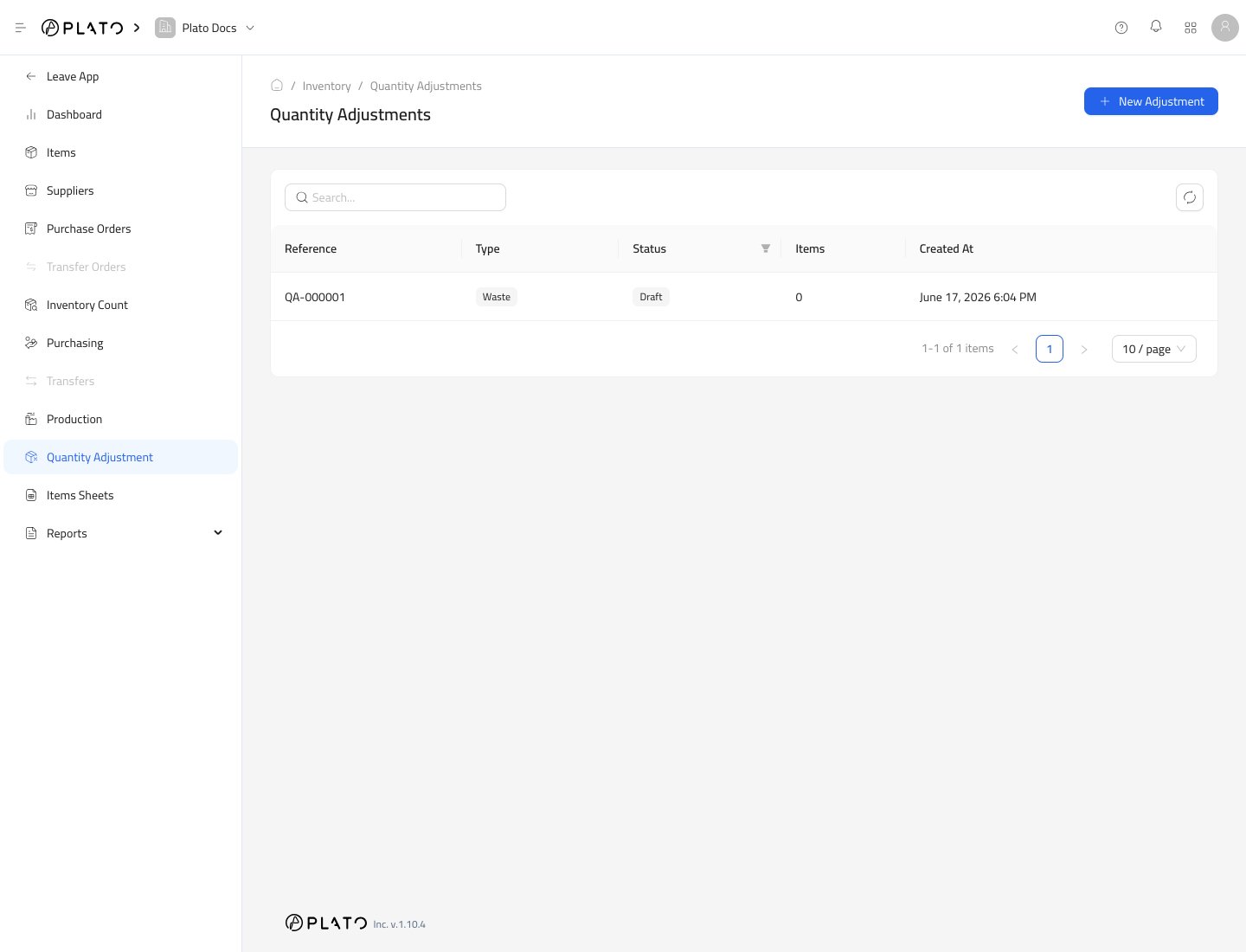
1. Open `Inventory`.
2. Go to `Quantity Adjustment`.
3. Click `New Adjustment`.
## Start an Adjustment
1. Open `Inventory`.
2. Go to `Quantity Adjustment`.
3. Click `New Adjustment`.
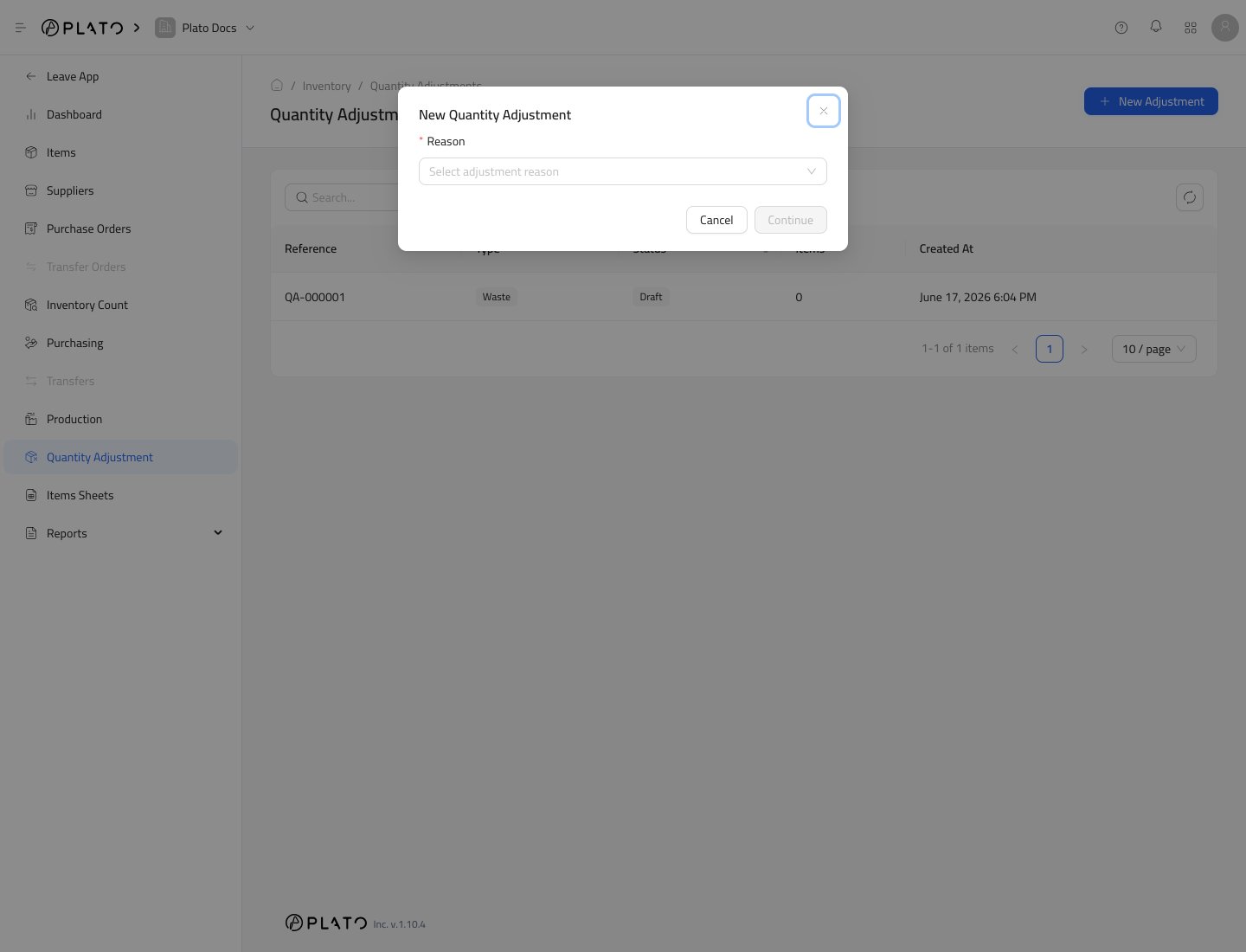
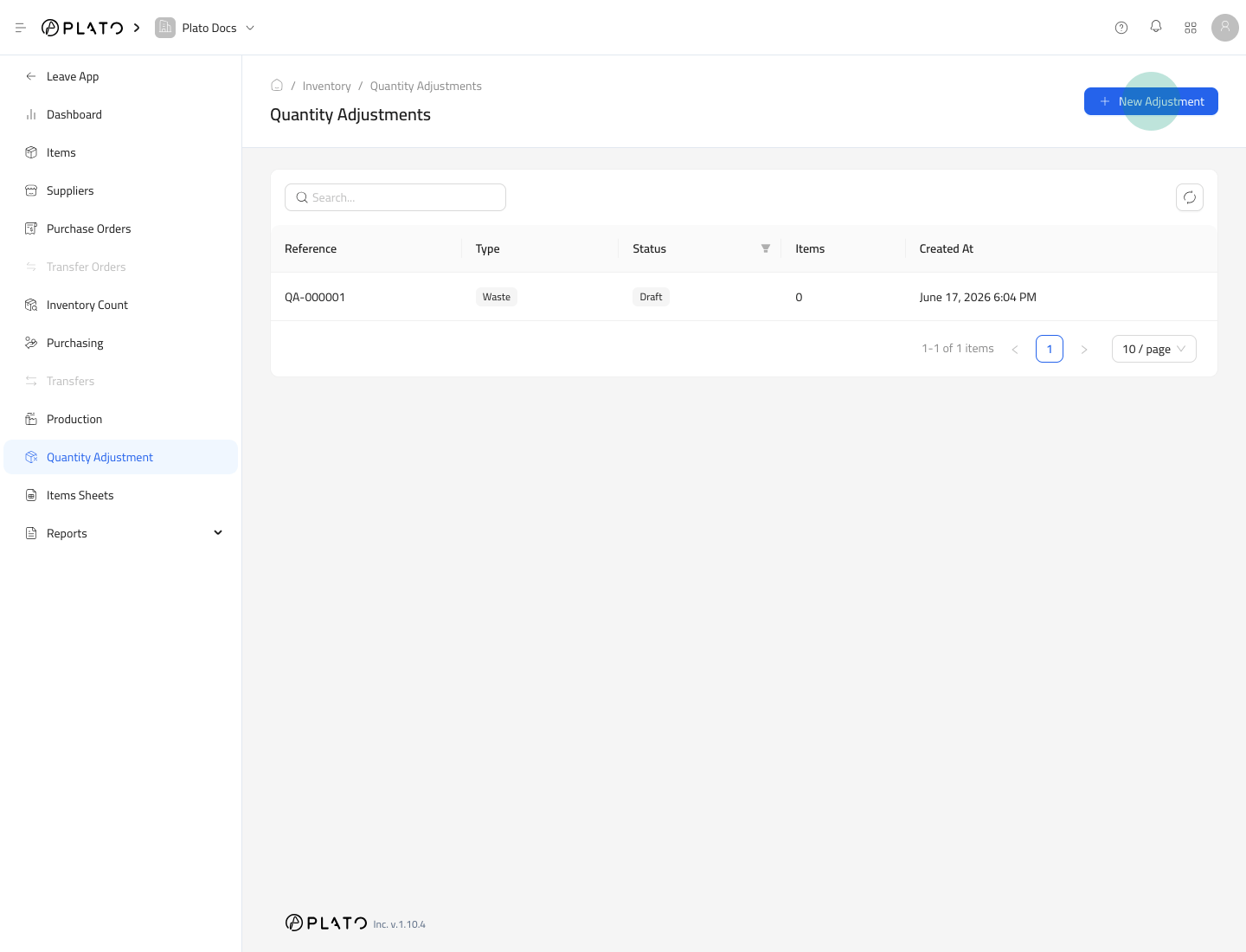 4. Choose the reason.
5. Click `Continue`.
4. Choose the reason.
5. Click `Continue`.
 ## Add Items
The adjustment opens as a draft.
## Add Items
The adjustment opens as a draft.
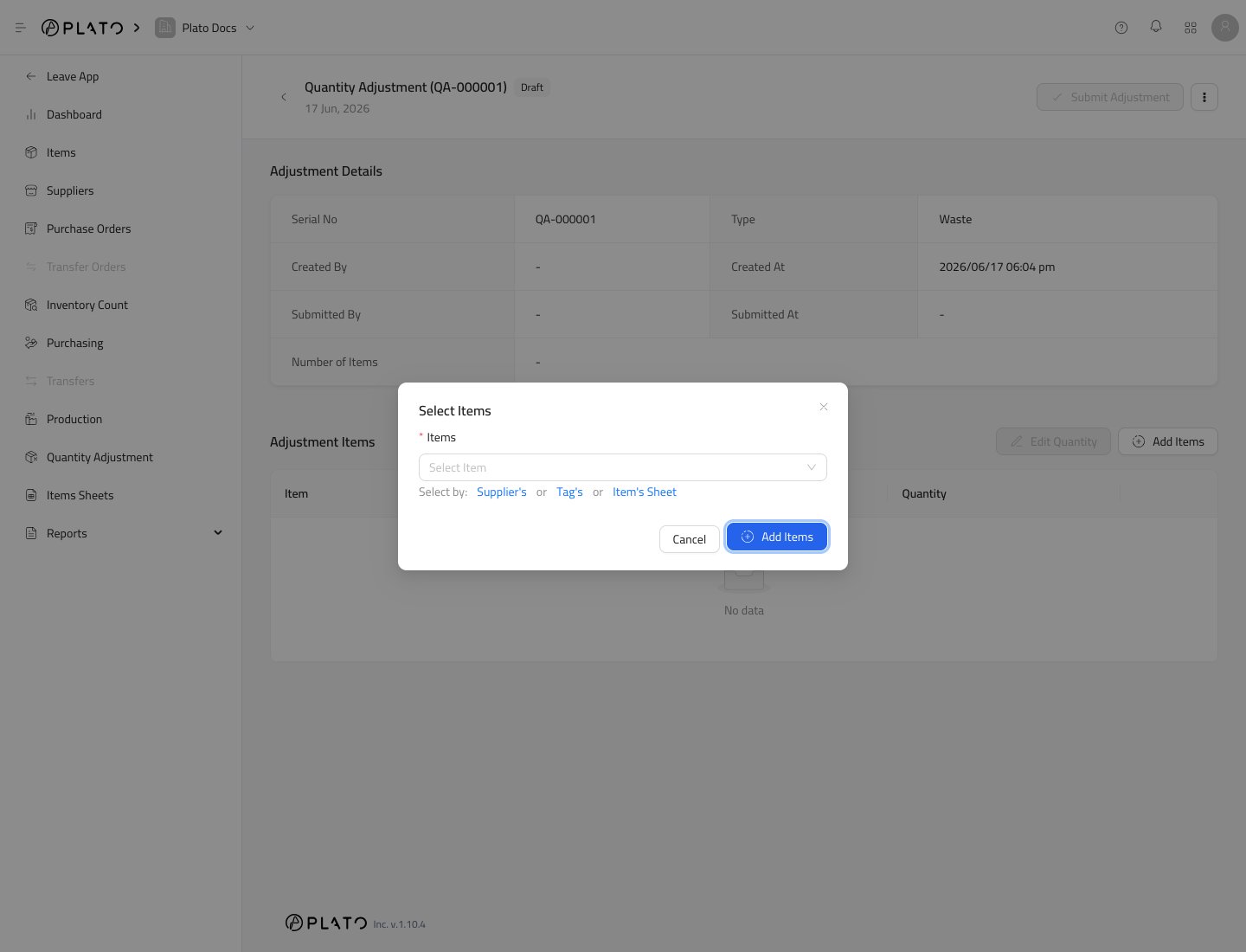
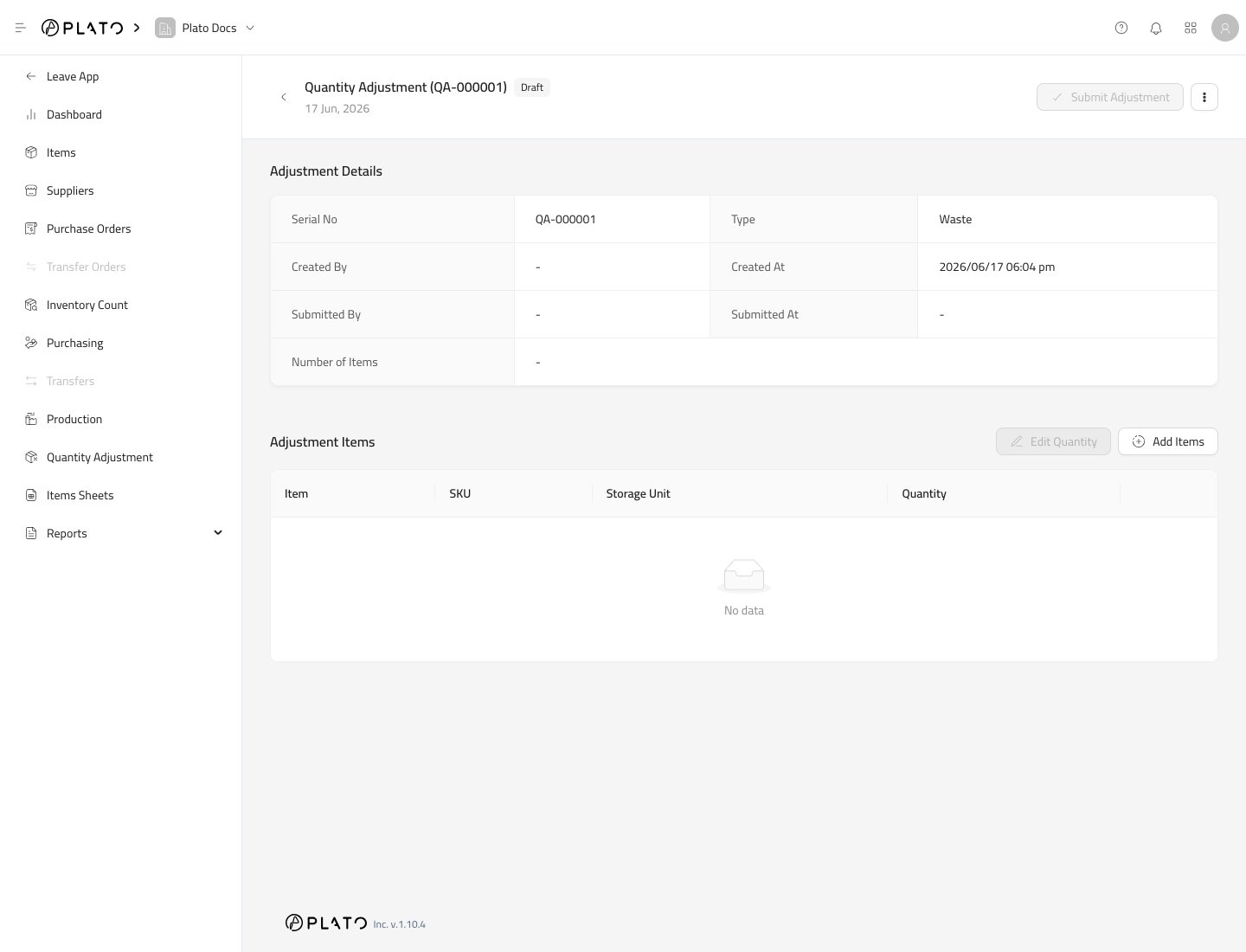 Click `Add Items`.
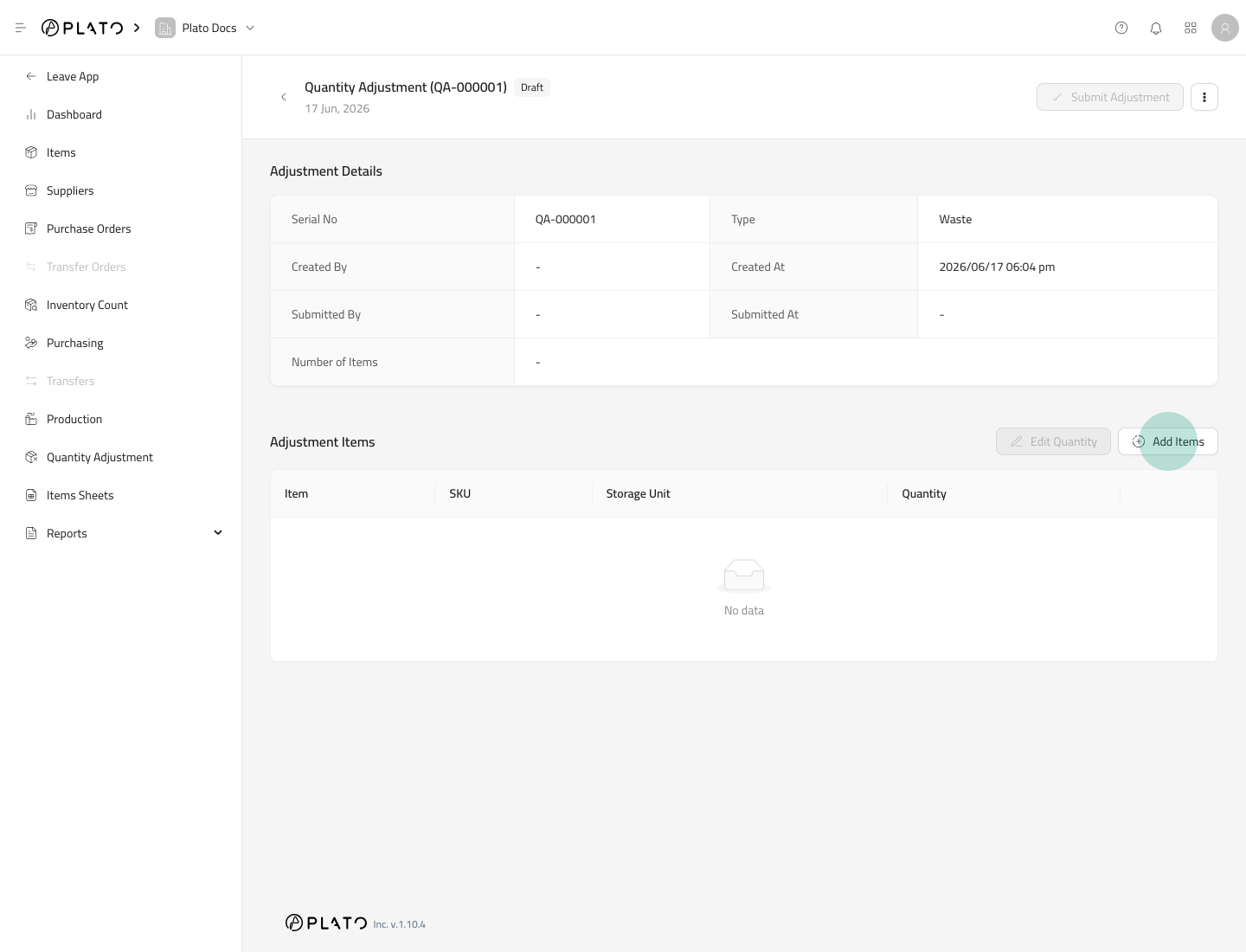 Select the items that need to be reduced.
 ## Enter Quantities
Use `Edit Quantity` after items are added.
Enter the quantity to reduce for each item.
## Submit the Adjustment
Click `Submit Adjustment` when the reason and quantities are correct.
## Enter Quantities
Use `Edit Quantity` after items are added.
Enter the quantity to reduce for each item.
## Submit the Adjustment
Click `Submit Adjustment` when the reason and quantities are correct.
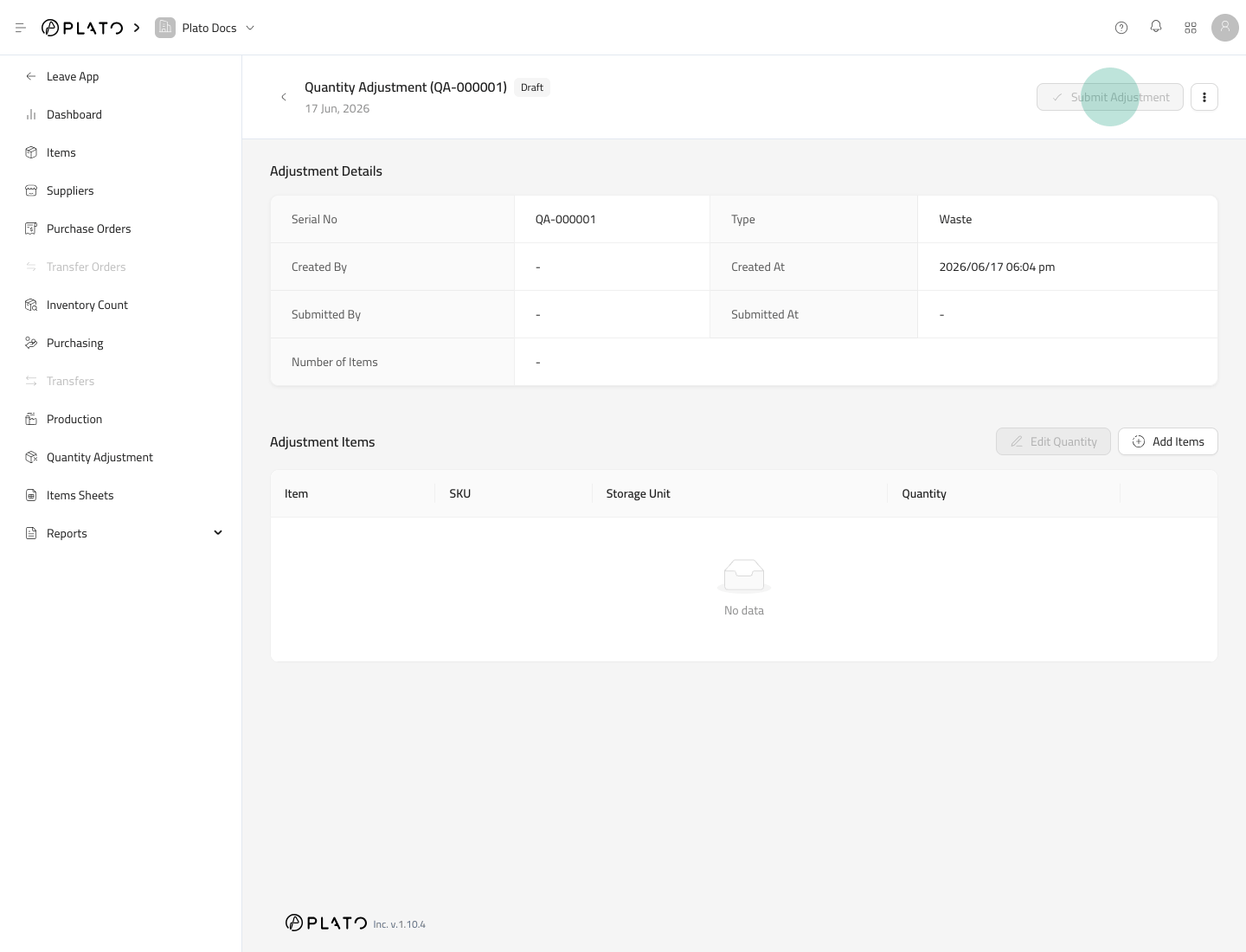 Submitting an adjustment reduces inventory and records the transaction in Inventory History.
## Choose the Right Reason
Reason labels help reports stay clear. Use the reason that matches what happened to the stock.
Submitting an adjustment reduces inventory and records the transaction in Inventory History.
## Choose the Right Reason
Reason labels help reports stay clear. Use the reason that matches what happened to the stock.