> ## Documentation Index
> Fetch the complete documentation index at: https://docs.plato.ae/llms.txt
> Use this file to discover all available pages before exploring further.
# Inventory Count
> Create a physical stock count, add items, enter counted quantities, and submit the count.
Inventory Count is used when staff physically count stock on hand.
Submitting a count resets each selected item to the counted quantity.
 ## Start a Count
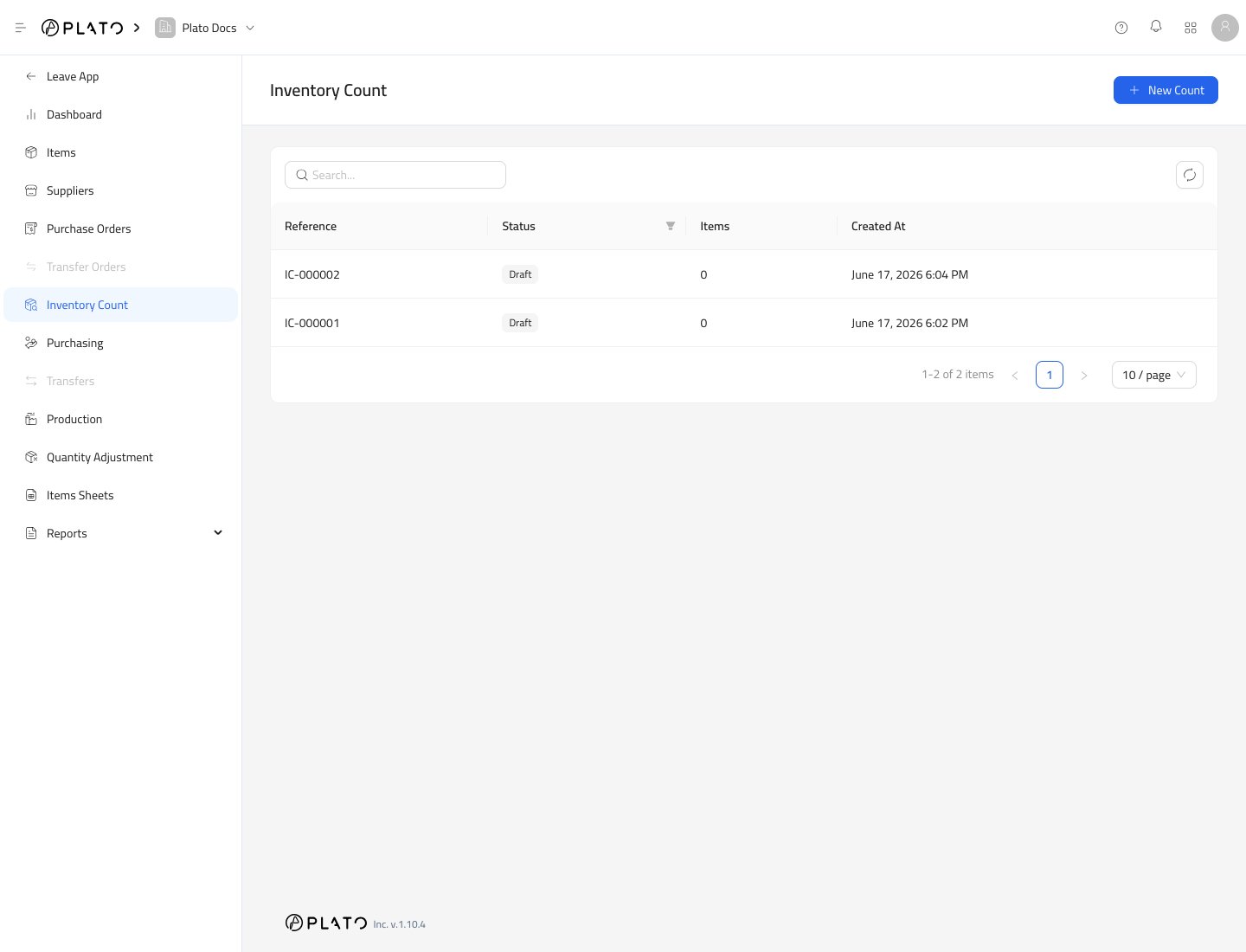
1. Open `Inventory`.
2. Go to `Inventory Count`.
3. Click `New Count`.
## Start a Count
1. Open `Inventory`.
2. Go to `Inventory Count`.
3. Click `New Count`.
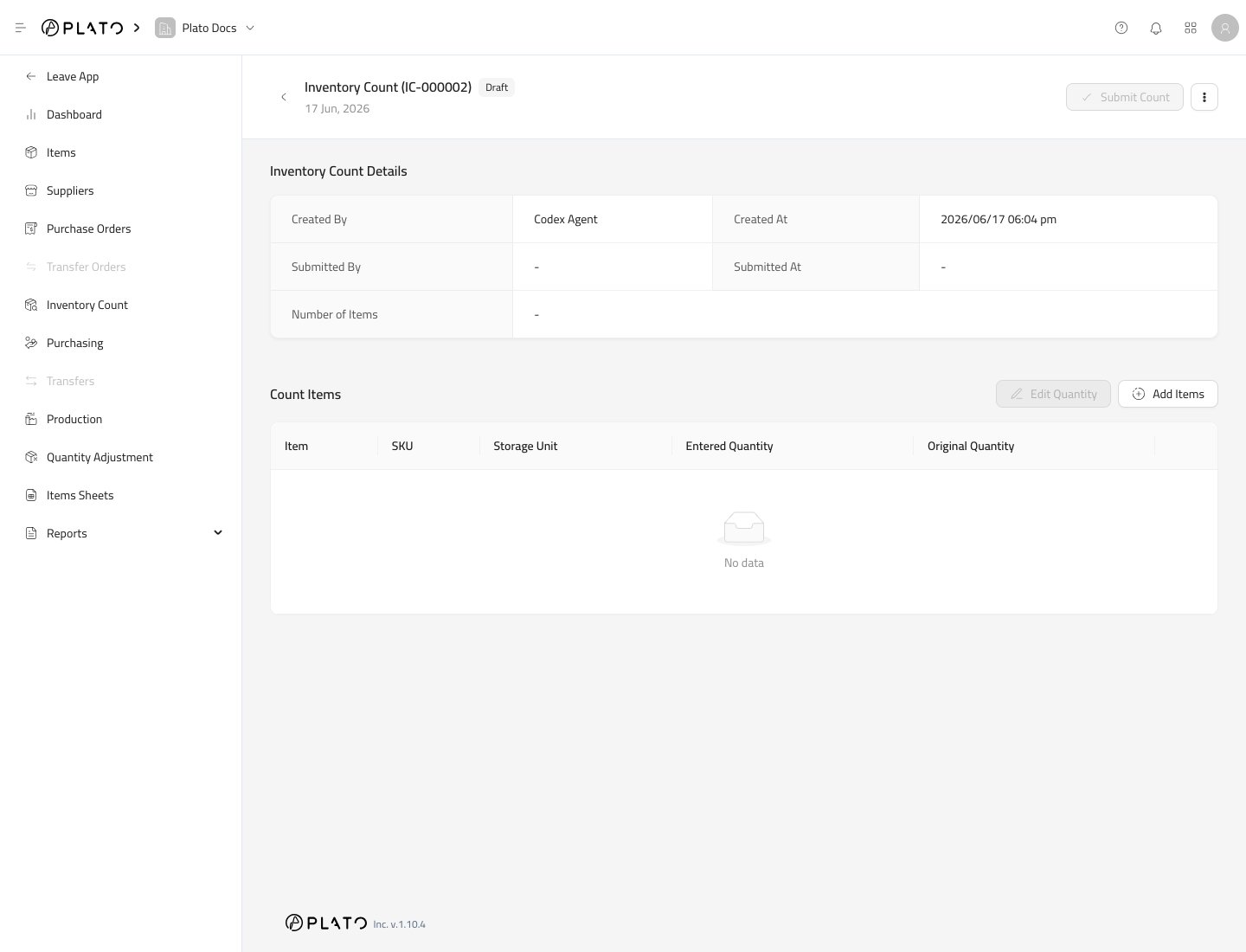
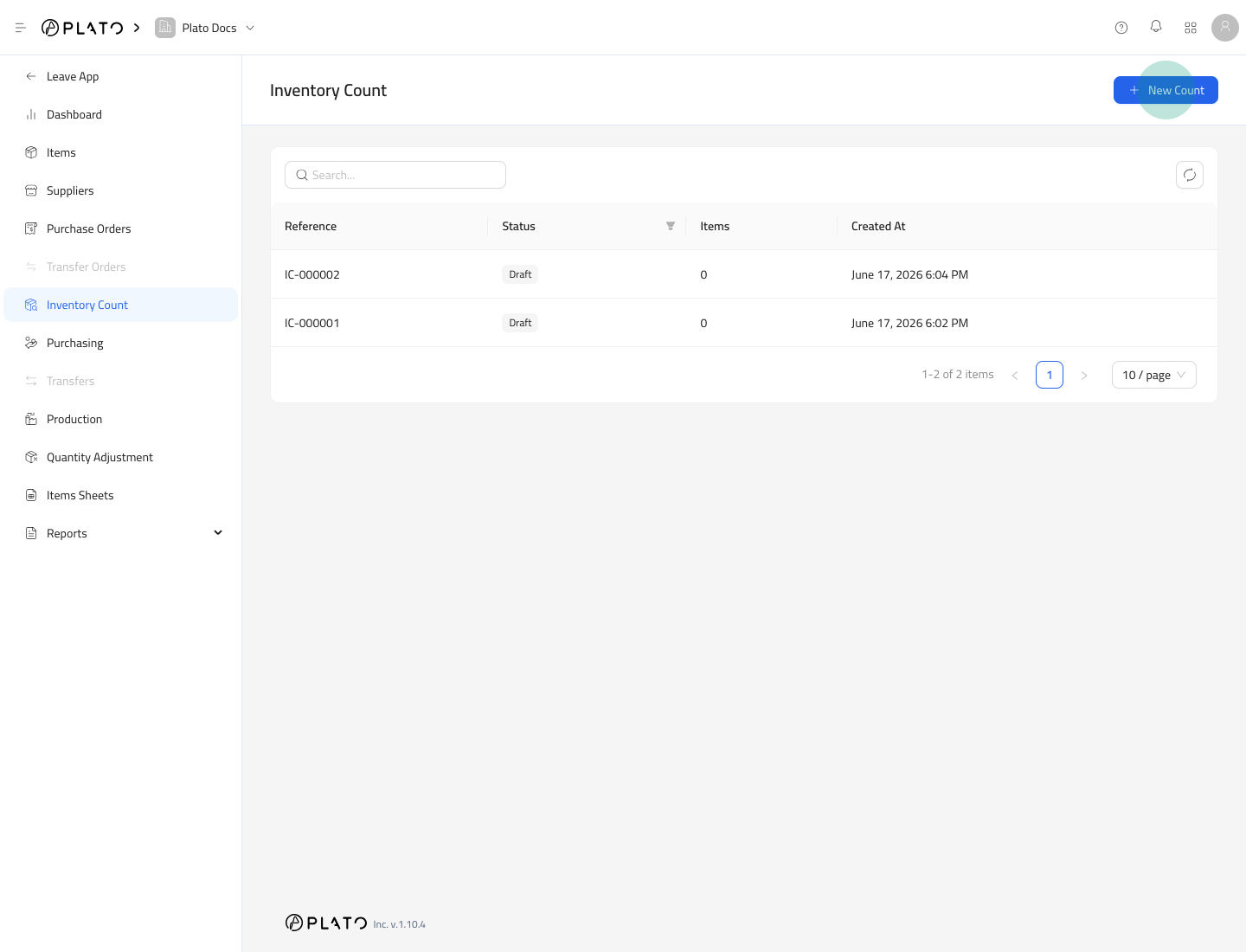 Plato creates a draft count and opens the detail page.
 ## Add Items to Count
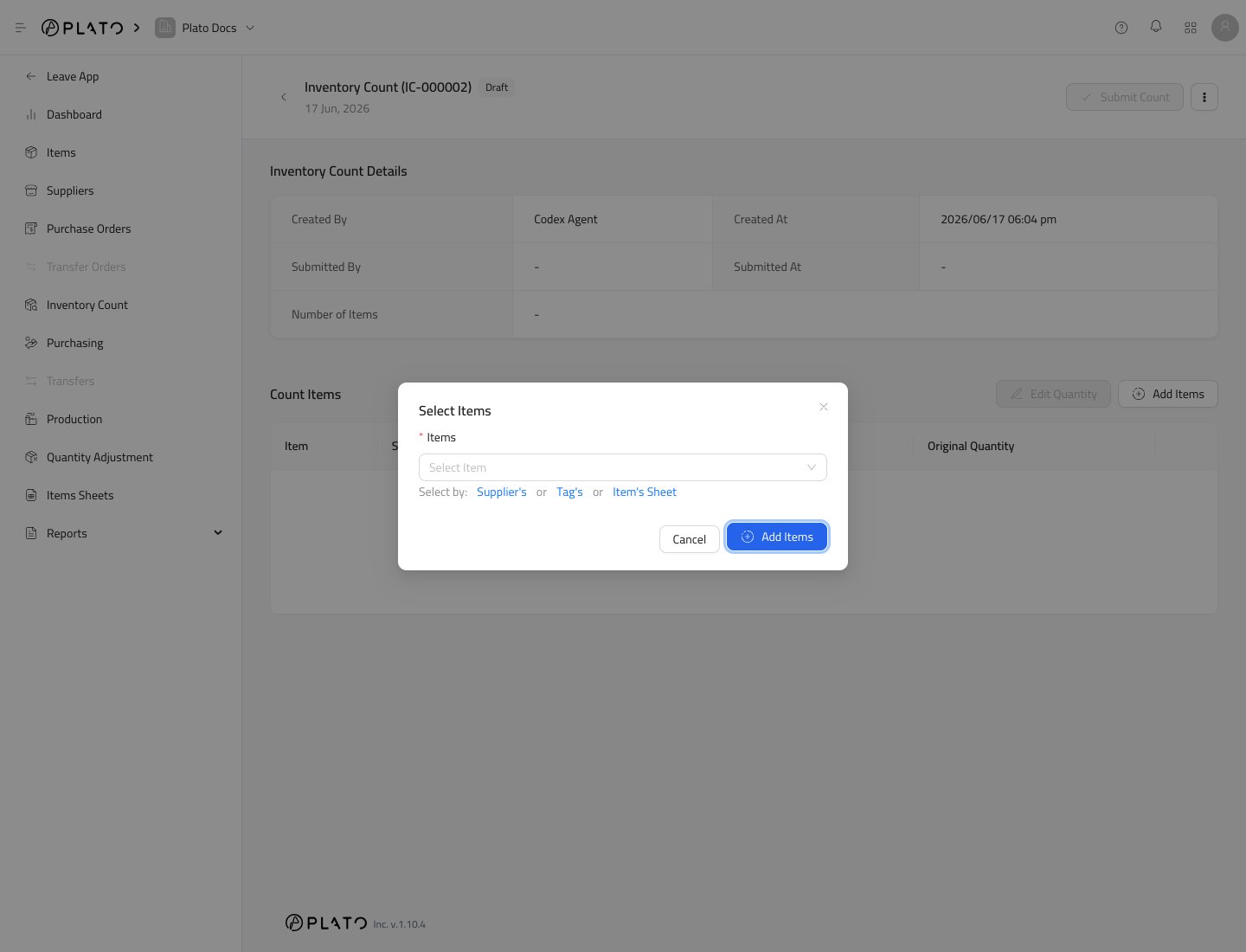
Click `Add Items`.
## Add Items to Count
Click `Add Items`.
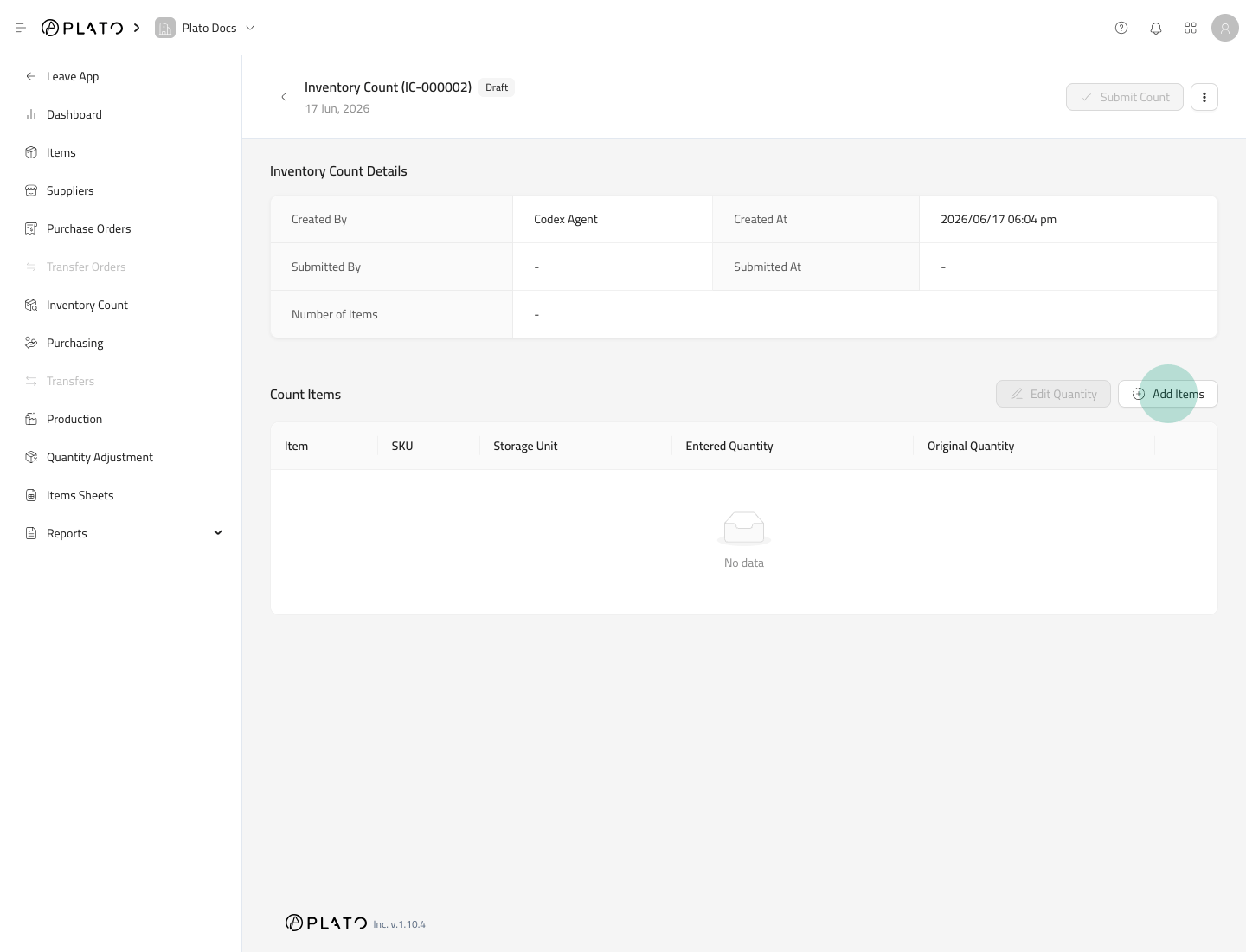 Select individual items or use a sheet when available.
 ## Enter Counted Quantities
Use `Edit Quantity` after items are added.
Enter the physical quantity counted for each item. Use the storage unit shown in the row.
## Submit the Count
When all counted quantities are correct, click `Submit Count`.
## Enter Counted Quantities
Use `Edit Quantity` after items are added.
Enter the physical quantity counted for each item. Use the storage unit shown in the row.
## Submit the Count
When all counted quantities are correct, click `Submit Count`.
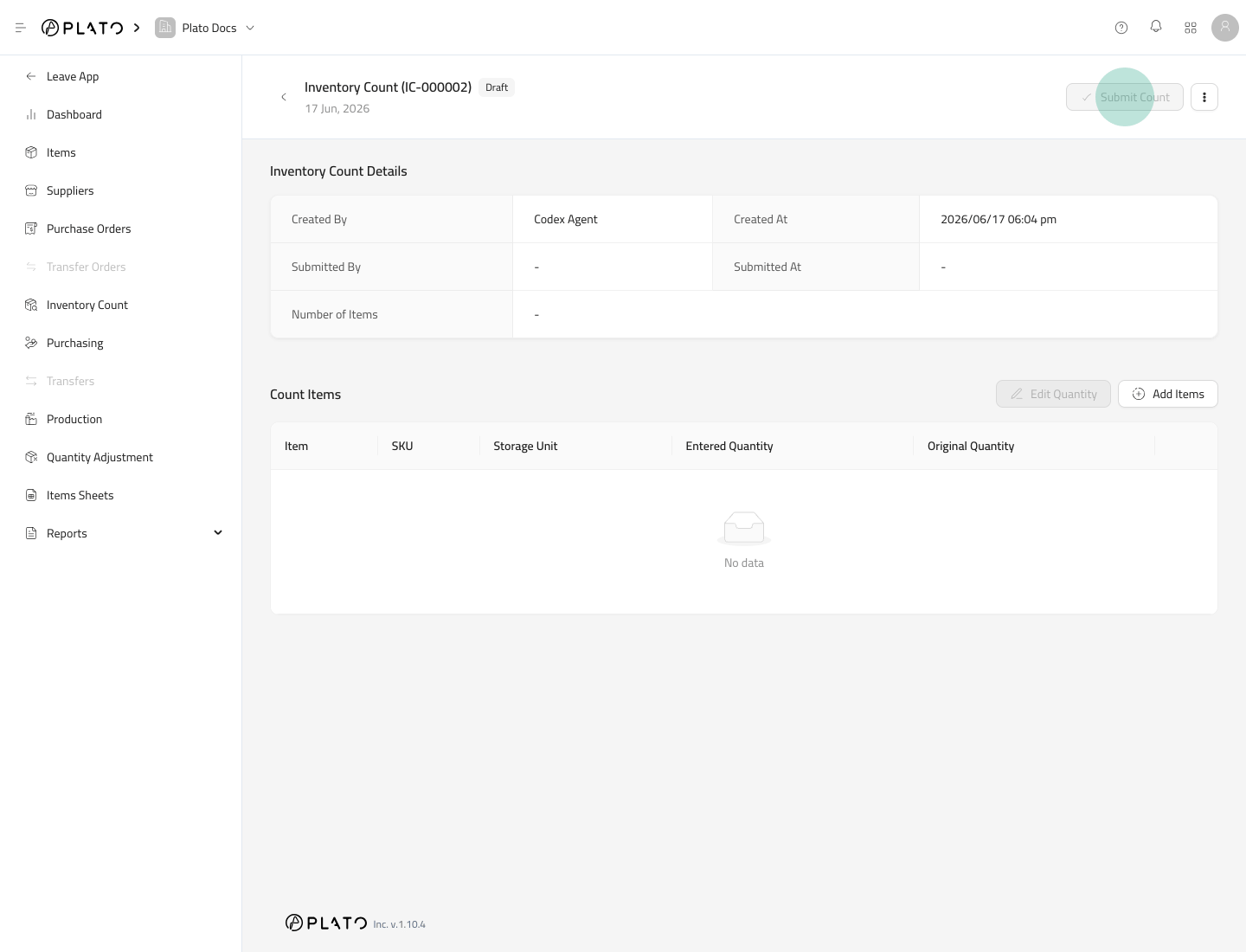 Submitting a count updates inventory levels for the selected items and records the change in Inventory History.
## Count Carefully
Only submit when the count is final. A submitted count becomes part of the stock history.
Submitting a count updates inventory levels for the selected items and records the change in Inventory History.
## Count Carefully
Only submit when the count is final. A submitted count becomes part of the stock history.