> ## Documentation Index
> Fetch the complete documentation index at: https://docs.plato.ae/llms.txt
> Use this file to discover all available pages before exploring further.
# Purchase Orders
> Create supplier purchase orders, add requested items, review totals, and prepare receiving.
Purchase Orders help your team prepare an order before stock arrives.
Use a purchase order when you want to request items from a supplier, review what was ordered, and later receive the stock through Purchasing.
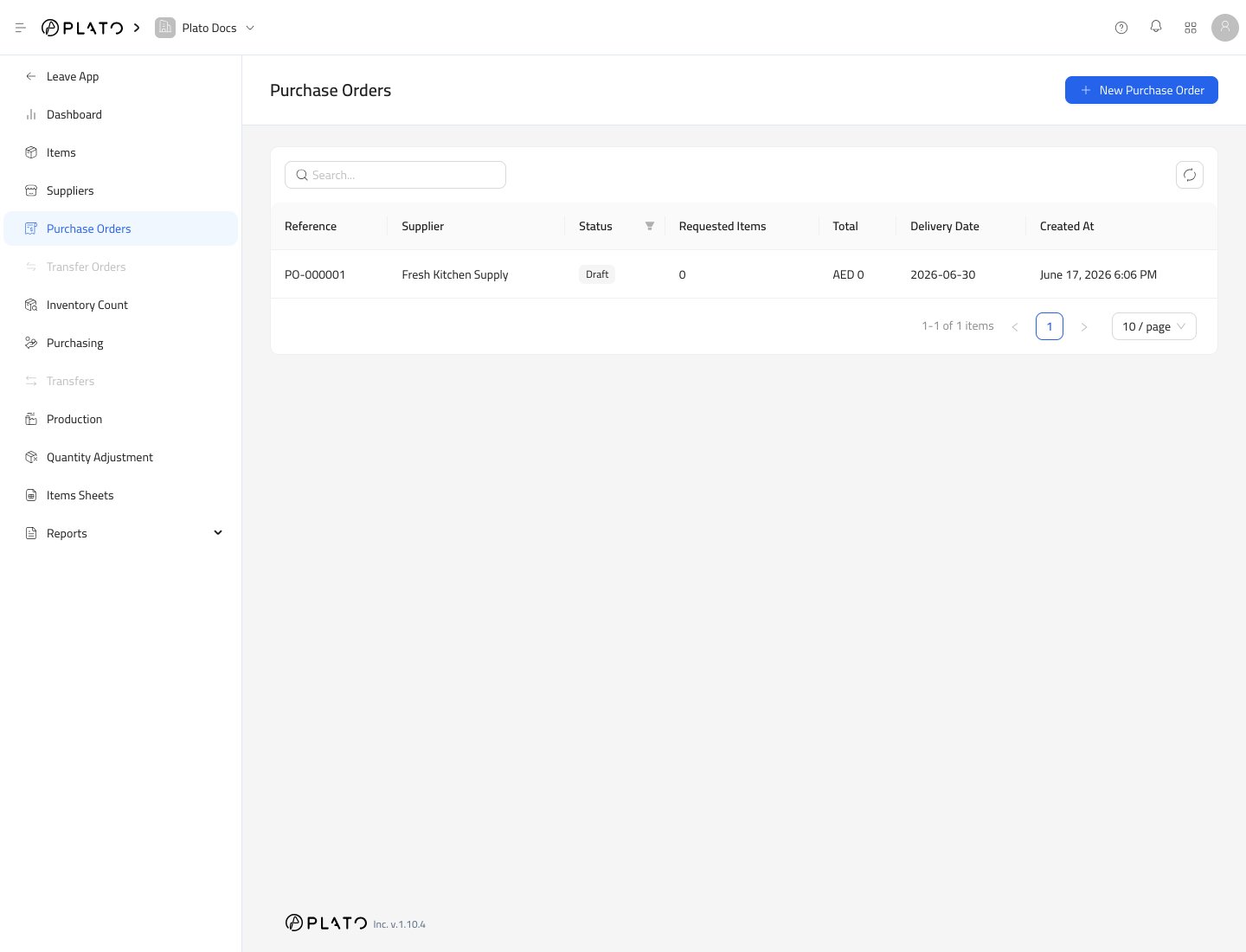 ## Create a Purchase Order
1. Open `Inventory`.
2. Go to `Purchase Orders`.
3. Click `New Purchase Order`.
## Create a Purchase Order
1. Open `Inventory`.
2. Go to `Purchase Orders`.
3. Click `New Purchase Order`.
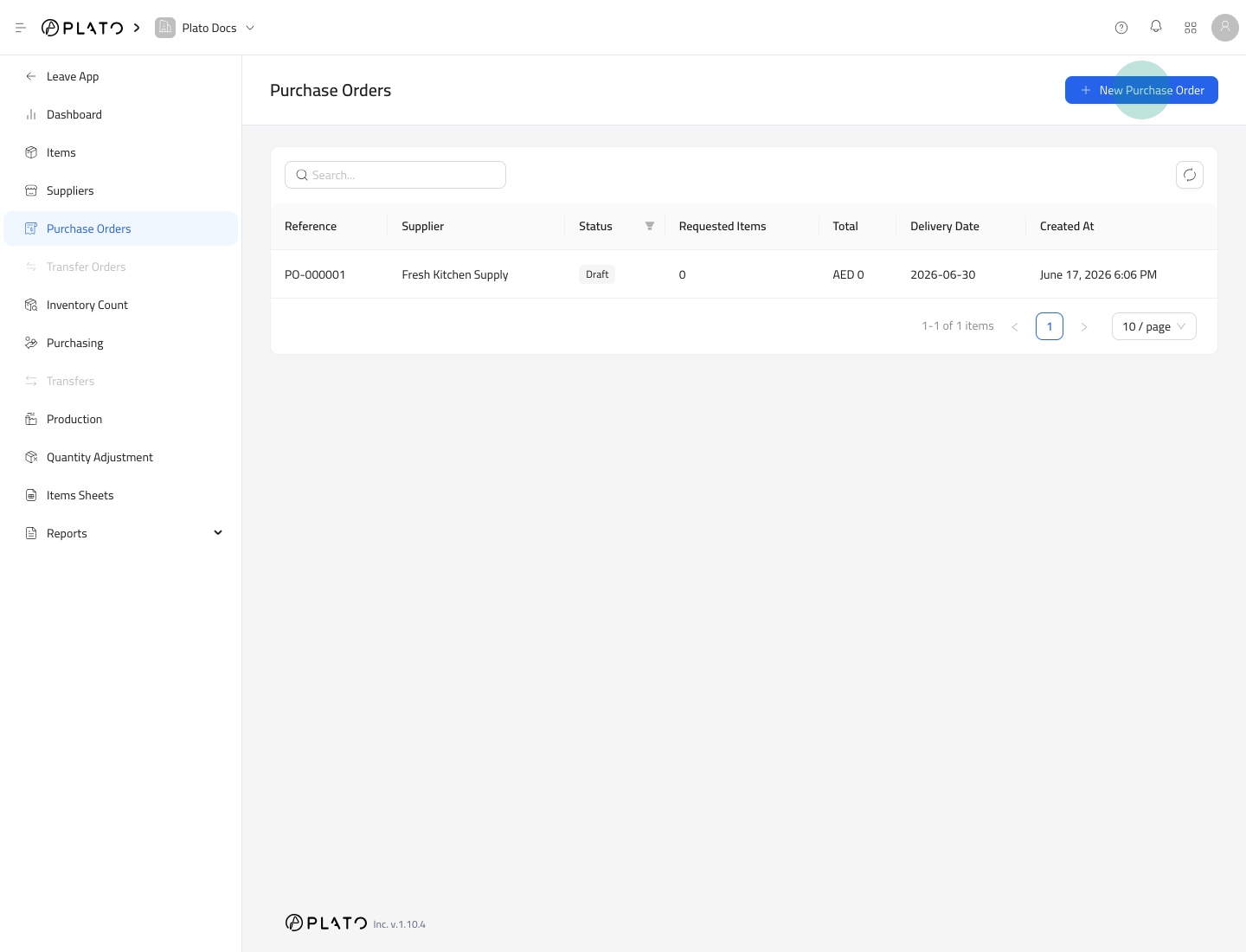 4. Choose the supplier.
5. Set the due date.
6. Add notes if needed.
7. Click `Continue`.
4. Choose the supplier.
5. Set the due date.
6. Add notes if needed.
7. Click `Continue`.
 ## Review the Draft
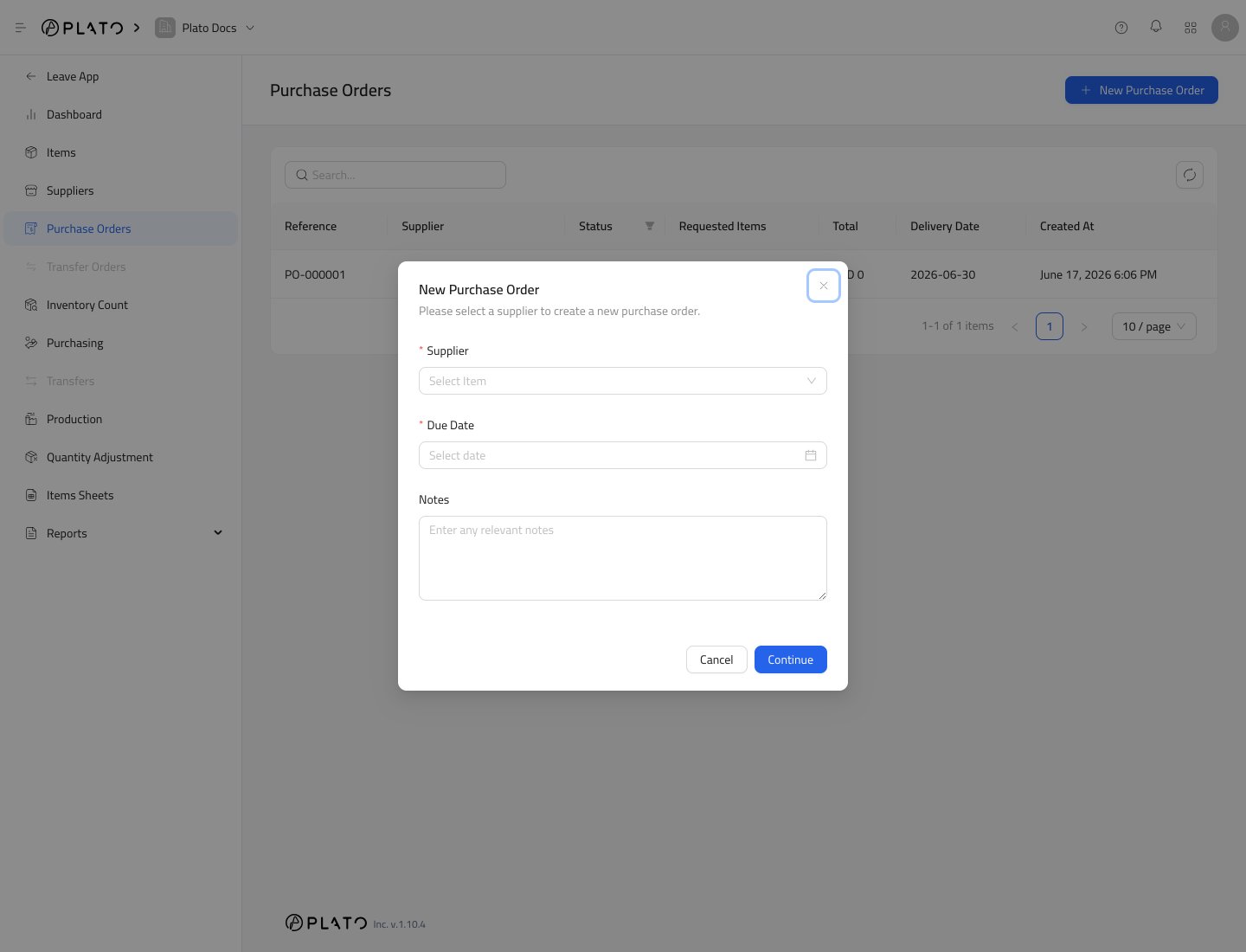
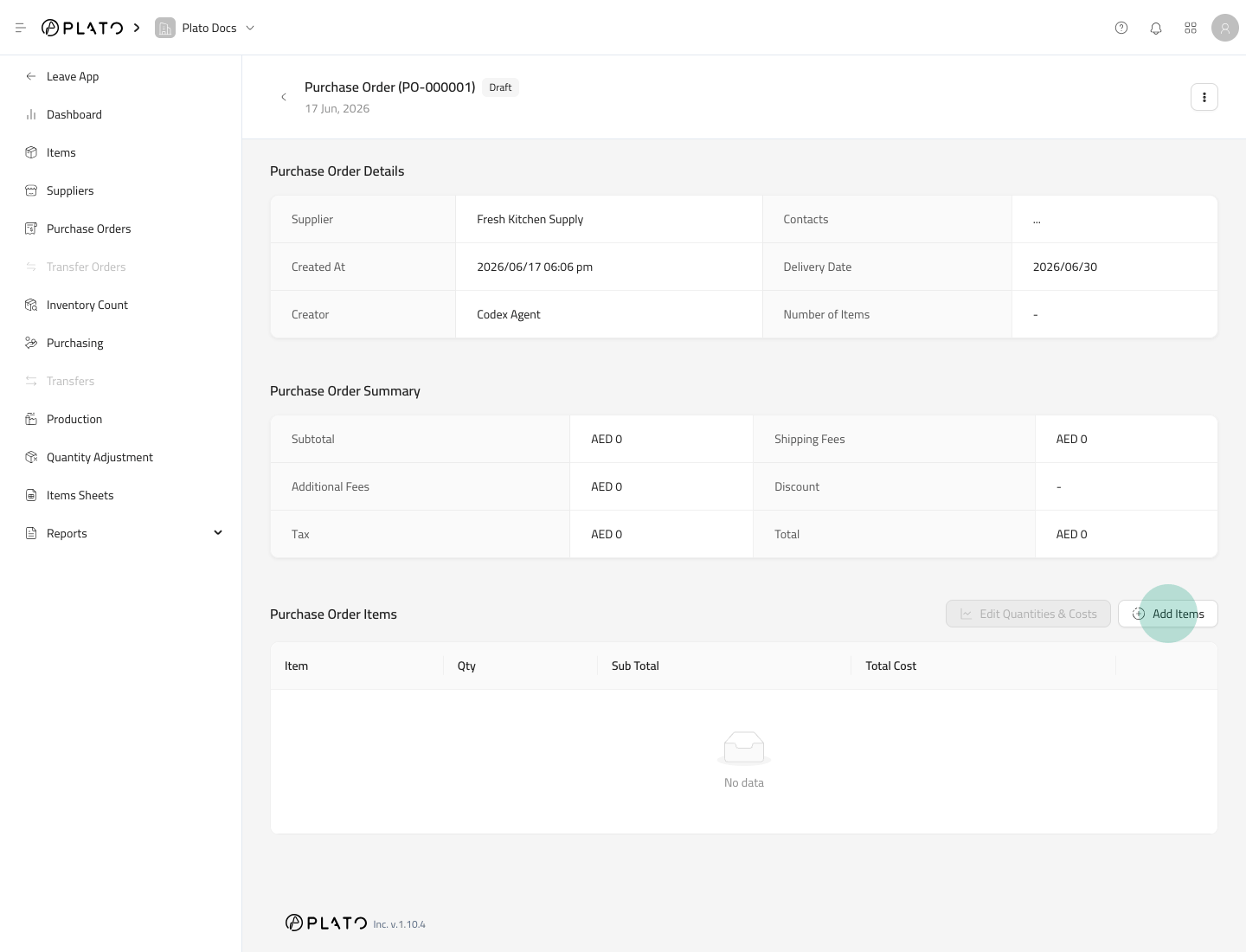
The purchase order detail page shows the supplier, delivery date, creator, item count, and summary totals.
## Review the Draft
The purchase order detail page shows the supplier, delivery date, creator, item count, and summary totals.
 ## Add Requested Items
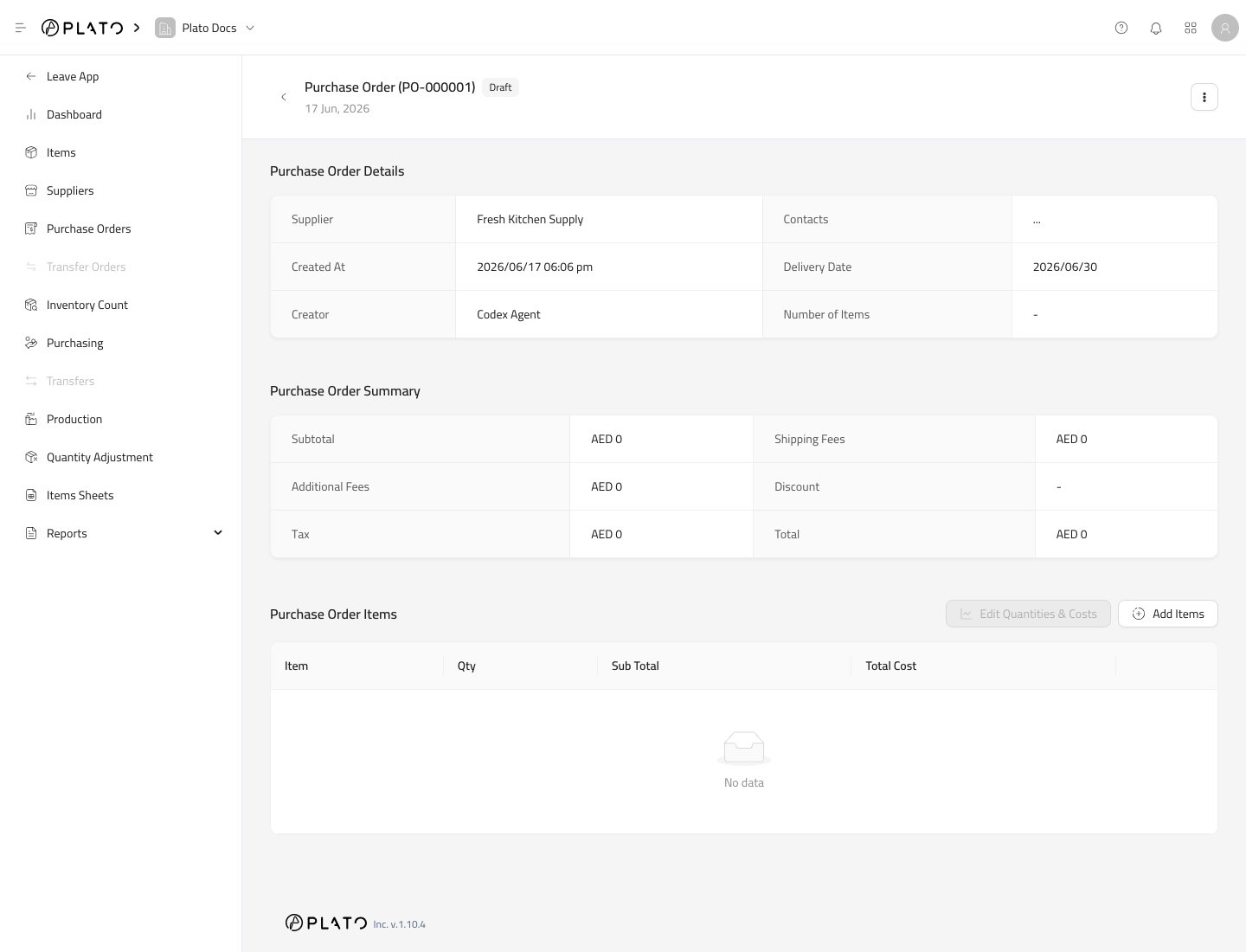
1. Click `Add Items`.
## Add Requested Items
1. Click `Add Items`.
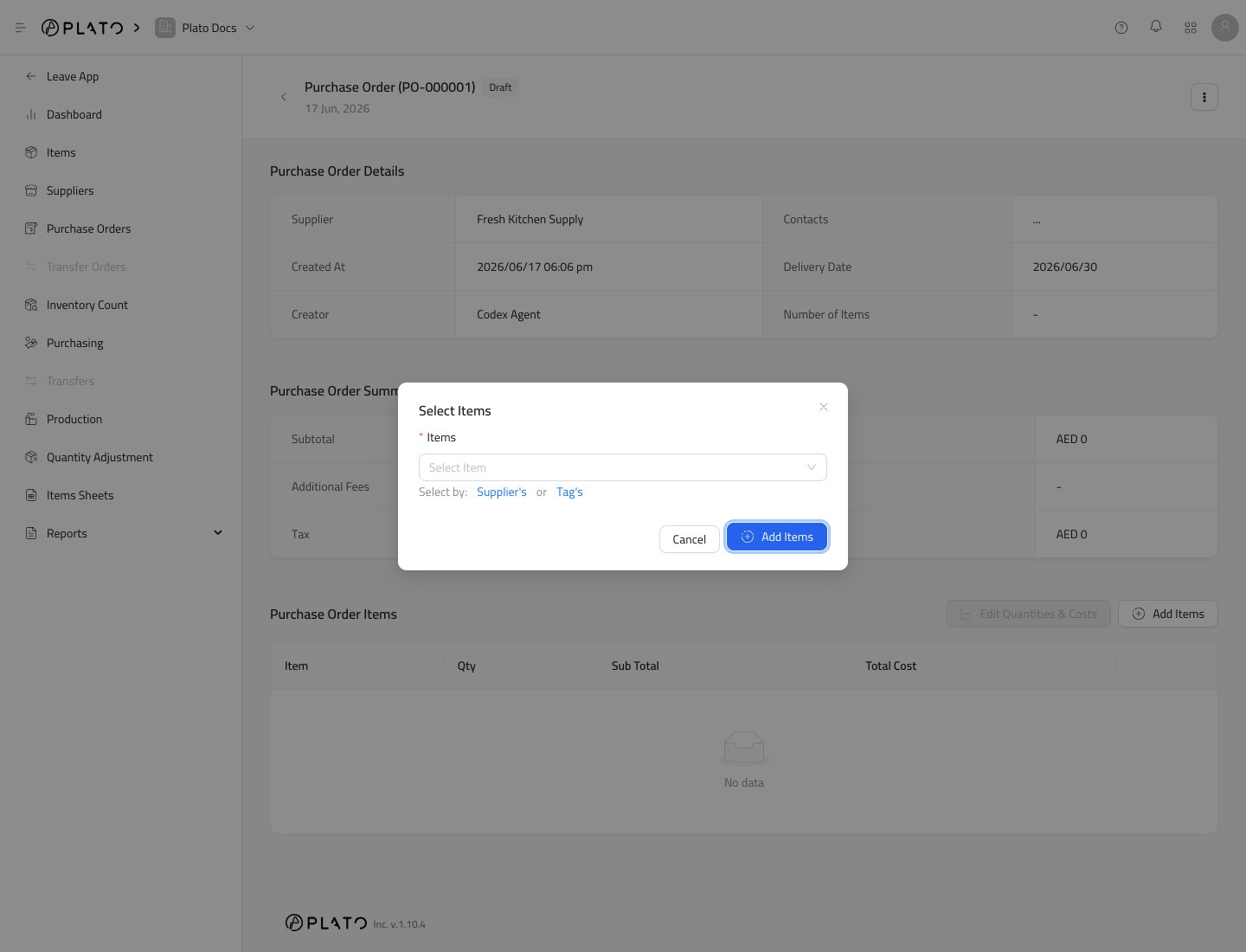
 2. Select the items you want to order.
3. Click `Add Items`.
2. Select the items you want to order.
3. Click `Add Items`.
 ## Edit Quantities and Costs
After items are added, use `Edit Quantities & Costs` to confirm quantity and cost for each line.
Check the unit carefully. Supplier links can help Plato show the supplier order unit and convert it to the item's storage unit.
## What Happens Next
A purchase order prepares the request. It does not add stock by itself.
Stock is added when the items are received through Purchasing.
## Edit Quantities and Costs
After items are added, use `Edit Quantities & Costs` to confirm quantity and cost for each line.
Check the unit carefully. Supplier links can help Plato show the supplier order unit and convert it to the item's storage unit.
## What Happens Next
A purchase order prepares the request. It does not add stock by itself.
Stock is added when the items are received through Purchasing.