> ## Documentation Index
> Fetch the complete documentation index at: https://docs.plato.ae/llms.txt
> Use this file to discover all available pages before exploring further.
# Items
> Review inventory items, stock status, units, suppliers, and item actions.
Items is the main catalog for everything you track in Inventory.
 ## What the Items List Shows
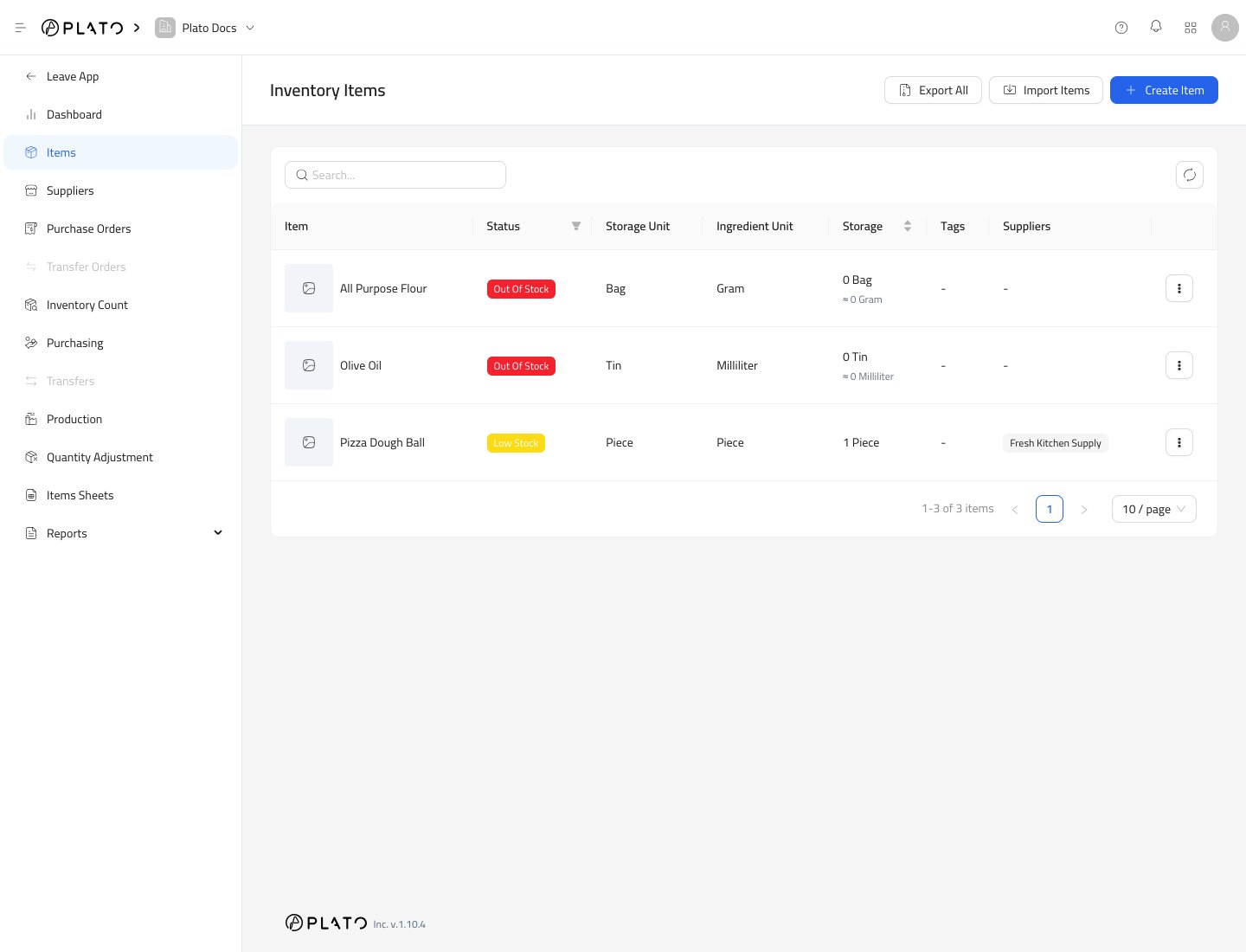
Each row shows the item name, stock status, storage unit, ingredient unit, current stock, tags, suppliers, and row actions.
Use the list to answer practical questions:
* Is this item out of stock or low stock?
* Which unit is used for storage?
* Which unit is used for recipes or consumption?
* Is the item linked to a supplier?
* Do I need to edit the item setup?
## Stock Status
Plato labels an item based on its current stock and minimum level:
* `Out Of Stock` means the current stock is zero.
* `Low Stock` means stock exists but is below the minimum level.
* Items above the minimum level do not need an alert label.
## Search and Filter
Use the search field to find items by name or SKU.
Use the status filter when you only want to review out-of-stock or low-stock items.
## Row Actions
Open the row action menu when you need to edit or delete an item.
## What the Items List Shows
Each row shows the item name, stock status, storage unit, ingredient unit, current stock, tags, suppliers, and row actions.
Use the list to answer practical questions:
* Is this item out of stock or low stock?
* Which unit is used for storage?
* Which unit is used for recipes or consumption?
* Is the item linked to a supplier?
* Do I need to edit the item setup?
## Stock Status
Plato labels an item based on its current stock and minimum level:
* `Out Of Stock` means the current stock is zero.
* `Low Stock` means stock exists but is below the minimum level.
* Items above the minimum level do not need an alert label.
## Search and Filter
Use the search field to find items by name or SKU.
Use the status filter when you only want to review out-of-stock or low-stock items.
## Row Actions
Open the row action menu when you need to edit or delete an item.
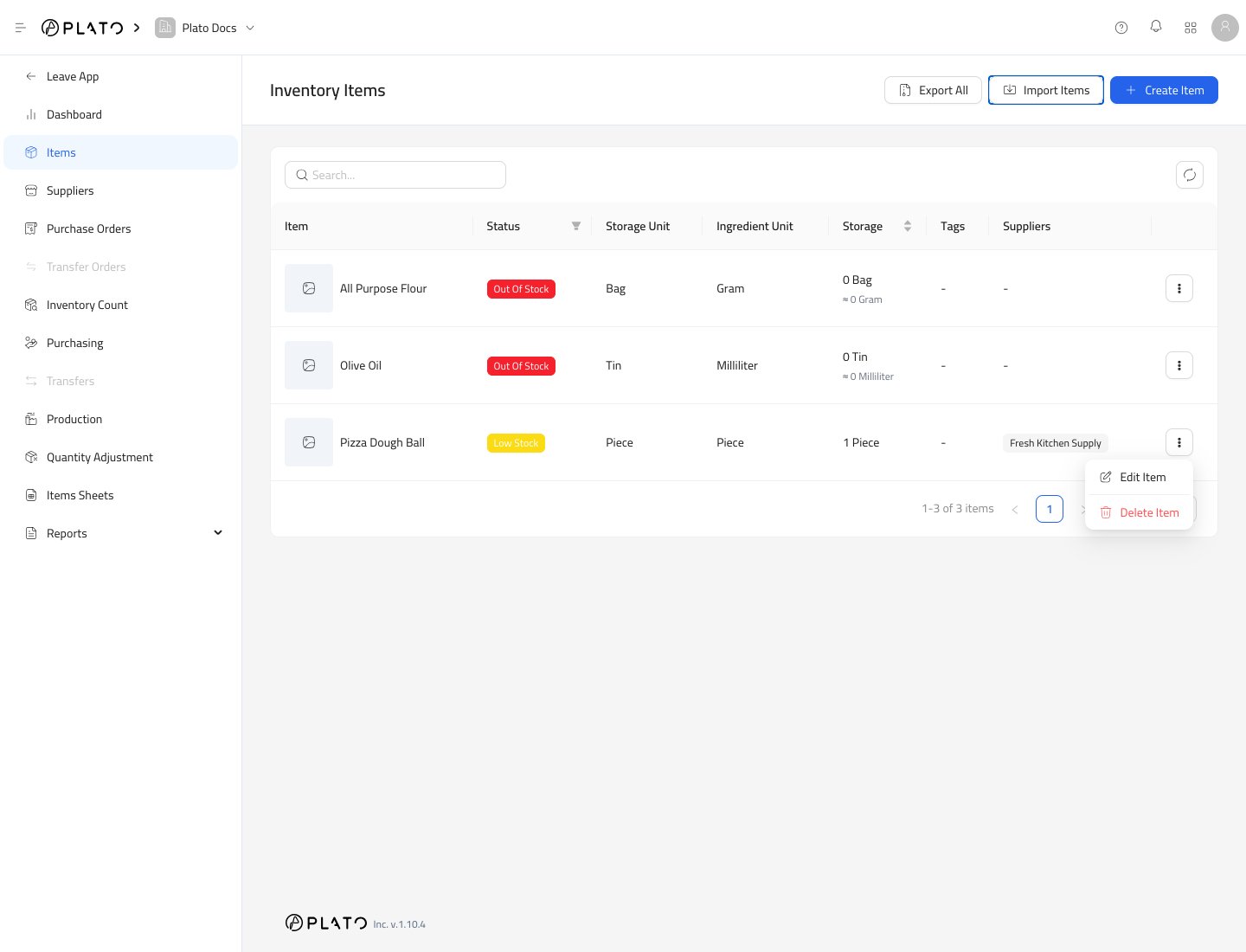
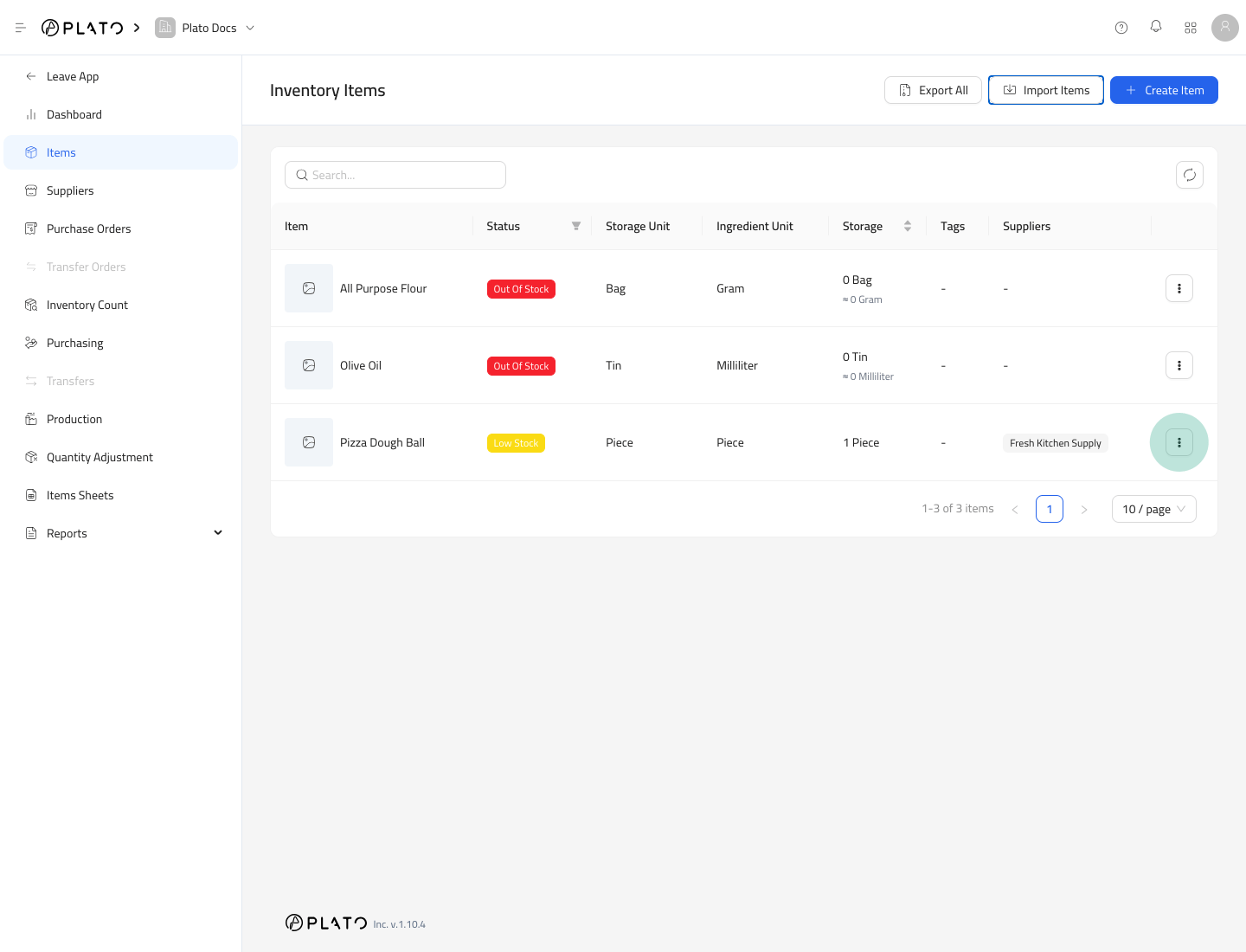 The menu opens item actions for that row.
 ## Next Steps
After items exist, continue with:
* [Add or Edit an Item](/inventory/catalog/add-or-edit-item)
* [Suppliers](/inventory/catalog/suppliers)
* [Link Suppliers and Item Costs](/inventory/catalog/link-suppliers-to-items)
* [Consumption and Formulas](/inventory/catalog/consumption-and-formulas)
## Next Steps
After items exist, continue with:
* [Add or Edit an Item](/inventory/catalog/add-or-edit-item)
* [Suppliers](/inventory/catalog/suppliers)
* [Link Suppliers and Item Costs](/inventory/catalog/link-suppliers-to-items)
* [Consumption and Formulas](/inventory/catalog/consumption-and-formulas)